
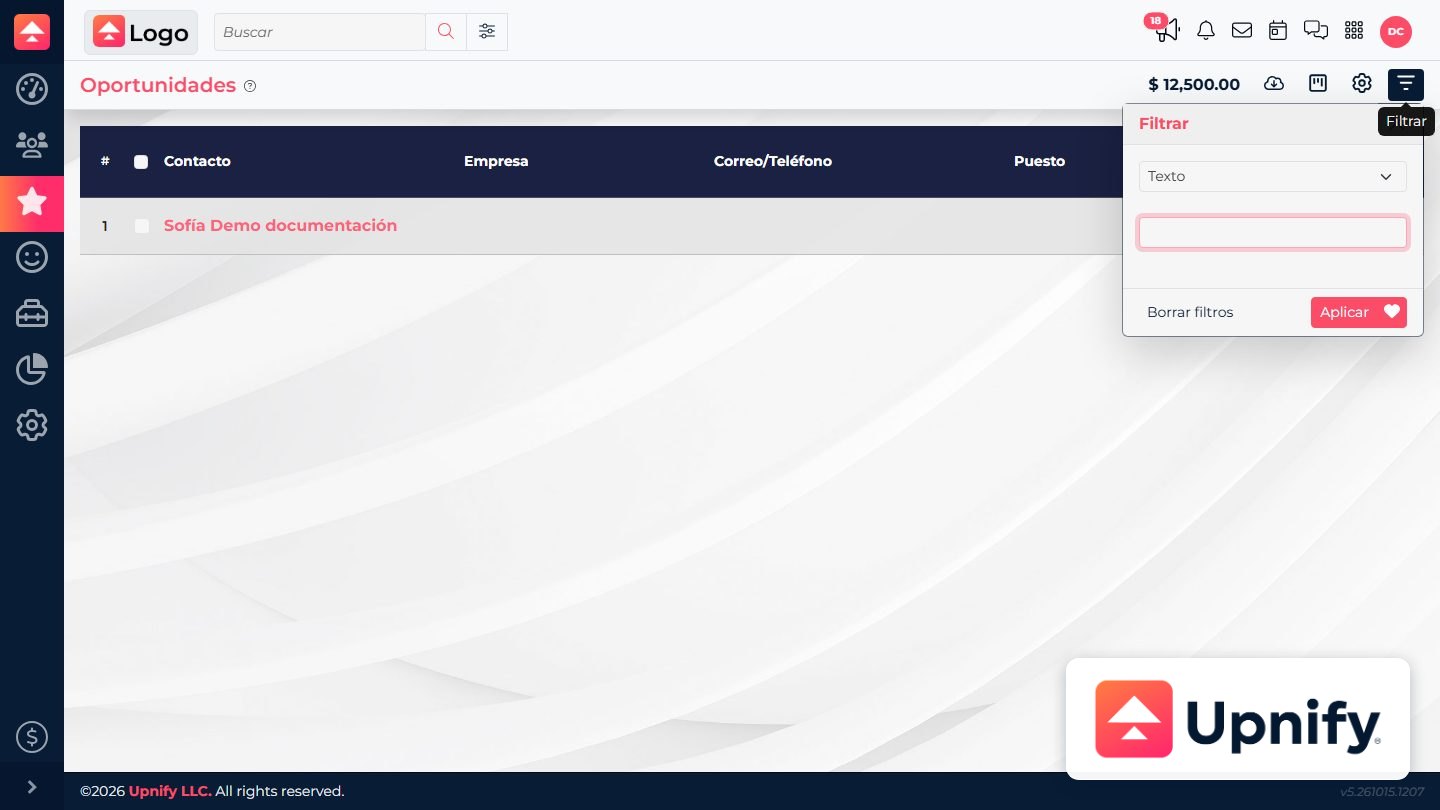
CRM lists can contain many contacts and opportunities. To find the right record, start with the correct section. Then use the Text criterion for a quick search or more specific filters to narrow the results. Sorting and pagination help you review the list once you have the right set of records.
Choose how to narrow the list
| Tool | When to use it |
|---|---|
| Text | When you have a name, concept, or another word to find matching text in the selected list. |
| Criteria filters | When you need to narrow by information such as phase, executive, team, origin, label, or date, depending on the section. |
| Sorting and pages | When you already have results and want to organize them by a column or review more pages. |
Search or filter for a record
- Open the right list: Prospects for contacts in progress, Opportunities for potential deals, or Customers for contacts with that sales relationship. Available criteria can differ by list.
- Select Filter in the header. A panel opens with the criteria available for that section.
- Choose Text to find a text match. If you are looking for a specific condition, select the matching criterion, such as phase or executive.
- Enter or select a value and select Apply. The table will show records that match the active filters. If the screen lets you add more than one criterion, you can use them to narrow the results further.
- Remove criteria you no longer need or select Clear filters to return to the full list for that section.
The screenshots show the Spanish-language interface; labels may differ in your account.
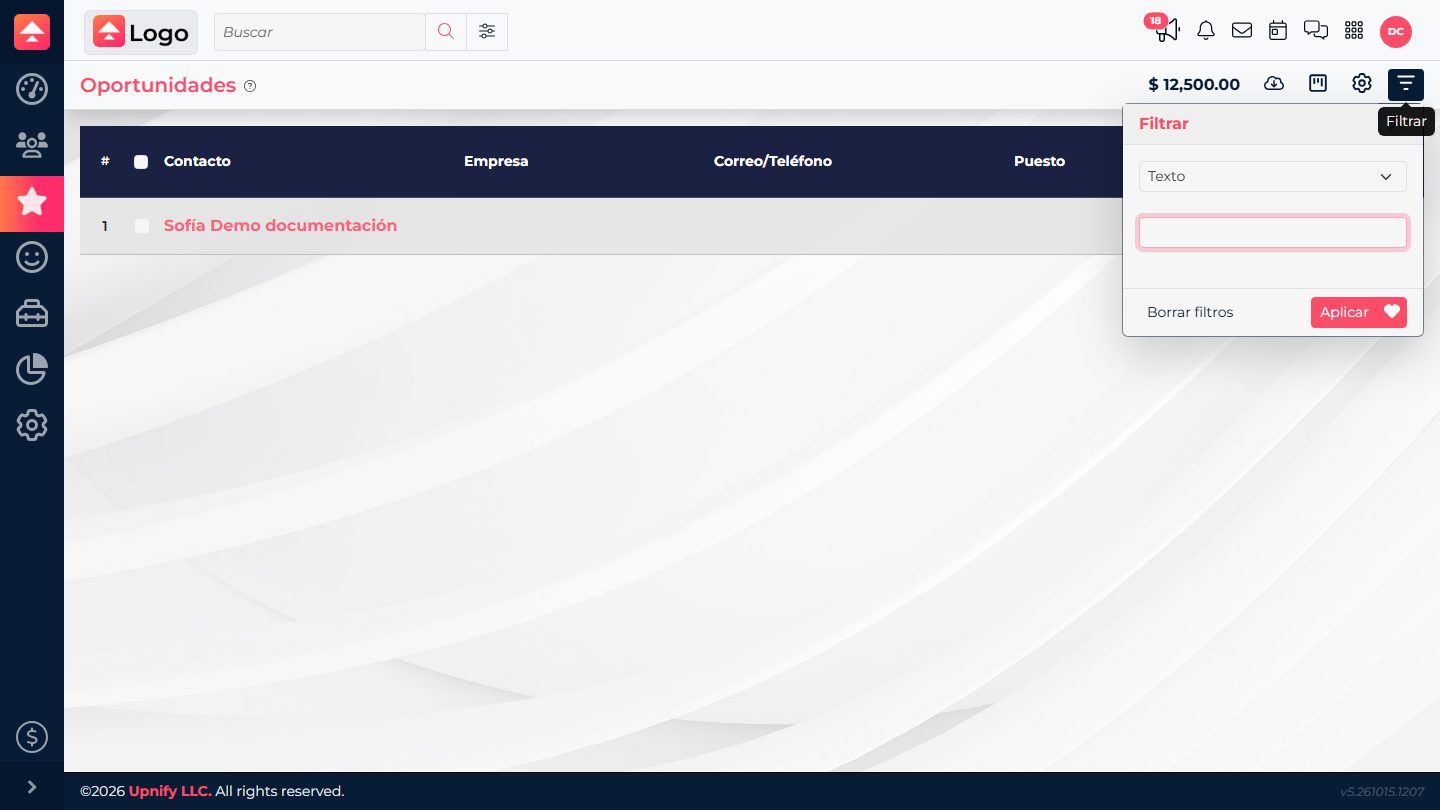
Sort and move through results
Once the list shows the records you need, select a sortable column heading to organize them by that value. Not every column can be sorted. If there are more results than fit on one page, use the pagination controls at the bottom to move forward or back.
For example, to review recent opportunities, open the Opportunities list, filter by information you know, then sort by an available date column if it supports sorting. Select a record to open its details and confirm it is the right deal.
If the record does not appear
- Confirm that you opened the right section and that the search text is spelled correctly.
- Select Clear filters, then reapply one criterion at a time to see which one narrows the results.
- Check the record status and criteria such as executive, team, origin, or date.
- Your permissions may limit which records you can view. If you are unsure, ask your account administrator before creating a duplicate.