

The official Upnify Connect mobile app lets you handle conversations and check their context from your phone. Download it from Google Play or the App Store. Sign in with the Upnify account linked to your company and confirm that your user has access to Connect.
Download the Upnify Connect mobile app


The app helps you follow up when you are away from your computer: review the inbox, reply, check history, and coordinate service according to your account permissions and company settings.
Sign in and check access
- Install Upnify Connect from your device\u2019s official store. Confirm that the developer is UPNIFY, LLC.
- Open the app and sign in with your Upnify credentials. If your user belongs to more than one company, choose the company where Connect is enabled.
- If the product or inbox is missing, ask your administrator to confirm that your user has Connect access and that the account is active.
- Review conversations assigned or visible to your profile. Connecting a channel does not mean every user can see or reply to every conversation; distribution rules and permissions control access.
Configure notifications
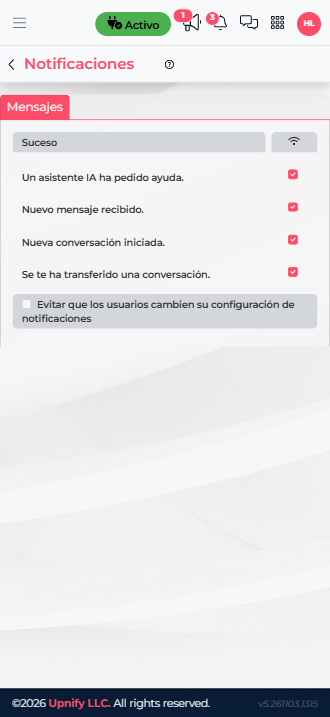
Notifications depend on two levels: Connect settings and phone permissions. In Connect, open Settings > Notifications and review events such as a new message, a conversation starting, a transfer, or an AI assistant asking for help. If your company has locked individual changes, an administrator must review the settings.
If alerts do not arrive
- In your phone settings, allow notifications for Upnify Connect. Also check Do Not Disturb or Focus mode.
- Confirm the app has an Internet connection and that the operating system is not restricting its background activity because of battery or data saving.
- In Connect, confirm that the relevant event is enabled. If the company has locked the controls, ask an administrator to review them.
- Check that the conversation is assigned to you or to a team you belong to. A conversation outside your scope may not trigger the expected alert.
- Update the app and sign in again. If the problem continues, note your phone model, operating system, app version, and the missing notification type before contacting support.
If you cannot sign in
Check that you are using the correct Upnify credentials, chose the right company, and were not signed out for security reasons. If your organization uses two-step verification, complete the second step. If you forgot your password, recover it through Upnify\u2019s official sign-in flow and then sign in to Connect again. If web access works but mobile access does not, update or reinstall the app and try again; do not share verification codes with other people.
If you can sign in but cannot see conversations, ask your administrator about permissions, enabled channels, and assignment rules.