

Upnify Connect notifications help agents notice changes that need attention. They can alert you when a conversation starts, a message arrives, a case is transferred, or an AI assistant needs human help.
Notifications are not routing. An alert tells you something happened; distribution rules decide who receives or handles a conversation.
Where to configure them
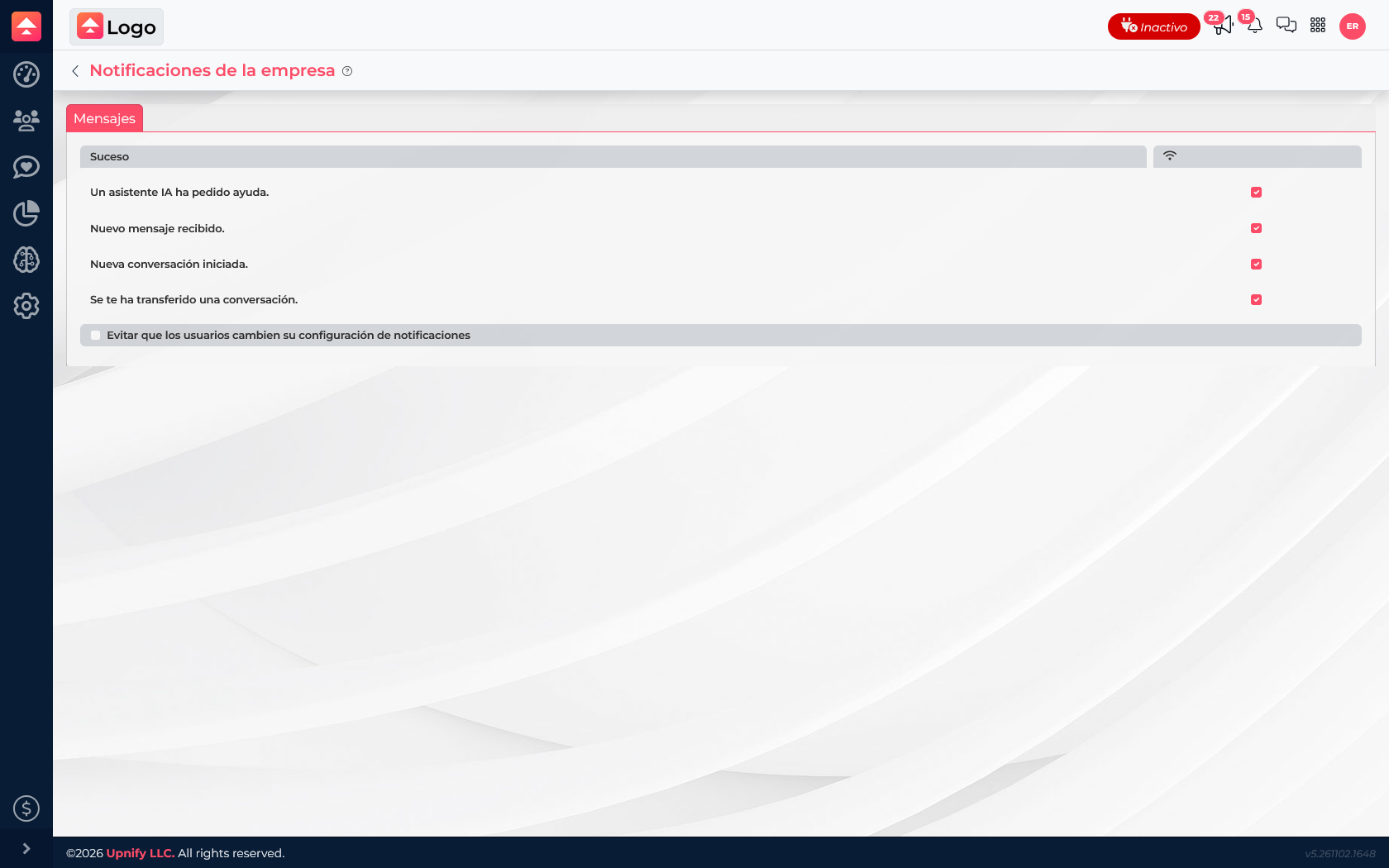
In Connect, open Settings > Notifications. If you administer the company, review the control at the bottom that prevents users from changing individual settings. It helps enforce one policy when the whole team must use the same preferences.
What each alert means
- An AI assistant requested help: a person needs to review or continue the support.
- New message received: someone replied in an existing conversation.
- New conversation started: a new thread began on a connected channel.
- A conversation was transferred to you: another agent or a rule handed the follow-up to you.
Choose your alerts
- Go to Connect > Settings > Notifications and review the available events.
- Enable alerts that fit your role. An agent may prioritize new messages and transfers; someone supervising assistants may also need help requests.
- If individual preferences are allowed, each agent can adjust them. If the administrator locks personal changes, settings remain centralized.
- Confirm the change on screen. This preference is separate from funnel stages and conversation assignment rules.
Example: Ana handles sales and Luis supervises the assistant. Ana enables messages and transfers; Luis also enables help requests. Each receives useful alerts for their role.
If an expected alert does not arrive, confirm that the event is enabled and company policy allows personal changes. Then review browser or device preferences and the notification channel available in your session.