

Distribution rules direct new conversations to the right team without requiring someone to choose an agent manually each time. Each rule defines the channel, assignment method, participating agents, and schedule.
Create or edit a rule
- Open Settings ? Distribution Rules and select New or edit an existing rule.
- Under General, enter a descriptive name and choose a channel.
- Under Conversation funnel and phase, define the assignment criterion and phases to consider.
- Select the agents who will handle the conversations. If you organized people into groups first, it is easier to select the right participants.
- Review the conditions and activate the rule.
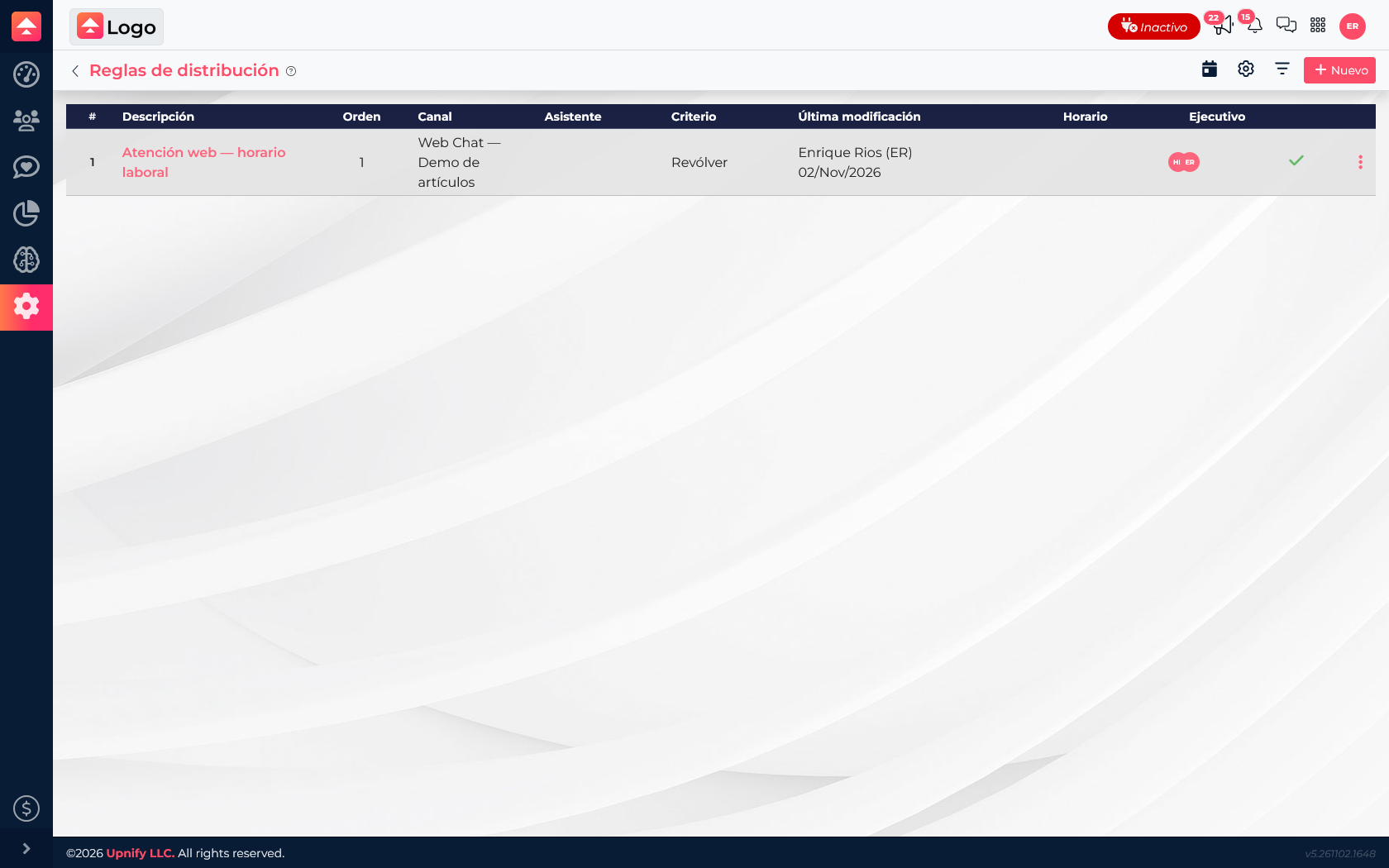
Choose a criterion
| Criterion | How it works | Example |
|---|---|---|
| Round robin (Revólver) | Takes turns assigning conversations among selected agents. | Two agents share inquiries arriving through Web Chat. |
| CRM contact owner relationship | Considers the CRM owner when the conversation is linked to that contact. | An existing customer can continue with the person who manages the account. |
If several rules can apply to the same channel, review their order and use the controls to arrange priority. Put the more specific rule first and avoid duplicate criteria that compete for the same conversations.
Set schedules and availability
Open Service schedules and enable Schedules. You can use the rule all day or limit it to a time range. For a range, set the start and end times, GMT time zone, and days of the week. Carefully confirm which days are selected.
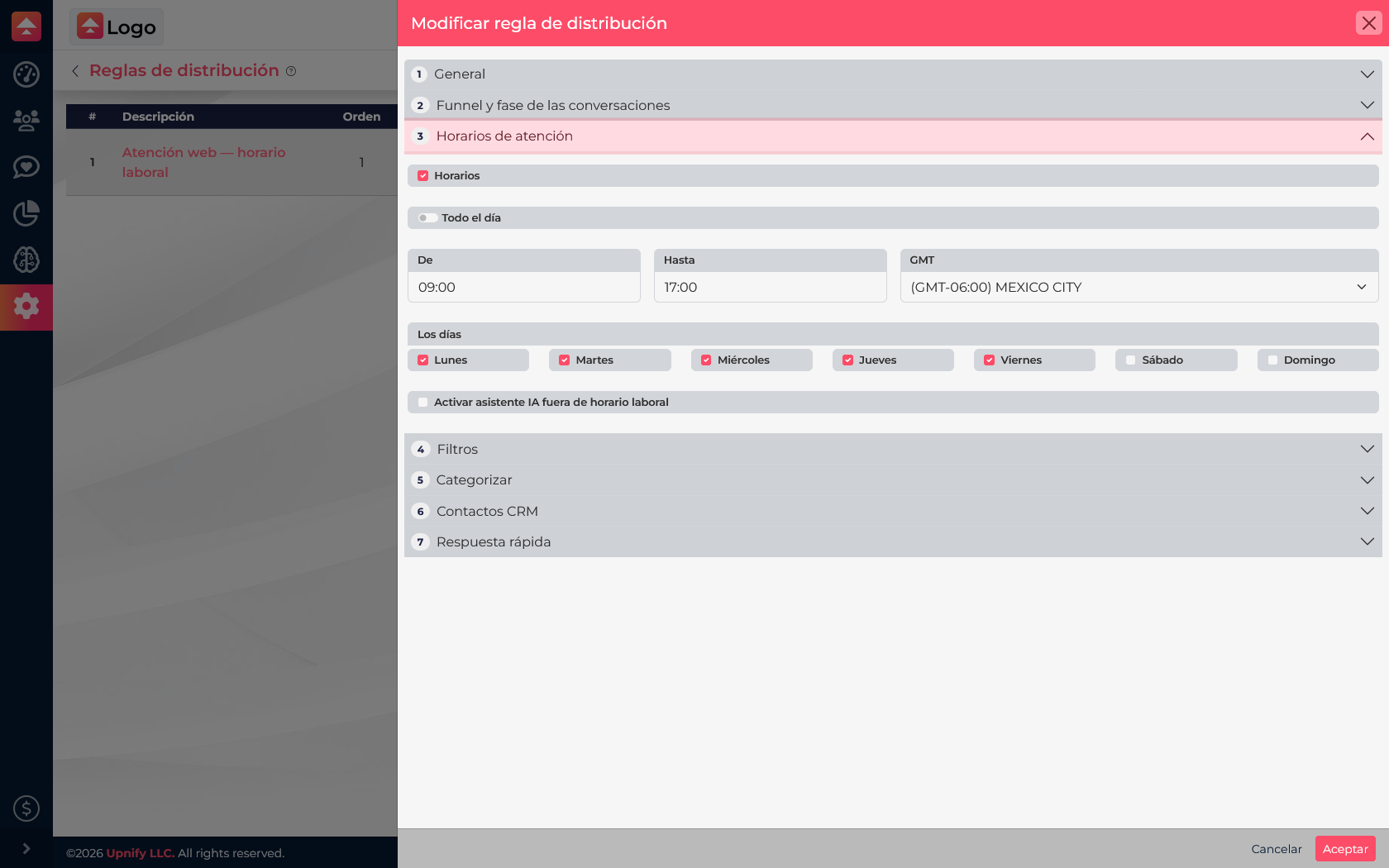
In this example, the Web Chat rule is set for weekdays from 9:00 a.m. to 5:00 p.m. Mexico City time. If your team works in another time zone, select the one that reflects its actual schedule.
Review additional options
- Allow assignment to inactive agents: when enabled, the rule can assign work to users marked inactive. Turn it on only when that behavior is intentional.
- Enable AI assistant outside business hours: enable this if an assistant is prepared to respond outside the schedule you set.
- Categorize and quick reply: you can associate a category or quick reply to provide context or an initial response. Review the content to make sure it fits the channel and team.
Operating example
A company receives sales inquiries through Web Chat on weekdays. It selects Héctor and Enrique, the Round robin criterion, business hours, and the Information request category. The rule is ready to distribute conversations that meet those conditions.