
Connecting Messenger routes messages sent to your company Facebook Page into the Upnify Connect inbox. Your team can handle them alongside conversations from other channels, assign owners, and keep follow-up in one place.
You need a Facebook Page for your business and a Facebook profile that can manage that Page and authorize message access. Make sure you use the right profile; otherwise, the Page you want to connect may not appear. Meta may ask you to review or confirm permissions during authorization.
Start the connection in Connect
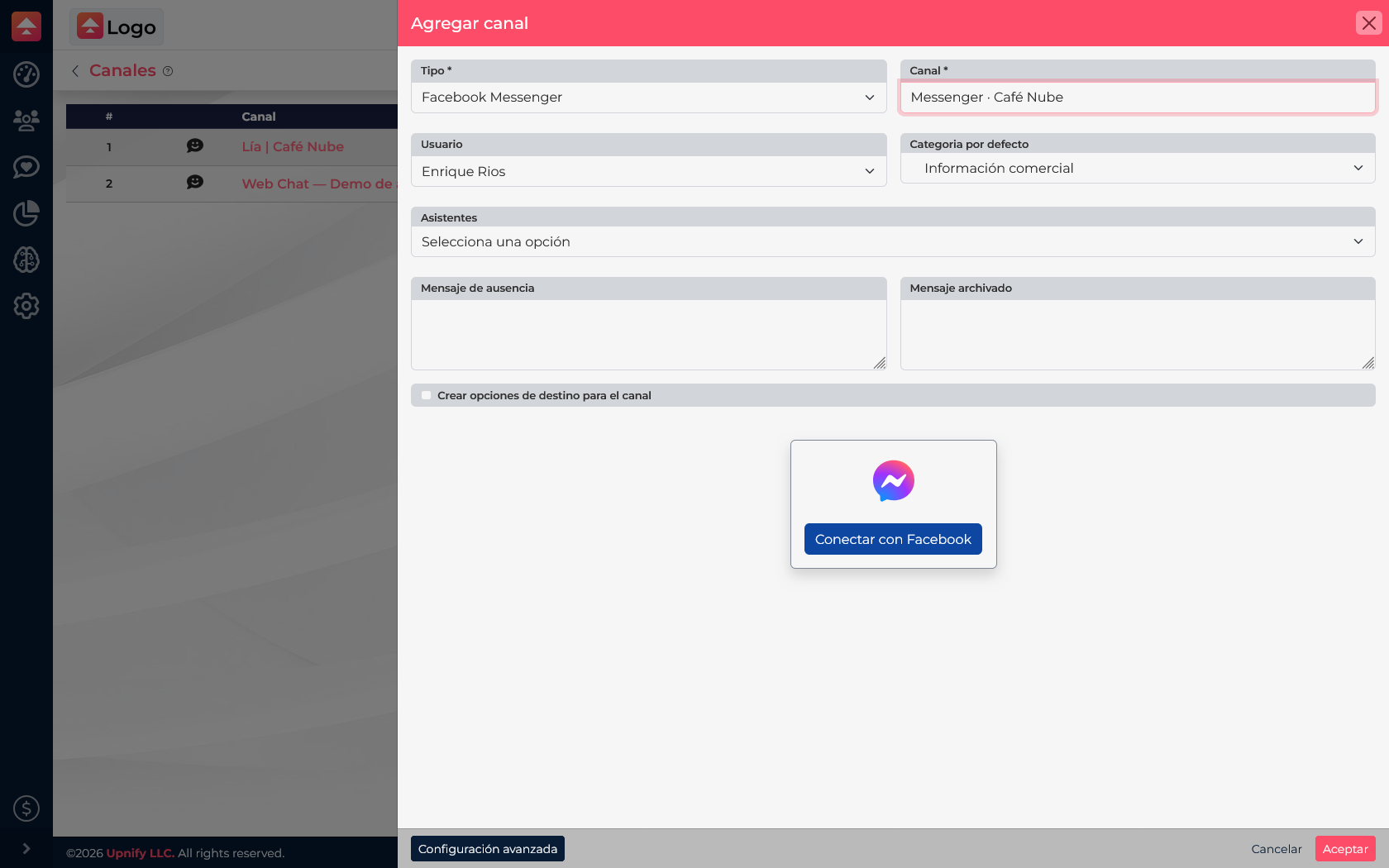
- In Connect, open Settings / Channels and select New.
- Choose Facebook Messenger. Give the channel a clear name, such as Messenger · Downtown Store.
- Choose the owner and, if needed, a default category or assistant. These options help organize conversations arriving through this channel.
- Select Connect with Facebook. Meta will open its authorization window.
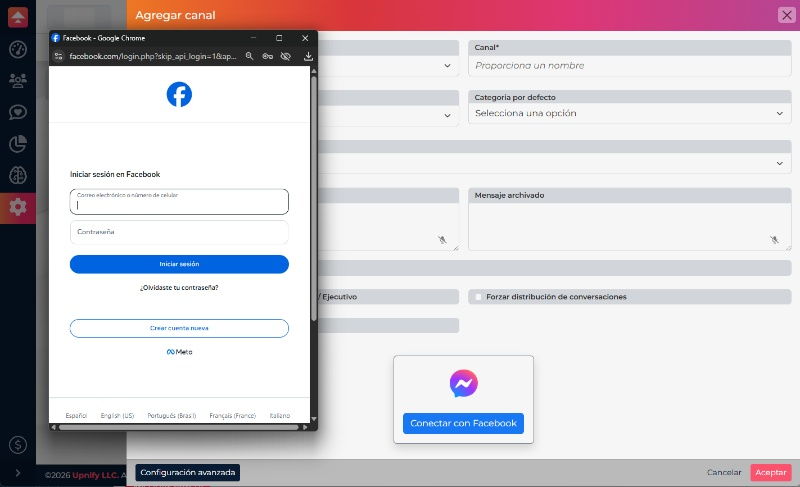
Continue on Facebook
Sign in with the profile that has access to your company Page. Review the available Pages, select the right one, and approve the permissions Connect requests to receive and reply to messages. The screenshot shows the beginning of sign-in; the Page selection and later confirmations depend on the profile and assets it can access.
When you return to Connect, finish the form and save the channel. Then ask someone to message the Page or use a test conversation to confirm it appears in the inbox.
What to check if something is missing
- You cannot see the Page: confirm you signed in with a profile that has access and that the Page is still available in your Meta business.
- Authorization completes but no messages arrive: make sure you selected the right Page and check the channel status in Connect.
- The person setting up the channel cannot authorize it: ask someone with sufficient Page access to complete the initial connection.
This channel receives conversations sent to your Facebook Page through Messenger. It is separate from a Click to Chat link and from Facebook lead forms.
Meta documentation
See the official Messenger Platform documentation for current Meta permissions and requirements.