
Connecting Instagram lets your team handle direct messages sent to your company professional account from Upnify Connect. It is useful when several people respond to inquiries and you want to keep the conversation, assignment, and follow-up in a shared inbox.
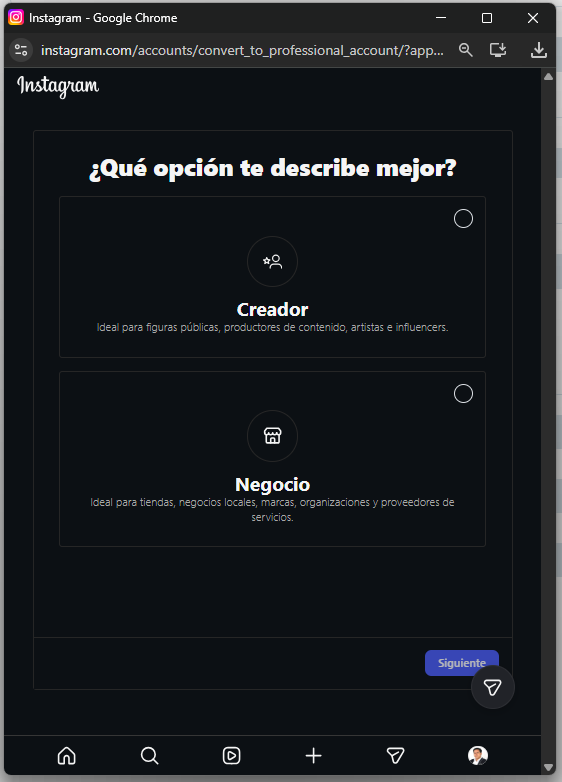
The account must be a Business or Creator account. A personal account cannot complete this connection. If you still use a personal account, switch it to professional in Instagram before starting. Choose Business for a company or store; Creator is also a valid professional option.
Set up the channel in Connect
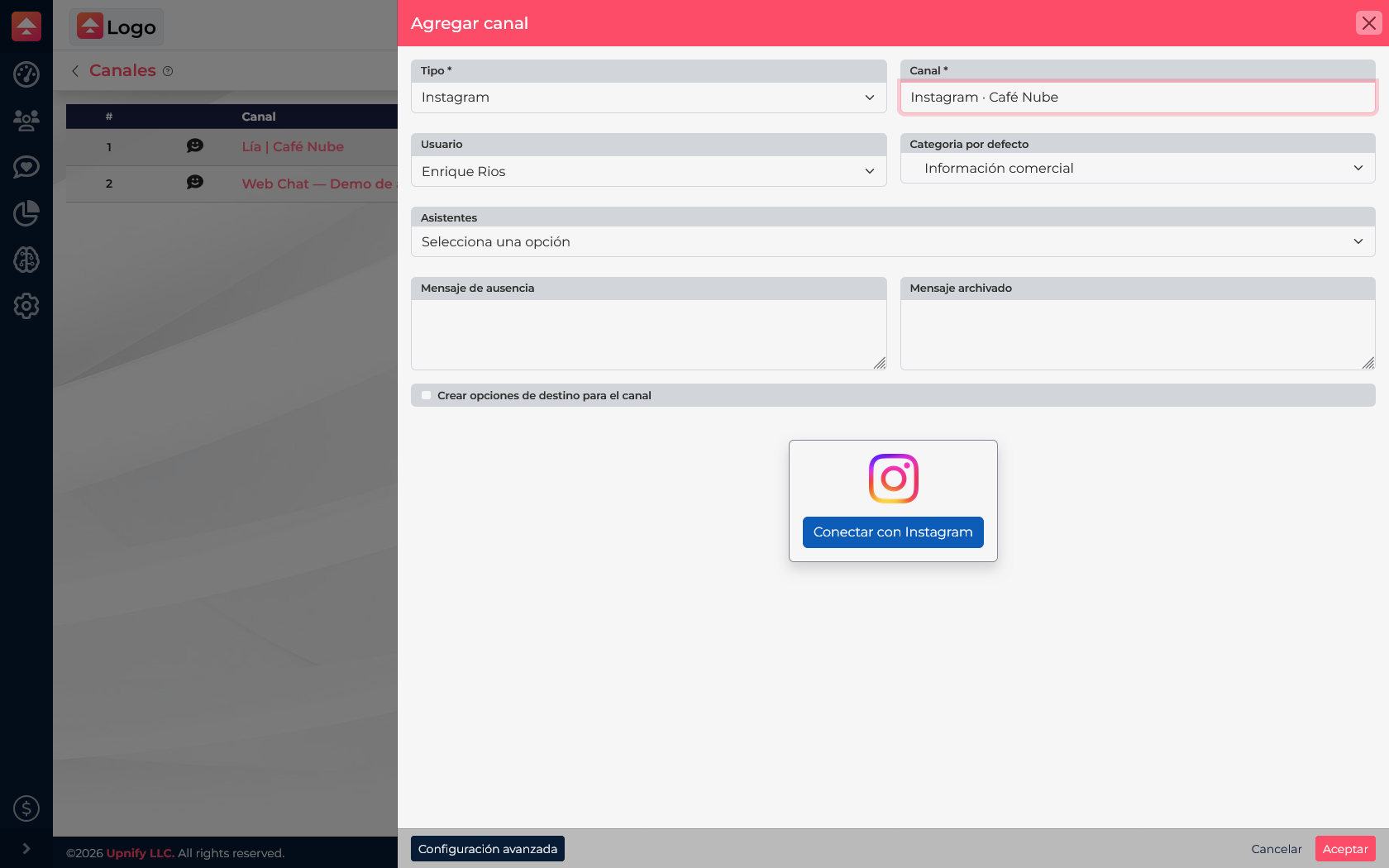
- In Connect, open Settings / Channels and select New.
- Choose Instagram and enter a clear name, such as Instagram · Downtown Store.
- Choose the owner, default category, and, if needed, the assistant that will help handle conversations.
- Select Connect with Instagram to open the authorization window.
Authorize the professional account
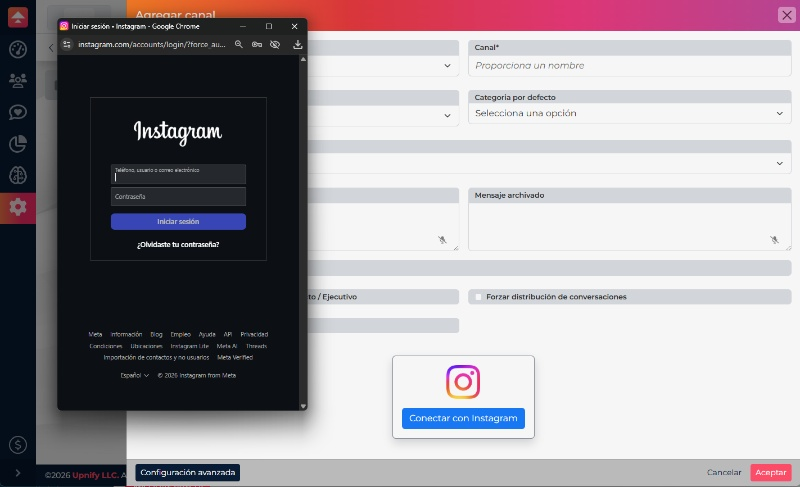
In the Instagram window, sign in to the professional account you want to connect and review the requested permissions. Follow the prompts Instagram displays until you return to Connect; confirm the channel and save it.
After saving, test the channel by sending a direct message from another Instagram account. Confirm that the conversation appears in Connect and that your team can reply.
If the account is missing or the connection fails
- You use a personal account: switch it to Business or Creator, then start the connection again.
- Instagram shows a different account: sign out externally or switch accounts before repeating authorization.
- The channel saves but receives no messages: check its status and confirm that you approved the requested permissions.
Meta documentation
See the official Instagram Login documentation for current professional account and permission requirements.