
Telegram connects to Upnify Connect through a bot. The bot acts as the channel identity: people message it and your team receives those conversations in Connect. This can help, for example, when your company handles questions from a community or customers who already use Telegram.
Before you start
You need a Telegram account and permission to create a bot. The token BotFather gives you works like a password: anyone who has it could control the bot. Store it securely and paste it only into the Connect settings field. Do not publish it or send it in chats.
You need a Telegram account and permission to create a bot. The token BotFather gives you works like a password: anyone who has it could control the bot. Store it securely and paste it only into the Connect settings field. Do not publish it or send it in chats.
1. Create a bot with BotFather
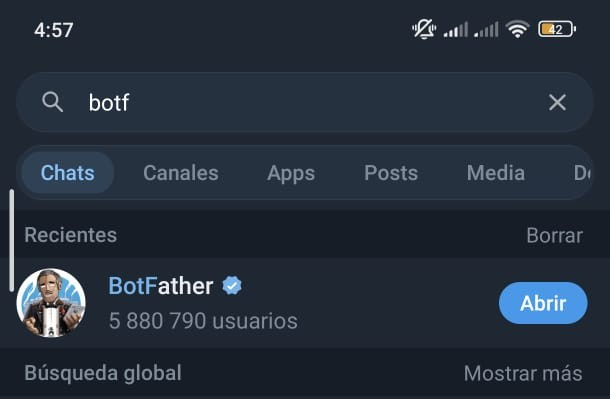
- In Telegram, search for @BotFather and confirm that it is the official verified account.
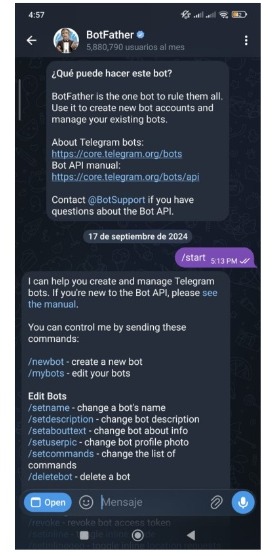
- Open the chat and send
/newbot. BotFather will ask for a display name and then a unique username. - The username must end in
bot, for exampleDowntownSupport_bot. If it is taken, try another variation. - BotFather will confirm the new bot and give you its token. Copy it securely; you do not need to share it with customers.
2. Add the channel in Connect
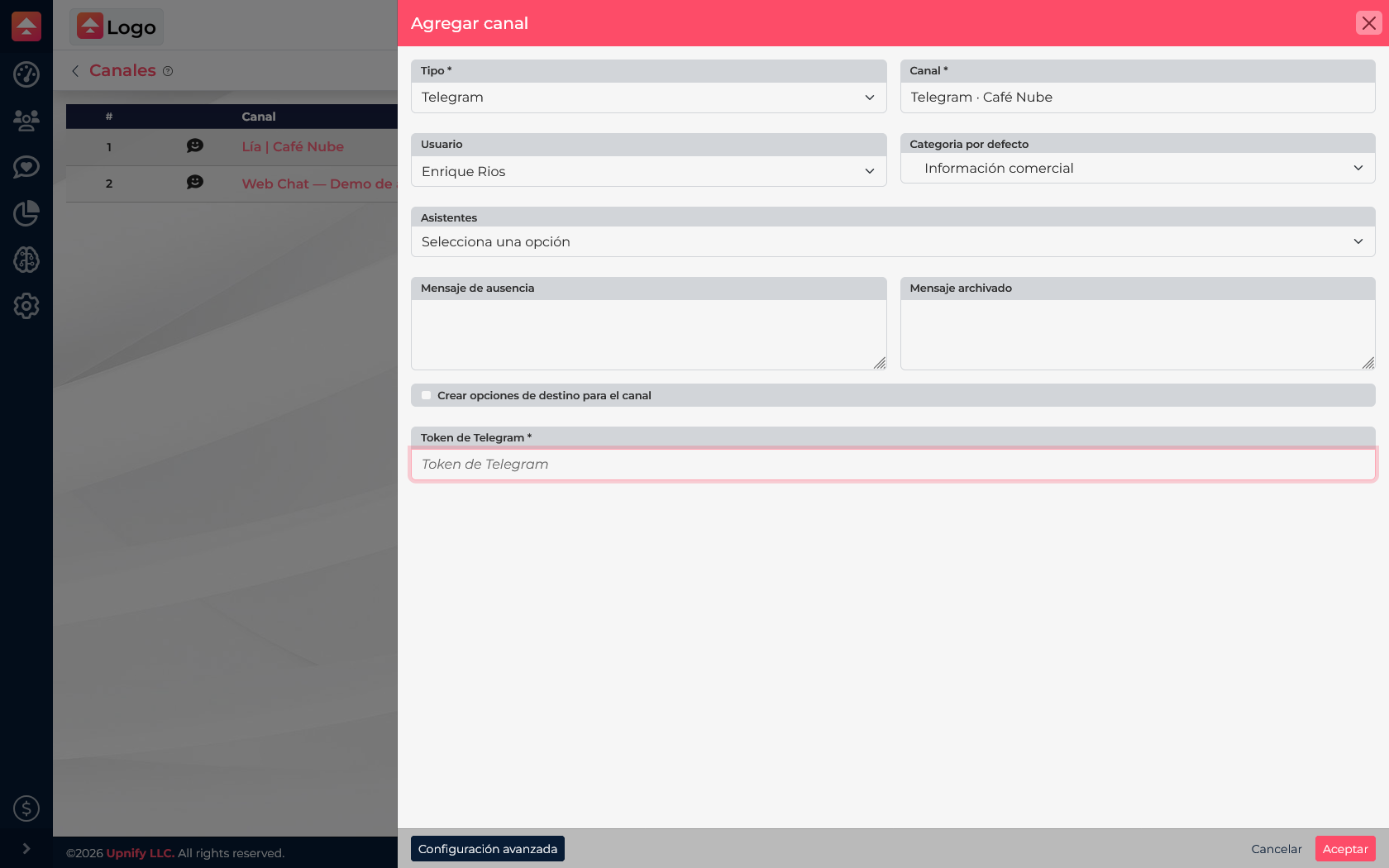
- In Connect, open Settings / Channels and select New.
- Under Type, choose Telegram. Enter a clear channel name and choose its owner and category.
- Paste the BotFather token into Telegram token. Make sure there are no spaces at the beginning or end.
- Save the channel. Connect registers the bot’s message delivery address so messages can reach the inbox.
Do not put the token in a URL or shared document. If you think it was exposed, use BotFather to revoke or replace it and update the channel settings.
3. Test the bot
- Open the bot by its username or use the link Telegram created for it.
- Select Start or send it a first message. A person must start the chat before the bot can reply in a private conversation.
- Check that the message appears in the Connect inbox and reply from the channel. If it does not arrive, check that you saved the right token and that the channel is active.
One important difference
A bot is not a personal Telegram account and cannot start a private conversation with someone on its own. The user must open the bot and send the first message.
A bot is not a personal Telegram account and cannot start a private conversation with someone on its own. The user must open the bot and send the first message.
Official Telegram documentation
See Telegram’s From BotFather to “Hello World” guide, its bot features reference, and the Bot API documentation.