

An AI assistant in Upnify Connect answers conversations using your company information. If configured, it can create a CRM prospect, request an agent, or categorize a conversation. It does not replace channel settings or routing rules; it works as an automated teammate within Connect.
Define its role first
Start with a specific job. A store might answer product, shipping, and installation questions; a support team might handle common questions and route complex issues to a person. Decide what it must not answer and when it should ask for help. Prepare its name, goal, tone, topics, and required actions.
Create and configure it
- In Connect, open Settings > Assistants and select New.
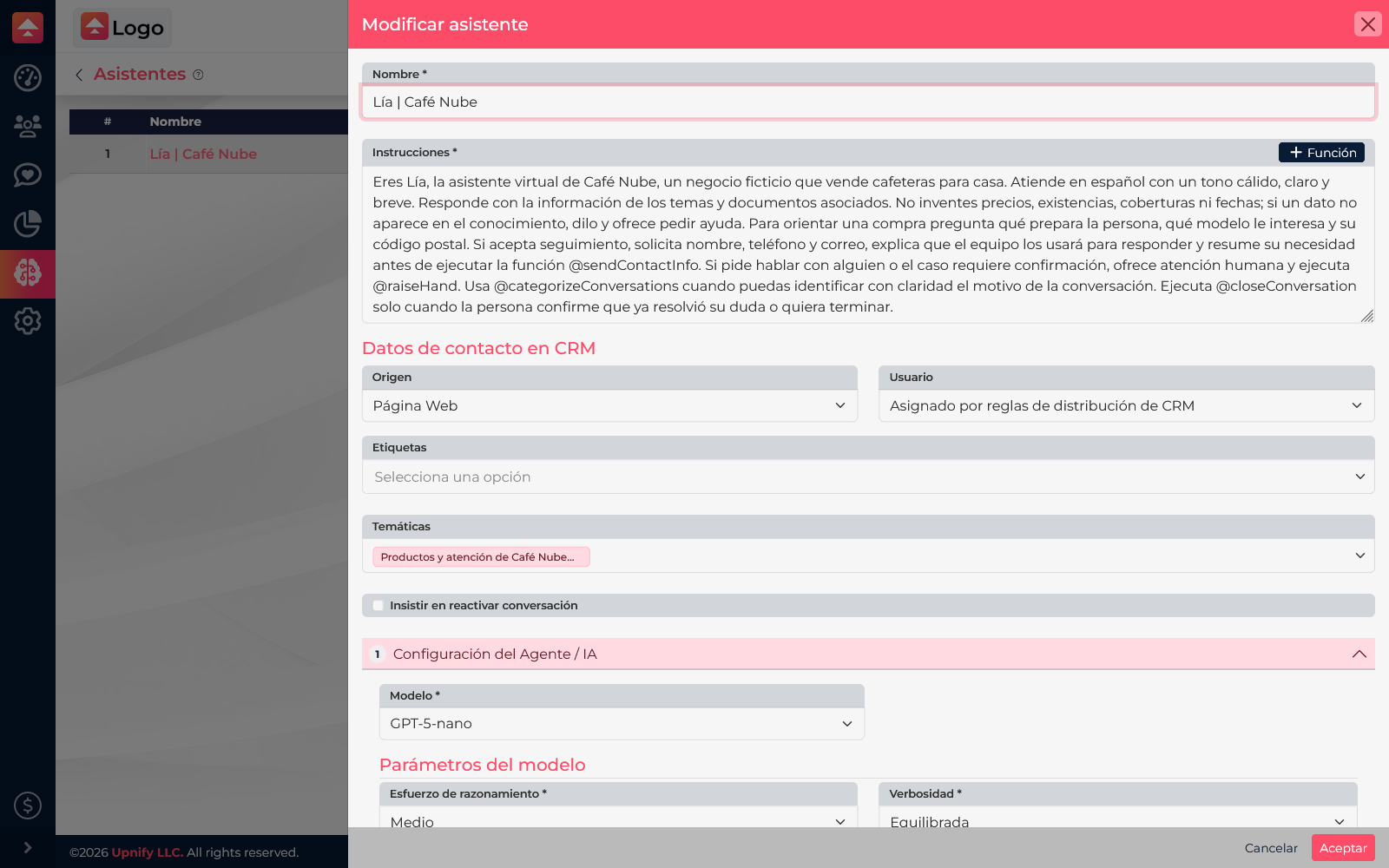
- Choose a recognizable name, such as Lía | Café Nube.
- Under Instructions, explain who it is, whom it serves, how to respond, what information it may use, and when to request help. Use specific rules instead of vague wording such as \u201Cbe helpful.\u201D
- Attach relevant topics. For Lía, choose \u201CCafé Nube products and service,\u201D covering products, shipping, and installation. If the material is not ready, first read How to prepare assistant knowledge with topics, questions, and documents.
- Review model and response options available in your account. If you want concise answers, say so in the instructions and check the tone in testing.
- Save and reopen the assistant to confirm its topics, functions, and instructions.
Choose only the functions it needs
Use the + button beside Instructions to add a function. Connect inserts guidance that helps the assistant decide when to use it. Make sure the trigger describes a real situation in your process.
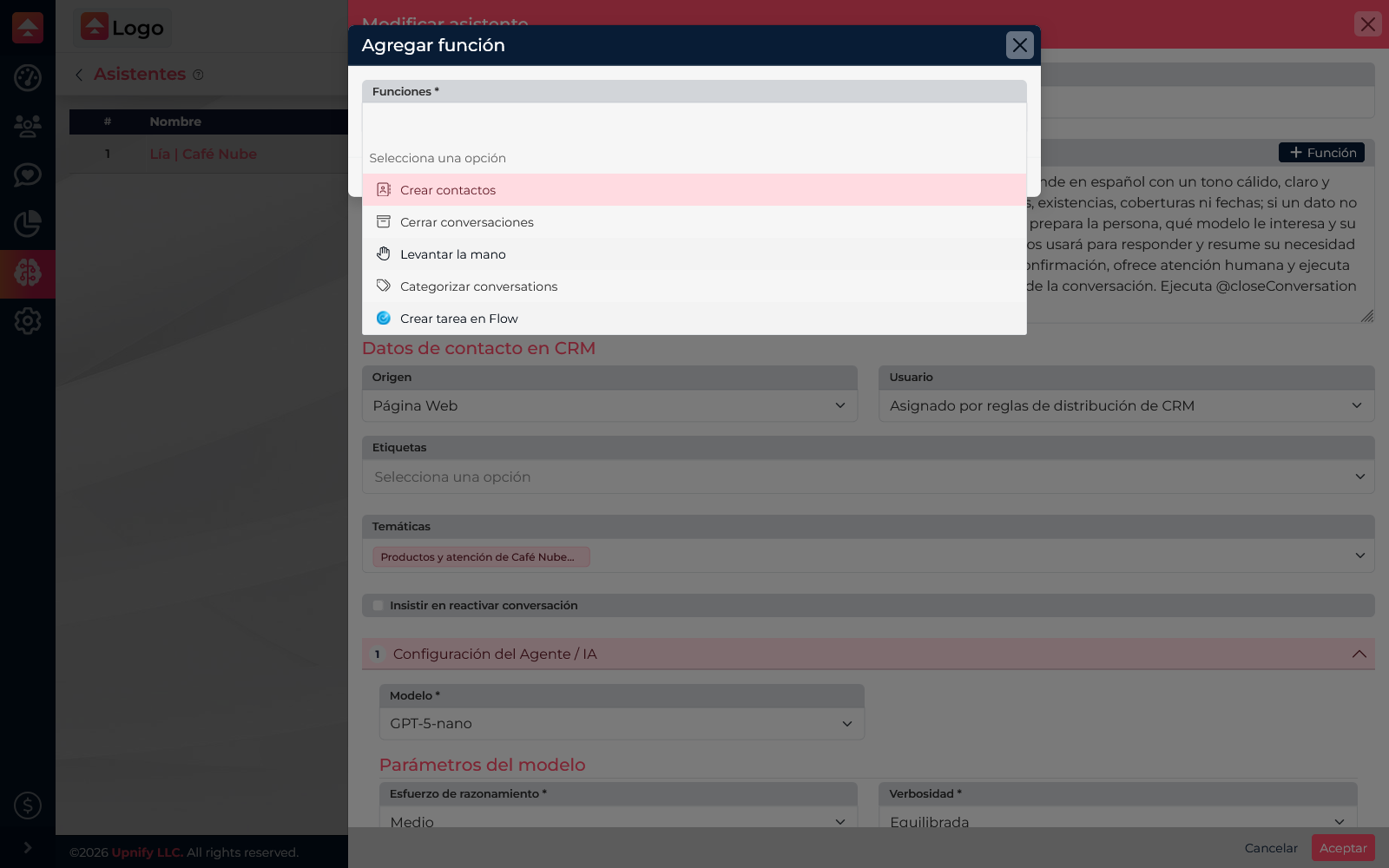
| Function | Purpose and example |
|---|---|
| Create contacts | Records a prospect in CRM. Ask permission and details only when someone requests follow-up or a quote. |
| Raise hand | Requests an agent when the person asks or the case requires account review. |
| Categorize conversations | Labels topics such as Shipping or Support; categories must be available. |
| Close conversations | Ends a thread after it is resolved and no further question remains. |
| Create Flow tasks | Creates follow-up work outside chat when the company has Flow enabled. |
Configure prospect creation
When Create contacts is enabled, set the origin, owner or distribution rules, and a tag if needed. These values provide context in CRM. For example, use \u201CWebsite\u201D to identify inquiries from your site. Ask for details naturally and explain why; do not request personal information just to answer a general question.
Before customer use, confirm the assistant has a clear goal, relevant topics, a rule for unknown answers, sensible function triggers, and correct prospect assignment. Then continue with How to test an assistant and configure its functions and lead capture.