

In a busy inbox, a category helps identify what a conversation is about. Separate sales inquiries, technical support, and general requests so related cases are easier to find and follow up consistently.
What a category does and does not do
A category classifies a conversation topic in Connect. It does not change the funnel phase, create a CRM contact, or replace CRM tags and fields.
Define a clear structure
Before creating categories, agree on the topics your team needs to distinguish. Use short, clear names. If a broad topic includes different requests, create child categories for cases that need different responses or owners.
Create parent categories and subcategories
- Open Settings ? Categories.
- Select New and enter the parent category name.
- To create a subtopic, select New again and choose the parent category.
- Save and review the tree to confirm that each category is under the right level.
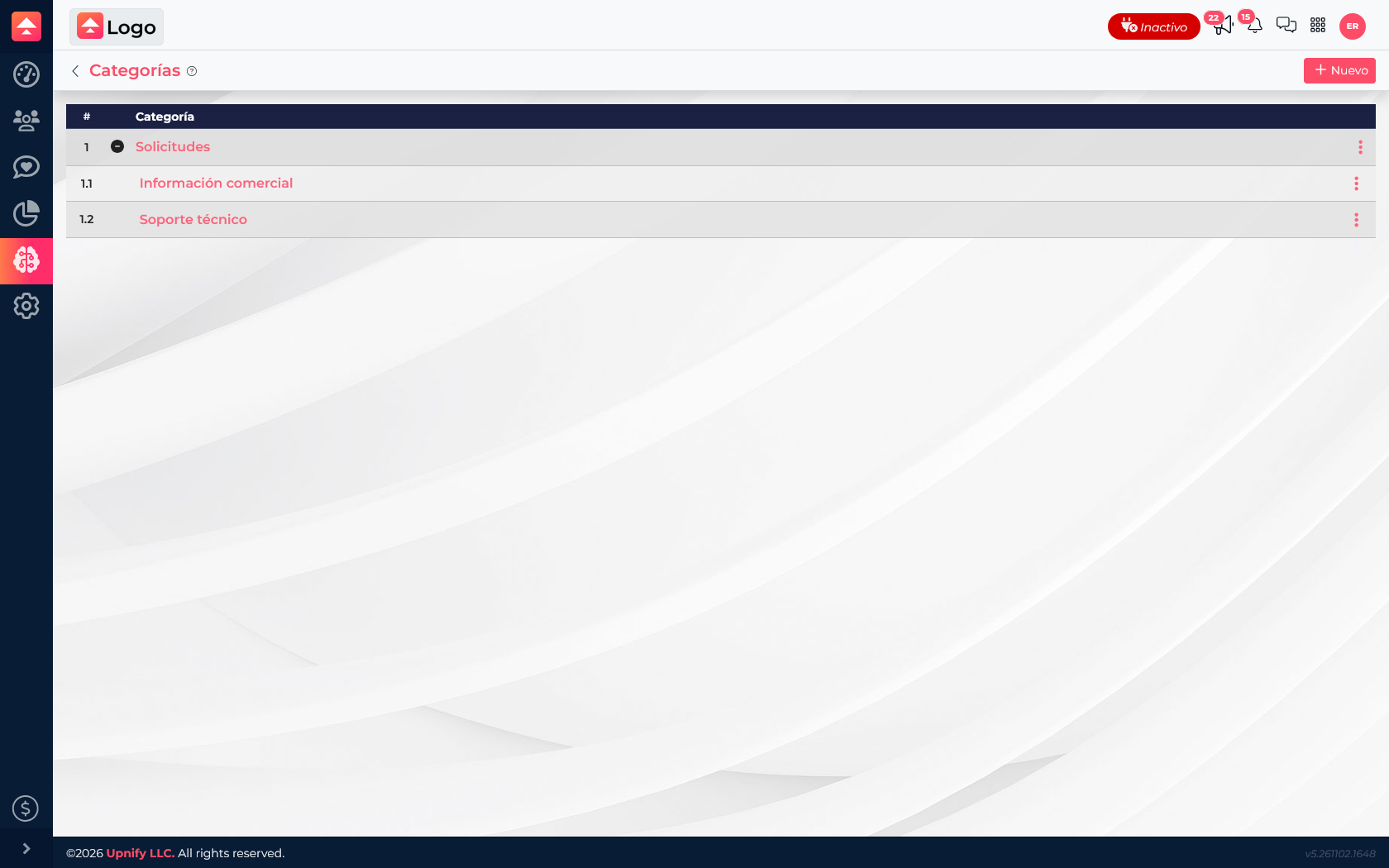
Example structure
| Category | When to use it |
|---|---|
| Requests ? Sales information | Someone asks about a product, price, or demo. |
| Requests ? Technical support | Someone describes a usage issue or asks for technical help. |
Apply a category to a conversation
- Open the conversation you want to organize.
- In its actions or details, open the category control.
- Select the category that describes the main topic and confirm.
- If the topic changes, update the category so the next agent can find the right context.
Consistent classification helps your team search and filter related conversations, understand the types of requests it receives, and identify topics that need a shared response. Do not create a category for every person or message: that fragments the list and makes patterns harder to spot.
Practical example
If someone asks for demo information, classify the conversation as Sales information. If they later report a technical issue, change the category so the next agent can see the current reason without inferring it from the customer name.
Good practices
- Explain what each category means to the team.
- Use parent categories for broad areas and child categories when they help determine the next step.
- Review category names regularly to ensure they match real inquiries.
- Use the funnel to track process progress and the category to classify the conversation topic.