

Quick replies are saved text snippets you can insert while handling a conversation. They help answer common questions, request information your team needs, or share recurring instructions without writing them from scratch each time.
They are not sent automatically
Connect inserts the content into the message you are composing. You can review it, personalize it, and decide when to send. This helps you respond quickly without losing context or accidentally sending an automatic reply.
Create a quick reply
- Go to Settings ? Quick Replies and select New.
- Enter an easy-to-recognize description, such as \u201CGreeting\u201D or \u201CRequest details\u201D.
- Write the complete message. If a detail varies by person, tell the agent to fill it in; do not assume the system replaces text written in braces.
- Choose a scope: only you, your group, or the whole company. Save the reply.
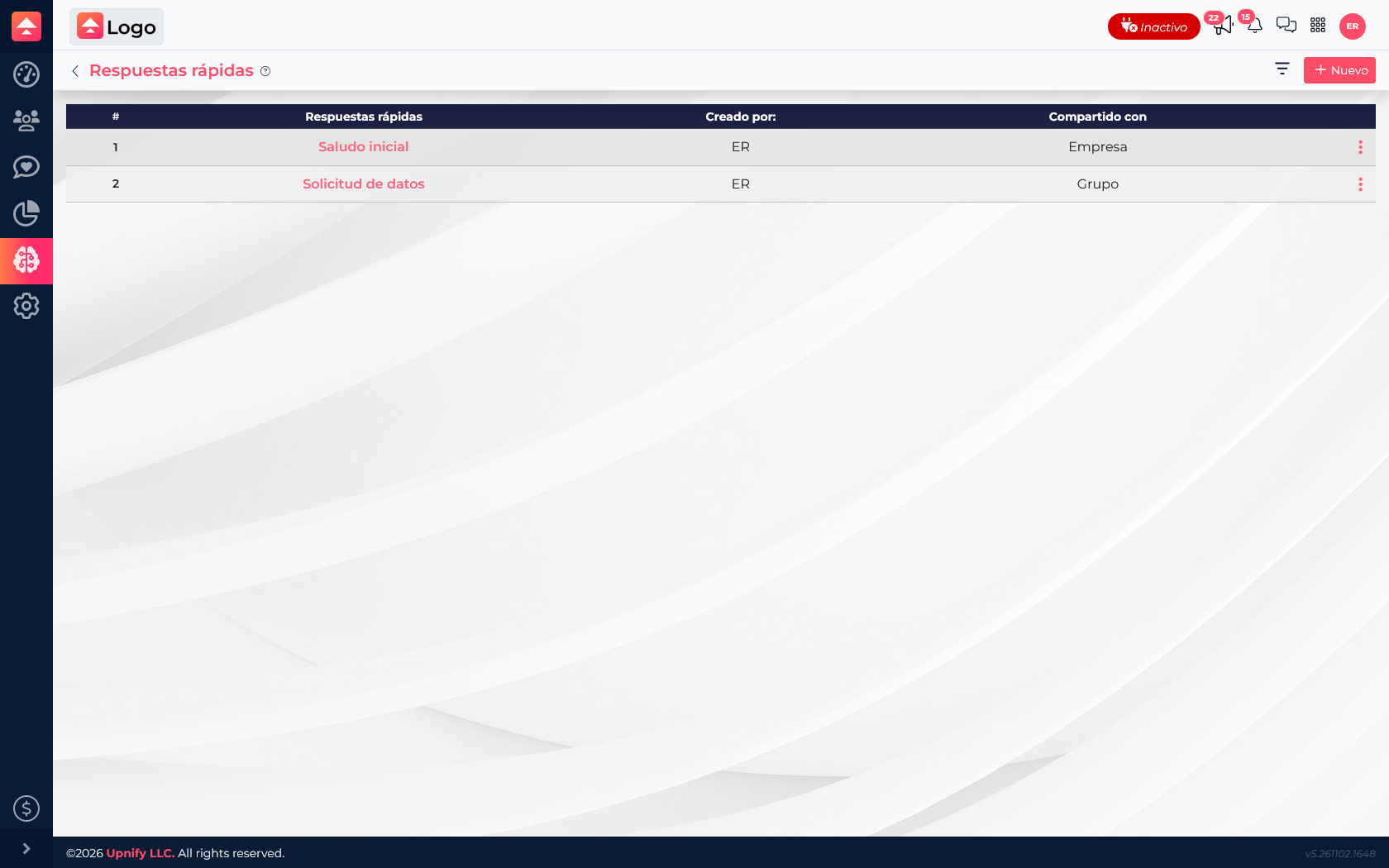
Choose the right scope
| Scope | Who can use it | When it helps |
|---|---|---|
| Only me | The person who created the reply. | For a personal phrase or text that is still being reviewed. |
| Group | Members of the selected group. | For instructions specific to sales, support, or another area. |
| Company | Company users who need a shared response. | For greetings and common information that should keep the same wording. |
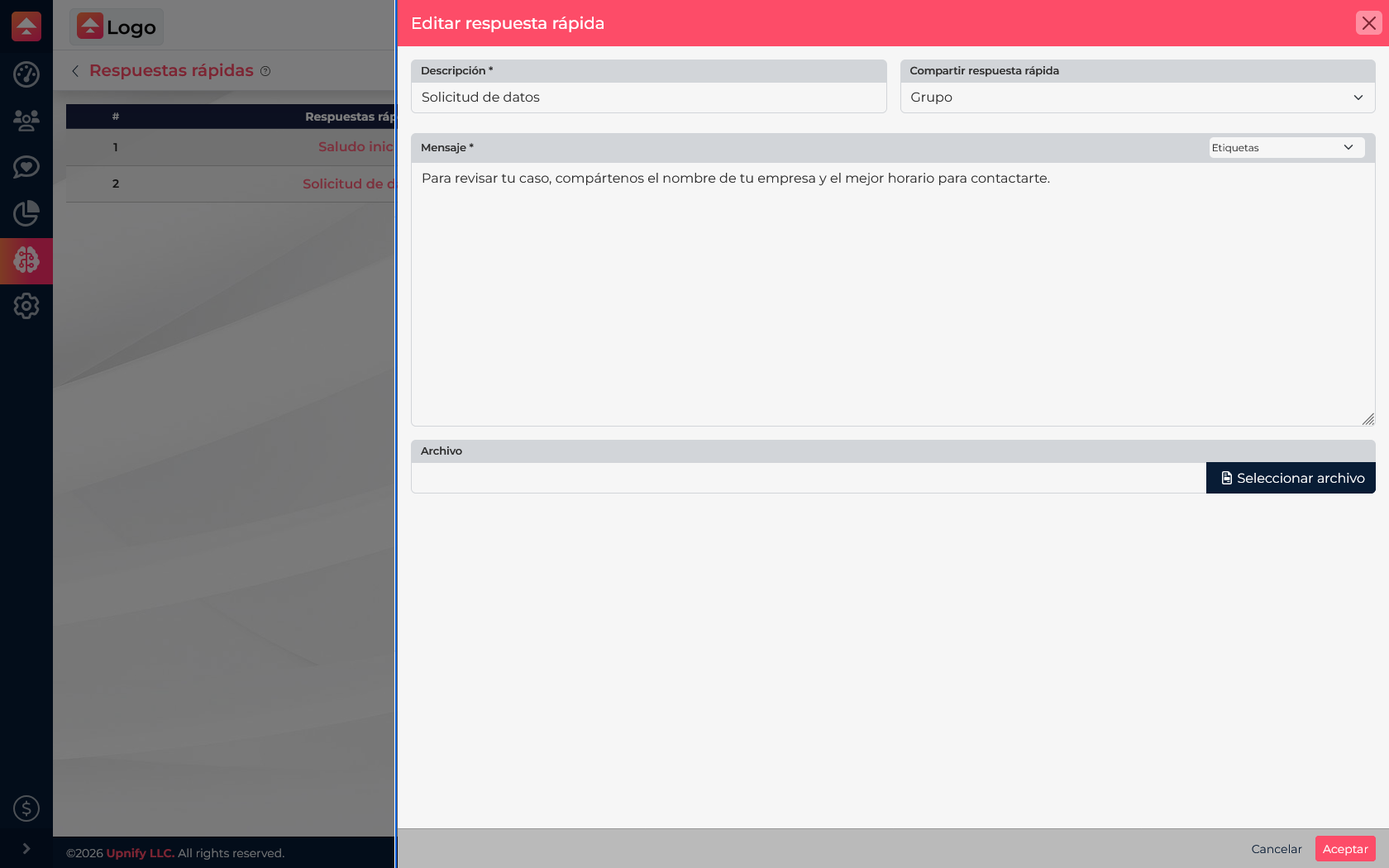
Insert and review a reply
- Open the conversation and start composing a message.
- Select the quick reply button or type / to show available options.
- Search by description and select the reply. Connect inserts the content into the message in progress.
- Read the full message, adjust anything that depends on the conversation, and send when it is ready.
Example
Support often needs a customer\u2019s company name and preferred contact time. The team can share a reply such as: \u201CTo review your case, please send us your company name and the best time to contact you.\u201D An agent inserts it and can add a specific question before sending.
Keep replies current
- Use short, distinct names so agents can find the right reply.
- Write naturally and avoid promises the team cannot guarantee.
- Update text when processes, schedules, or contact information change.
- Share each reply only with the people who need it so the list stays manageable.