

An assistant can only guide people well when it can find clear, current information. Connect lets you organize knowledge with topics, add frequently asked questions and answers, and attach documents. Topics organize content, Q&A entries answer specific questions, and documents provide broader reference material.
1. Create focused topics
Open Connect > Knowledge > Topics (some accounts label this Thematics) and create a topic with a name and description, such as \u201CCafé Nube products and service.\u201D Define its scope. Separate areas when the content or responsible team changes, for example Products and pricing, Shipping, and Technical support. Do not create one topic per question. Attach only topics the assistant needs.
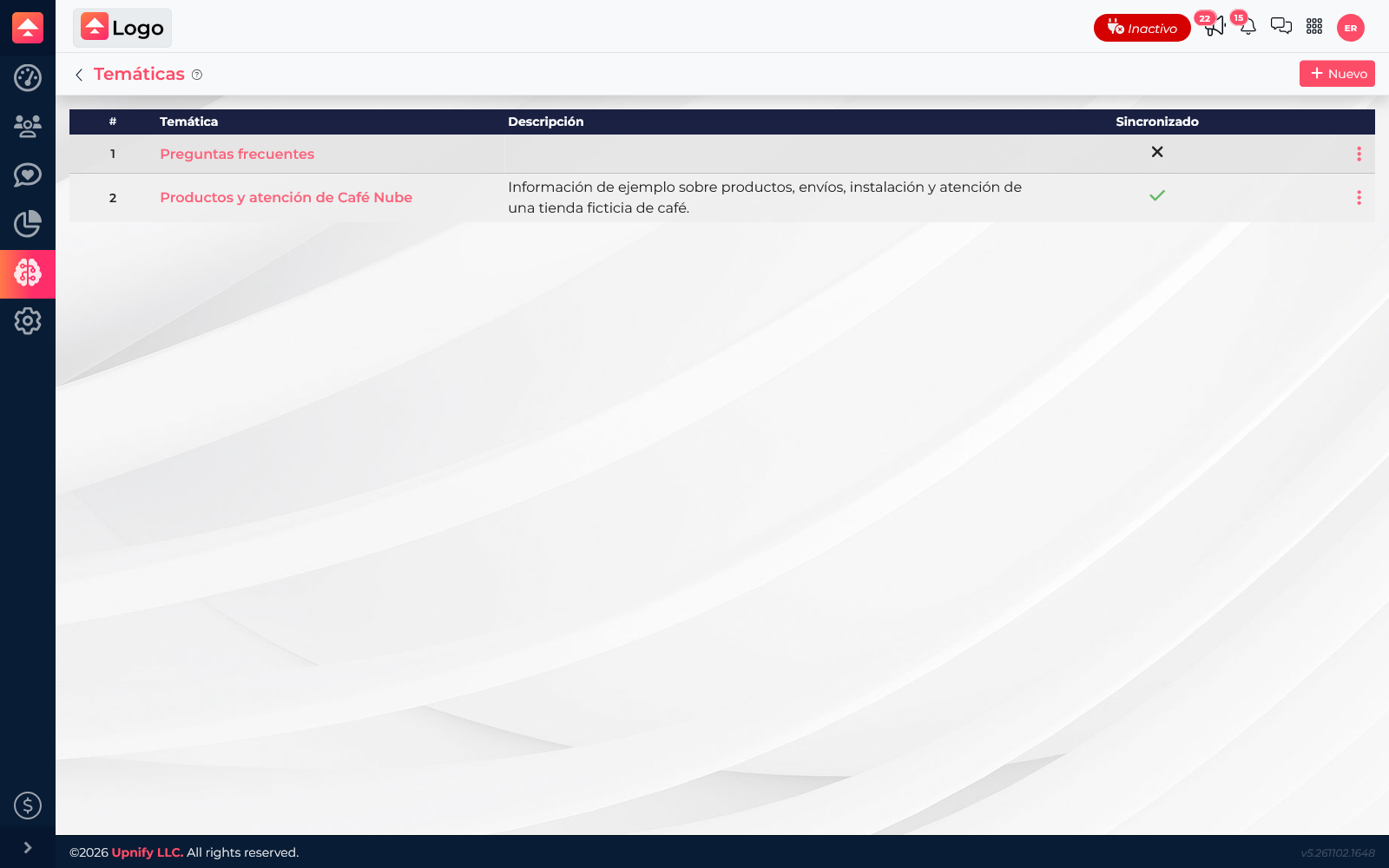
2. Add complete answers to common questions
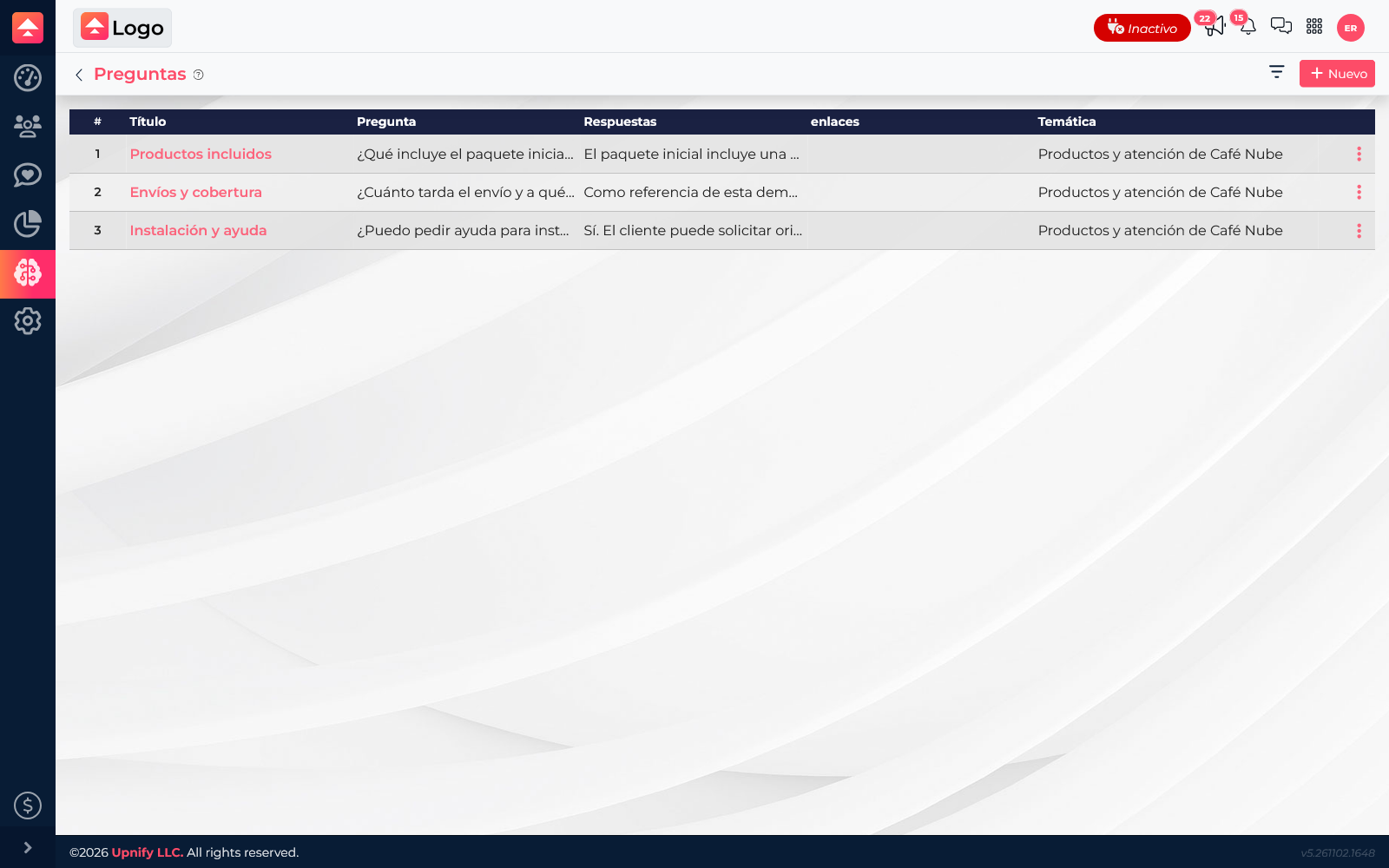
Under Knowledge > Questions, add a short title, link it to a topic, and phrase the question as a customer would. The answer should make sense on its own. Add a relevant link if the editor offers that field.
Example: title \u201CShipping and coverage\u201D; question \u201CHow long does shipping take, and where do you deliver?\u201D; answer \u201CMetro-area delivery usually takes two to four business days. Share your postal code so we can confirm coverage.\u201D This separates a typical estimate from what must be verified. If several phrasings are supported, use them for the same question rather than combining unrelated topics. Check figures, conditions, spelling, and links.
3. Attach documents for broader information
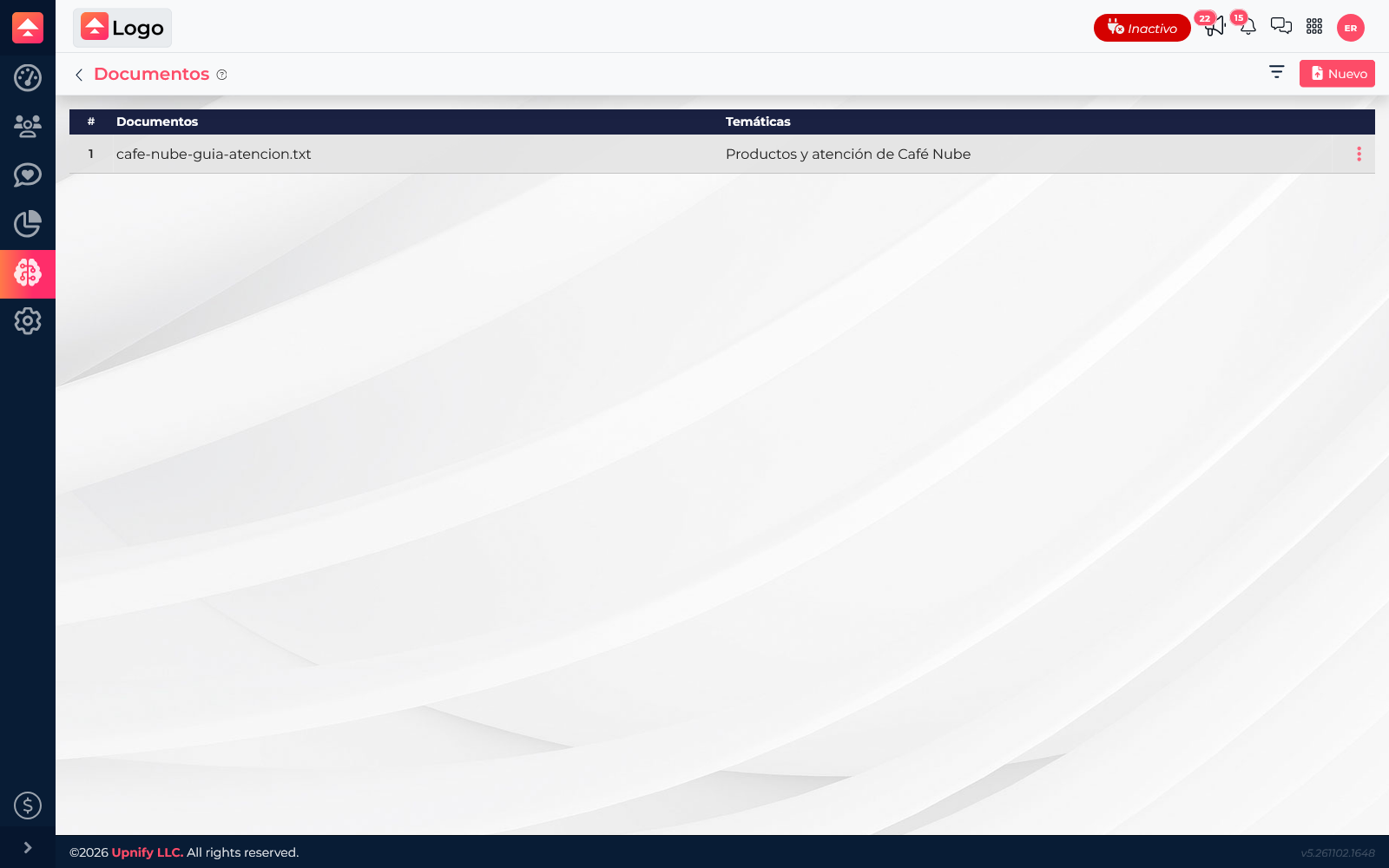
Use Knowledge > Documents for material with several policies, procedures, or details. The interface accepts formats such as PDF and text; depending on the account, MD or JSON may also be offered. Follow the size limit shown in the upload window, which is 1 MB per file in this interface.
- Use a readable file with headings and sections; avoid blurry scans, duplicates, and obsolete versions.
- Give it a clear name, such as \u201CProducts, shipping, and installation guide.\u201D
- Assign it to the matching topic.
- Save and check the list to confirm it is linked to the intended topic.
Documents work well for broader details; FAQs give direct answers. You can use both without repeating an entire manual in every answer.
Synchronize and keep content current
After adding or changing topics and questions, use Synchronize in the relevant section to update the assistant\u2019s knowledge. Confirm the process finishes and that the assistant has the topic attached; do not assume an edit is already available. Assign someone to review changes to prices, hours, shipping, and policies. Remove conflicting content and synchronize the current version.
Avoid answers such as \u201Csee policy\u201D without the essentials, outdated files, and overly broad topics. Once knowledge is ready, attach it as described in How to create and configure an AI assistant in Connect, then validate it with the testing article.