

A good test checks more than one easy answer. Confirm what the assistant does when it knows the answer, when information is missing, and when someone wants a person. Also check whether functions run at the right time and whether a prospect reaches CRM with the expected origin and owner.
Open the test chat
- In Connect, go to Settings > Assistants and find the assistant you want to review.
- Open the row actions and select Test assistant.
- When the test chat appears, ask a documented question, such as \u201CWhat is included in the Café Nube starter set?\u201D
- Compare the answer with current information: is it correct and clear, and does it add conditions that do not exist?
- Ask about another topic and ask something with no documented answer. It should acknowledge the gap and ask for information or offer help, rather than inventing a fact.
Keep a scenario list and repeat the review after changing instructions or knowledge. Tests may use Connect credits; ask only what you need to validate key cases and avoid conversations without a purpose.
Define when each function should run
Enable only functions related to the assistant\u2019s job. In the editor, the + button inserts the function instruction; make its trigger specific. Turning on a function is not enough unless you explain when the assistant should use it.
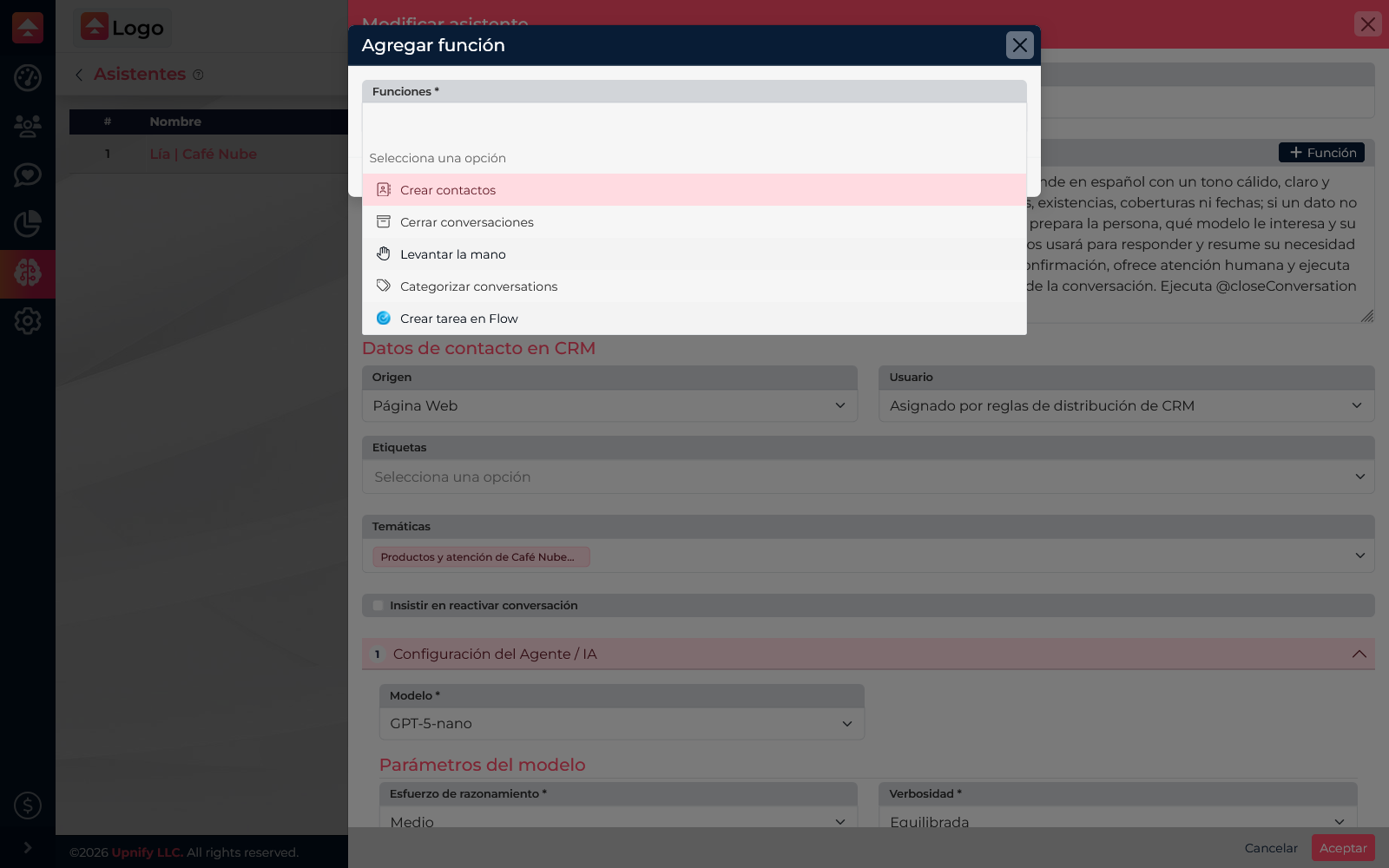
| Function | Test scenario | What to check |
|---|---|---|
| Create contacts | \u201CI\u2019m interested in a quote; you may contact me.\u201D | It requests required details and consent as instructed; verify CRM origin, owner, and tag. |
| Raise hand | \u201CI\u2019d like to speak to an agent.\u201D | It requests human help rather than continuing with automated replies. |
| Categorize | Ask about shipping and then installation. | It uses the relevant category if configured and available. |
| Close conversations | \u201CThanks, that answered my question.\u201D | It closes only after confirming nothing else remains. |
| Create Flow tasks | \u201CA technician needs to inspect my equipment.\u201D | If Flow is enabled, check that the task is useful and created only when follow-up is needed. |
Configure and verify lead capture
When Create contacts is selected, review the controls in the form. Choose an origin that identifies where inquiries came from, an owner or distribution rules, and a tag if your team uses one to find or segment these records. For a website assistant, for example, use Website as the origin and a tag such as AI Assistant.
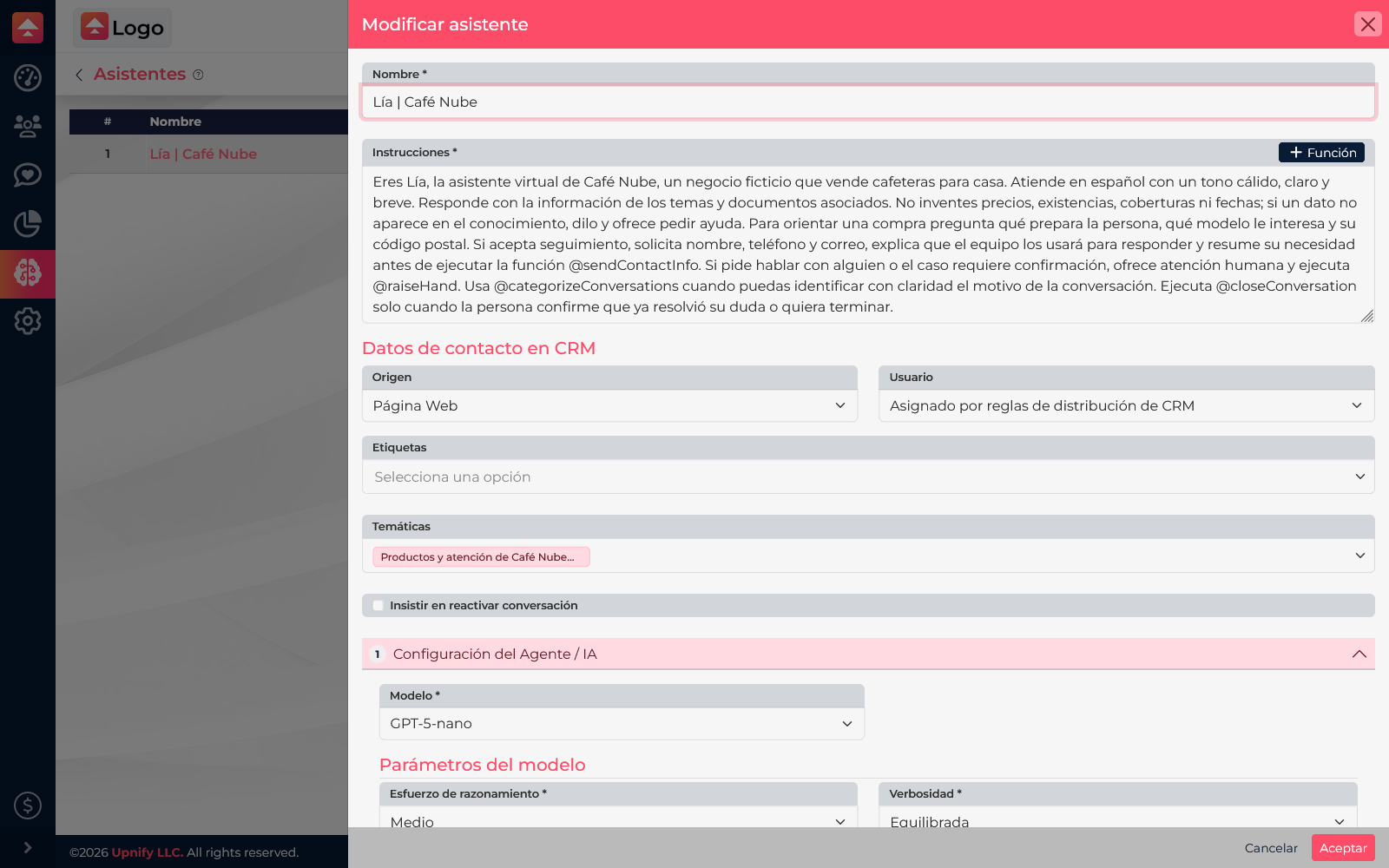
Ask for details gradually in the instructions. If someone wants a quote, explain that the team will follow up and request a way to contact them. If they only ask what a product includes, answer without automatically creating a prospect. After testing, find the record in CRM and confirm its origin, owner, and tag.
Fix issues and test again
- If the answer is vague, update its source question or document.
- If topics are mixed, review the topics attached to the assistant.
- If it invents a price or date, add a rule not to guess and to request help when information is missing.
- If a function runs too early, clarify its trigger and test one case where it should run and one where it should not.
- If the prospect is assigned incorrectly, review origin, owner, distribution, and tag.
Save changes and repeat key scenarios. Before enabling the assistant on a live channel, confirm each function works as the team expects and records appear in the right place.