

Upnify Connect brings conversations from your company\u2019s digital channels into one inbox. To use it well, distinguish where a message comes from, the thread your team handles, and the people who participate. This helps you decide what to connect, who should reply, and what can be automated.
The main parts of Connect
| Item | What it represents | What you use it for |
|---|---|---|
| Channel | The place where a person writes, such as Web Chat, WhatsApp, Messenger, Instagram, or Telegram. | Connect a message source and define how its conversations enter Connect. |
| Conversation | The message thread with a person through a channel. | Handle, assign, categorize, transfer, or close a request while keeping its history. |
| Contact | The person\u2019s identity associated with a conversation. | Recognize who is writing and review their interactions. A contact and a conversation are different: one person may have multiple threads. |
| Agent and team | The user who handles a conversation and the group that organizes the people responsible. | Distribute work by channel, schedule, topic, or team capacity. |
| AI assistant | An optional configuration that can answer or support automated service. | Handle common questions and, when appropriate, let an agent take over. |
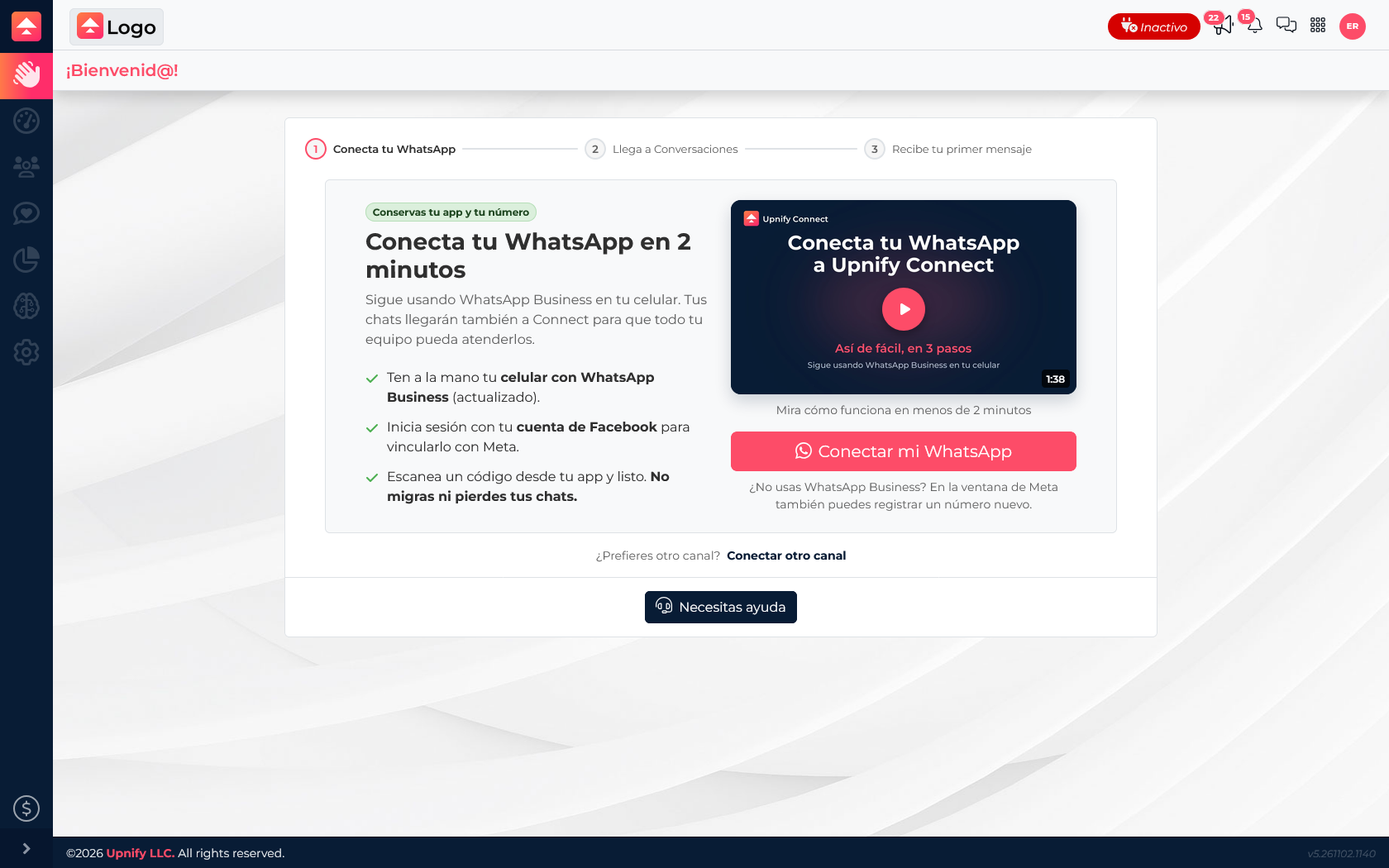
How the parts work together
- A person asks a question through your website\u2019s Web Chat. The channel identifies the source.
- Connect creates or continues a conversation with that person and keeps the exchange in its thread.
- Distribution rules can route the thread to a team or an agent. The assigned person is responsible for following up.
- If you configured an AI assistant, it can handle the conversation according to its rules. Otherwise, your team handles it directly.
- Your team replies, transfers, or closes the thread and can later review its history and available indicators.
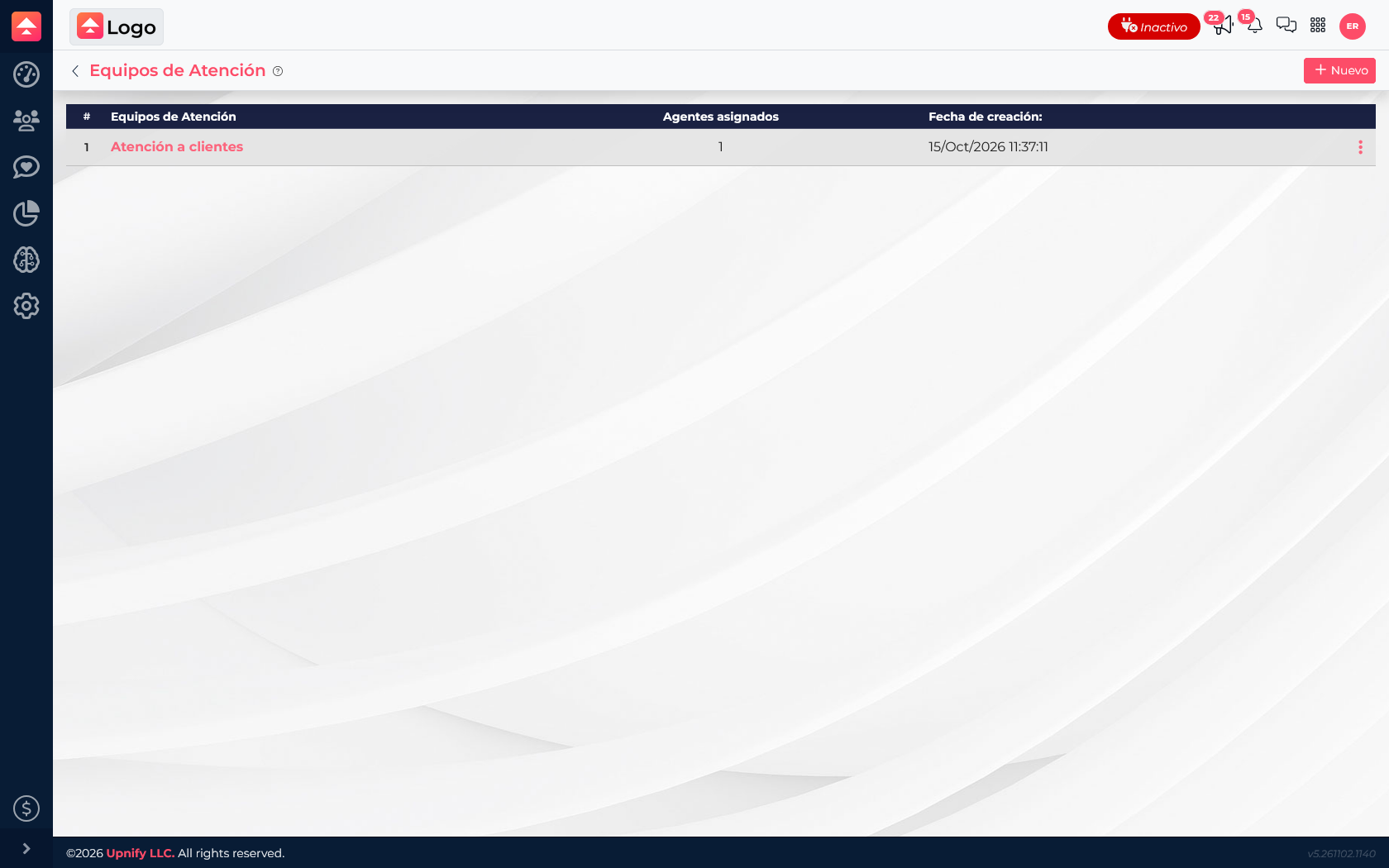
A practical way to begin
Start with the channel that receives the most questions, decide which team will handle it, and agree when a conversation should go to an agent or an assistant. Then define how to categorize and close threads. For example, a service company can start with Web Chat for website requests and add WhatsApp when its provider account is ready.
Connect preserves service context. A Connect contact should not automatically be treated as a CRM opportunity: each product has a different purpose, and links between records depend on configuration and the team\u2019s actions.