

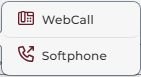
Logging a call in CRM helps the next follow-up start with what you actually discussed: a question, a quote request, or an agreement to call again. From the contact record, you can choose WebCall or Softphone; the difference is where the call takes place and how it is recorded.
Example: if a prospect asks you to call and review a proposal, use WebCall when available to call from CRM and keep the audio as a follow-up. If your company uses an external phone provider or app, choose Softphone and record the outcome yourself after the call.
Choose a calling option
- Open the contact record and check which phone number you want to call.
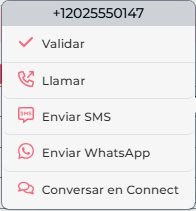
- Select Call from the contact actions menu. If CRM displays calling options, choose the one enabled for your company.
| Option | How it works | What to do next |
|---|---|---|
| WebCall | The call is placed from the dialer built into CRM when the service is enabled for your account. | When the call ends, complete the follow-up form, add notes, and save the result. The WebCall recording is automatically attached to the contact follow-up. |
| Softphone | CRM opens the phone service or app configured for your user, such as an external provider or your device calling app. | After the call, open the call follow-up in CRM and record what happened yourself; the external call is not automatically recorded in CRM. |
Record the outcome
- After a WebCall, wait for the follow-up form. If you need to open it while the call is active, use the follow-up button next to the timer.
- In Comments, write what you discussed and the next step. CRM requires this information to save the call.
- If CRM displays a Stage field, update it only when the conversation changed the contact's sales status. Select Effective call when appropriate.
- Save the follow-up and confirm it appears in the contact history.
- If you used Softphone, return to the record and log the call from Follow-up, with a short summary and the next agreed action.
A useful note records context and a commitment, not just that a call happened. For example: Reviewed the proposal; they will send the volumes on Thursday. Call again Friday morning.
If WebCall is not available: the service may not be enabled for your account or user. Ask your CRM administrator which phone option is configured. If you called through an external service, record the follow-up manually.
Screenshots show CRM in Spanish. Control names follow the language selected for your account.