

Before connecting an account, decide what you need CRM to do. The email mode determines whether the system only sends messages, only receives replies, or handles both directions. Choosing the right mode prevents connecting an account that does not support your team’s workflow.
Quick rule: if you need to send from CRM, enable outgoing email; if you need to receive and review replies in CRM, enable incoming email; if you need both, choose incoming and outgoing.
What each mode does
| Mode | What it does | When to choose it |
|---|---|---|
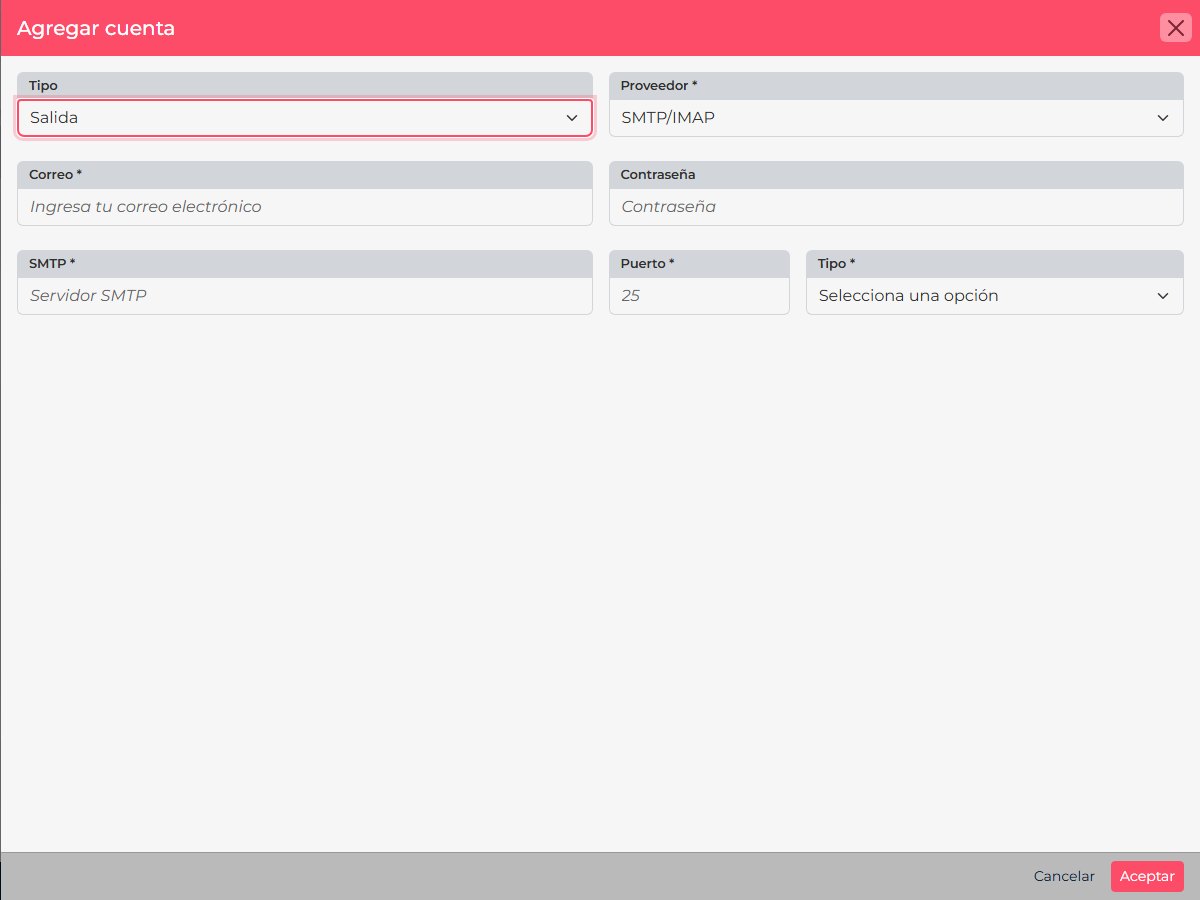
| Outgoing | Sends messages from CRM through the connected account. | When sending or replying from records, templates, or sales workflows is enough and you do not need to centralize the inbox. |
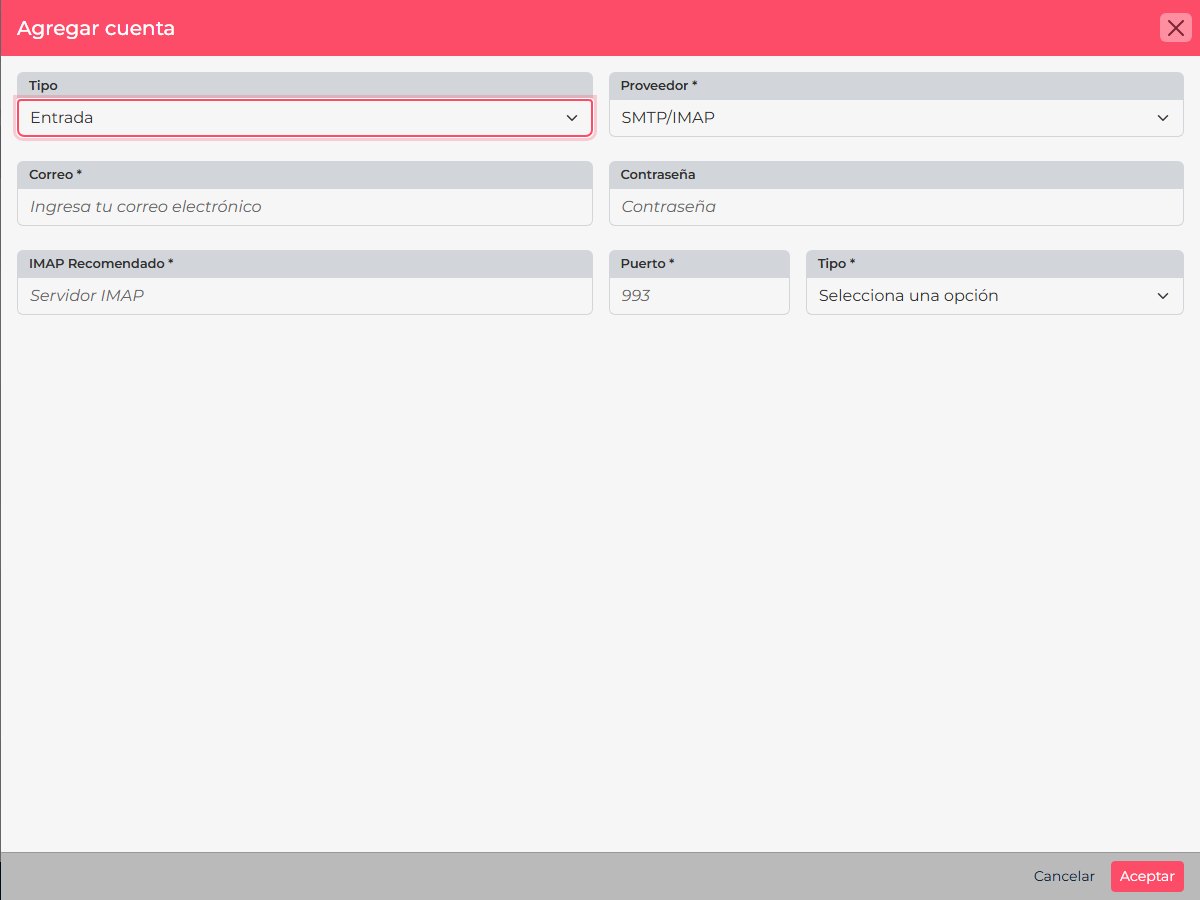
| Incoming | Connects received messages to CRM. | When your team needs to review replies in the system or handle a shared inbox. |
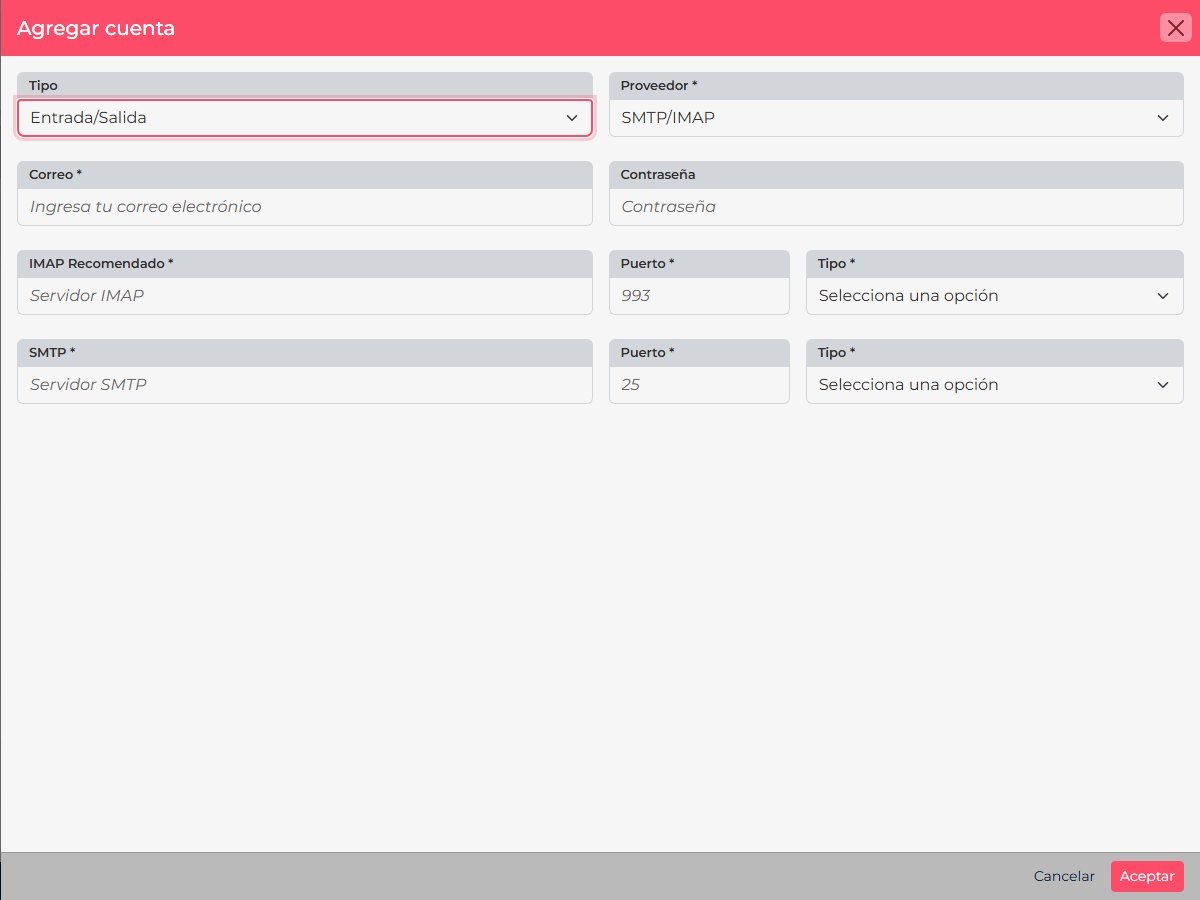
| Incoming/Outgoing | Supports sending and receiving in the connected workflow. | When the team needs both directions of the conversation in CRM. |
Where to choose the mode
- In CRM, open Personal settings > Email accounts.
- Select New to add an account.
- Under Type, choose Outgoing, Incoming, or Incoming/Outgoing before selecting a provider. The form changes based on your choice.
- Complete the connection for Gmail, Microsoft 365, or your company’s mail server. Save only after confirming the required details with your provider.
A practical decision
For example, a salesperson who only sends quotes from CRM may need outgoing email. A team that handles questions from a shared inbox may need incoming and outgoing. Check with your mail administrator that the account supports the sending or receiving you want to enable; availability depends on the provider and account permissions.
Before you continue: Incoming/Outgoing describes the email flow. Gmail, Microsoft 365, and SMTP/IMAP describe how the account connects.