
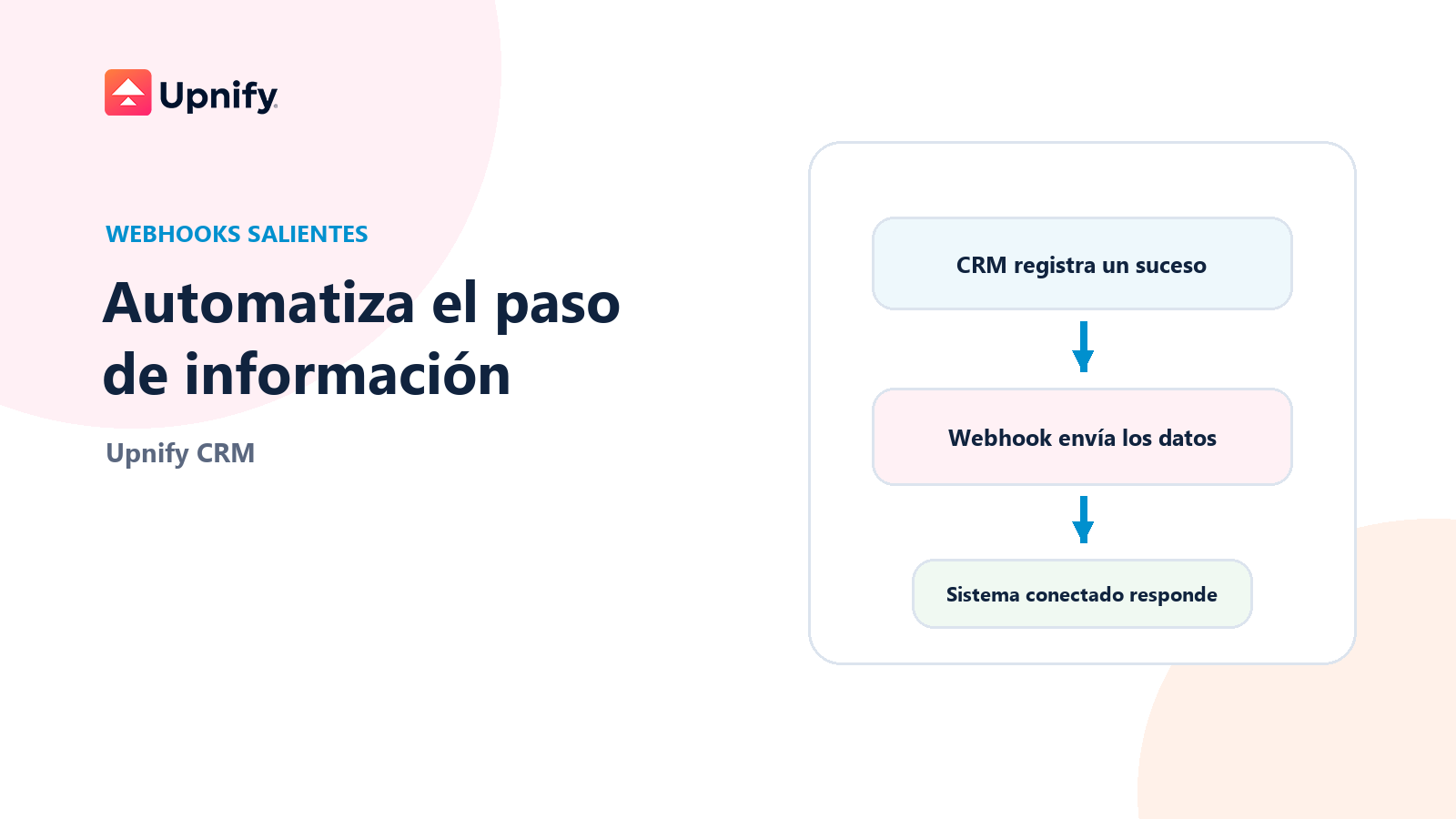
An outbound webhook notifies another system when a selected CRM event occurs. Instead of exporting records manually, CRM sends a web request to the address you provide. The receiving system can process it to continue a workflow, such as creating a task in an internal platform when a sale is recorded.
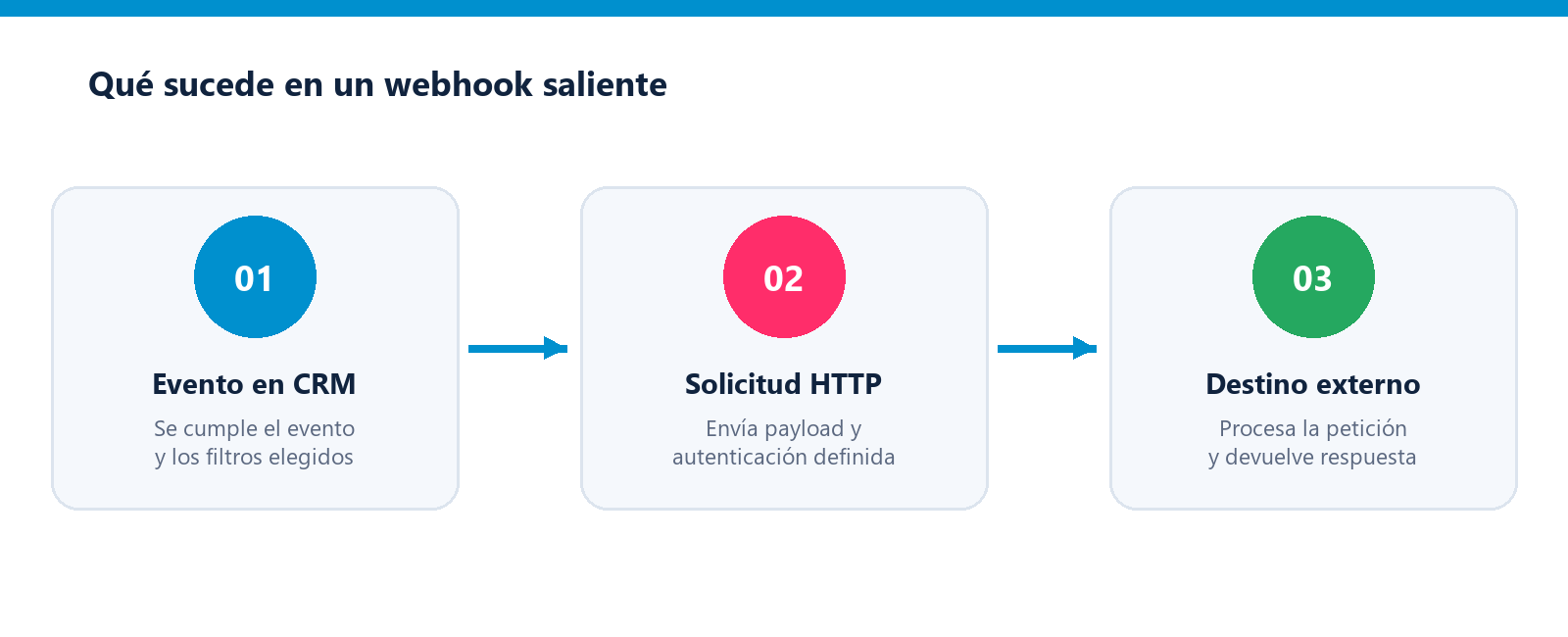
Configure the webhook
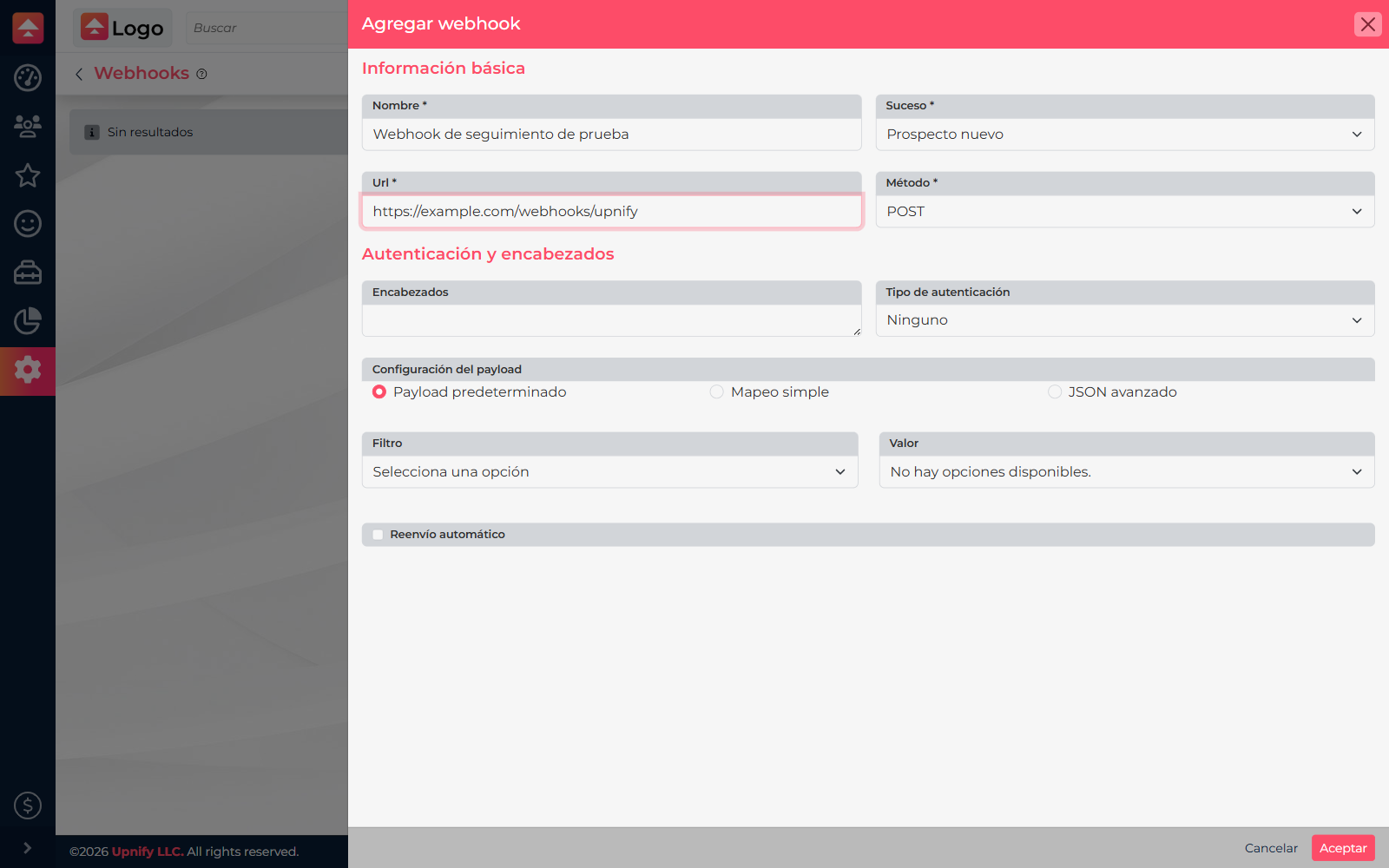
- Open CRM > Settings > Integrations > Webhooks and choose the option to add one. You need permission to manage this setting.
- Choose a name that identifies its destination and purpose, such as Notify internal system of a sale.
- Select the Event that triggers the request. Review the entity, field, and value filters if you want to limit which records trigger it. A more restrictive filter means other records will not send data.
- Enter the receiver URL and choose the HTTP method agreed with the external system administrator: GET, POST, PUT, or DELETE.
- Set any headers and the required authentication type: none, Bearer, or API key. For an API key, specify whether the receiver expects it in a header or query string. Use a credential created for this connection and share it securely.
- Choose how to prepare the request body: default payload, simple field mapping, or advanced JSON. Follow the receiver’s documentation; do not guess field names. With simple mapping, select the content type the receiver accepts.
- Enable automatic resend only when appropriate for the integration, then save.
Test before activating the workflow
- In the list, open the webhook’s action menu and select Test execution.
- The test sends a sample event to the destination so you can check the URL, method, authentication, payload format, and response. It does not create a real CRM event and does not by itself prove that the receiver saved the data.
- Compare the sent payload with the external system’s documentation. Review the response shown by CRM and correct the URL, headers, or mapping if the receiver rejects the request.
- After the test succeeds, review the latest execution and available history. Then activate the webhook and observe the first controlled real event.
Example
The operations team wants new sales sent to its internal system. It selects the sale-created event, an approved receiver URL, the POST method, and the authentication required by that endpoint. The test confirms that the receiver accepts the sample format; the team then validates one test sale and confirms with the external administrator that it was created only once.
If the test fails
- No response: check that the URL is reachable from the internet, uses HTTPS when required, and does not depend on a local network.
- The receiver rejects the request: verify the method, headers, credential, and content type against its documentation.
- Unexpected fields arrive: compare CRM’s displayed payload with the configured mapping or JSON.
- The test works but no events arrive: confirm the webhook is active, the event is correct, and the filters allow the record you are testing.
For a custom connection from your application, see the official CRM API documentation. Webhooks are useful for event notifications; the API can read or send data according to its documented routes and permissions.