
If people submit a form on your WordPress site, you can send those requests to Upnify CRM so your team can follow up from each lead record. This avoids copying information by hand and helps you identify which page or form brought each person in.
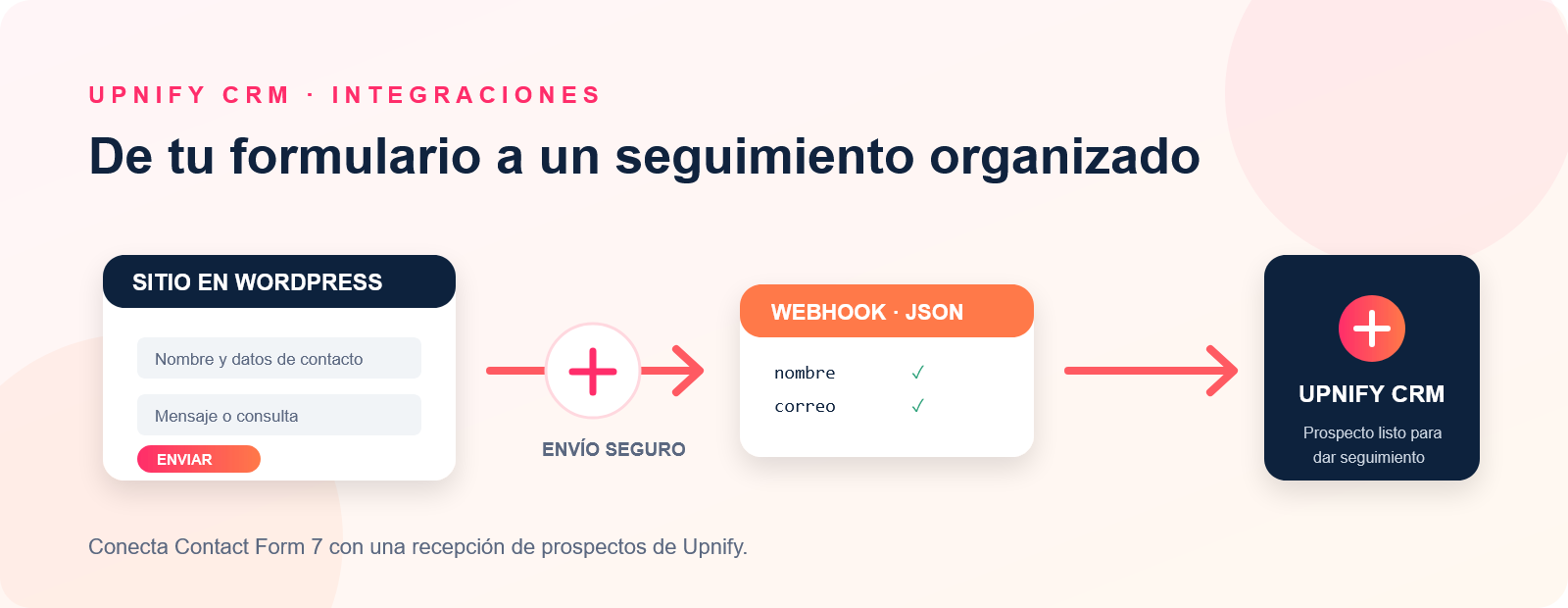
This guide uses Contact Form 7 and the third-party add-on CF7 to Webhook. The add-on can send JSON data to a webhook URL; it is not developed by Upnify. If you use another form tool, the same approach works with an extension that can send an HTTP POST request with the form fields.
You need WordPress administrator access, permission to manage CRM integrations, and a form with at least an email address or mobile phone field. In Upnify, you can choose the stage and source assigned to incoming contacts.
1. Create the integration in Upnify CRM
- In CRM, open Settings > Integrations > API and select Add integration.
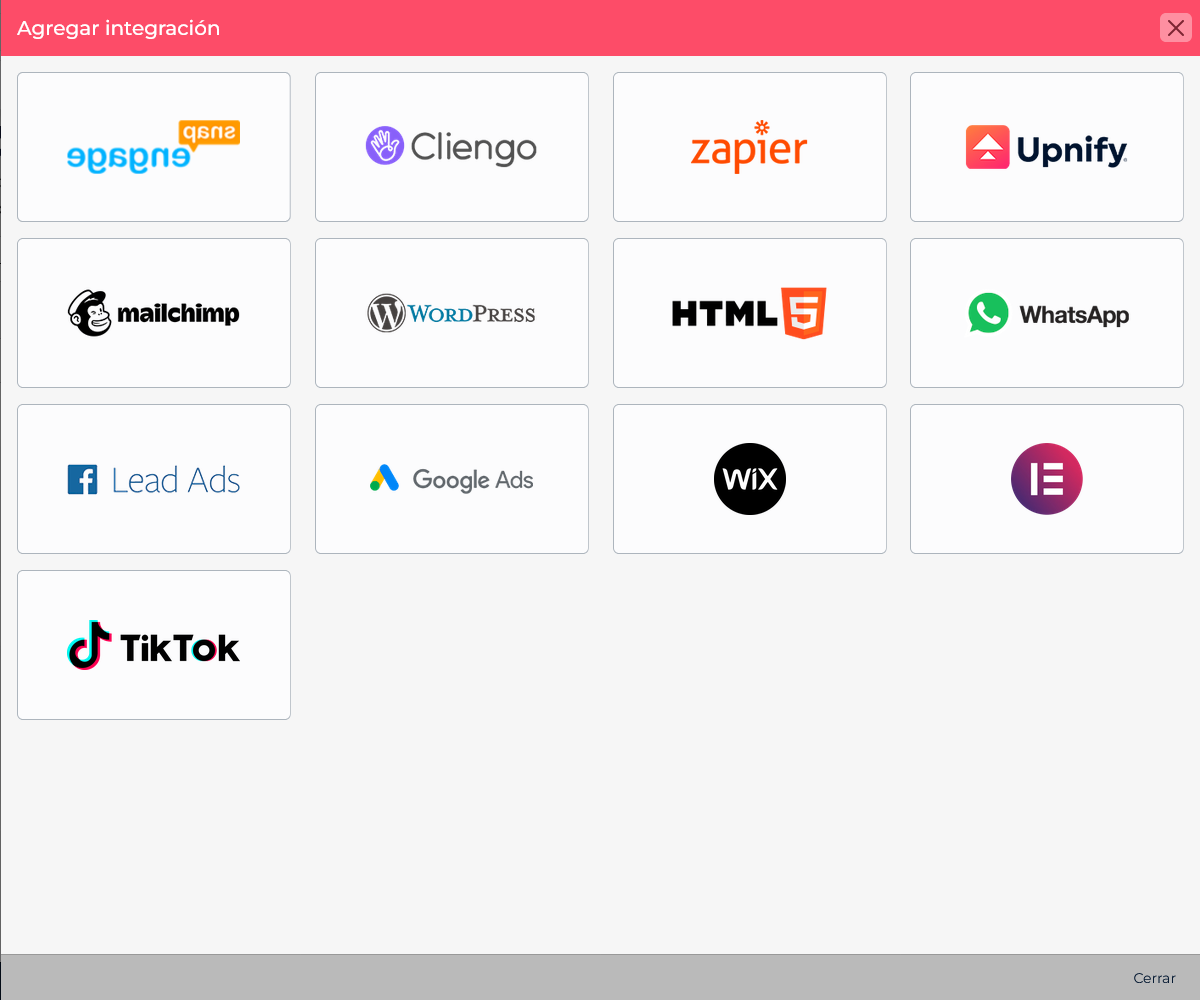
- Choose the WordPress card. The first screen shows the available connections; the next screen contains the configuration fields.
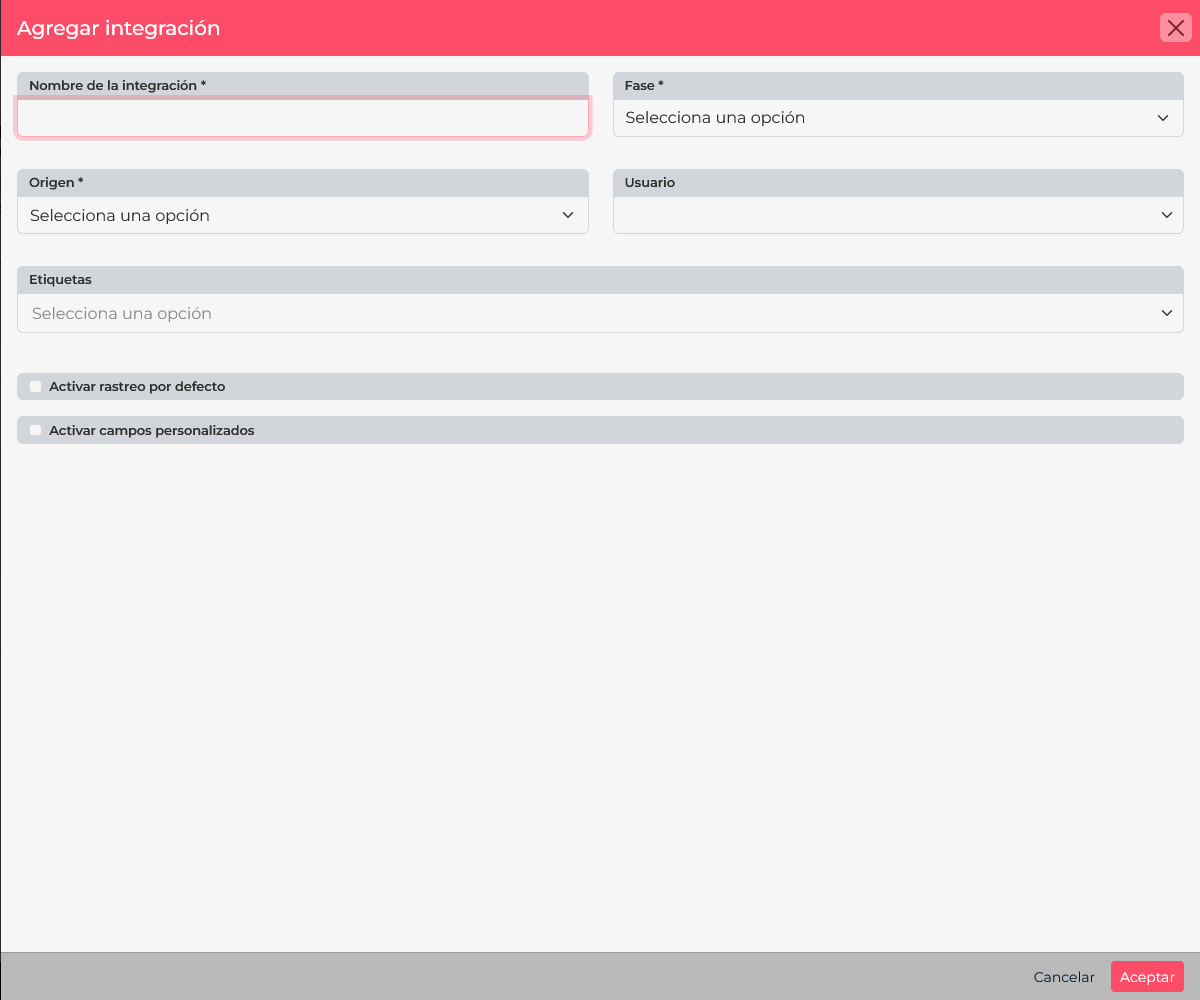
- Enter a recognizable name, such as WordPress | Contact form.
- Choose the default Stage and Source for contacts received through this connection. You can also assign a user or tags and enable tracking or custom fields if your form needs them.
- Select Accept to save. Copy the complete receiving URL generated by CRM and keep it secure because it contains the integration token.
2. Prepare the form fields
In WordPress, install and activate Contact Form 7 and CF7 to Webhook from Plugins > Add New. In the form editor, identify the fields to send. The add-on lets you assign a webhook key to each field so that the name received by Upnify matches its API field.
In this example, the left-hand names are internal form field names; webhook: defines the key sent to the endpoint:
[text nombre webhook:nombre]
[text apellidos webhook:apellidos]
[email* correo webhook:correo]
[tel movil webhook:movil]
[textarea comentarios webhook:comentarios]
[submit "Send"]
Use the field names supported by the Upnify API: nombre, apellidos, correo, movil, and comentarios. CRM needs an email address or mobile phone to process a contact; you can send both. For other data, use supported fields or configure custom fields in the account first.
3. Configure the webhook
- Open the form in WordPress and go to the webhook add-on tab. Depending on the version, it may be called Webhook or Zapier.
- Enable Send to Webhook and paste the complete Upnify URL into the Webhook URL field.
- Save the form. If your installation offers a request-body format option, use the JSON format expected by Upnify's receiving endpoint.
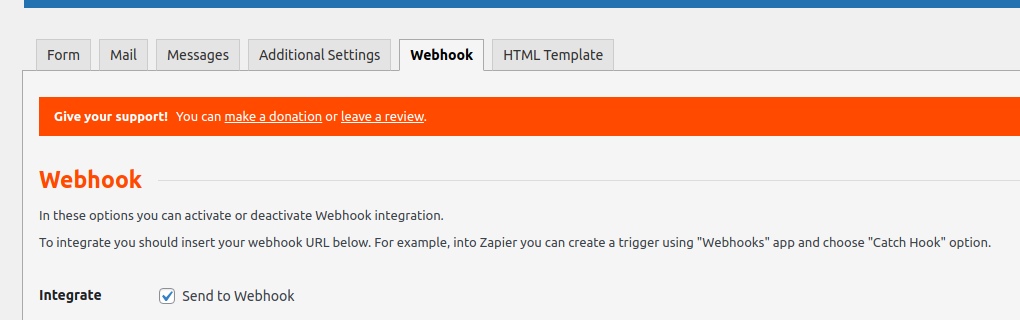
The official WordPress directory explains how to install the add-on and assign webhook keys to fields. See the Upnify API documentation for receiving contacts for supported fields.
4. Embed the form and verify delivery
- Copy the shortcode shown by Contact Form 7 and paste it into the WordPress page where the form should appear. Save or publish the page.
- Submit a controlled test using an email address or mobile number you can find in the demo account. Use test data from your own environment.
- In CRM, find the contact and confirm that it received the expected stage, source, and owner. Check that the name, email, mobile number, and comments appear in the correct fields.
If the contact does not appear in CRM
| What to check | How to fix it |
|---|---|
| The form submits but no contact is created | Make sure the request includes an email address or mobile number. An HTTP 200 response alone does not confirm that a contact was inserted. |
| Information appears in the wrong fields | Compare the webhook keys with Upnify field names such as correo and movil. |
| No request reaches Upnify | Check that webhook delivery is enabled, the full URL is correct, and the form was saved. |
| The contact gets an unexpected stage or source | Review the defaults selected when creating the CRM integration. |
Once submissions reach the right record, your team can work the request in CRM and retain its source for follow-up.
Contact Form 7 on WordPress.org · CF7 to Webhook on WordPress.org · Upnify API: receive a contact