
The Upnify API connects CRM to your own or third-party systems so information does not have to be entered twice. It can help an internal app query prospects, send records from a sales platform, or coordinate a process with your development team.
Before you begin
- Agree on what information the systems will exchange, in which direction, and how often.
- Ask a CRM administrator to create the integration and a developer to implement the workflow.
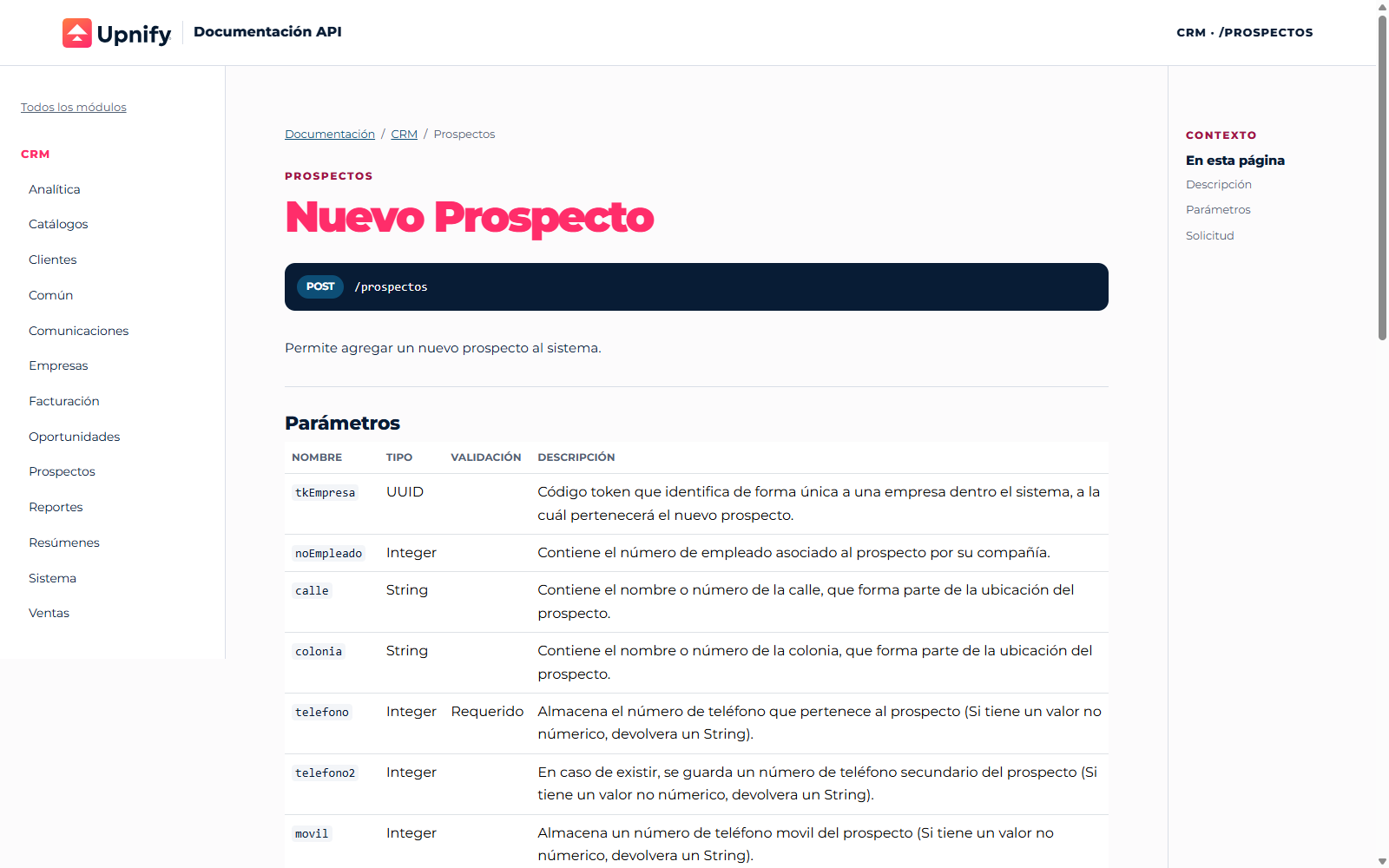
- Review the official CRM API documentation. Each operation describes its parameters, fields, and response.
1. Create an external systems integration
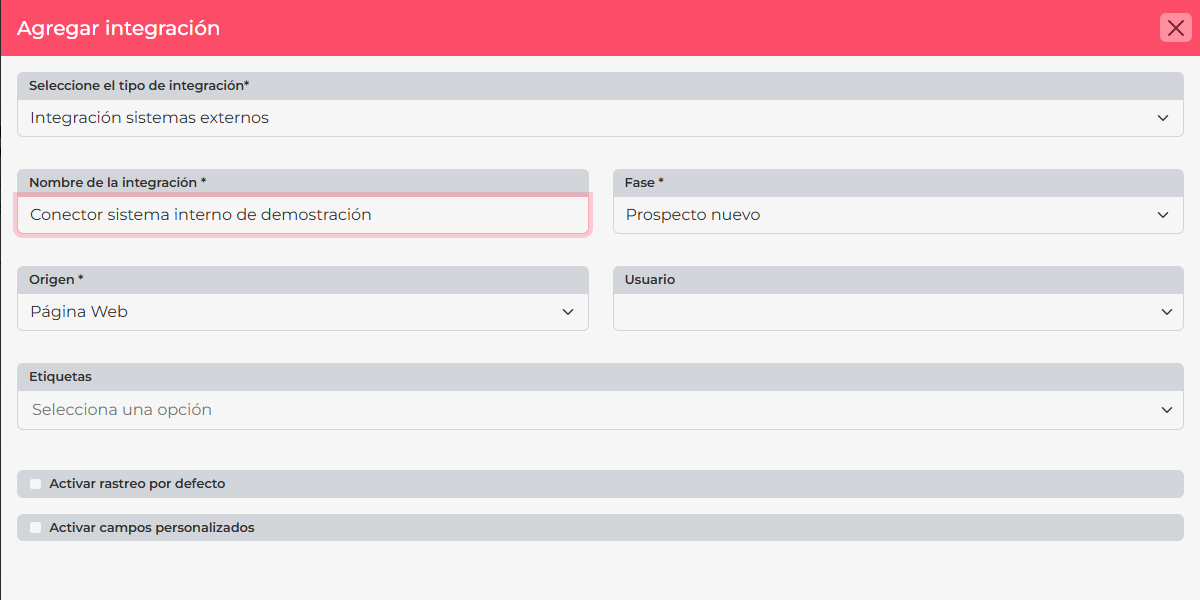
- In CRM, open Settings > Integrations > API and select Add integration.
- Choose Upnify in the catalog and select External systems integration.
- Name the project and configure any initial values CRM requests, such as owner, stage, source, or tags.
- Save. The details display its credentials. Share them with the technical team through a secure channel—not in shared documents or public code.
2. Exchange the integration token for a session
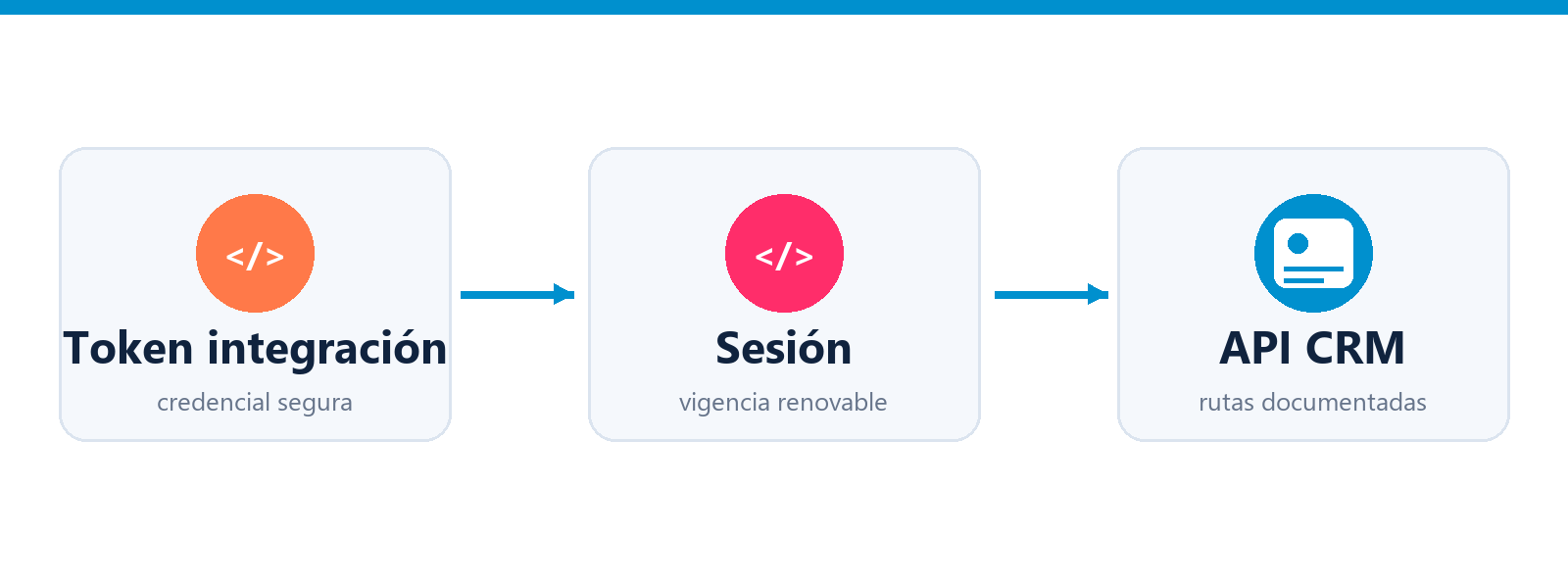
The current guide recommends requesting a session with POST /integraciones/sesion, sending the integration token in the token header. Check that the response returns code: 0; its token field is the session token for authenticated routes.
POST https://api.upnify.com/integraciones/sesion
Accept: application/json
 token: INTEGRATION_TOKEN
A new session lasts two days. The documentation says to repeat the exchange to renew it when fewer than five hours remain. Keep both tokens and the expiration in secure server configuration.
3. Implement only the required operations
- Choose CRM routes for each task and verify required fields before coding.
- Use HTTPS and send the session token in the
tokenheader whenever a route requires authentication. - Validate each response's code, message, and details; a completed connection does not always mean a record was processed as expected.
- Handle expired sessions, rejected data, and request limits. The documentation lists a general limit of 100 requests per minute; for HTTP
429, wait and retry gradually. - Log only what is needed to diagnose; never store tokens or passwords in logs.
The documented authentication exchanges the integration token for a session token. If CRM also displays an authentication code, do not use it instead of the token in the guide; ask the technical team whether a particular integration needs it.
Example
A company wants its internal sales portal to query prospects registered in CRM. The administrator creates the integration; the developer obtains a session, queries documented routes, and displays only authorized data. If the portal must also create records, agree on fields and duplicate-handling rules before enabling submissions.
See Getting started: authentication and first request and the CRM API documentation. If you only need to receive prospects through a URL, see How to receive prospects through an Upnify integration.