
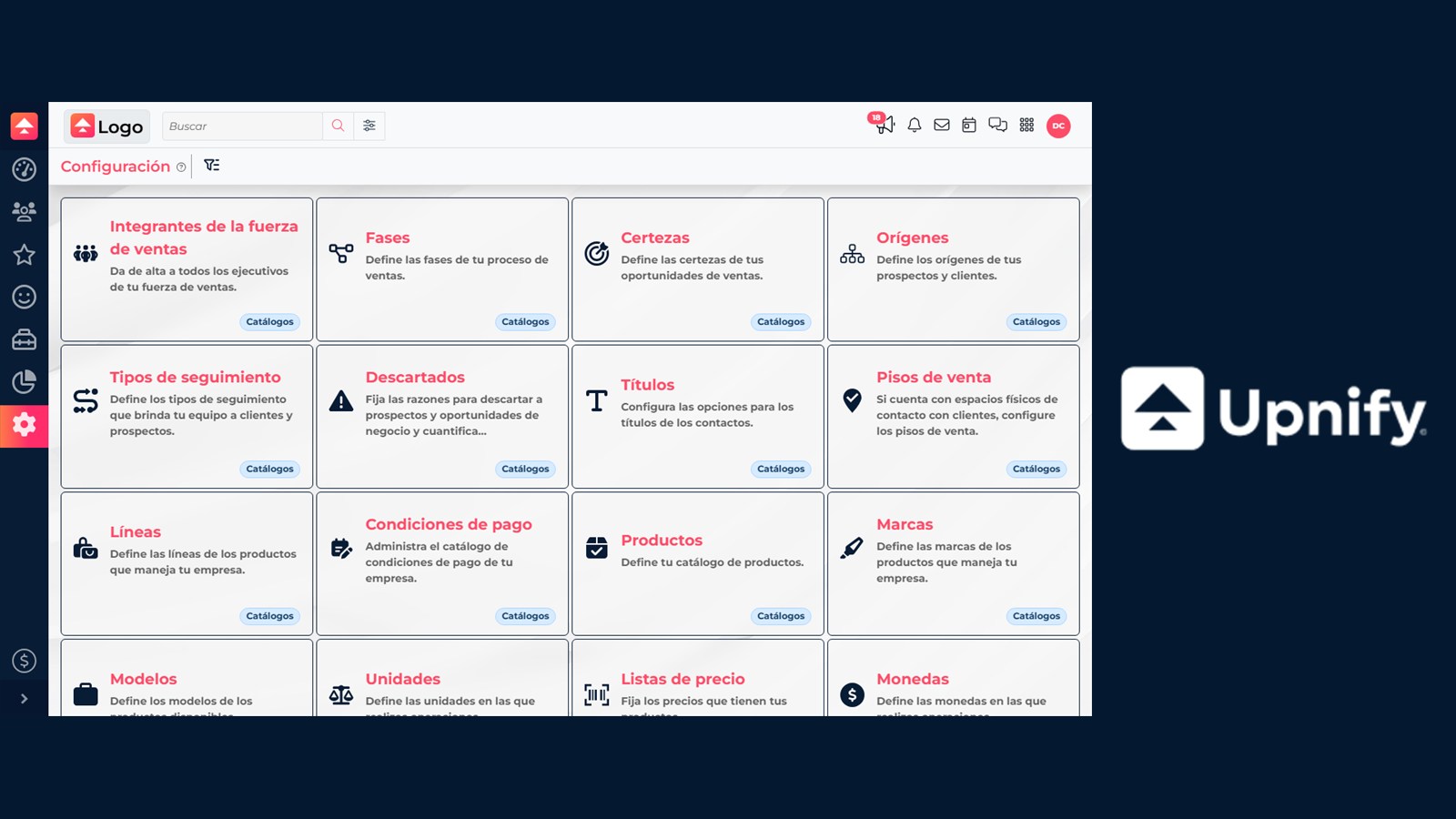
Setting up CRM in a sensible order helps stages reflect real work, ensures automations have their required resources, and keeps reporting criteria consistent. This guide suggests a setup sequence; you do not need to enable options your process does not use yet.
The screenshots show CRM in Spanish; labels may vary based on the language selected in your account.
You need Administrator access or permission to the Settings screens you will configure. If CRM is already in use, record current values and check dependencies before changing catalogs or automations: a change can affect available options, filters, and report interpretation.
Follow this order
| Step | What to define | Why it comes here |
|---|---|---|
| 1. Team and scope | Confirm who will work in CRM and which products and access each person needs. Company-wide user, group, and product access is managed in Suite. | Phases, rules, and testing should reflect who will do each task. |
| 2. Sales journey | Map how prospects, opportunities, and customers move through the process and what outcome allows a record to advance. | Each entity has its own phase catalog, so define the process those phases should represent first. |
| 3. Phases | Set up phases for Prospects, Opportunities, and Customers; define their order, goal, and timing if your team will use it. | Automatic actions are attached to an existing phase. |
| 4. Phase actions | Decide what should happen when a record enters a phase. Prepare any templates, tags, channels, or Flow tasks first. | This avoids configuring an action whose resource does not exist or is unavailable. |
| 5. Tracking and analysis catalogs | Define Certainty, Origins, discard reasons, and Follow-up Types. | These values standardize forecasts, attribution, loss reasons, and interaction categories. |
| 6. Commercial catalogs | If you will quote or record sales, organize the products, lines, prices, currencies, taxes, and other data your workflow uses. | Commercial forms and documents depend on these catalogs. |
| 7. Data and operations | Add necessary custom fields and review general options, permissions, distribution, and notifications. | Do this after defining the process so data capture is useful and access matches responsibilities. |
| 8. Test | Walk through the process with a test record and the user levels that will use it. Review reports too. | A full test helps identify missing fields, access, options, or automations before real records are affected. |
1. Confirm the team and goal
Before changing Settings, agree on what CRM should track and what it means to advance through the process. Confirm that the people involved are organized and have CRM access through Suite administration. If ownership is still being decided, do not create assignment rules until you have confirmed that the relevant user account is active and part of the process.
2. Model the process before adding phases
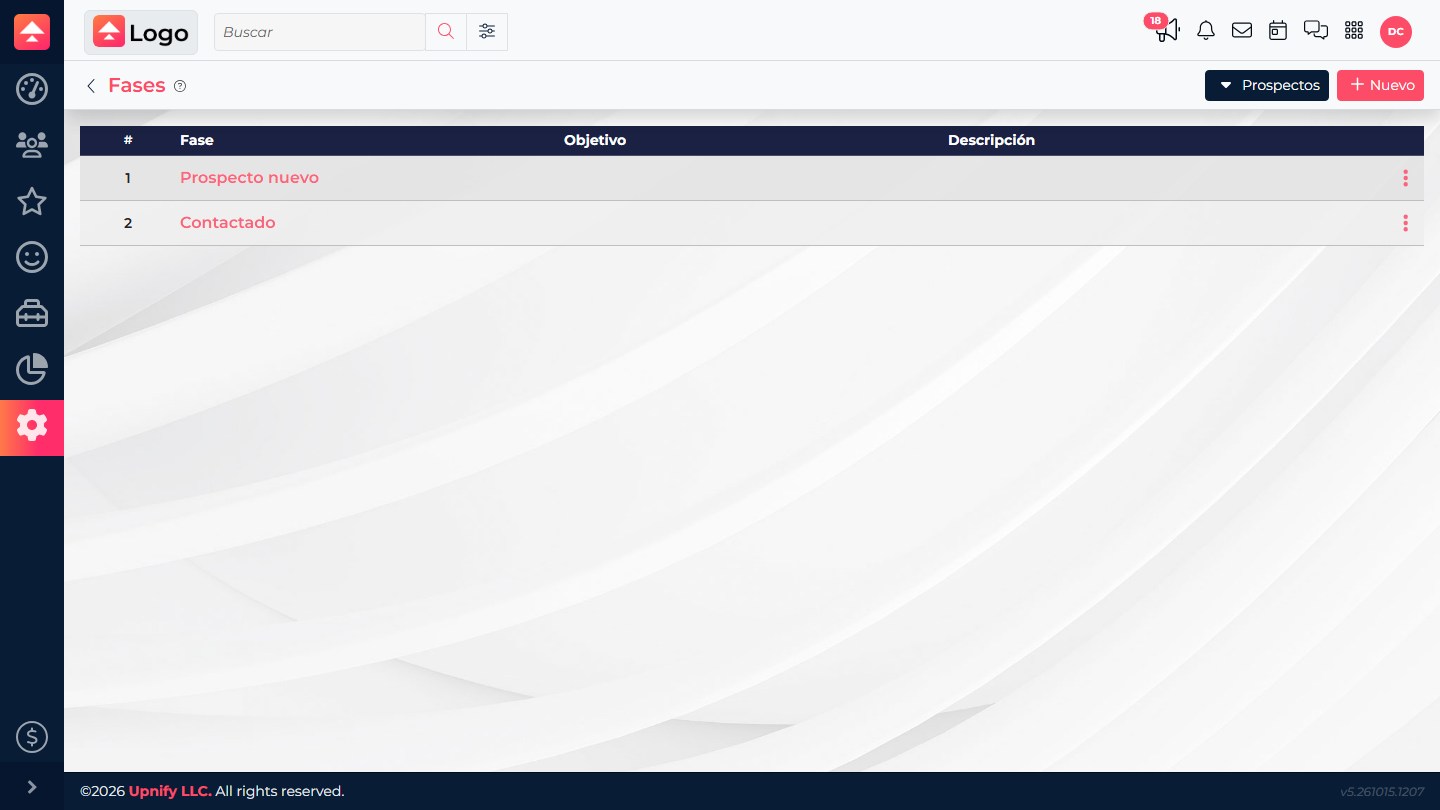
Write down the journey using the terms your team uses and define the expected outcome at each step. Prospects, Opportunities, and Customers have separate phase catalogs, so a phase with the same name in two entities is not one shared stage. Use names the team can recognize and that make it clear what is needed to advance.
Then configure phases and their order. Maximum time and the To expire threshold are useful when the team needs to spot records that have stayed too long in a phase. If the team will not measure time there, do not invent a target.
3. Configure actions after their resources are ready
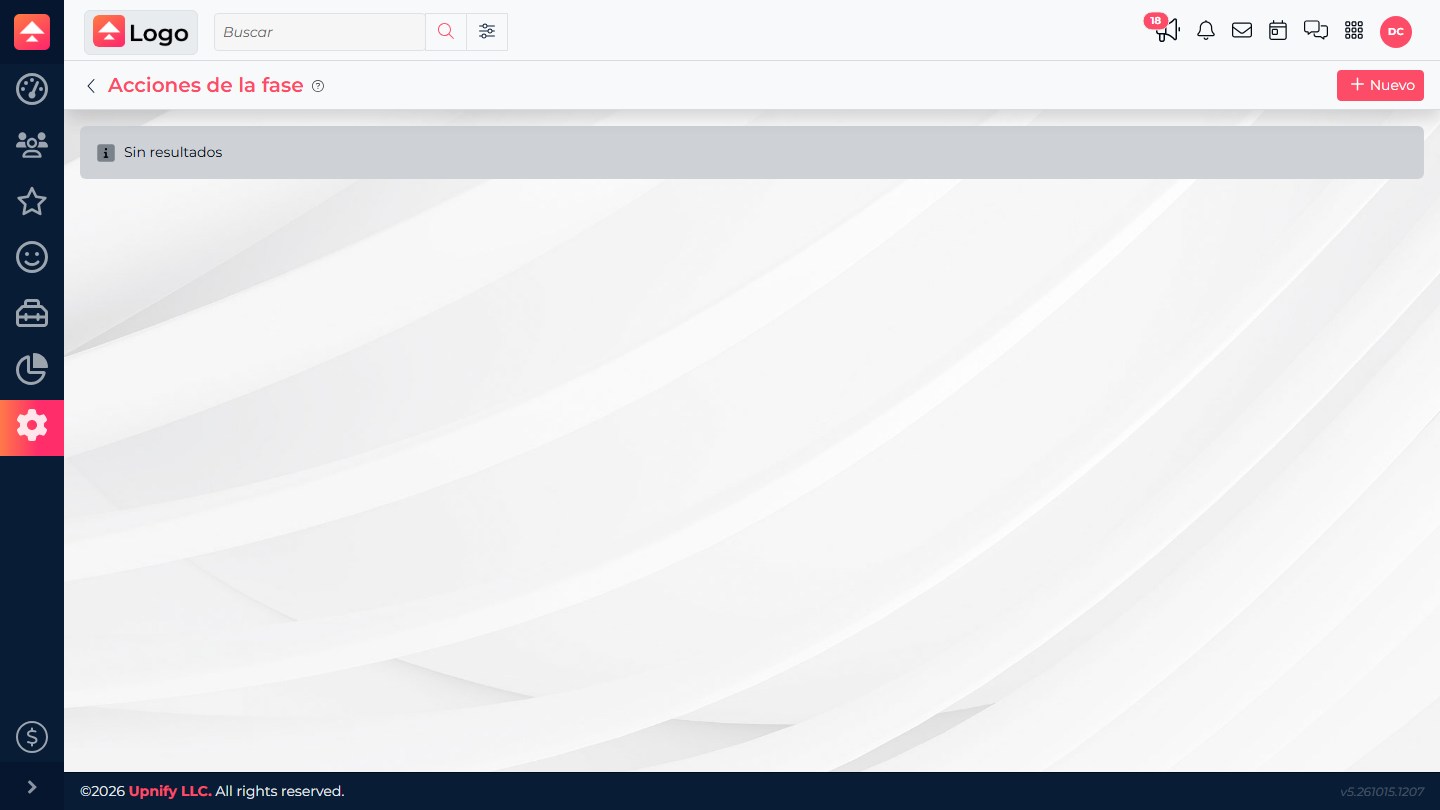
Phase actions run when a record enters that phase. Before adding them, confirm the email or WhatsApp templates, tags, channel, and Flow availability if you plan to create tasks. An action can run again if the record re-enters the phase, so design and test each action with that behavior in mind.
4. Standardize catalogs that explain the process
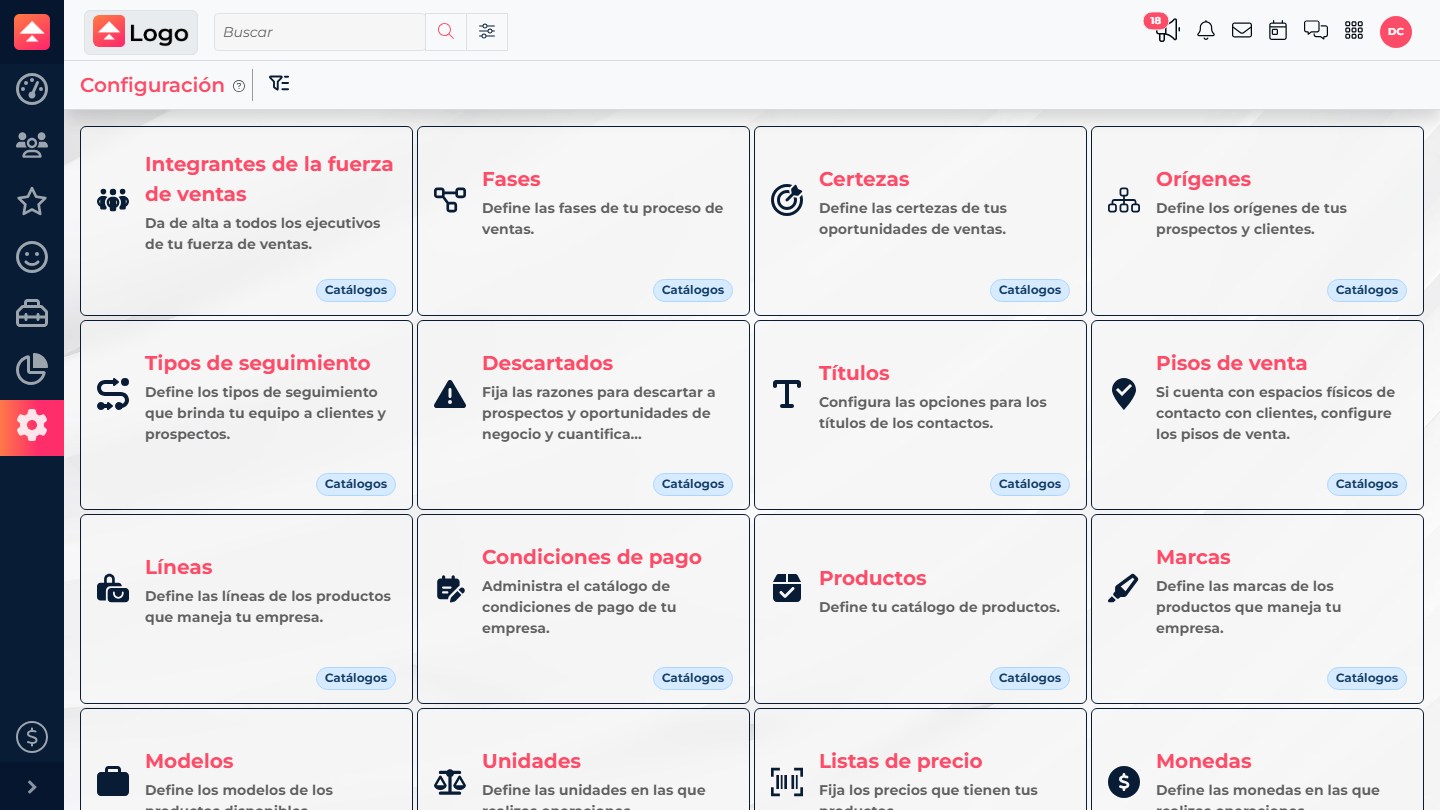
Customize certainty descriptions to match your probability criteria; create origins that identify where prospects come from; define discard reasons that explain why a record was lost; and configure follow-up types to classify calls, meetings, or other interactions. Do not mix these concepts: origin records provenance, certainty supports an opportunity estimate, a discard reason describes a loss, and a follow-up type classifies an activity.
5. Complete only the catalogs and data you will use
If you will send quotes or record sales in CRM, prepare products and commercial terms before testing those forms. Add custom fields only when you need information that existing fields do not cover; decide which entity owns each data point and how it will be used.
Integrations, web forms, and distribution rules can also depend on phases, origins, tags, fields, or owners. Configure them after those values are decided to avoid rebuilding forms or reassigning information.
6. Validate before adopting the setup
- Use a controlled test record to move through the phases for the relevant entity.
- Confirm that lists show the intended order and the team understands each phase goal.
- Test automated actions with test recipients and resources; confirm that no unwanted communication is sent.
- Check that origin, certainty, discard reason, and follow-up type can be selected where expected.
- Verify each user level has access to the screens and actions it needs, and that reports reflect the expected data.
Do not immediately replace or remove phases, origins, or reasons that are in use. First identify related integrations, rules, and records. If the screen asks you to replace a value, choose one with the same meaning and validate the effect on reports.
If testing reveals a gap, correct the catalog or permission that caused it and repeat the workflow. Record the change date and tell the team when the new values take effect.