
The Upnify HTML form captures prospects on your website without asking your team to copy each request into CRM. Configure its fields and initial handling once; CRM then adds submitted information according to those settings.
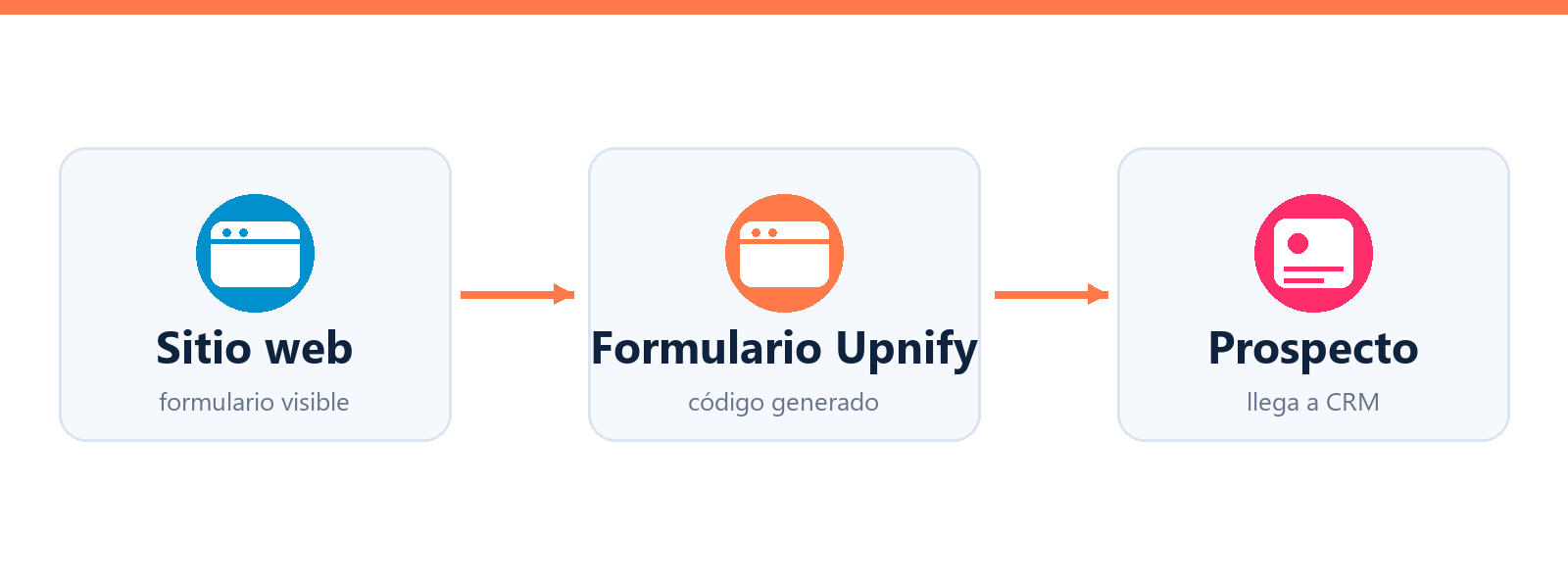
1. Configure the form in CRM
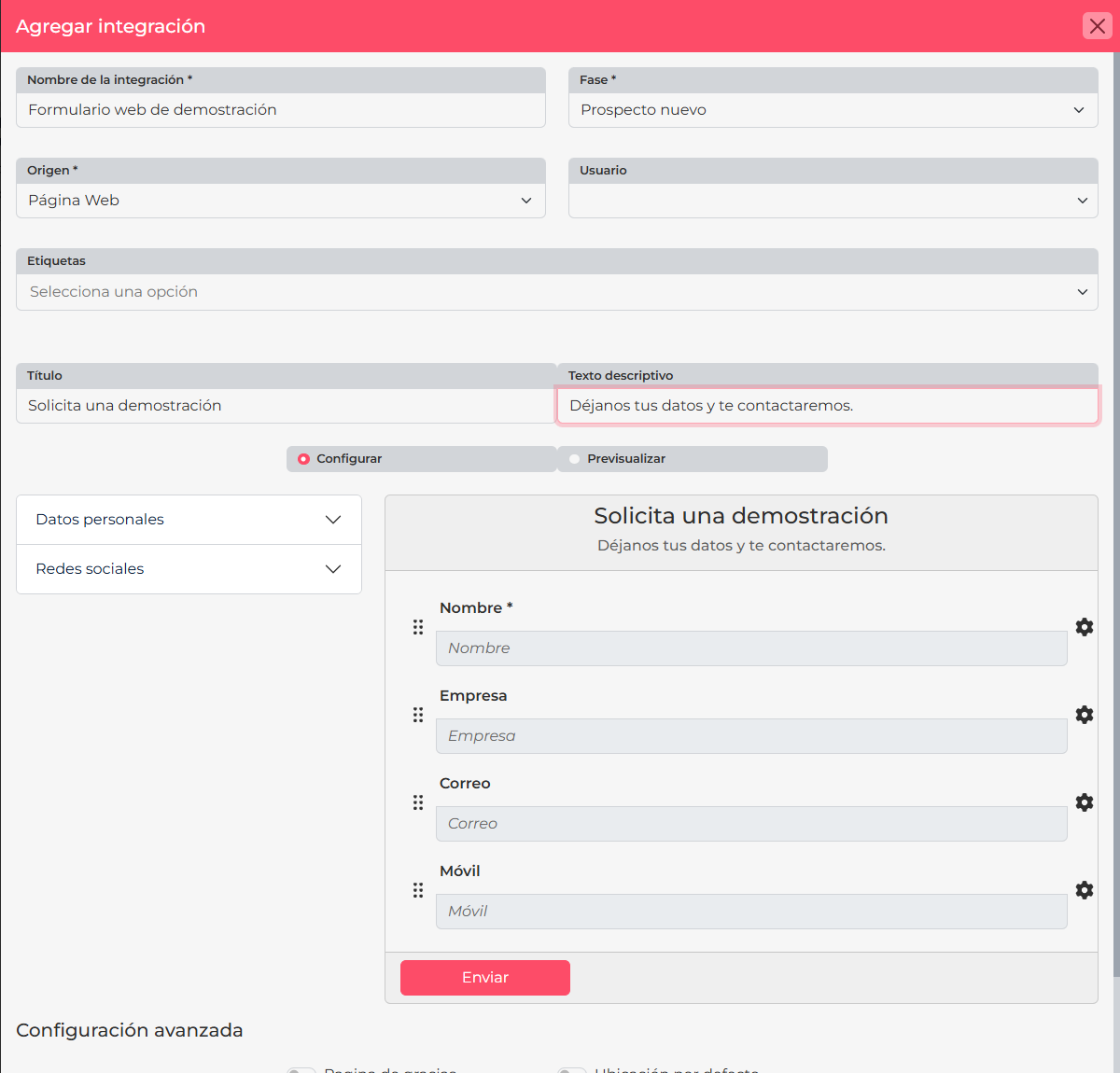
- Open CRM > Settings > Integrations > API and select Add integration.
- Choose HTML in the catalog. Give it a name that identifies its location, such as Services page contact.
- Set the stage, source, and tags. If an owner option appears, select who should receive the contacts.
- Continue to the field selector. Add the information you need, such as name, email, or phone. Mark only fields needed to begin follow-up as required.
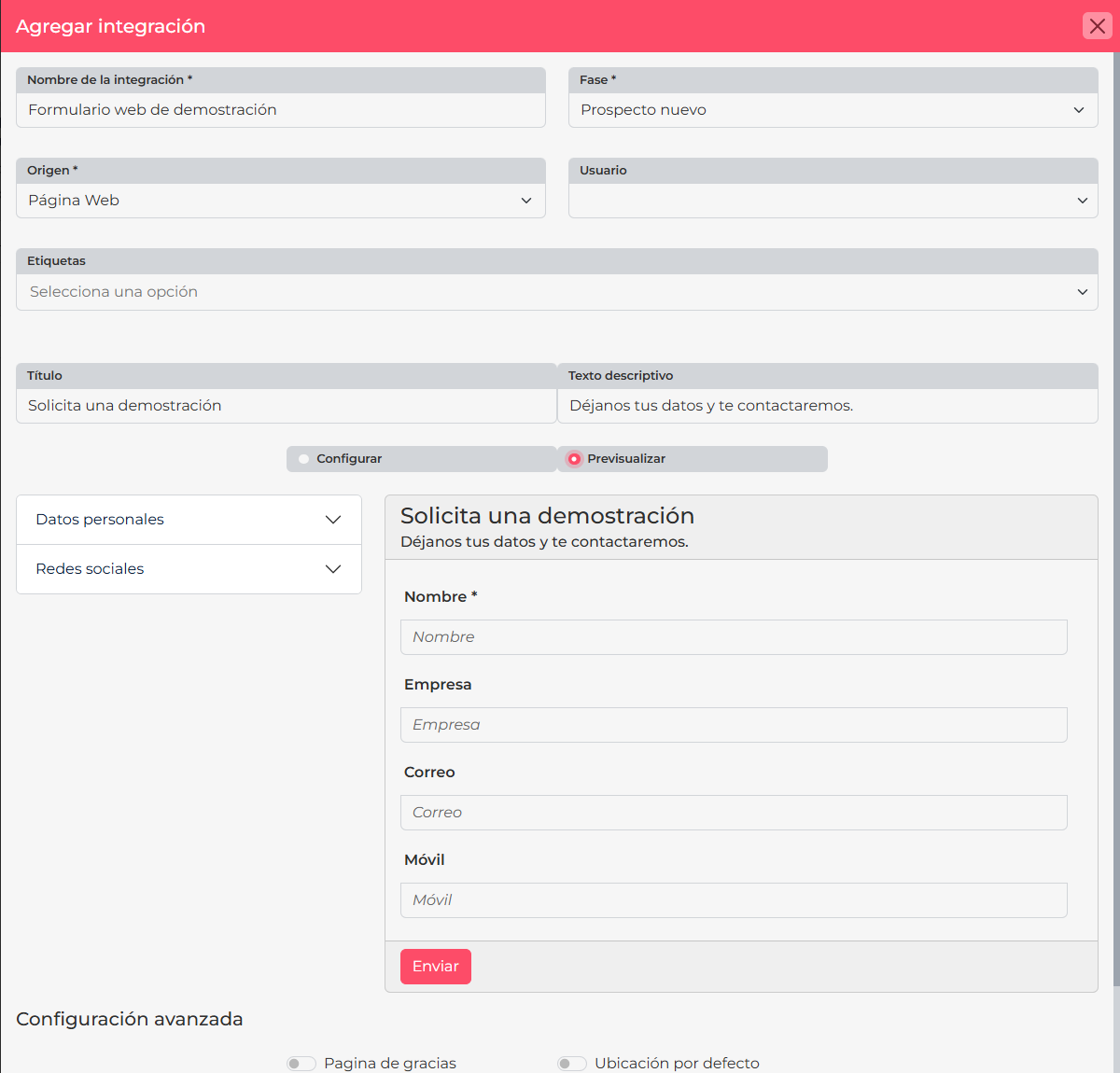
- Review the preview to confirm the order and information. Go back to adjust if needed, then save.
2. Copy the generated code
After saving, CRM displays the form snippet. Use the copy button and send the complete code to the person who manages your website. The snippet contains the form identifier; do not shorten it or replace values by hand because it must match the integration you configured.
If your web administrator needs to adjust the presentation, ask them to keep the connection code intact and test the page on the devices and browsers your visitors use.
3. Test before promoting the form
- Enable the page in a test environment or at a restricted URL.
- Submit a controlled test request and check that CRM creates a prospect with the expected stage, source, tags, and owner.
- Confirm the visible and required fields match what your sales team needs.
- After the result is correct, make the form available and tell the team that prospects will arrive from this source.
Example
A consulting company wants to capture requests from its services page. It creates a form with name, email, phone, and area of interest; sets the source to Website and the initial stage for new inquiries. When someone submits it, the team finds the contact in CRM and follows up from the contact record instead of relying on a shared inbox.
If a prospect does not appear
- Confirm the complete code belongs to the saved form and is installed on the correct page.
- Check that the test included required fields and valid contact information.
- Search by email or phone and verify the stage and source too.
- If it is still missing, give your web administrator the test time and page so they can review the installation.
If your system sends the data directly, see How to receive prospects through an Upnify integration. For a custom connection, consult the official CRM API documentation.