
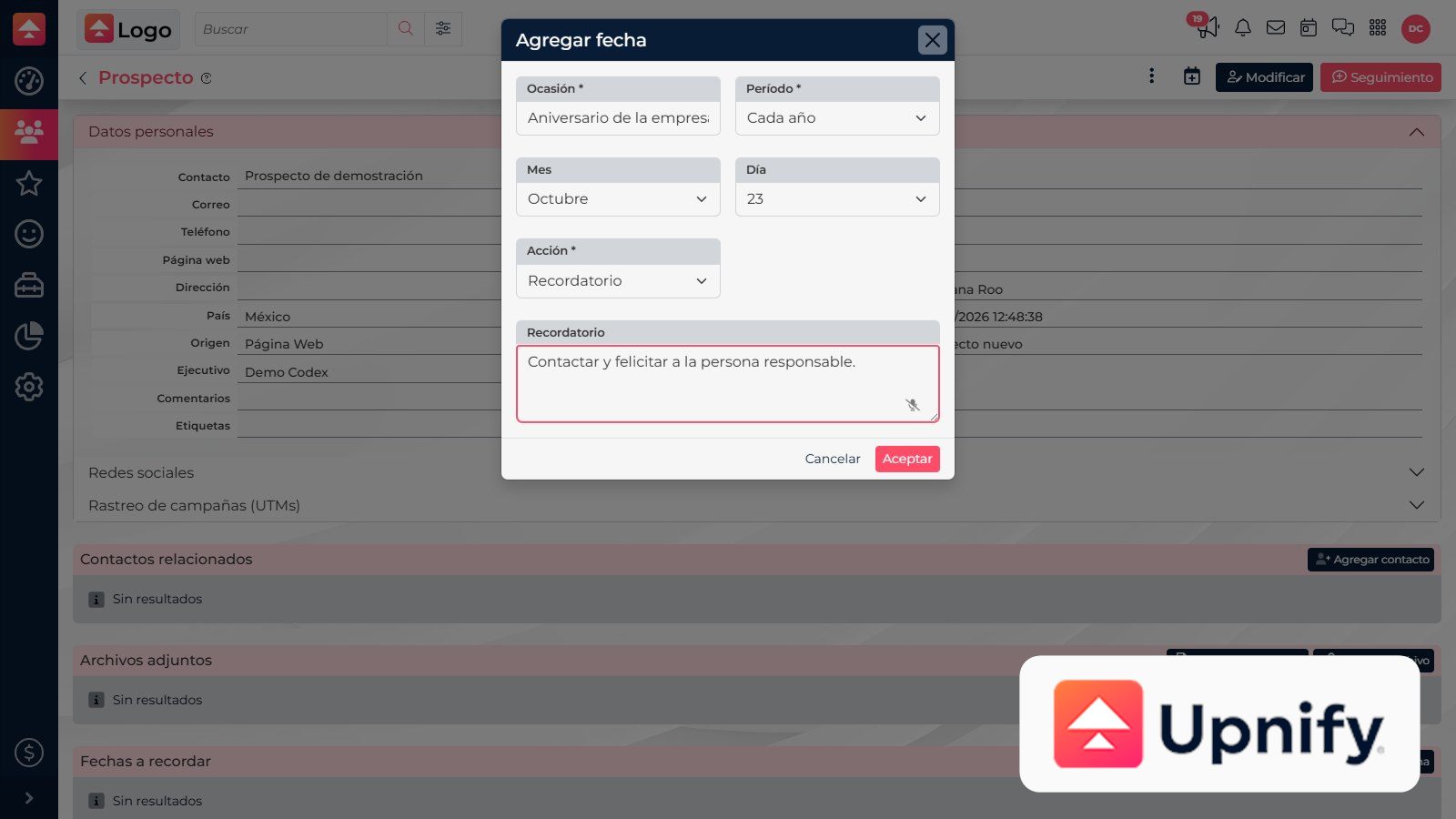
Important dates preserve events on a contact record, such as a renewal, anniversary, or agreed date. You can define when they recur and what action should help you follow up.
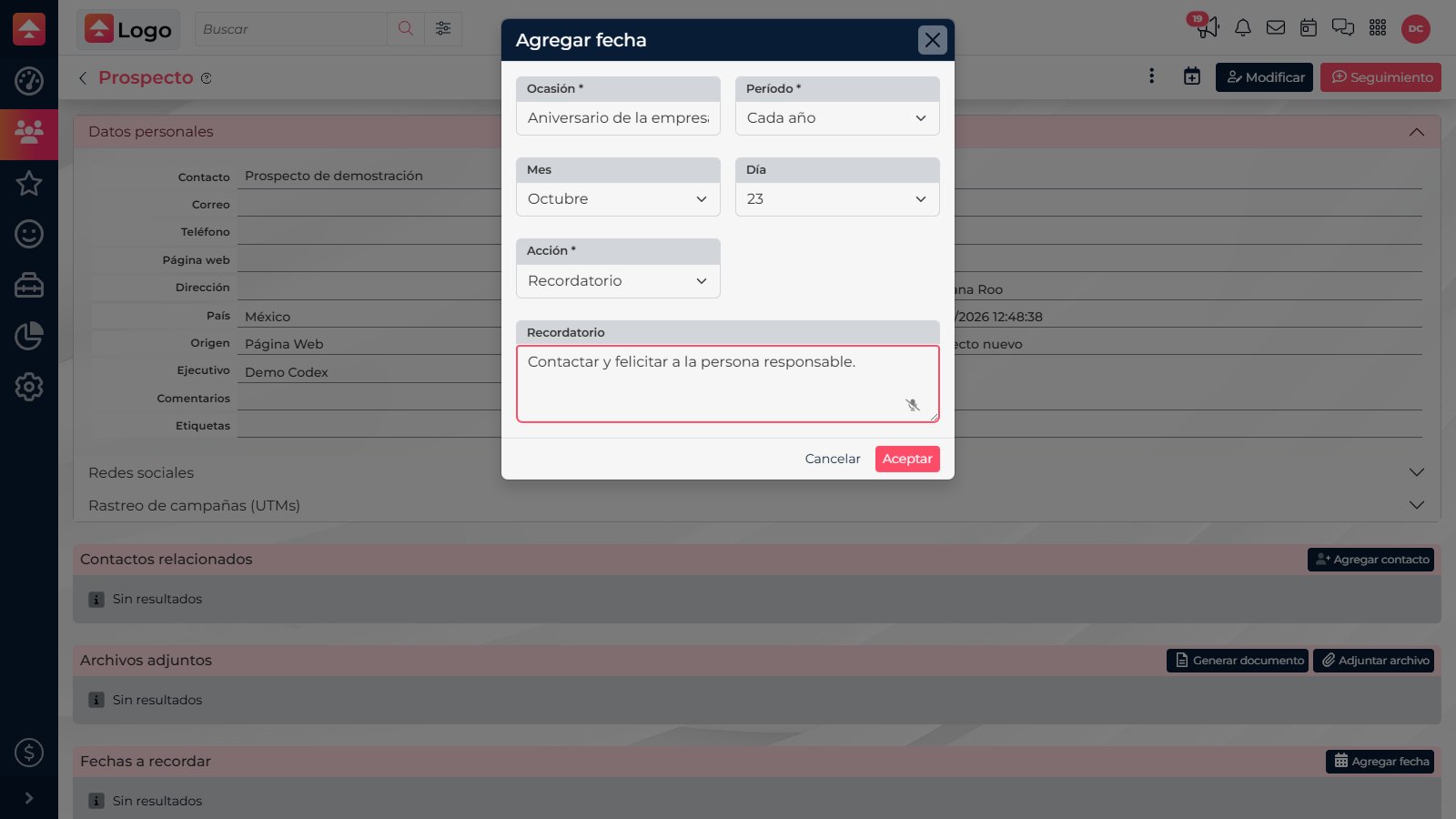
Add an important date
- Open a contact or supported record and find its important dates section.
- Add the date and a clear label, such as “Contract renewal.”
- Choose the appropriate frequency: weekly, monthly, yearly, or a specific date, depending on the available options.
- Select the associated action: a reminder or a template email.
- Review the details, save, and confirm the date appears on the record.
| Action | Purpose | What to check |
|---|---|---|
| Reminder | Notify you that the important date is approaching or has arrived. | Date, recurrence, and who receives the alert. |
| Template email | Prepare a message associated with the date. | Selected template and configured recipients; check that the content is appropriate. |
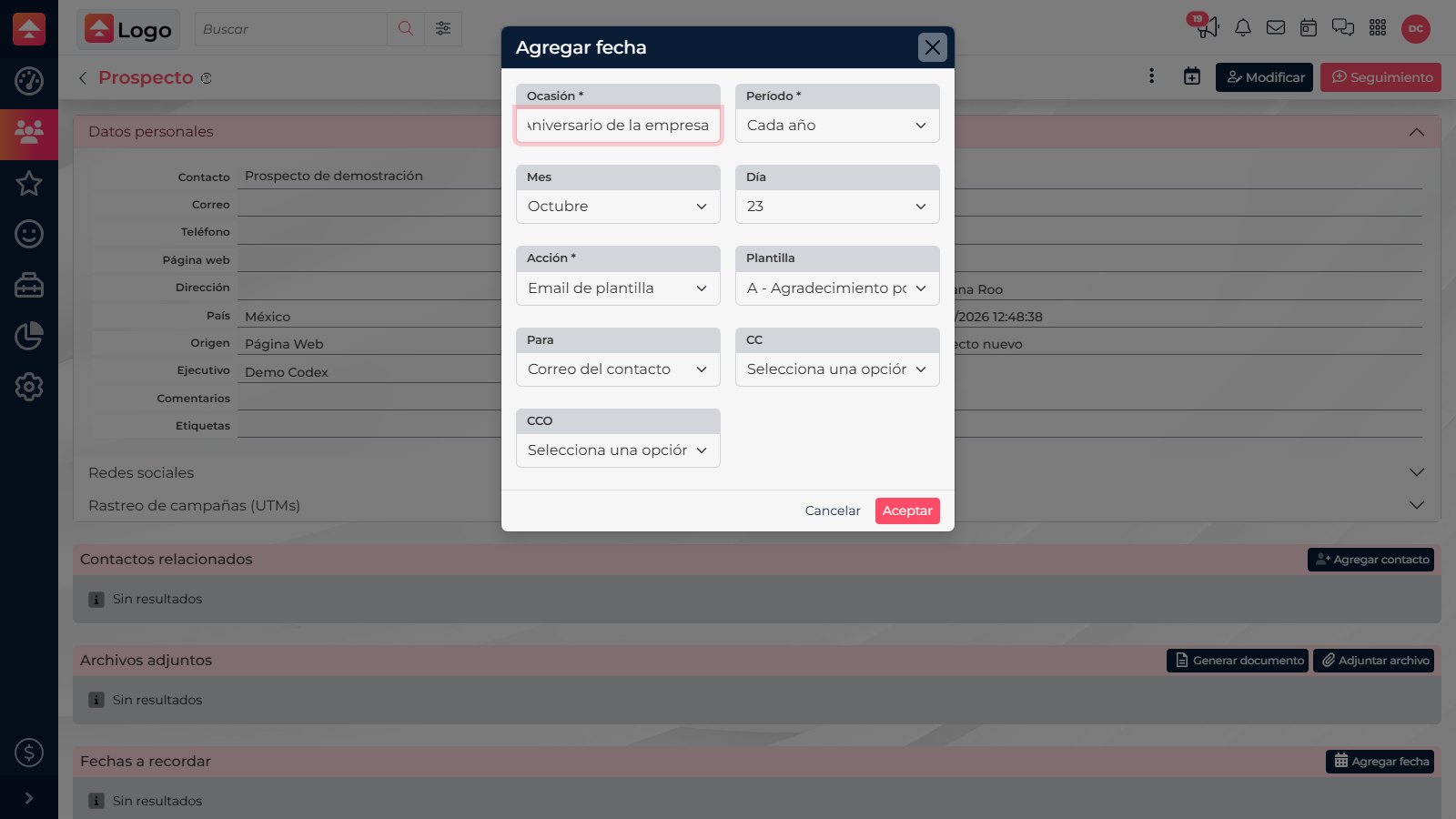
Check recipients before enabling email
Confirm who will receive the message and review its template. Associating an email with a date does not by itself confirm that sending is approved; verify the expected action in the interface.
Confirm who will receive the message and review its template. Associating an email with a date does not by itself confirm that sending is approved; verify the expected action in the interface.
Update or remove a date
Return to the contact record, find the date, and edit it if the event, frequency, or action changed. If it should no longer trigger alerts, disable or remove it using the available options. When changing a template, check that no incorrect recipient remains.
When to use a calendar activity
An important date belongs to the record and tracks an event related to the contact. If a person needs to complete a specific action at a particular time, also create a Calendar activity. The date remains on the record and the work has an owner.