

Adding your company taxes helps quotes reflect the settings assigned to each product. CRM lets you configure collected and withheld taxes, then review the product rate and check the calculation in the quote tool.
Tax rates, amounts, and rules depend on your company and jurisdiction. Confirm the setup with your accounting or tax team. This article explains CRM; it does not determine which tax you must charge.
1. Add a tax
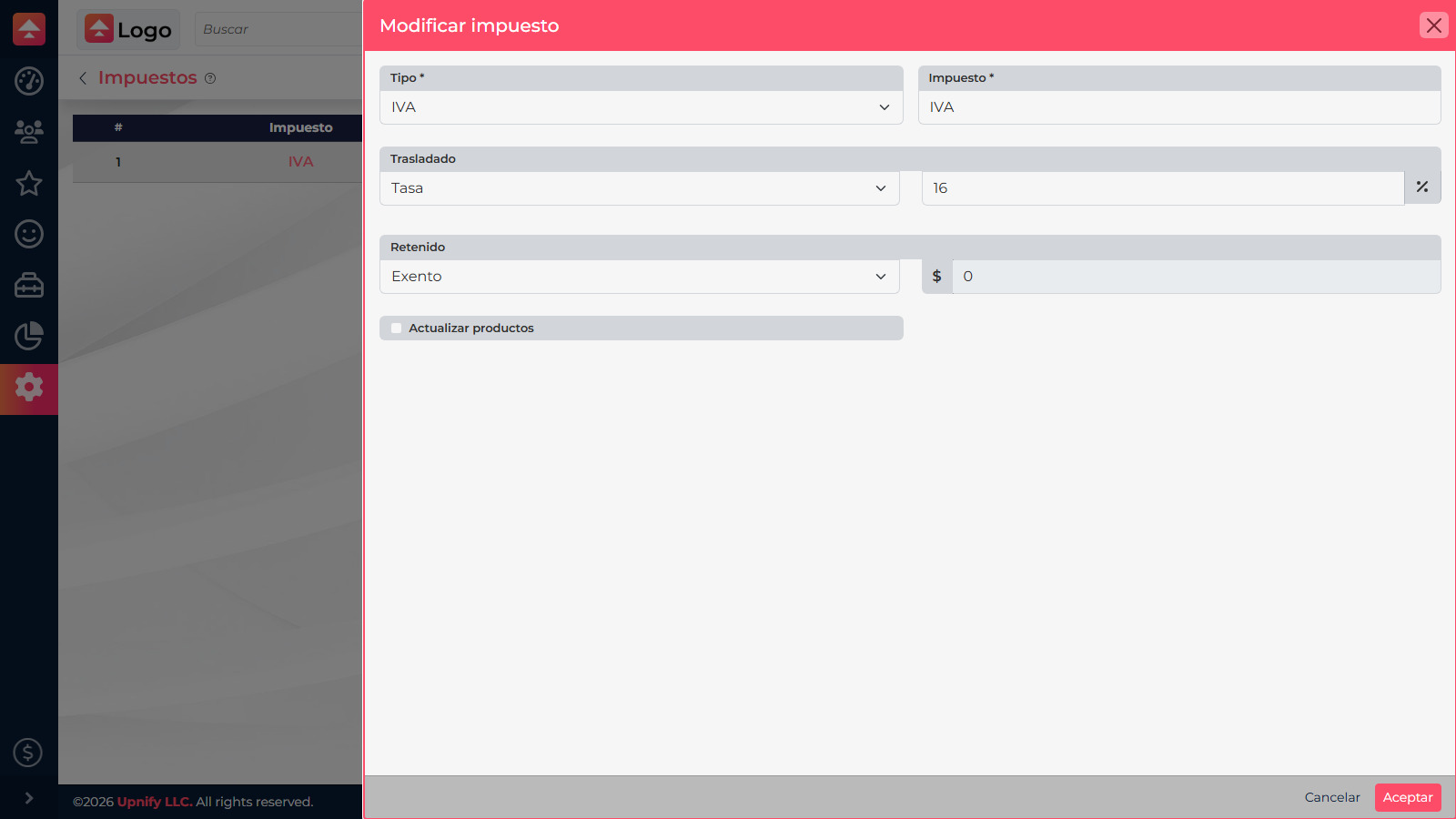
- In CRM, open Settings > Taxes and select New.
- Choose an available type, such as Local, ISR, VAT, and enter a recognizable name.
- Configure Collected and Withheld separately, as applicable.
2. Choose how each amount is defined
- Rate: a percentage applied to the relevant amount.
- Fixed amount: a set amount, when required.
- Exempt: no amount is calculated for that side of the tax.
Collected and withheld settings can use different methods. Review both selectors and values before saving; exempt is not the same as a zero-rate withholding.
3. Review product settings
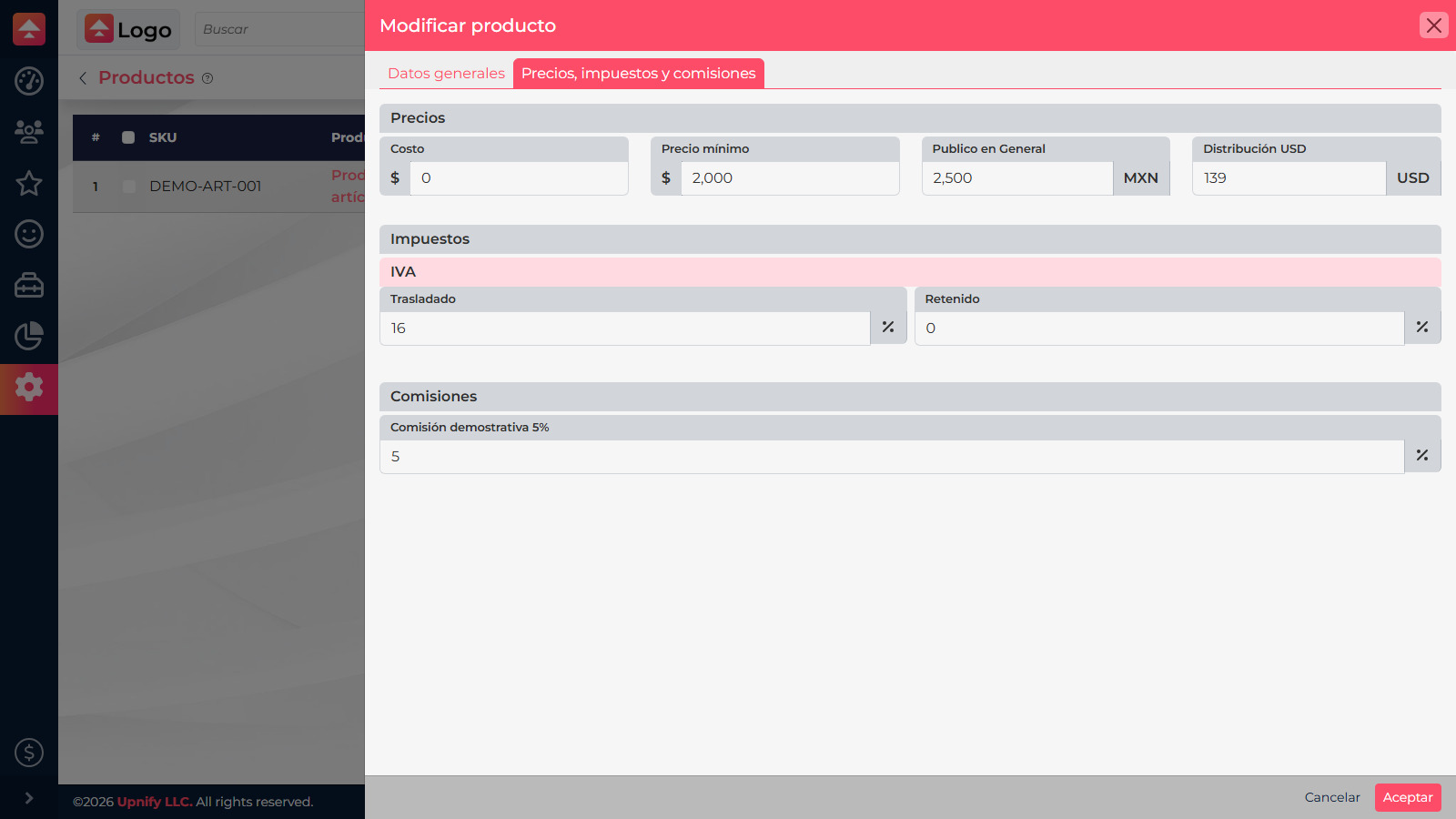
Edit a product and open Prices, taxes, and commissions. Review the collected and withheld rates CRM uses for that product. When editing a tax, Update products can propagate changes to existing products; select it only when you intend to update them together.
4. Check the result
Add the product to a quote and review its tax and total. In the example, a MXN 2,500 price with 16% collected tax shows MXN 400 in tax and a MXN 2,900 total. Actual results depend on your prices and settings.
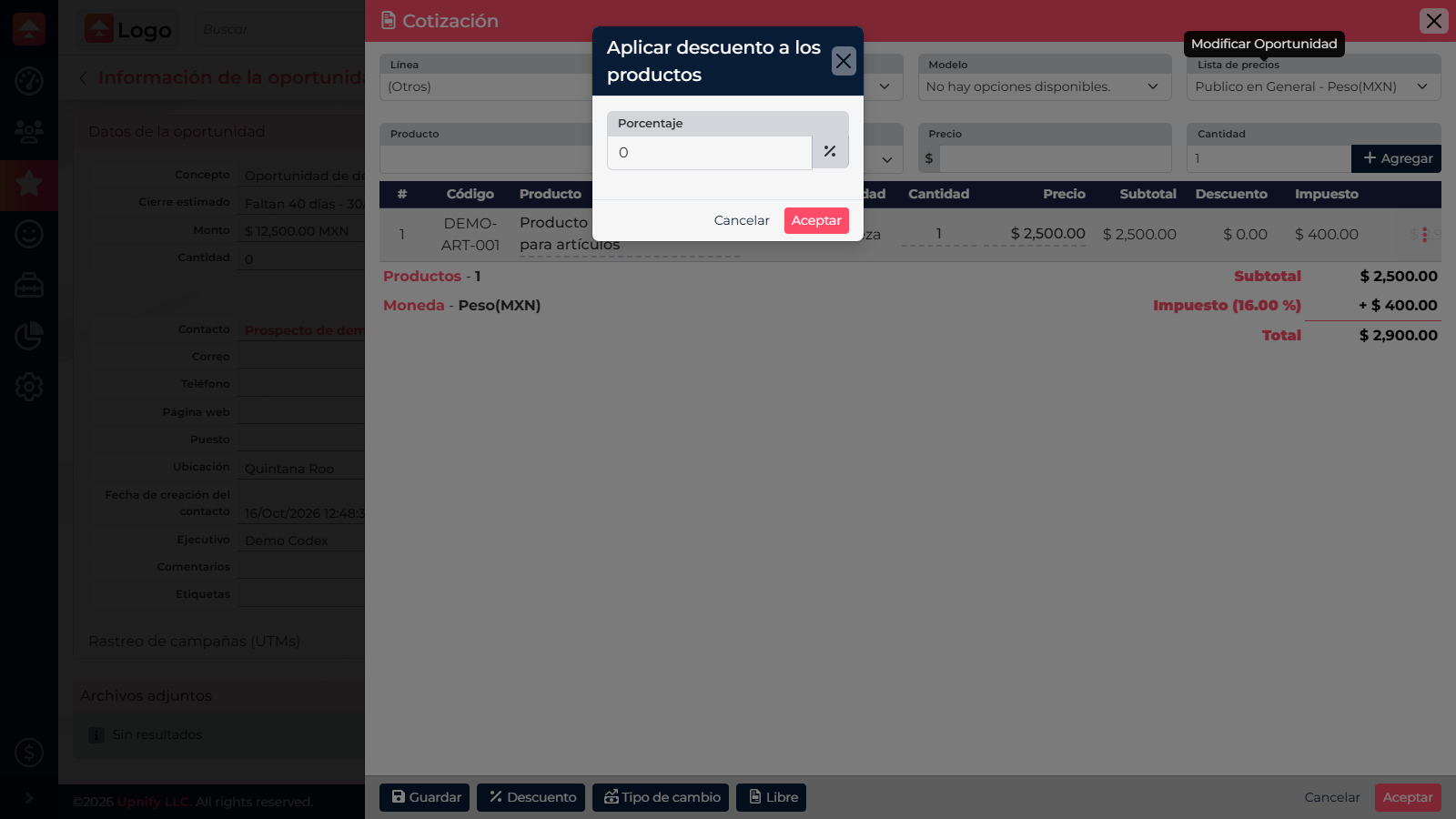
Check the type, method, rate, or amount in the catalog and then verify it in an internal test quote.