

Archive and discard help keep your contact list organized, but they do different things. Archiving temporarily removes a record from active lists so you can bring it back later. Discarding records that it will no longer move through the active sales process and requires a reason.
For example, archive a prospect who asked you to reconnect later or a record your team needs to pause without losing its history. Discard a record only after confirming it is not a valid prospect. Before you discard it, review its opportunities: CRM warns that active opportunities will be removed and that pending ones may also be included depending on your choice.

Choose the right action
| Action | When to use it | What to know |
|---|---|---|
| Archive | The contact should temporarily leave the team's active work queue. | Find it with the Stored situation filter and choose Restore. |
| Discard | You confirmed it should no longer remain an active prospect or customer. | Choose a reason. Review the warning about active and pending opportunities. |
Archive and find a contact
- Open Prospects and find the record. If it is a customer in your account list, open Customers.
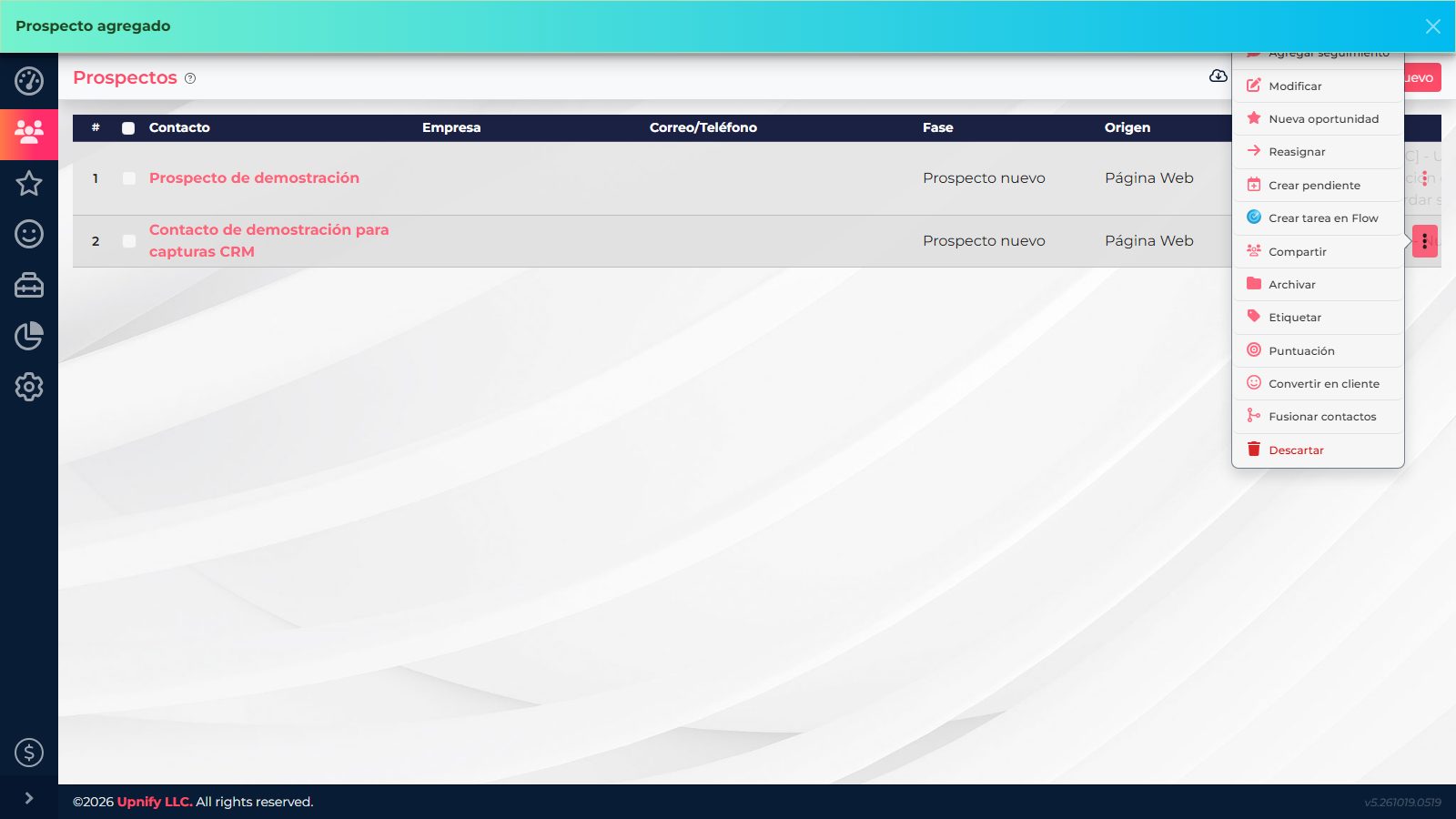
- From the contact action menu, select Archive and confirm. The record leaves the active list but keeps its profile and history.
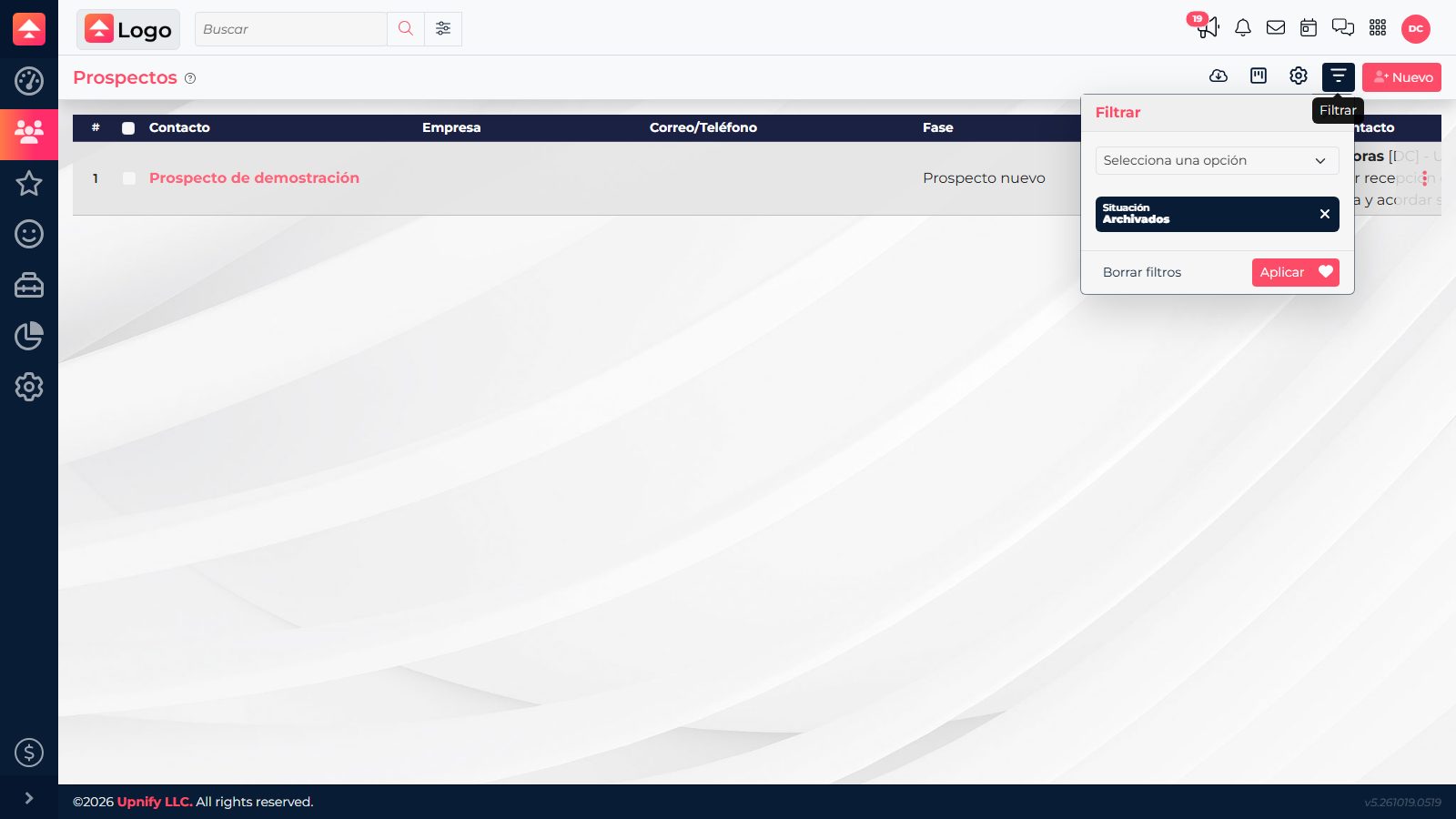
- To find it later, open the list filters and choose Stored under Situation.
- From the record menu, choose Restore and confirm. The contact returns to the active list.
Discard a contact with a reason
- From the contact menu, select Discard.
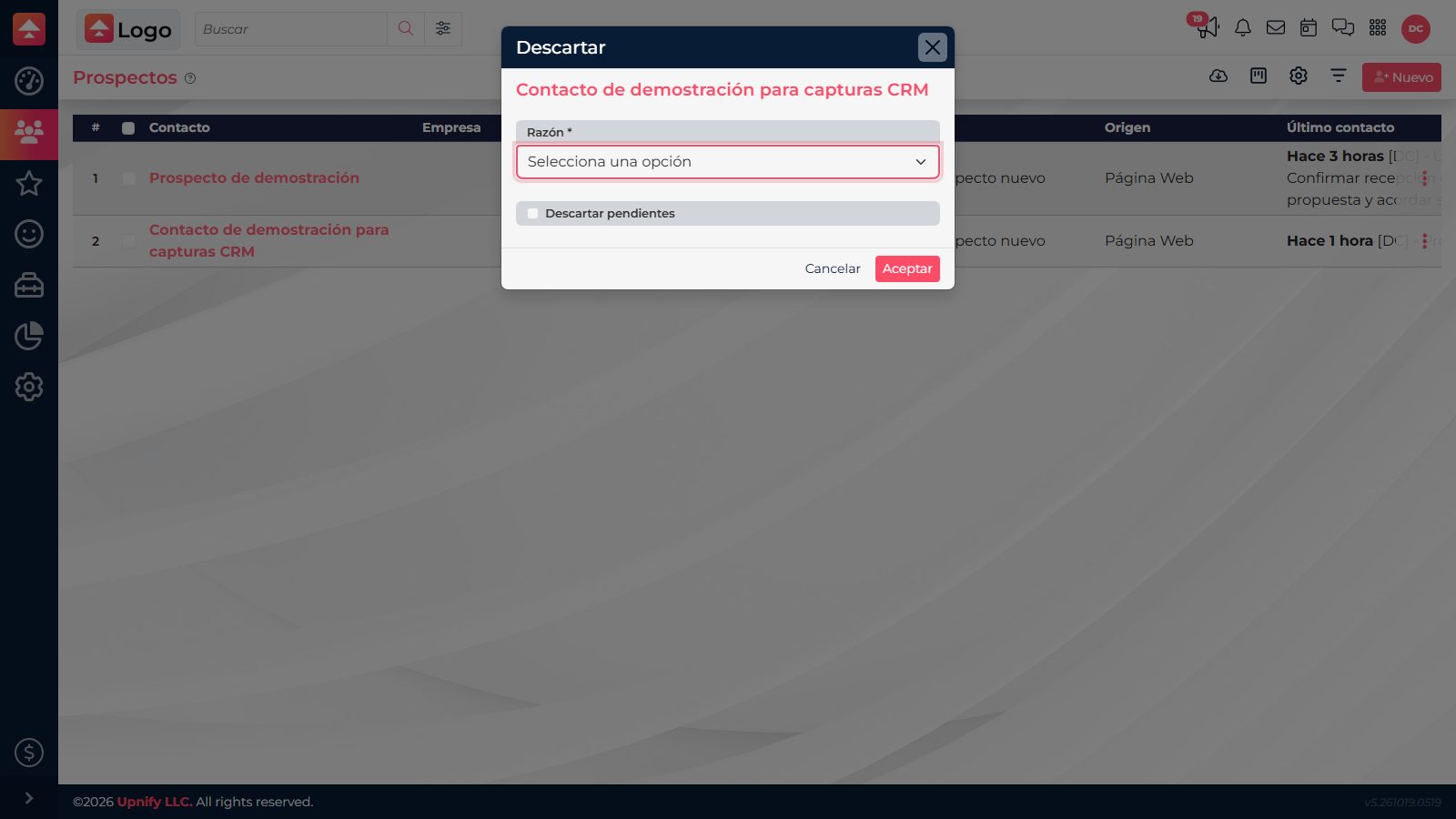
- Under Reason, choose the option that best describes the case. If you select Other, add a brief explanation so your team understands the decision.
- Review the Discard pending items checkbox. CRM displays a confirmation about active opportunities and, depending on this selection, pending ones that will also be removed.
- Read the confirmations and continue only if you selected the correct contact and related opportunities.
Restore a discarded contact
To find discarded records, open Prospects and filter by Situation > Discarded. If you own the record, open its menu and choose Recover. If another user owns it, you may see Reclaim instead. The available action depends on the record owner and your permissions. Confirm the prospect should return to active work before restoring it.
The screenshots show the interface in Spanish.