

Attaching a file to the right record lets the team find it alongside the sales conversation it belongs to. A proposal, product sheet, or receipt will not get lost in general folders or personal email; anyone who takes over the contact can review the same context and available version.
Use Files and images for reusable resources. Use Attached files for documents linked to a specific contact, opportunity, or sale.
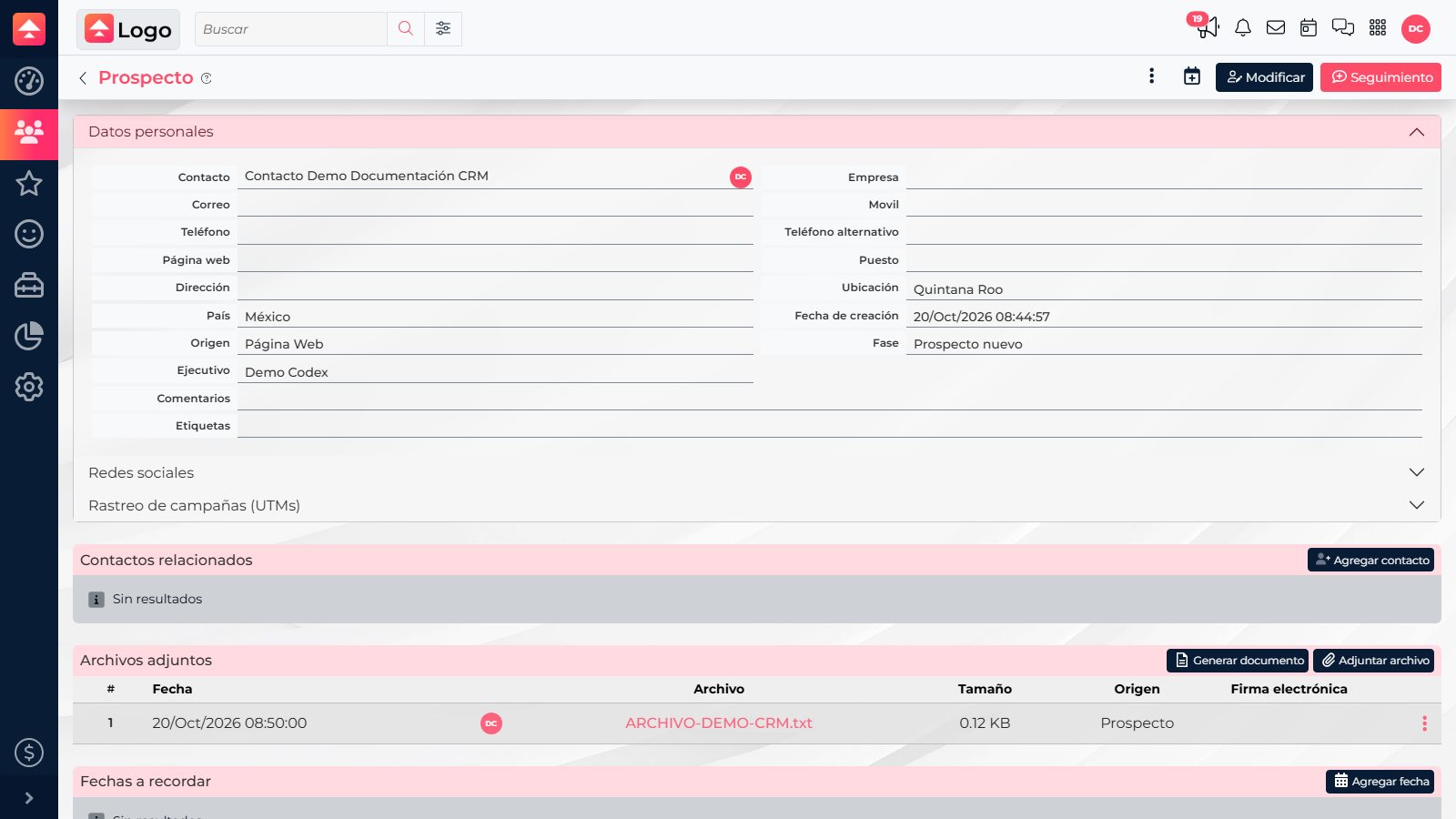
Where to store each document
- Contact: documents for the overall relationship, such as a shared information sheet or a file received by email.
- Opportunity: proposals, quotes, and files tied to a specific negotiation. A quote created from an opportunity can be found in that opportunity’s attached files.
- Sale: documents the team needs to keep with a won transaction, such as supporting files or receipts.
Saving the file where your team expects to find it also makes follow-up easier: instead of requesting it again or searching through messages, the team can review it from the record. If a file belongs to more than one workflow, confirm which version each team needs before creating duplicates.
Attach a file from a record
- Open Prospects, Opportunities, or Sales, then open the relevant record.
- Find the Attached files section. To add a file, select Attach file.
- Choose a file on your computer. The dialog shows the selected name; make sure it is the right file before selecting Accept.
- Wait for the upload to finish and confirm a row appears with the file name, date, size, and origin.
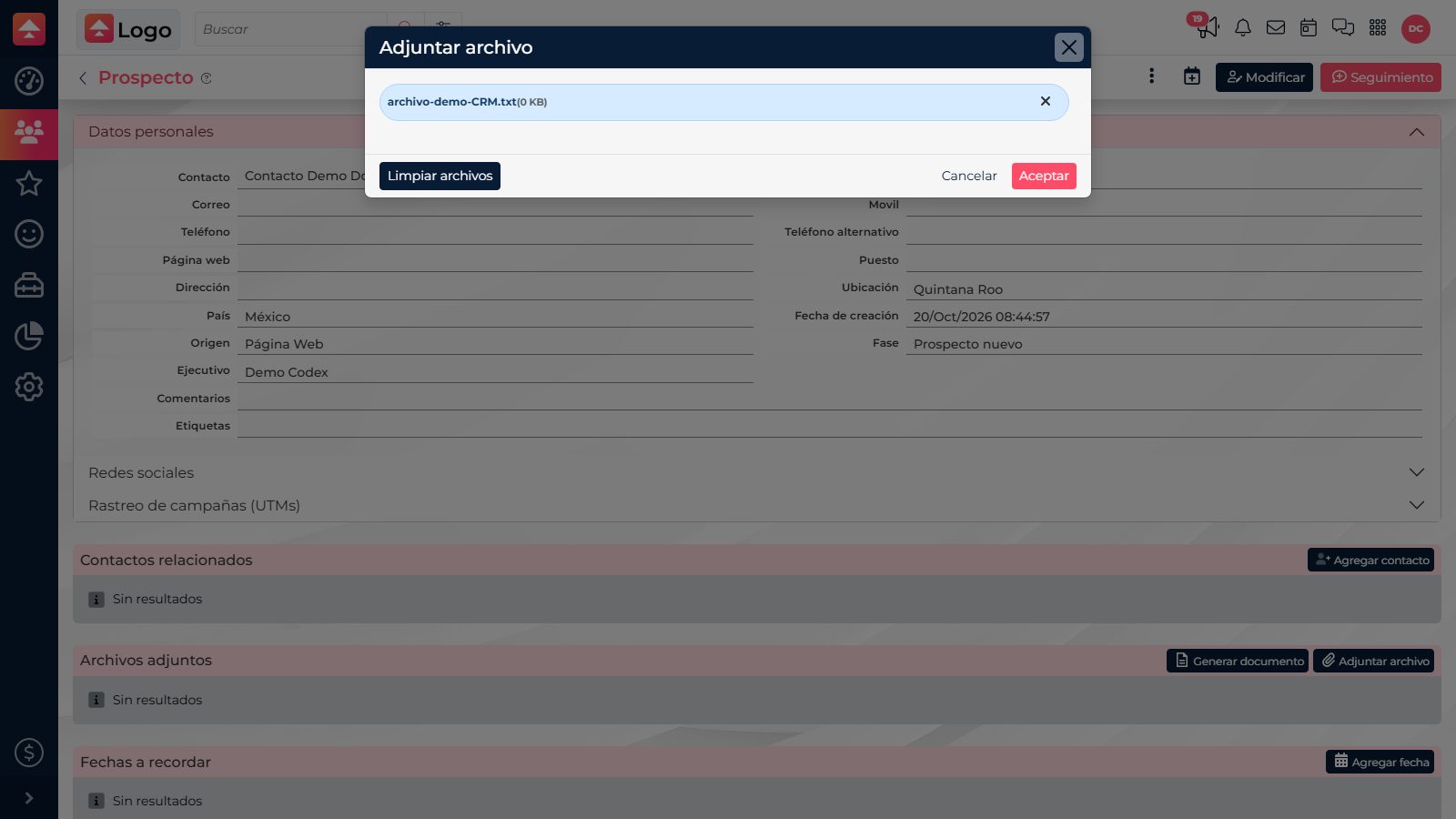
The upload dialog shows the current limits for file count, size, and supported extensions. In the interface reviewed, examples include PDF, Word, PowerPoint, Excel, and TXT; check the dialog for current restrictions before selecting multiple files.
Find, view, and download a file
- Return to Attached files and look by name and date. Check the origin too, to make sure the file belongs to that record.
- Open the row’s options menu and select View file to open the viewer.
- In the viewer, select Download to save a copy. If your access allows it, you can also choose Send by email from the file actions.
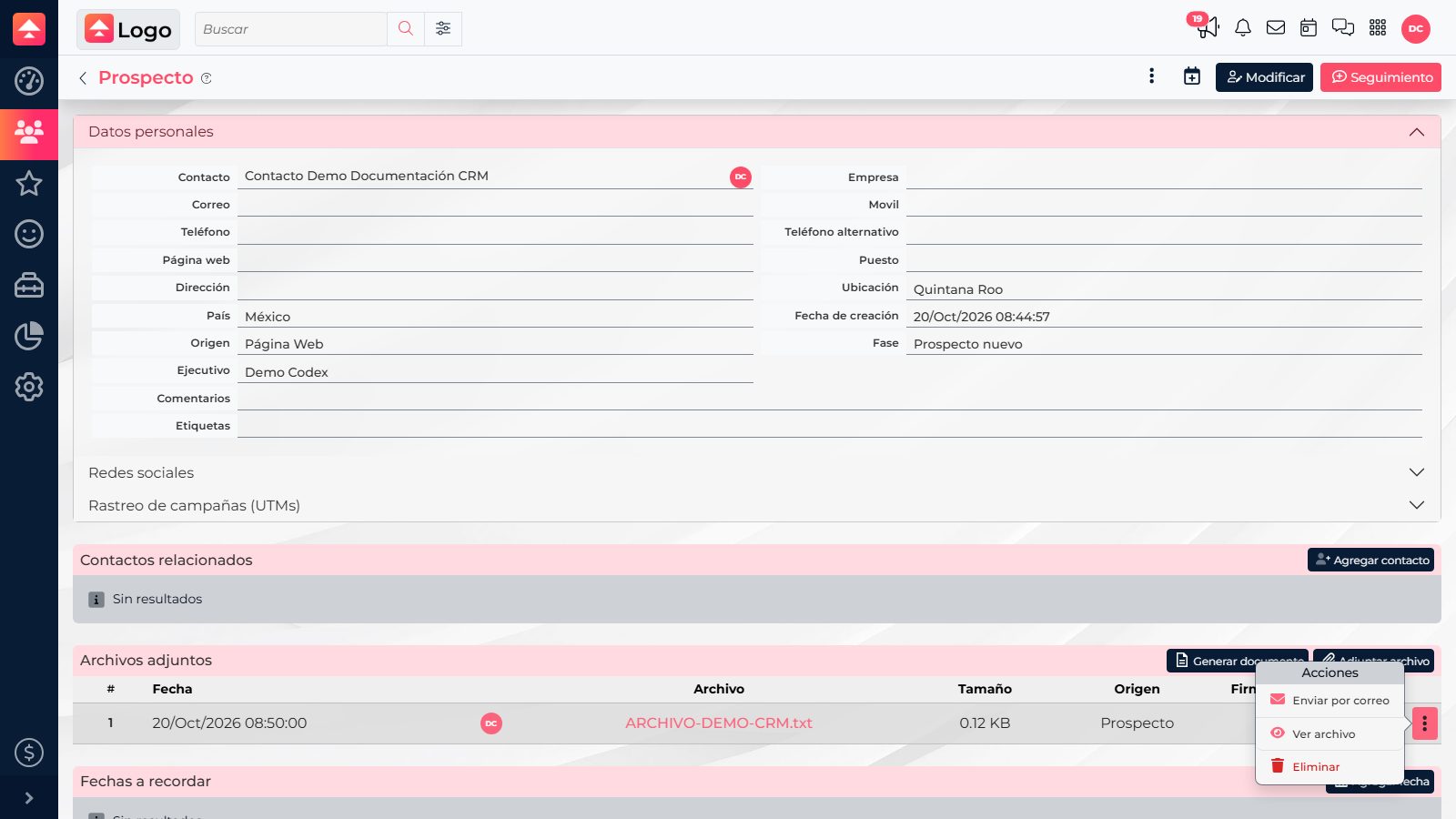
Check the related opportunity or sale first. A quote may be stored with the opportunity where it was created rather than on the contact record.
When you need to create a file from a CRM format, check whether the section offers Generate document. That action starts from a format; Attach file uploads a file that already exists on your computer.