

The invoice list helps you tell whether a document is under review, has been issued, or needs a correction. Check its status before creating another invoice to avoid duplicates and choose an action that fits the document.
What each status means
| Status | What it tells you | What to check next |
|---|---|---|
| Pro forma | A document created before issuance. | Review details, amounts, and recipient before invoicing. |
| Invoiced | The CFDI was generated. | View, download, or email it if your permissions allow. |
| Stamping error | Issuance did not complete. | Open the details and correct the reported data before trying again. |
| Canceled | The document is marked as canceled. | Review the reason, result, and related document if applicable. |
| Advance invoice | A document associated with an advance. | Confirm it belongs to the sale and process used by your company. |
Filter and open an invoice
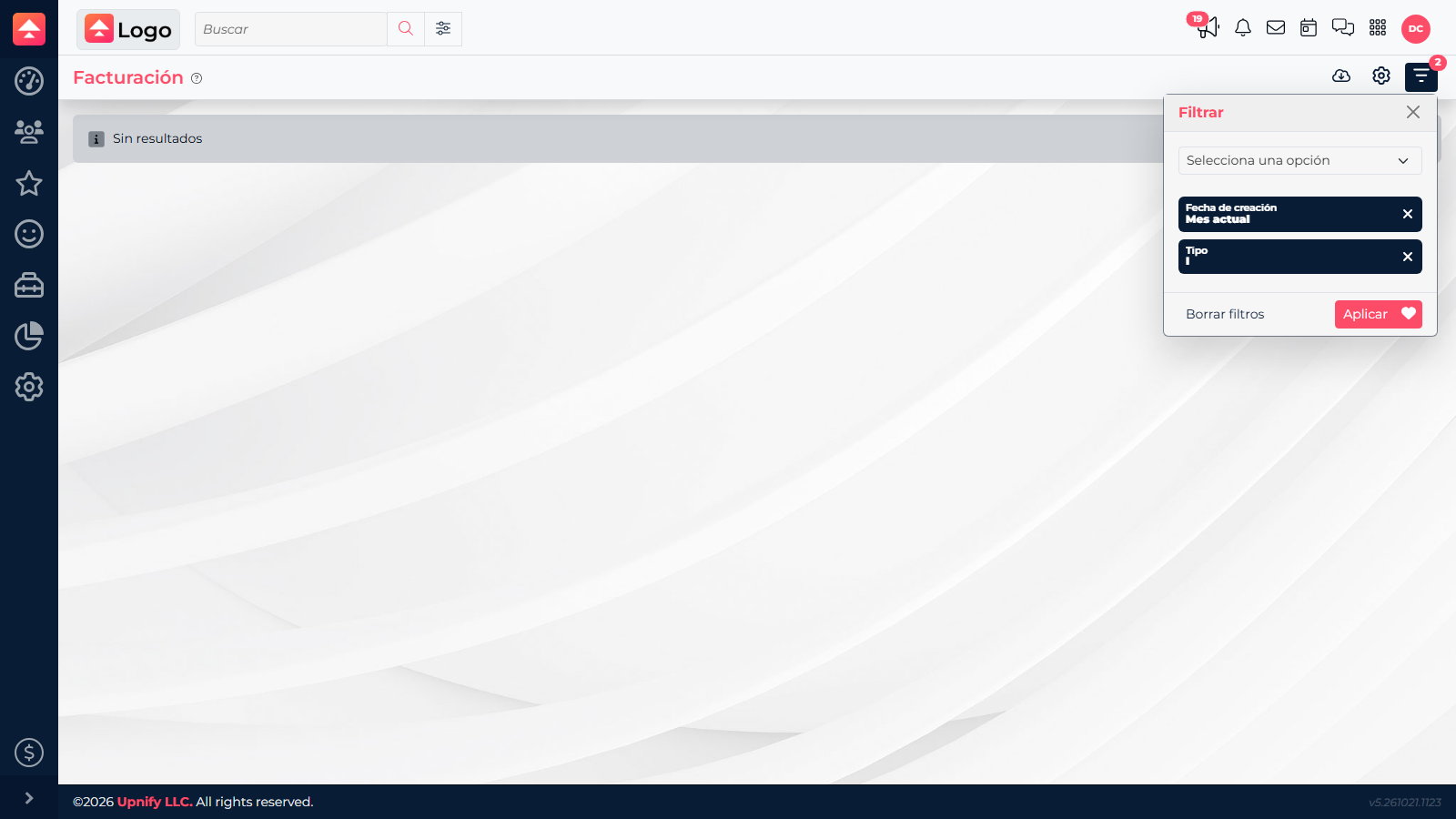
- In CRM, open Invoicing. Use issuer, recipient, concept, payment method, type, and status filters.
- If the record is missing, clear unnecessary filters and check the date range.
- Open a document. Depending on its status and your permissions, you can view, download, email, or start a cancellation.
- You can also return to the sale and review its invoice section for documents related to that transaction.
Correct or cancel based on status
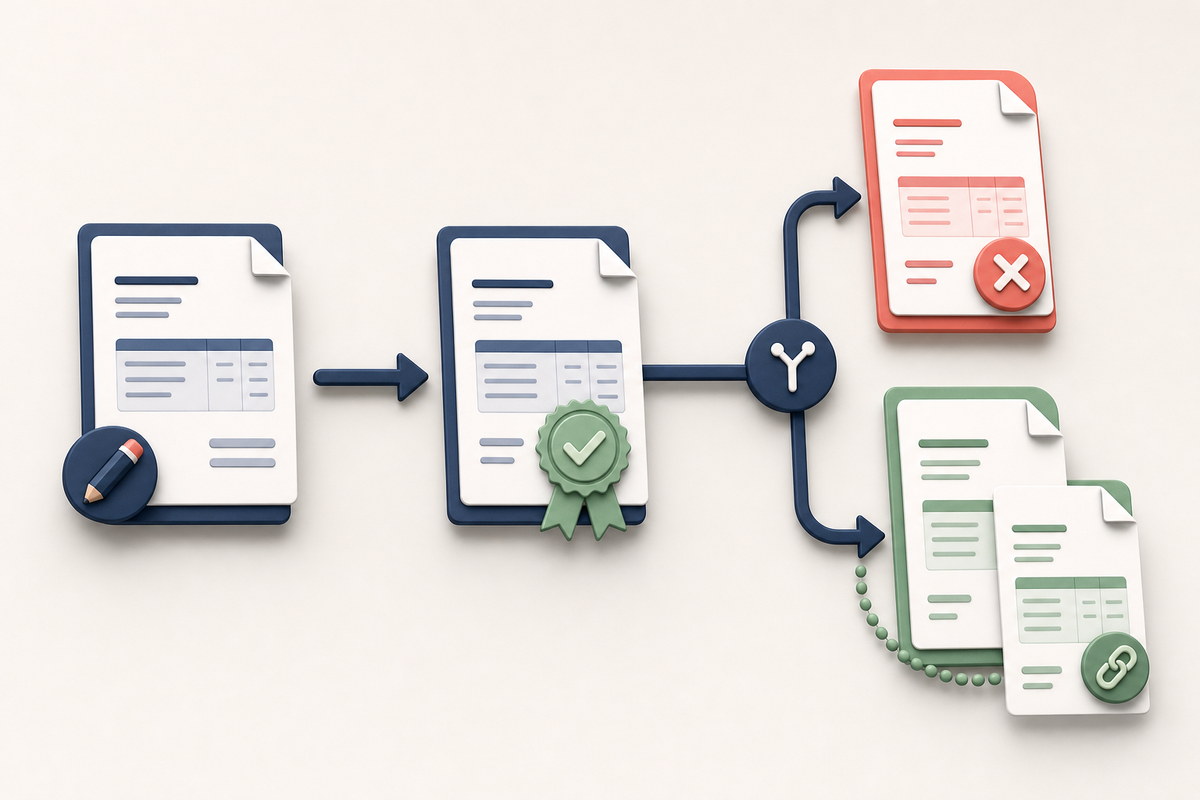
- Pro forma: correct the sale or related tax details first. CRM may let you delete certain preliminary documents if you have permission.
- Stamping error: open the details, review the message, and correct missing information. Then restart the flow from the sale.
- Invoiced: do not delete an issued document. If the transaction needs correction, use the cancellation action and enter the applicable reason. Reason 01 asks for the UUID of the replacement document.
- Canceled: confirm the result before creating another document. Cancellation and issuing a replacement are separate actions.
Choose the cancellation reason carefully
The form asks for a reason and may request another document's UUID depending on your choice. Confirm the reason with your tax specialist; CRM cannot determine which one applies.
The form asks for a reason and may request another document's UUID depending on your choice. Confirm the reason with your tax specialist; CRM cannot determine which one applies.
If the expected action is unavailable, confirm the exact status and ask your administrator to review your permissions. The demo account has no issued CFDIs; screenshots show filters and a real validation, not an actual invoice.