

If your company’s email provider is not available as a direct authorization option, CRM can connect through standard mail servers. In general, SMTP sends email and IMAP receives and synchronizes it. The mailbox provider—not CRM—sets the exact values.
Before you start: ask your mail administrator or provider for the server, port, encryption method, and authorized credentials for IMAP and SMTP. Do not assume settings from another service will work for your domain.
Details to request
| Connection | Required details | Purpose |
|---|---|---|
| IMAP | Server, port, and security | Receive or synchronize messages in CRM. |
| SMTP | Server, port, and security | Send messages from CRM. |
| Authentication | Username and password or a provider-issued credential | Lets the provider validate the connection. |
Set up the account
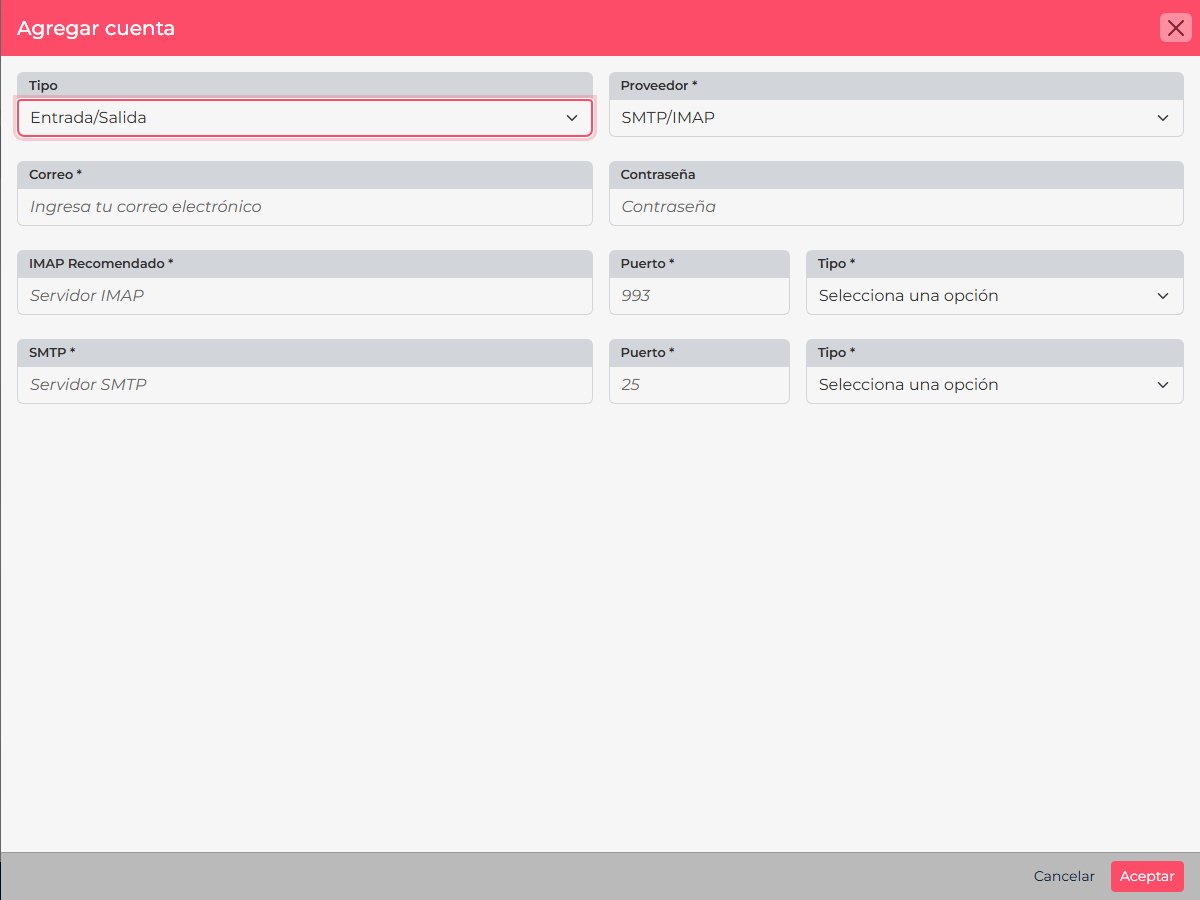
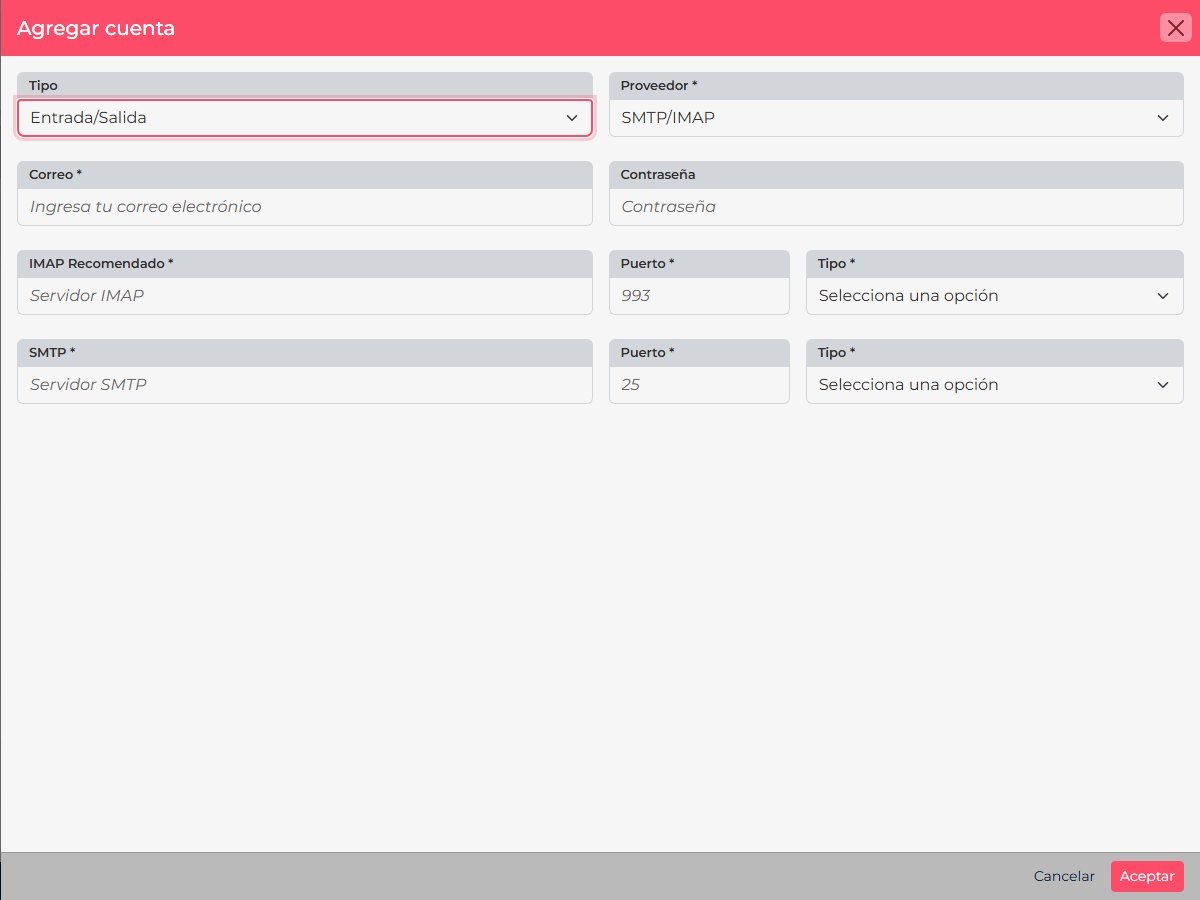
- In CRM, open Personal settings > Email accounts and select New.
- Choose Outgoing for sending only, Incoming for receiving, or Incoming/Outgoing for both.
- Select SMTP/IMAP and enter the mailbox address.
- Fill in incoming and outgoing server fields exactly as provided, including ports and security.
- Use credentials authorized by your provider. If your organization uses modern authentication, do not replace its authorization flow with a basic password.
- Review and save. Then verify sending and, if you enabled Incoming, confirm CRM can check messages.
If the connection fails
- Check that the host is correct and that no extra spaces were copied.
- Confirm port and encryption with your provider; example ports shown in a form are not universal.
- Ask whether IMAP is enabled and whether SMTP requires authentication.
- If the provider uses OAuth or has disabled basic authentication, use an available authorization flow or contact your administrator.
For Gmail or Microsoft 365, use their authorization flows: connect Gmail and connect Microsoft 365 through the API.