

Stage actions let you prepare a communication for a specific point in the sales process. For example, when an opportunity reaches the Proposal sent stage, you can attach an email template that explains the next steps and address it to the contact. The message then supports the record's progress without requiring someone to find and send the template each time.
A stage action is linked to one stage and its process event. An automatic sequence follows a tag and sends several pieces over multiple days.
Before you configure it
Prepare the template first. For email, review the subject, content, and personalization tags. For WhatsApp, make sure the template and channel are available in the account. Decide who should receive the message: the contact, the executive, an administrator, or another address.
Add an action to a stage
- Go to Settings > Stages. Use the selector at the top to choose the process: Prospects, Opportunities, or Customers.
- Find the stage that should trigger the communication and open its action menu. Select Actions, then New.
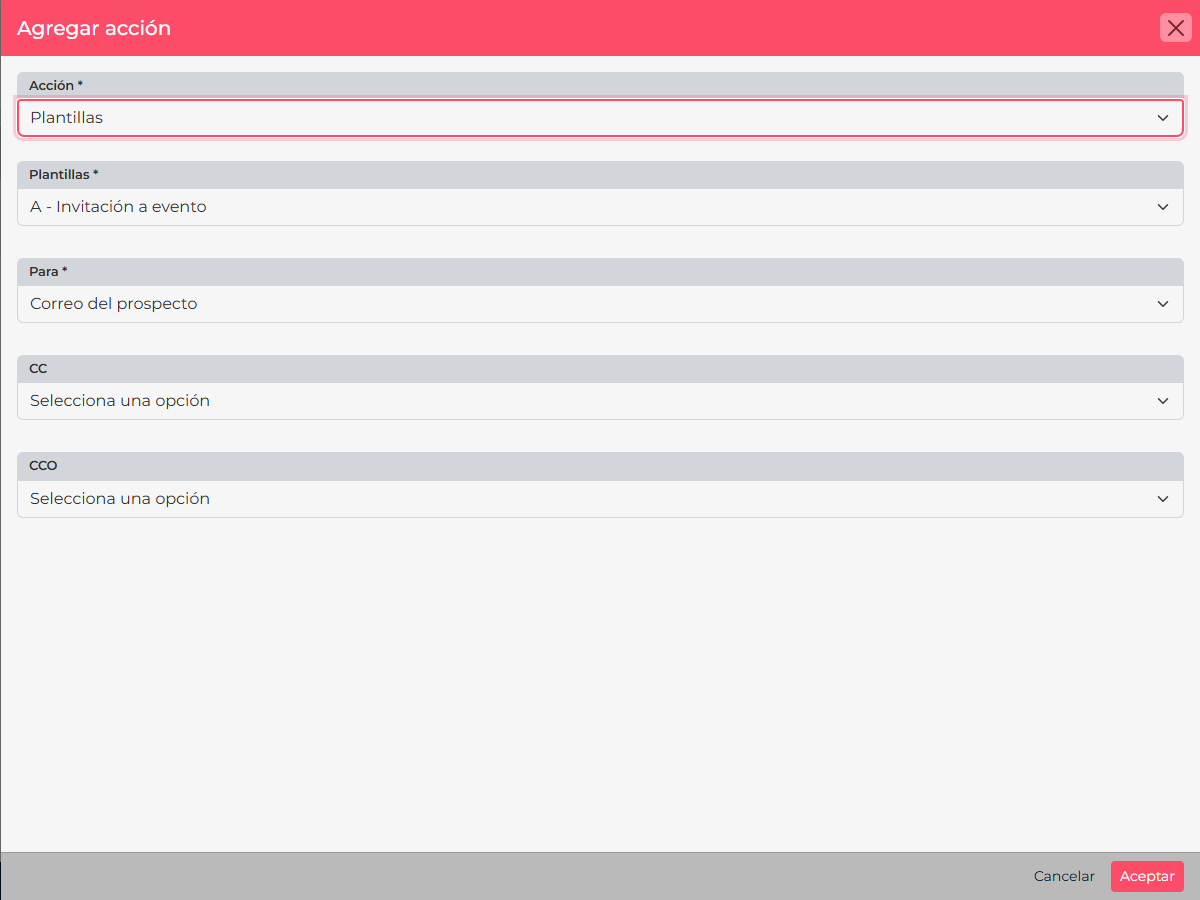
- Under Action, choose Send email or WhatsApp.
- For email, choose a template and set the recipient under To. You can choose the prospect's email, the executive, an administrator, or another address. To include someone else, configure CC or BCC and select their recipients.
- For WhatsApp, select an available template. This option depends on the channel being configured and enabled for the account.
- Save the action and confirm that it appears in the action list for that stage. Repeat only when another stage needs a different communication.
Example
For a sales opportunity, attach an email to Proposal sent that explains how to review the quote. When the record moves to that stage, the contact receives the right context; the executive can be copied if they need visibility.
Configure the action only at the stage where the message adds value. If an opportunity moves through several stages as part of normal work, avoid repeating the same communication in consecutive stages.