
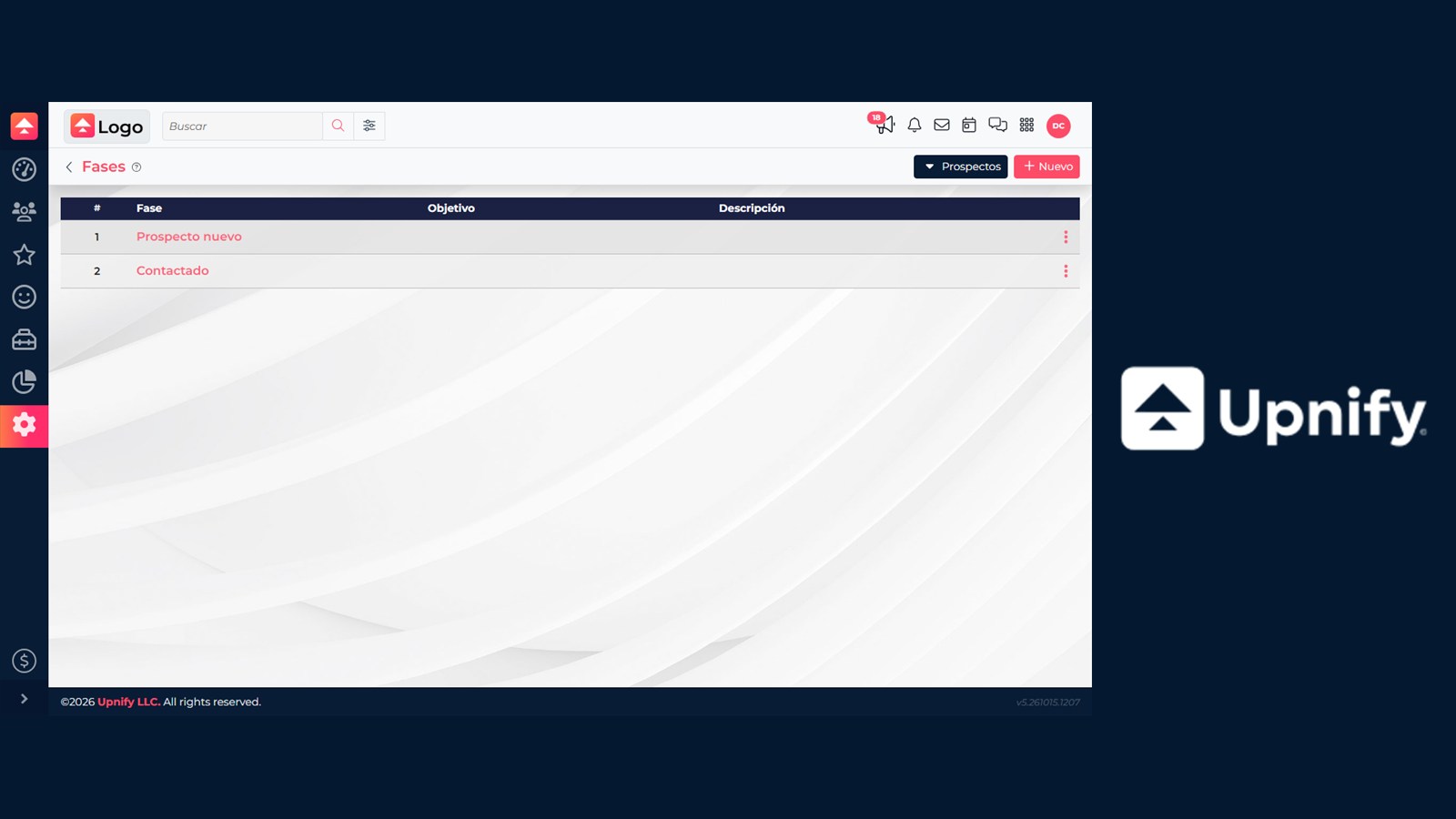
Phases organize how prospects, opportunities, and customers move through the process. In addition to showing where each record stands, you can assign a goal, timing guidelines, and actions that CRM runs when a record enters a phase.
The screenshots show CRM in Spanish; labels may vary based on the language selected in your account.
You need Administrator access or permission to Settings > Phases. First define what the team should accomplish at each step. If your process is already active, record the current order and actions: changing an action can trigger emails, messages, reminders, or tasks when a record enters the phase again.
1. Open the catalog for the right entity
- In CRM, open Settings and select Phases.
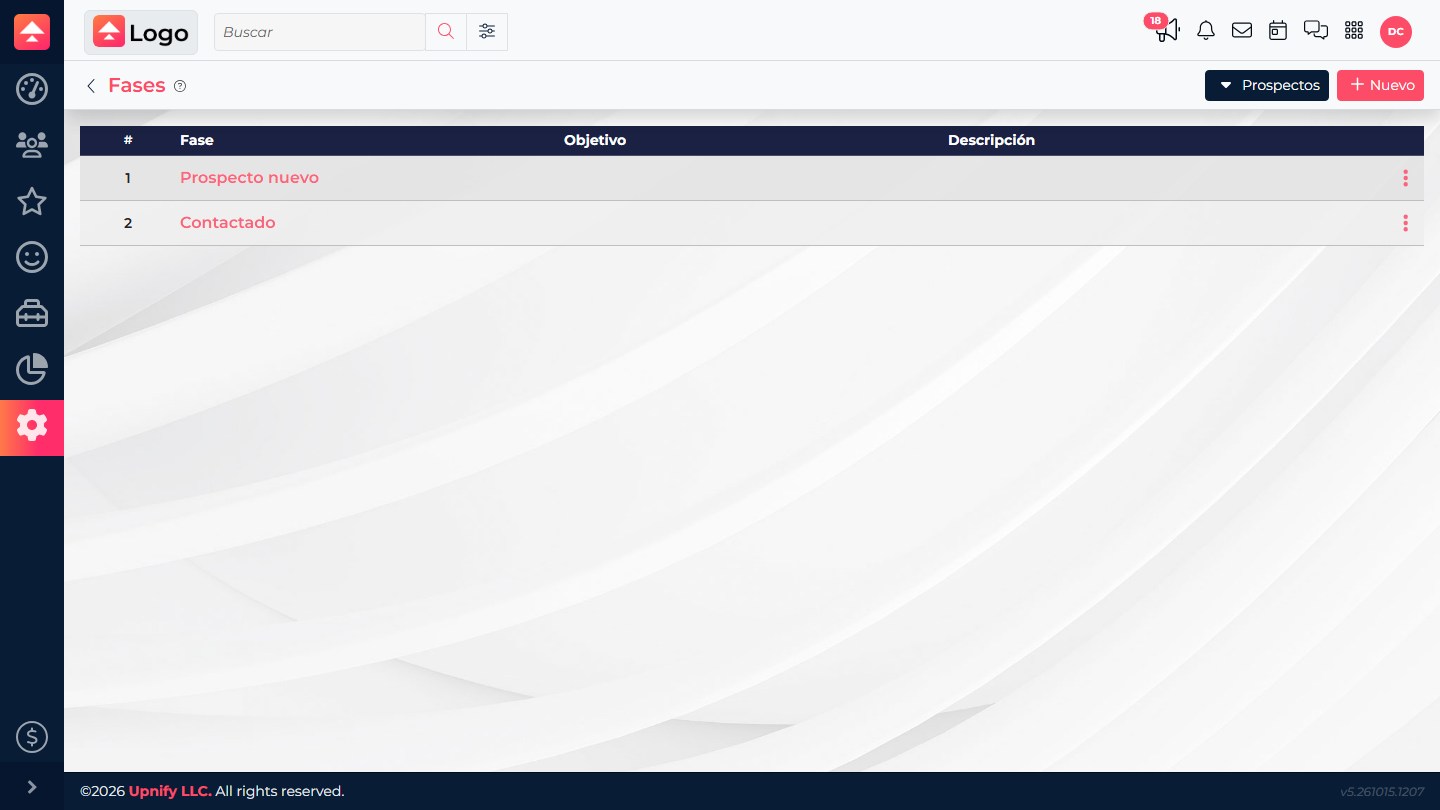
- The initial list shows Prospects phases. Use the selector at the top to switch to Opportunities or Customers.
- Work with one entity at a time. Each list has its own phases and order.
2. Add or edit a phase
Select New to add a phase. To change an existing one, open its name or the row’s edit option. The form can include:
| Field | How to use it |
|---|---|
| Phase | Enter a clear, recognizable name. It is required and must be unique within that catalog. |
| Goal | Describe what the sales representative must achieve to move the prospect or customer to the next phase. |
| Color | Choose a color that makes the phase easier to distinguish in the interface. |
| Maximum time | If you track how long records stay here, set a limit in hours or days. |
| To expire | Set when the phase should be considered close to expiring, also in hours or days. If left blank, CRM uses 80% of the configured maximum time as a reference. |
| Description | Explain what achieving the goal means and provide an operational example for the team. |
A useful sequence has consistent names and verifiable goals. For example, a phase can mean that the prospect’s need has been confirmed; avoid vague goals such as “follow up.”
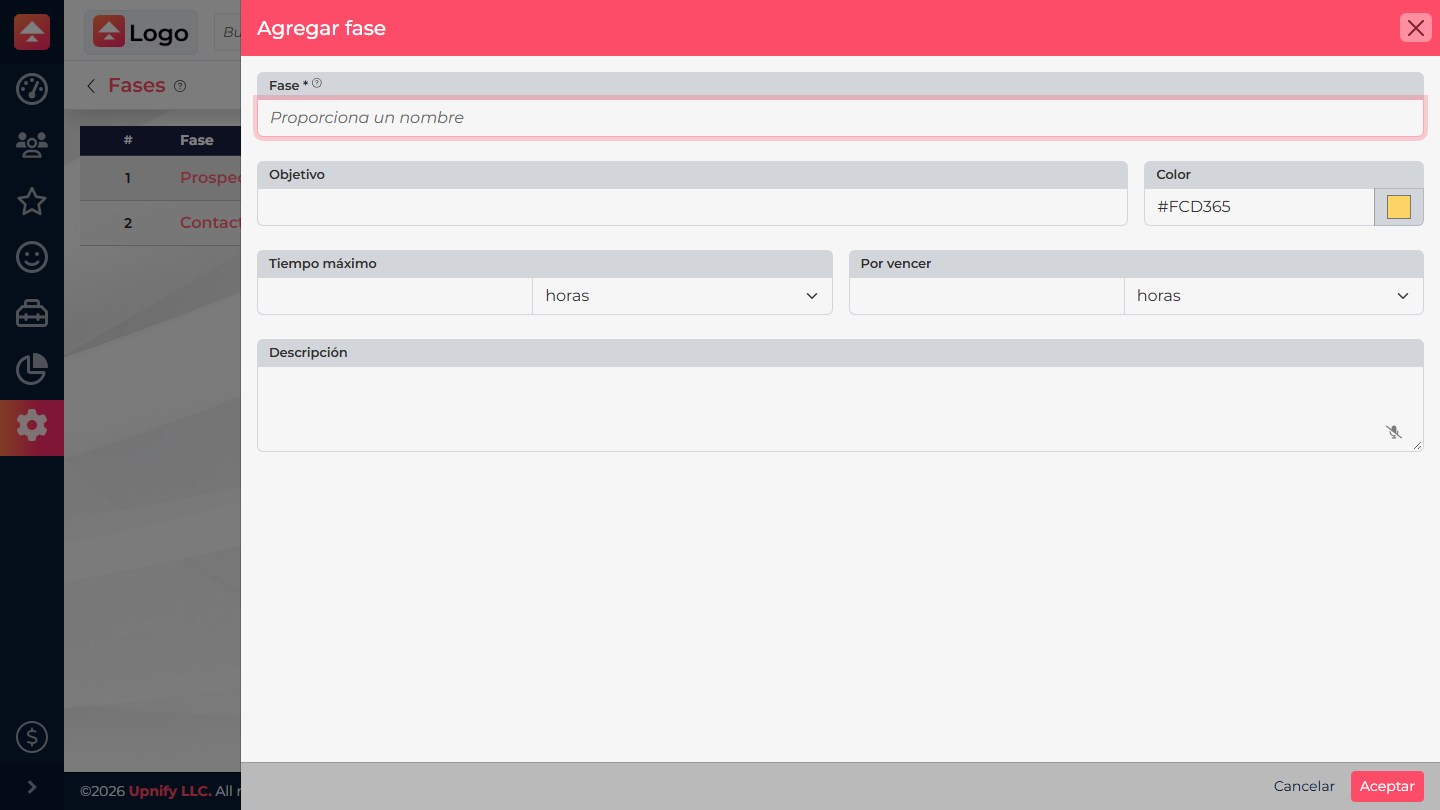
Select Accept to save. Repeat for the other phases in that entity. You do not need to set timing for every phase; use it where it helps identify delays or prioritize work.
3. Order the phases
The order should match the sales journey. In the list, use Up and Down from the row menu or the available ordering control. Review the numbering and confirm the sequence makes sense to users.
Reordering changes the phase’s position in the process; it does not automatically move records from one phase to another. If a phase is no longer used and has related records, CRM may ask you to choose a replacement when deleting it. Select a compatible phase and check the funnel and reports afterward.
4. Add automatic actions to a phase
- Open the phase row menu and select Phase Actions.
- Select New and choose an action type. The fields shown depend on your selection.
- Complete the requested setup—for example, select a template or tag—and save with Accept.
- Review the action type and description in the list. Add more only when they correspond to a real process step.
| Available action | What to prepare or do |
|---|---|
| Send mail | Select the appropriate template and review its content and recipient before enabling it. |
| Reminder | Set the reminder associated with entering the phase. |
| Tag / Remove tags | Add or remove a tag to organize the record’s segmentation. |
| Send WhatsApp | Select a template and confirm the WhatsApp channel and requirements are ready. |
| Create task in Flow | Create a task for the relevant workflow. This option appears when the account and user have Flow access. |
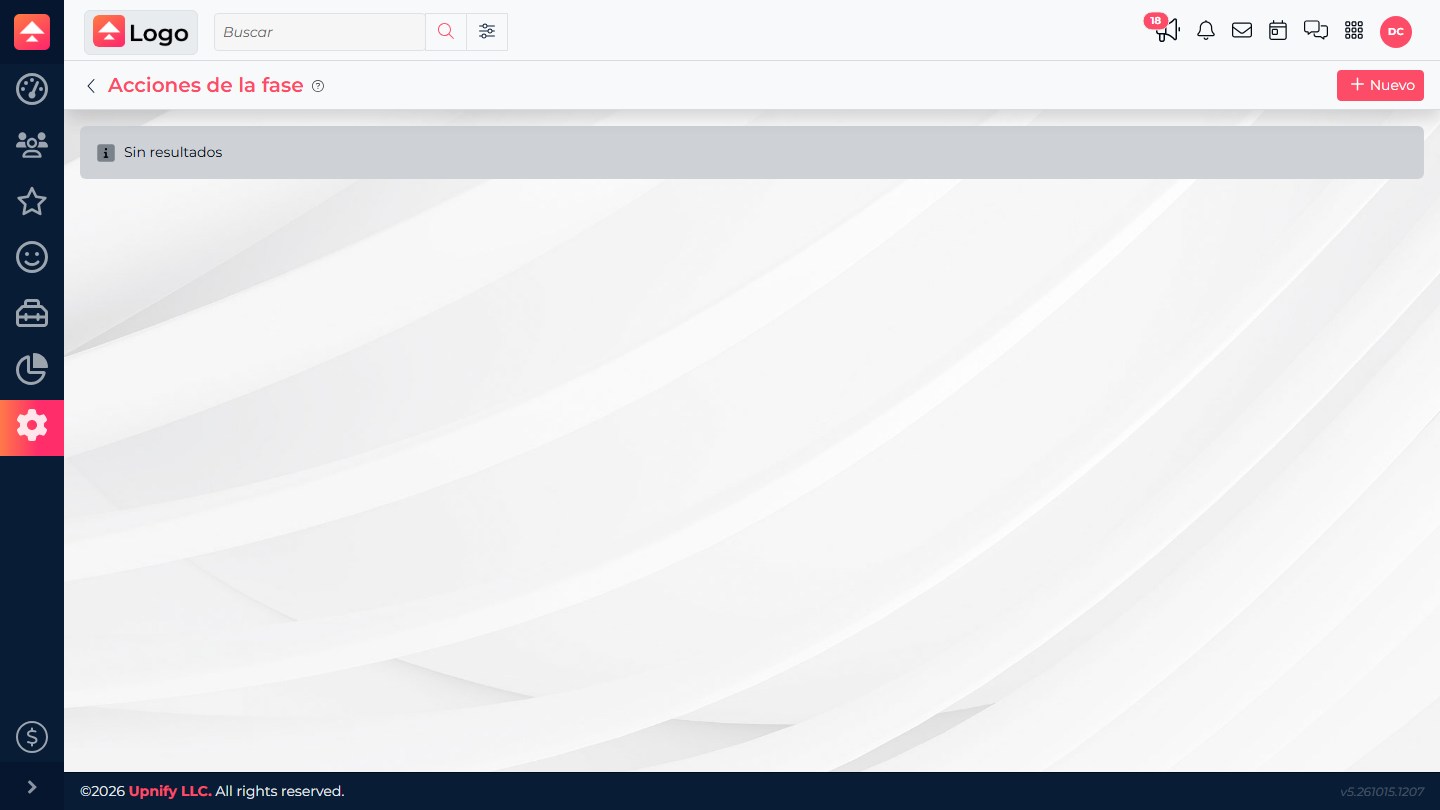
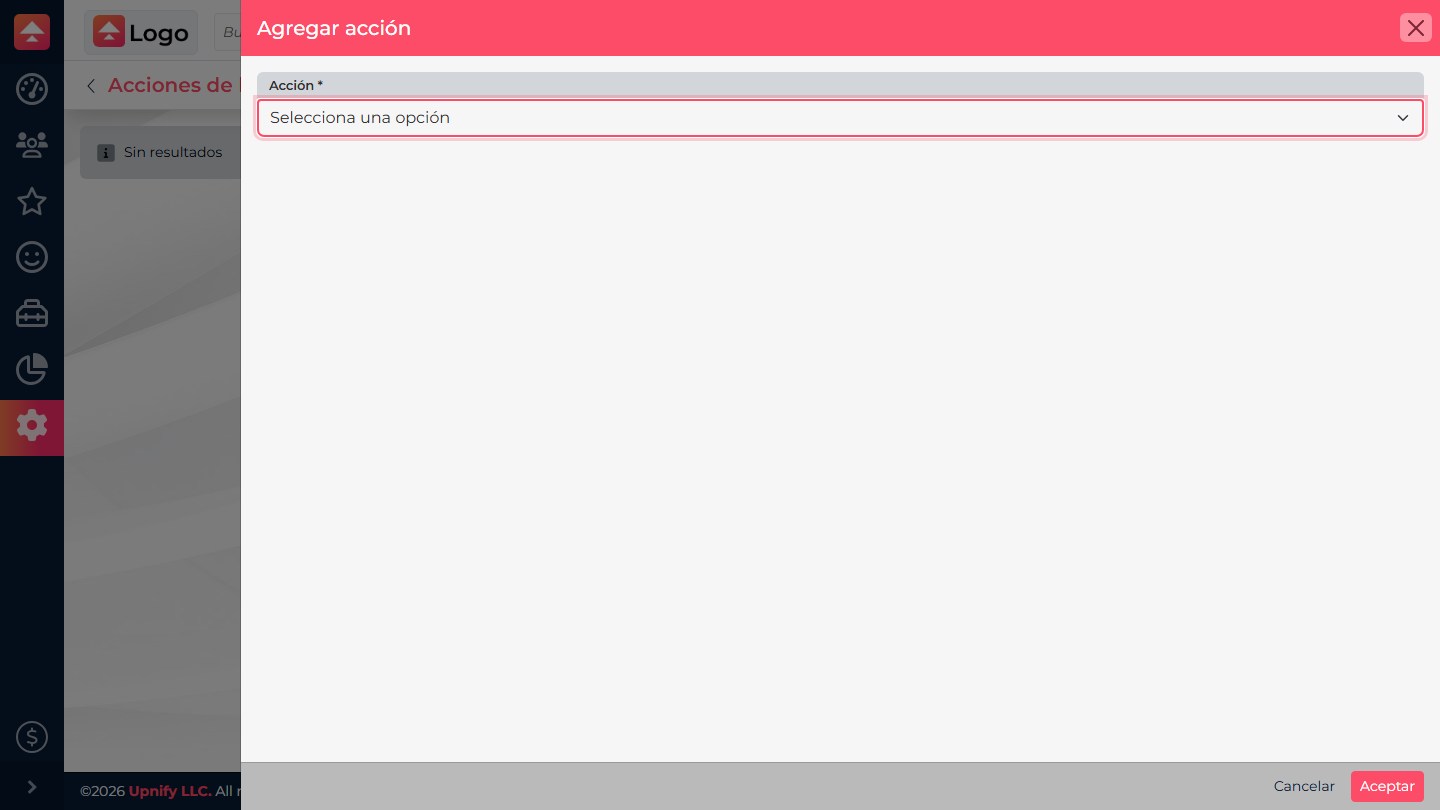
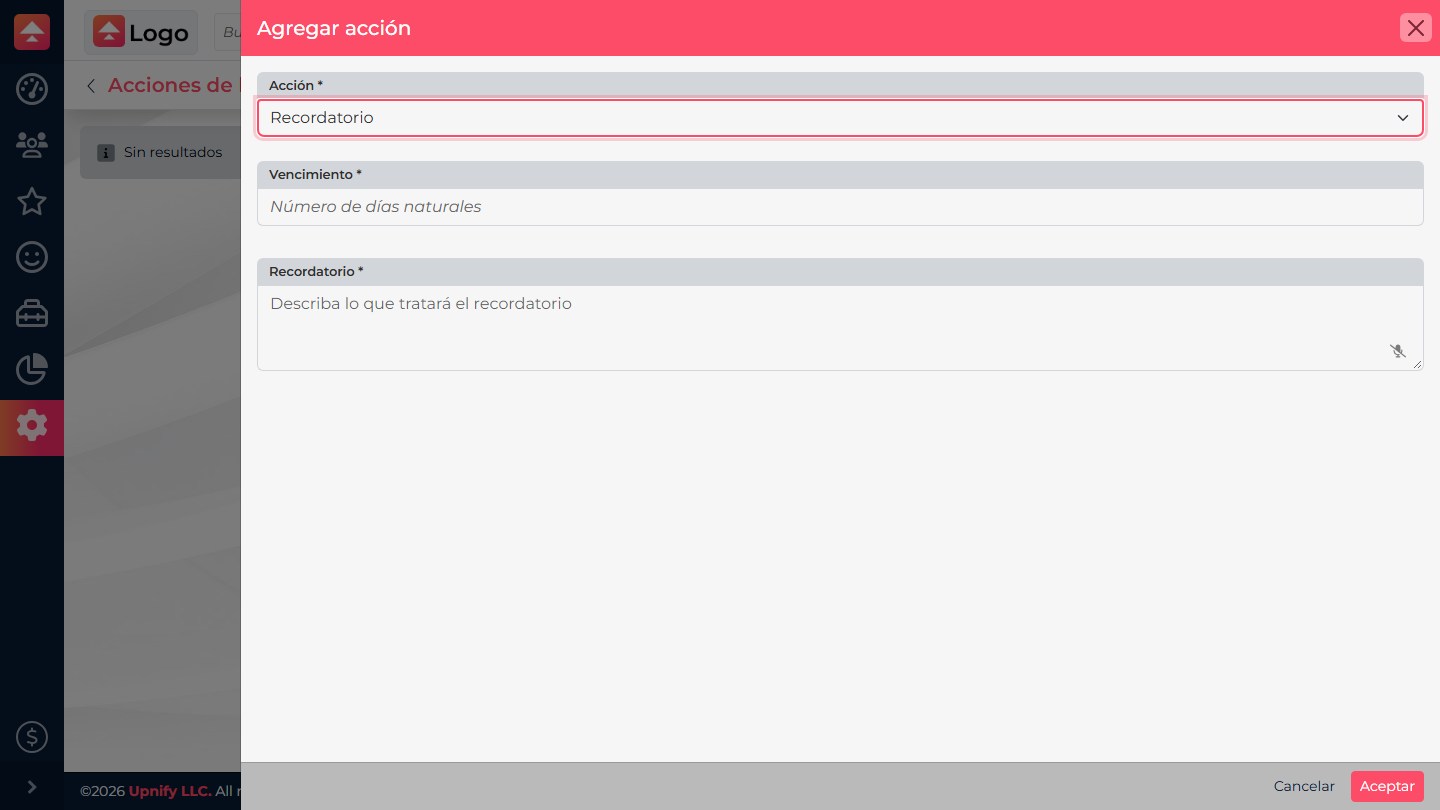
Actions run when a record enters the phase. If it enters again—for example, after being moved to another phase and then back—the action may run again. Test the behavior with a controlled record before saving automatic messages or tasks.
5. Edit, remove, and verify
Use the action list to edit a setup or remove it. Before deleting an action, confirm which phase change triggers it and whether the team relies on it. After saving, move a test record through the phase and check both the visible result and the actions created. Do not use a real contact as the recipient of a test email or WhatsApp message.
If an entity, action, or template is missing, check access to that screen, the product, and the resources the action requires. Availability can vary by account configuration.