

Price lists and currencies help your team present consistent offers for different customer groups, sales channels, or negotiated currencies. Keep a standard list in pesos and another for distributors or customers who request US dollar quotes.
If MXN is your company base currency and you enter 18 for USD, the example means 18 pesos for each US dollar. MXN 2,500 is about USD 138.89. This is illustrative only; use the exchange rate established by your company.
Before you begin
Decide which currency your company uses as its reference and which lists the team needs. Lists are created first and then appear as price fields on each product, so identifying your customer groups helps prevent duplicate lists.
1. Add a currency
- In CRM, open Settings > Currencies and select New.
- Choose an available currency and enter its exchange rate against your company base currency.
- Save and review the currency in the list. If it already exists, review its rate before creating another list.
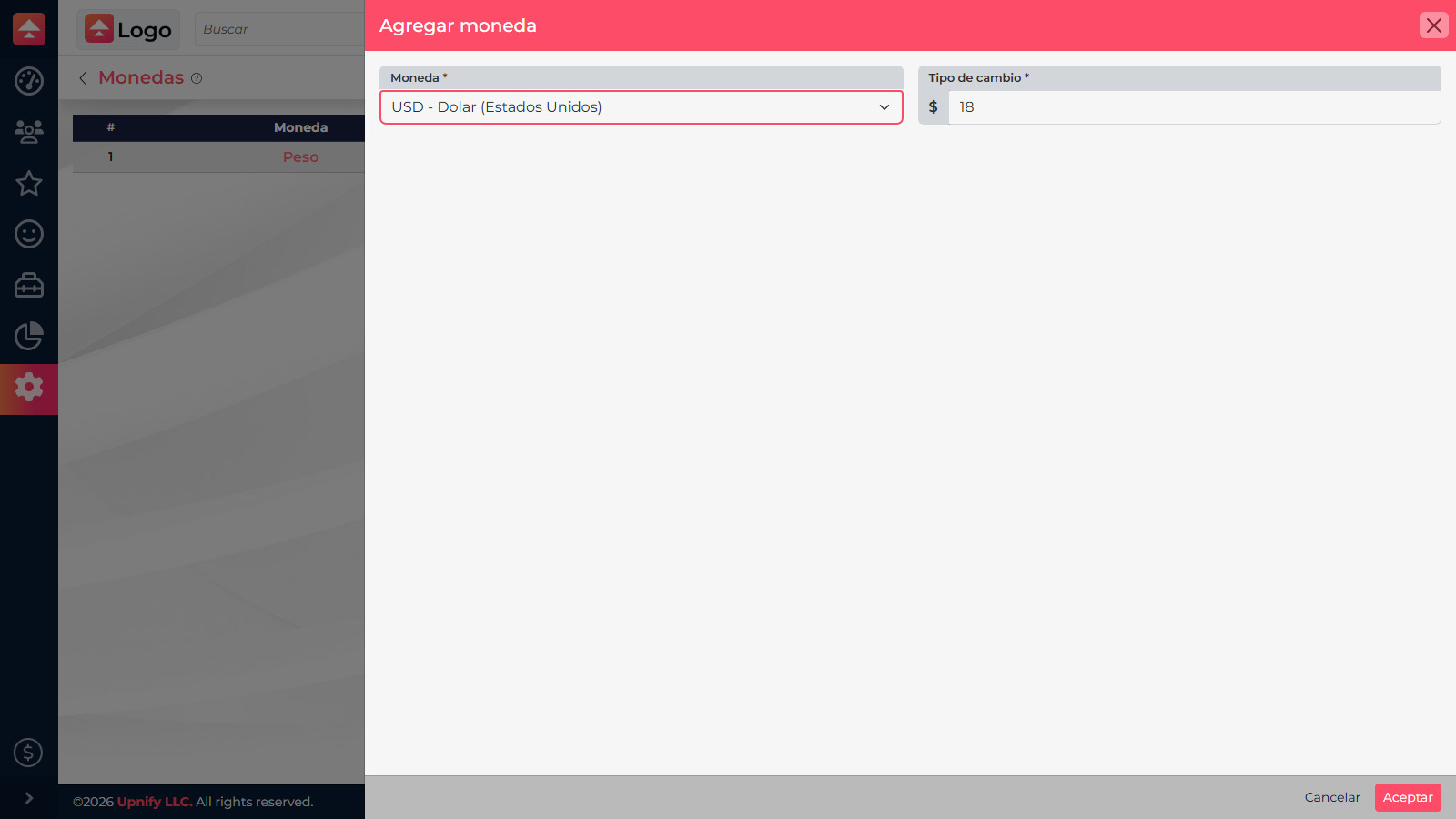
The saved exchange rate is a reference for conversions in quotes. It does not replace your company financial policy or automatically change every catalog price.
2. Create a price list
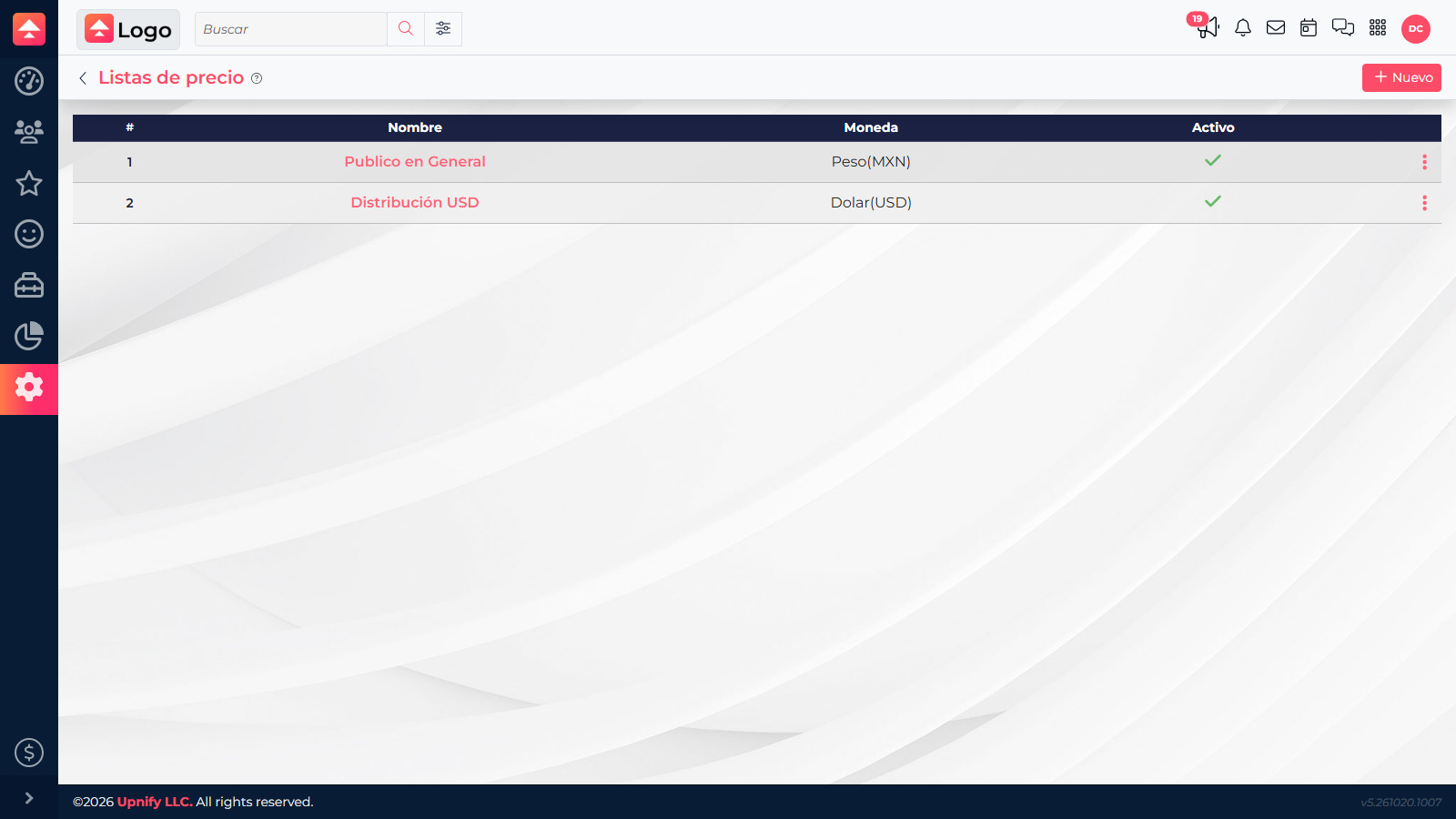
- Open Settings > Price List and select New.
- Enter a clear name such as \u201CDistribution\u201D or \u201CRetail\u201D.
- Choose the list currency and save.
3. Set product prices
Open the catalog, edit a product, and go to Prices, taxes, and commissions. CRM displays a field for each active list. Enter the price for each list and set a minimum price when relevant. Save so the quote tool can use the selected list amount.
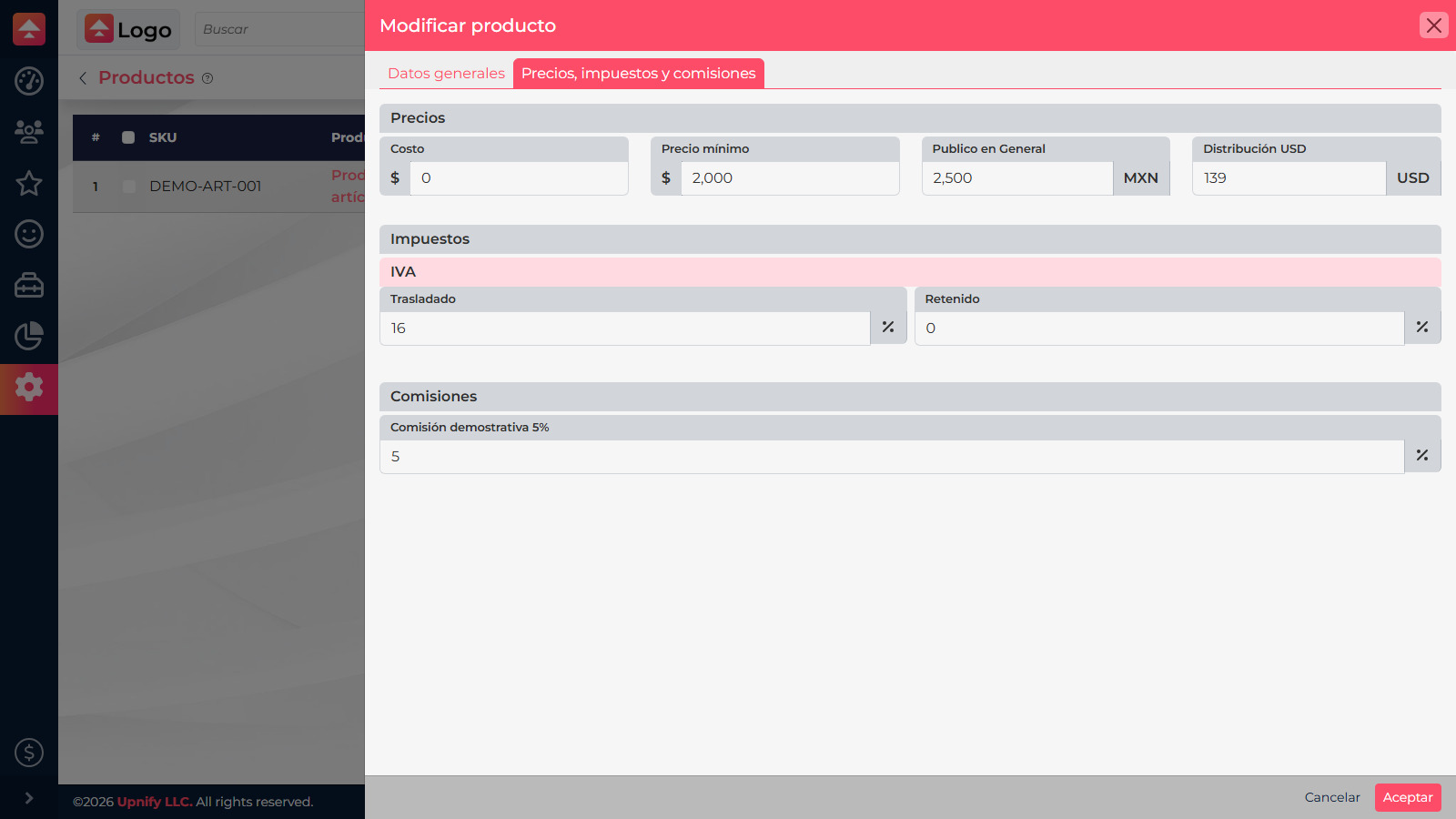
Select the right list in the quote and confirm the price and currency. If a new list does not appear on a product yet, open its record and fill in the new field.
Use consistent names and avoid duplicate lists for variations that share a price. This helps the team choose the right offer.