
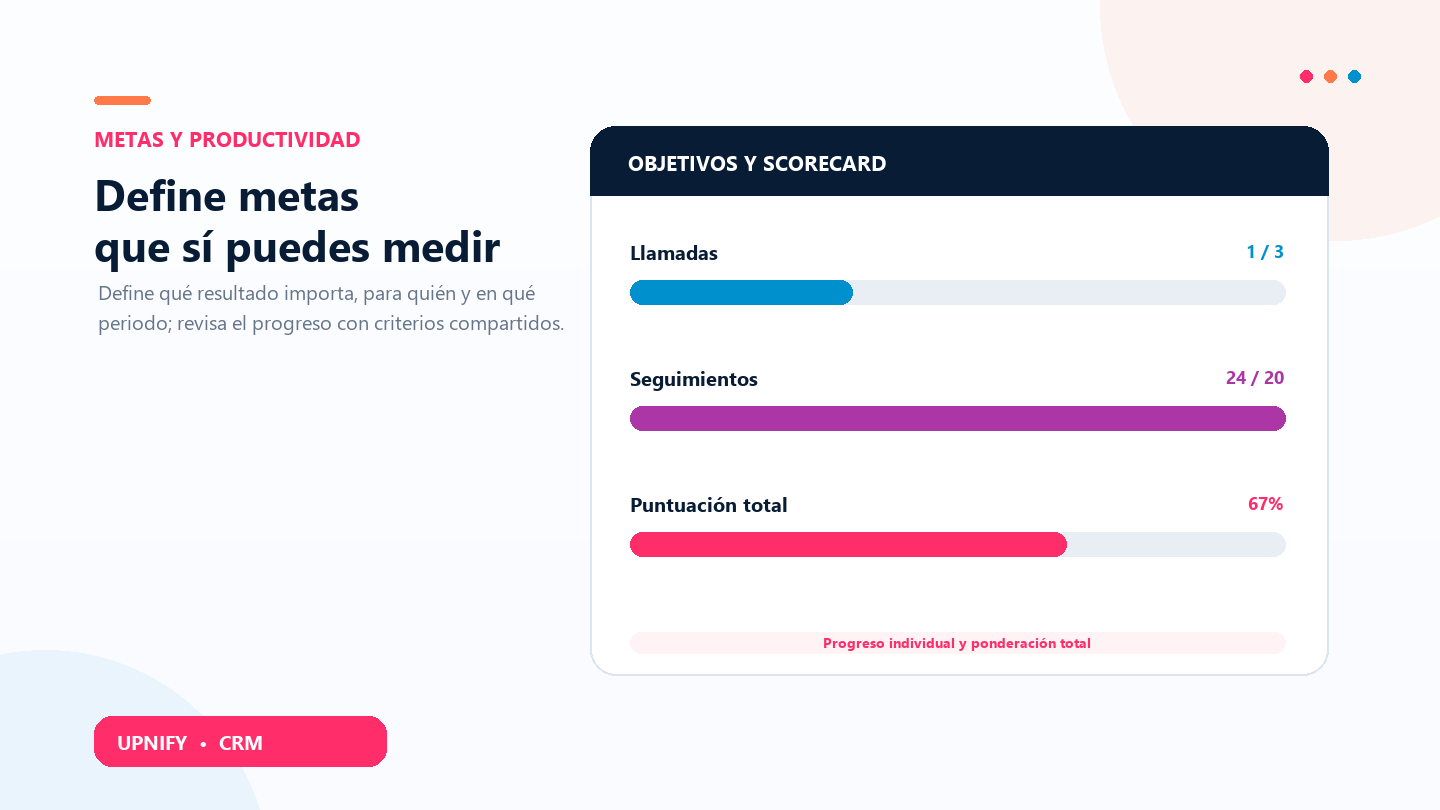
In CRM, you can set goals so each person, group, or company knows what result is expected during a period. You can also combine several goals in a scorecard: each goal contributes to the total according to its assigned weight. This helps you track productivity in a balanced way instead of relying on a single number.
Goals lets you define and review targets by metric and period. Score combines individual goals in a weighted scorecard so you can review a total result.
Before you configure: decide what to measure
Choose indicators that represent an outcome the team can influence and review clearly. CRM offers automatic metrics\u2014for example calls, follow-ups, prospects, opportunities, sales, or collections\u2014and a manual option. Available metrics depend on the modules and data enabled in the account.
- Choose who is responsible: the company, a group, or an executive, depending on the goal.
- Select a period that fits the activity, such as a week or a month.
- Set a realistic target with a clear unit: an action count or amount, depending on the metric.
- For a scorecard, decide how much each metric contributes. The weights should reflect your priorities and add up to 100%.
Create or review goals
- In CRM tools, open Goals. Select the relevant tab and the period you want to review.
- Choose Add and select a metric. For sales, calls, or follow-ups, confirm that its definition matches what the team considers a valid result.
- Set the scope or owner, description, and target values for the period. Add criteria when you need to narrow which records count.
- Save the goal. You can later filter by period, group, or owner and use Update to review progress.
Standard goals show progress against the configured target. Automatic goals are calculated from records that match the metric and its criteria; a manual goal is managed according to your account\u2019s configuration.
Configure a weighted scorecard
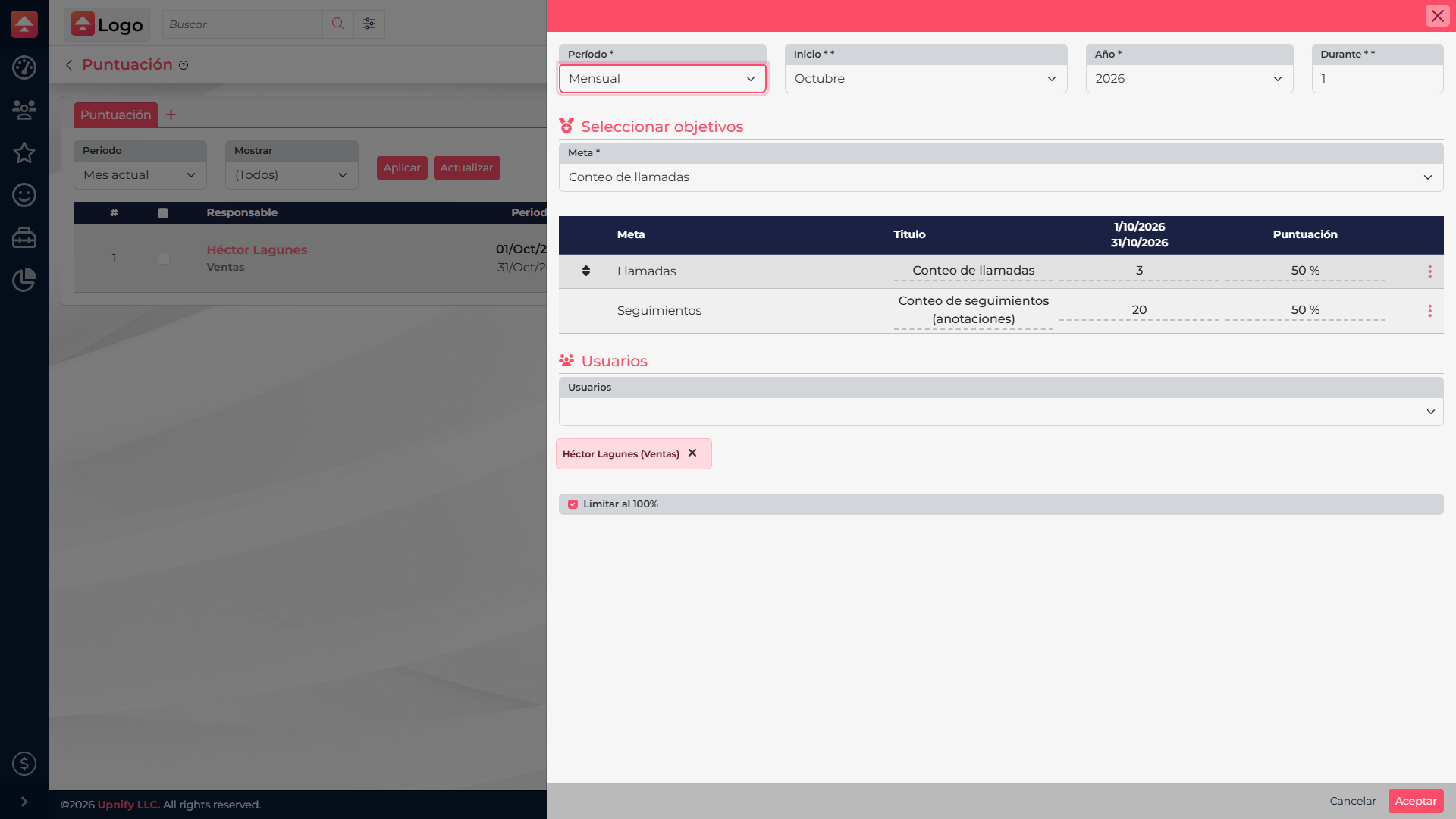
- Open Score and select Add.
- Set the frequency, starting period, and number of periods to include.
- Add each metric, its title, and the target for each period. Assign a weight percentage to each and check that all weights add up to 100% before saving.
- Select the executive who will use the scorecard. Configure it separately for other executives when they need individual targets.
- Choose whether to enable Limit to 100%. With this option, exceeding a goal cannot add more points than its assigned weight.
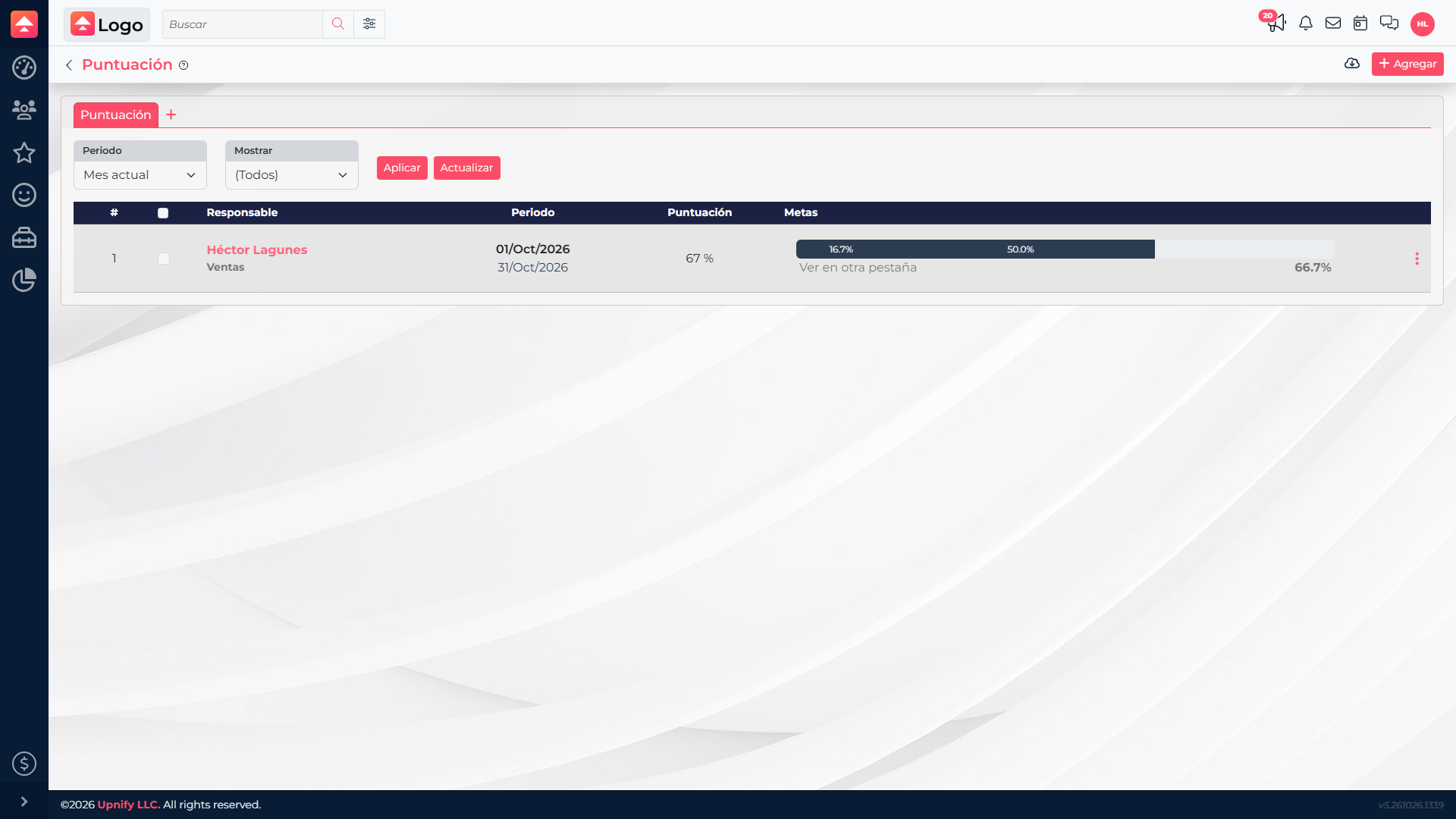
- Save and review the score in the table. Use the row menu to edit a scorecard or its goals when priorities change.
How to calculate and read the result
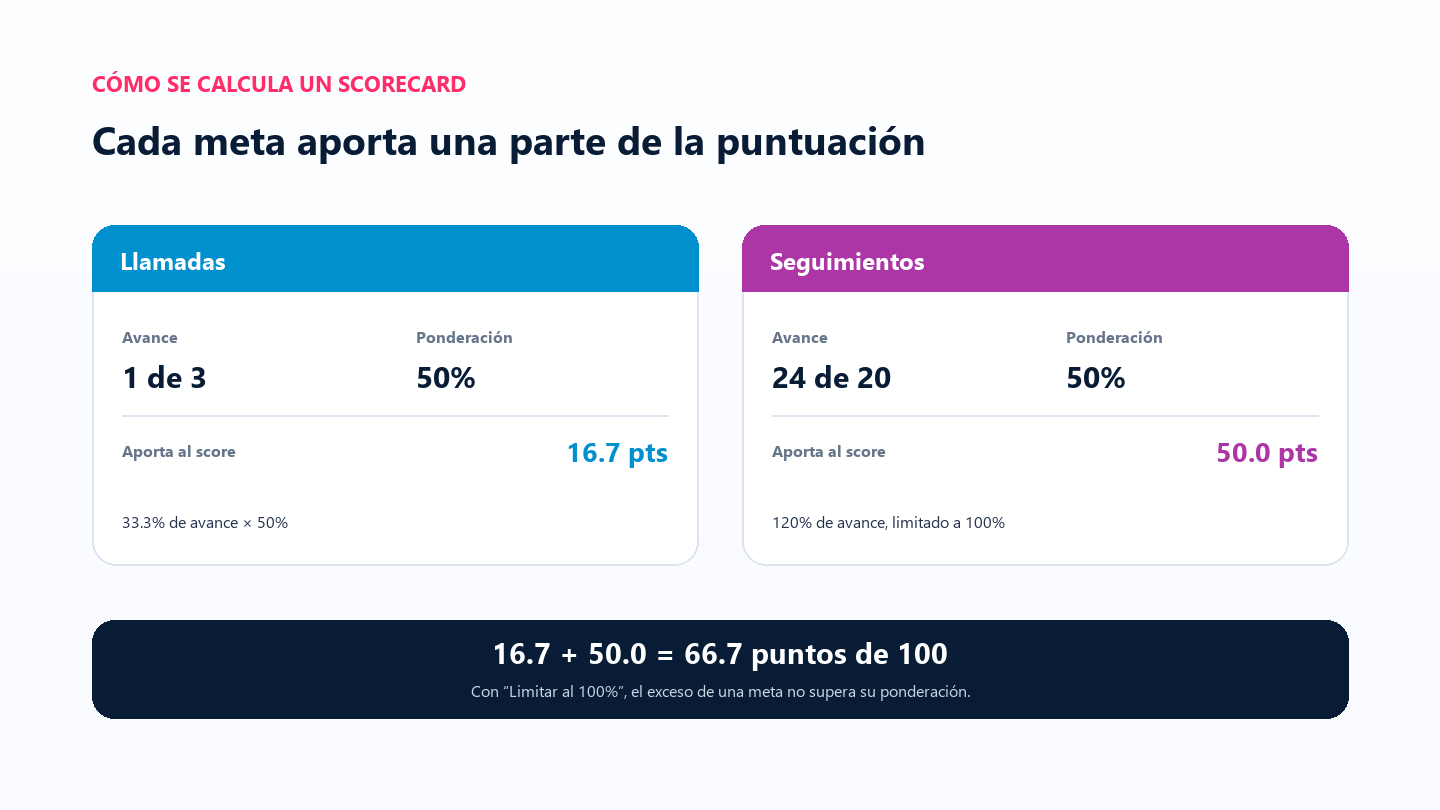
Each goal contributes to the total based on its progress and weight. In this example, 1 out of 3 calls is 33.3% progress; at a 50% weight, it contributes about 16.7 points. Follow-ups exceed the target (24 out of 20); because the 100% cap is enabled, they contribute 50 points, not 60. The scorecard totals 66.7 out of 100, which the table rounds to 67%.
| What you see | What it means |
|---|---|
| Percentage by the executive | The scorecard total for that person and the selected period. |
| Bar segments | The weighted contribution of each goal. Hover to identify a component when the view provides its detail. |
| Progress for a goal | The recorded result compared with its target. It can exceed 100% when the cap is off. |
| \u201CView in another tab\u201D | Opens the associated goals view so you can inspect each goal. |
Example for a sales team
A supervisor wants to balance activity and follow-up, so calls are worth 50% and follow-ups are worth 50%. The team understands that logging calls matters, but so does documenting progress with the contact. When reviewing the score, the supervisor checks each component too: two people can have the same total with different progress and need different support.
Confirm the period, user assignment, criteria, and records. A low score may reflect an unclear target or incomplete data as well as performance.