
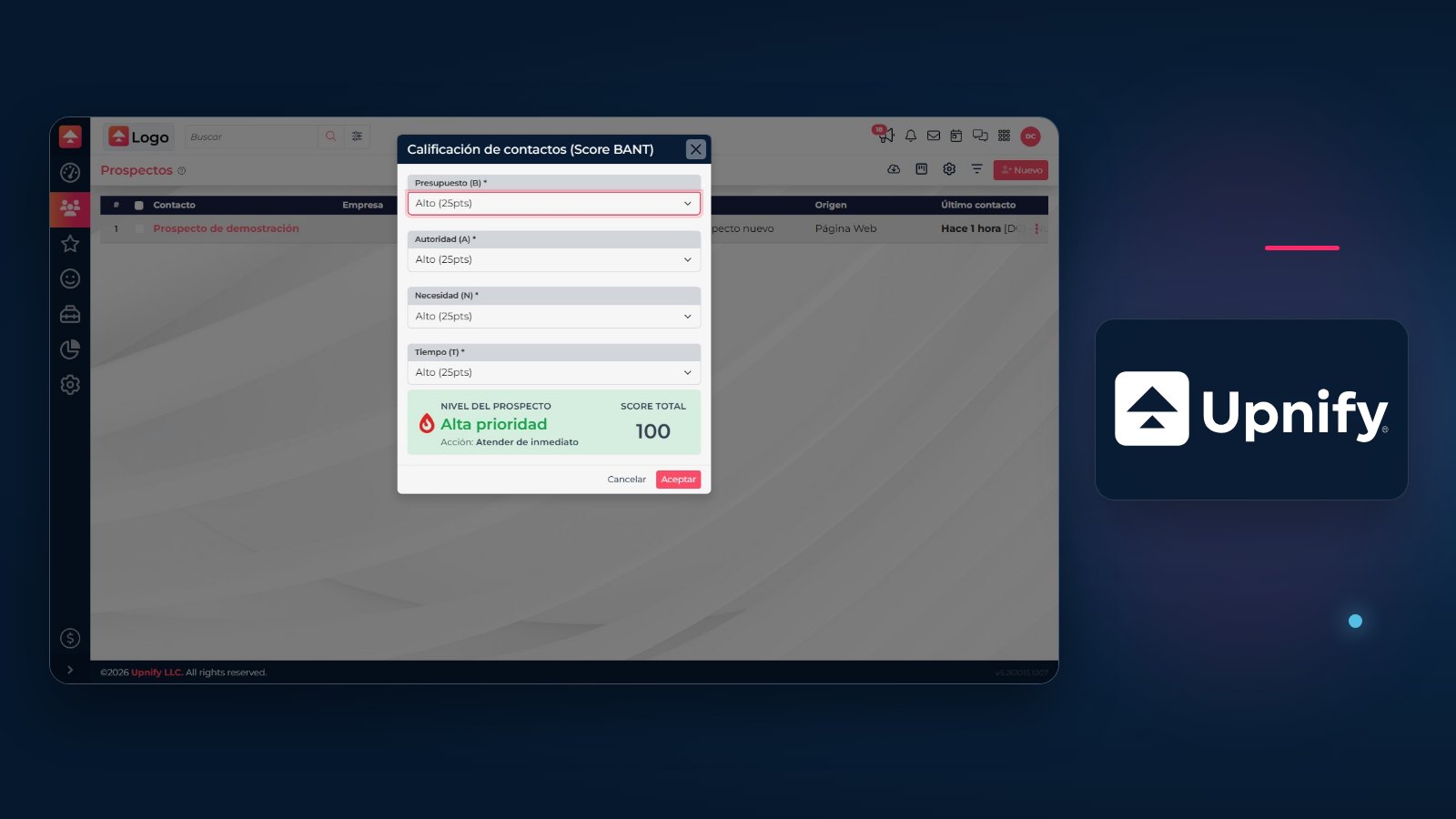
Scoring helps your team decide whom to contact first and apply consistent criteria. In CRM, you can rate a prospect with BANT or enter a manual score; some accounts can also assign points automatically based on the prospect\u2019s origin and data.
BANT structures a sales assessment; Manual records the team\u2019s own evaluation; origin rules can automate points when LeadScore is enabled. These options are different from goals or productivity scorecards.
| Method | When to use it | Where to configure it |
|---|---|---|
| BANT | Assess budget, authority, need, and timing. | In the prospect\u2019s scoring menu. |
| Manual | Record a 0\u2013100 rating based on criteria agreed by the team. | In the prospect\u2019s scoring menu. |
| By origin | Assign points based on prospect criteria and source. | In the Origins catalog, if LeadScore is enabled for the account. |
Rate a prospect with BANT
- In the Prospects list, open the record\u2019s action menu.
- Select Scoring, then BANT.
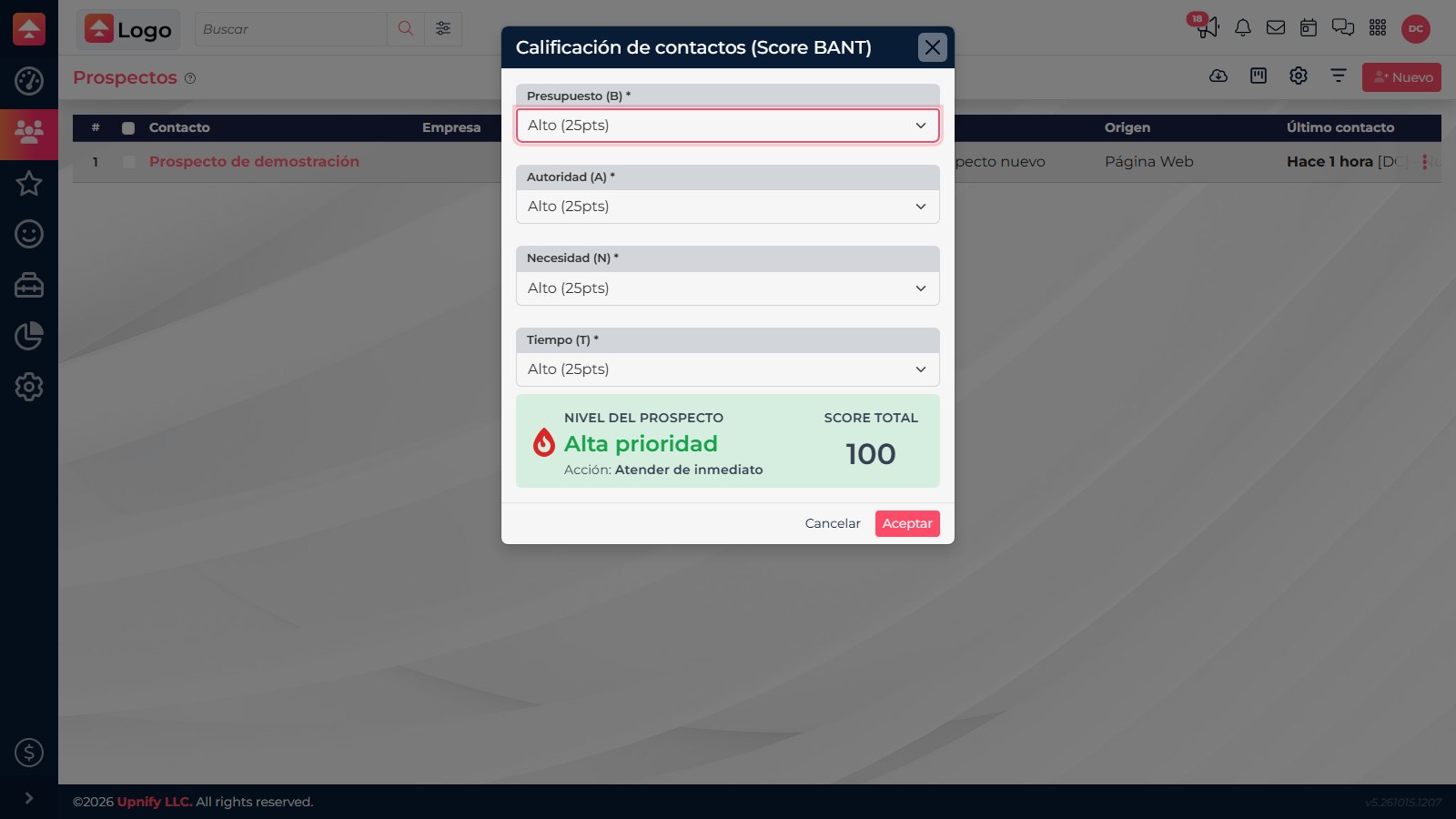
- Choose an option for each criterion: Budget, Authority, Need, and Time.
- Review the total and suggested level. If the assessment is correct, select Accept.
Each criterion contributes 0, 5, 15, or 25 points. CRM adds the four values for a total from 0 to 100. For example, four High (25 points) answers produce 100 points.
| Score | Suggested level | Suggested action |
|---|---|---|
| 80\u2013100 | High priority | Attend immediately |
| 60\u201379 | Medium priority | Nurture and follow up |
| 40\u201359 | Low priority | Assess further or educate |
| 0\u201339 | Not viable | Do not invest time |
Enter a manual score
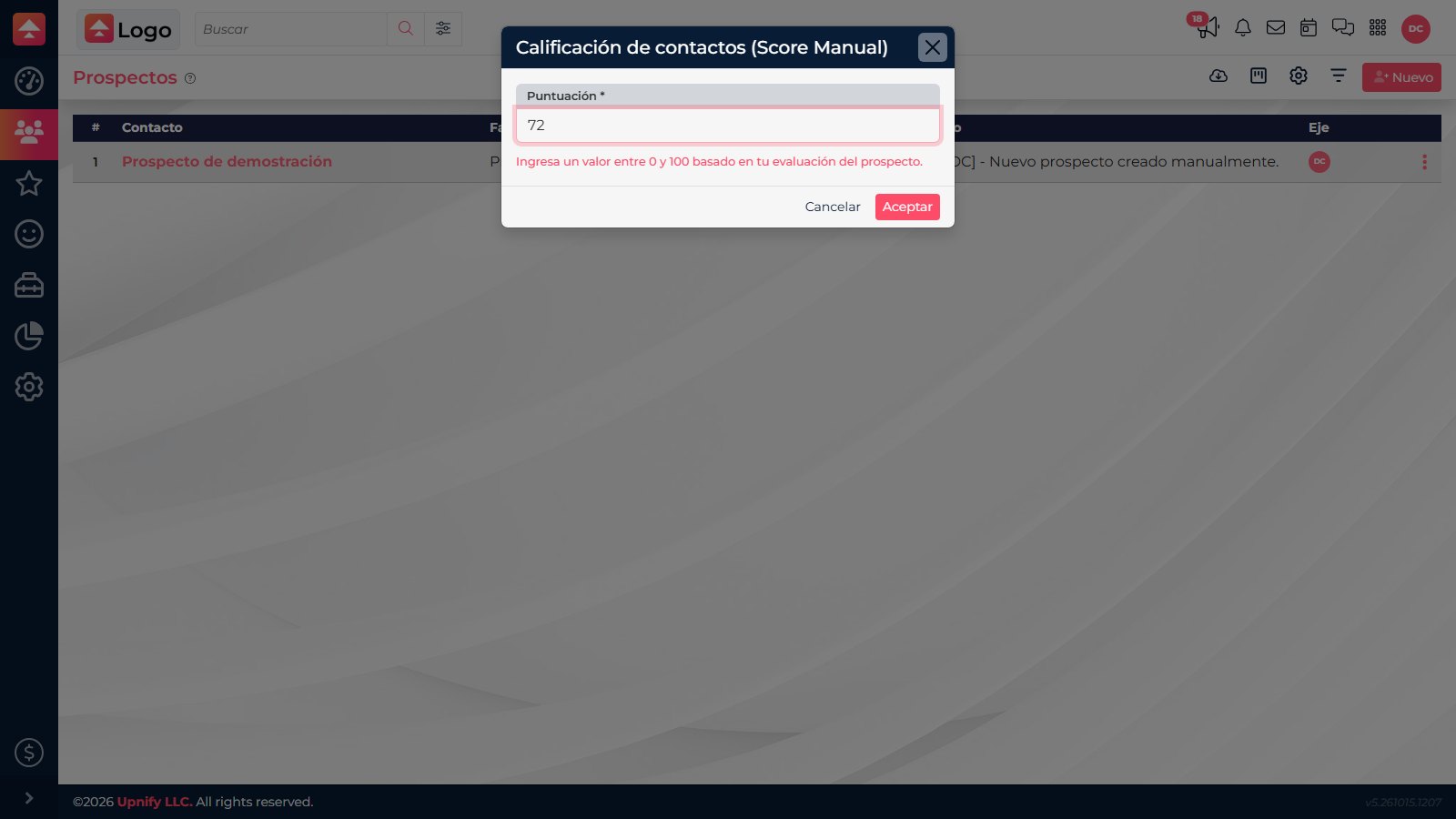
Use Manual when your team needs to record an assessment that is not expressed by the four BANT criteria. Open the same Scoring menu, select Manual, enter a value from 0 to 100, and confirm. Before using the score in reports or follow-up decisions, agree on what each range means so different team members rate prospects consistently.
Set up automatic points by origin
If your account includes LeadScore, you can define rules for prospects from each origin:
- Open Settings > Origins.
- From an origin\u2019s action menu, select Scoring.
- Add a rule and choose a criterion, condition, value, and the points it should contribute.
- Repeat for data that helps prioritize that origin, then select Save.
Criteria can include system fields\u2014such as validated email or mobile, effective call, email read, or follow-up type\u2014and custom prospect fields. Available conditions depend on the data type: they may compare values, dates, or numbers, or check whether a value exists. The total shown in the window adds the points defined in the rules; use it to review the weighting, not as proof that a specific prospect already meets every criterion.
For a campaign origin, you could assign points like this. The custom field must exist, and the rules should match the data you actually collect:
| Criterion | Condition | Points |
|---|---|---|
| Validated email | Yes | +10 |
| Custom field \u201CRequested a demo\u201D | Yes | +25 |
In this example, meeting both criteria represents 35 points from these rules. Adjust the values to fit your process; this is a configuration example, not a score recommended for every business.
The origin scoring option appears only when LeadScore is enabled for the account. If you do not see it, ask an administrator. Do not confuse it with Tools > Goals / Scoring, which is used for goals and productivity scorecards.
Validate the criteria with your team
- Use the same BANT definitions so high, medium, and low have shared meanings.
- If you use manual scoring, agree on ranges before comparing prospects across users.
- If you enable origin rules, test prospects from different origins and confirm that each criterion is available in captured data.
- Review the scoring breakdown before changing points or rules; a score supports prioritization but does not replace sales context.