

The identity attached to your emails helps recipients know who is writing and where to reply. Setting it once per account saves you from correcting the signature or adding internal recipients to every message. For example, a sales team can send from its work mailbox, route replies to a shared address, and keep a blind copy for internal follow-up.
Before changing the account
The sender is the address connected as the email account. Reply-To sets where replies go. They are different values: do not use a reply address your team cannot monitor.
The sender is the address connected as the email account. Reply-To sets where replies go. They are different values: do not use a reply address your team cannot monitor.
What each option controls
| Option | What it changes | Example |
|---|---|---|
| Sender | The account CRM uses to send. Its address is connected when you add the account. | Use sales@company for sales messages if the account is connected and authorized. |
| Reply-To | The address that receives replies. | Route replies to a shared team inbox. |
| Automatic BCC | Adds hidden recipients to emails sent from that account. | Keep a copy in a team supervision mailbox. |
| Signature | Adds a closing with contact details, role, links, or brand resources. | Keep the team’s professional details consistent in replies. |
| Default | Makes this account the first one CRM suggests when composing. | Choose sales@company for the team’s most common one-to-one emails. |
Open and configure the account
- Open the user menu and go to Personal settings > Email accounts.
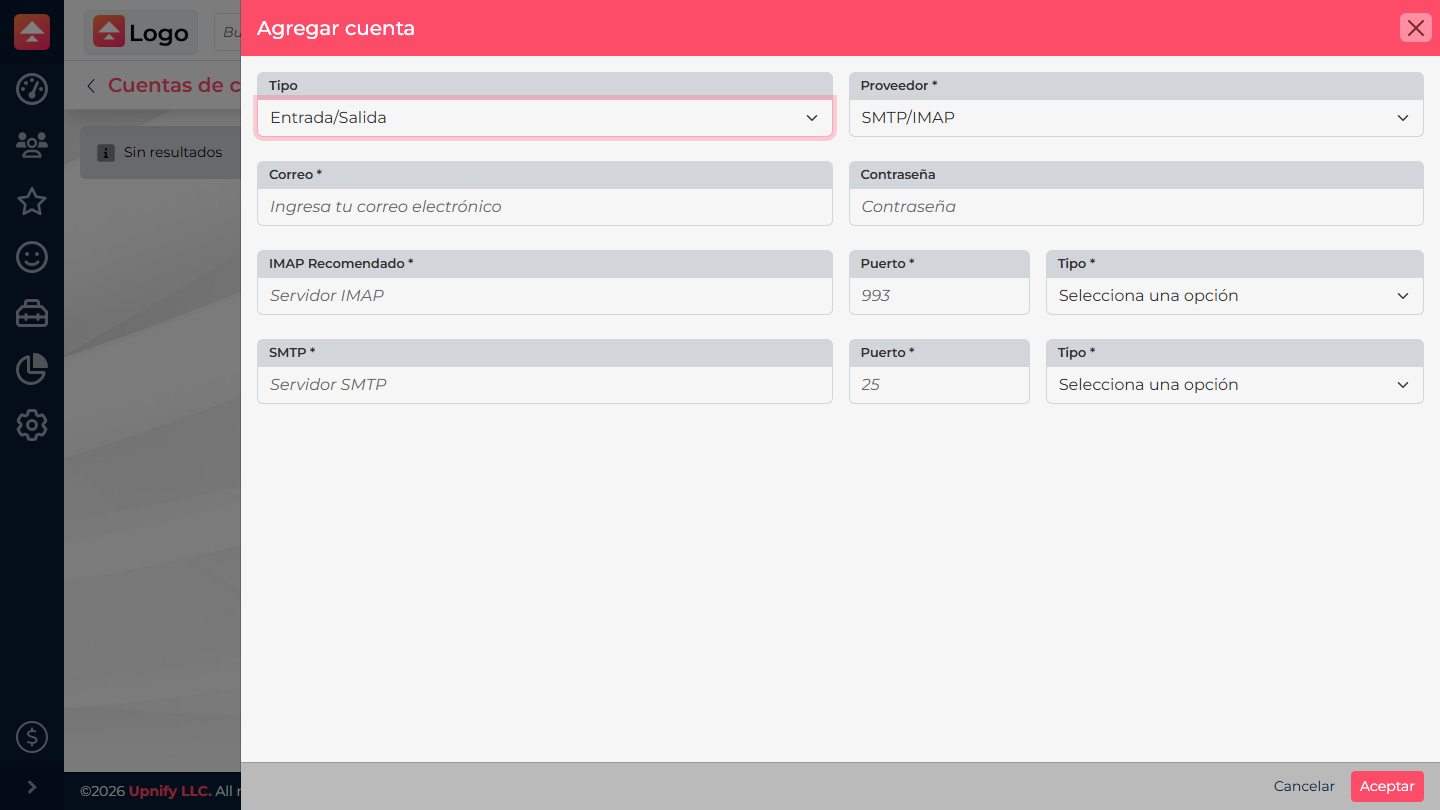
- If the address is not connected yet, select New and add it with the correct provider and incoming/outgoing type. If it is already connected, open its row options and select Additional configuration.
- Under Reply-To, enter the address your team will monitor. Leave it blank if replies should go to the sender account and you do not need a separate address.
- Under BCC, add addresses that should automatically receive a hidden copy. Review each recipient before saving: this applies to messages sent from that account and may create duplicate copies.
- Write the Signature in the editor. Use current details and working links; if you add an image, check it in a test message.
- Select Default if CRM should suggest this account first. Select Accept to save.
Verify the sender and reply path
Send a test message to an address you control. Check the sender in the received message, reply, and confirm which mailbox received the response. Also verify the signature and expected blind copy. If the provider does not authorize the connected sender address, correct the account or its permissions with your email administrator; do not replace it with an address that is not connected.
Protect copy recipients
BCC hides those addresses from other recipients, but the people listed still receive the email content. Use only approved mailboxes and do not include sensitive information.
BCC hides those addresses from other recipients, but the people listed still receive the email content. Use only approved mailboxes and do not include sensitive information.