
When someone shares their details in a Cliengo chatbot, you can send them to Upnify CRM as a prospect so your team can follow up from the prospect record. This avoids copying information by hand and reduces the chance that a conversation goes unattended.
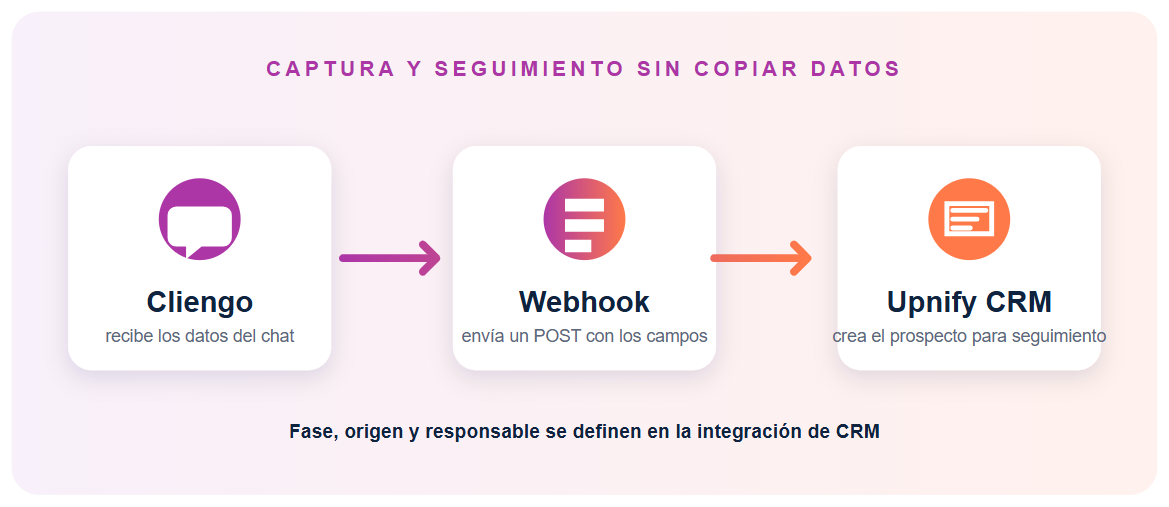
Set up the connection in two places: first create the integration in CRM that will receive prospects; then configure a Cliengo automation to send the data to the URL generated by CRM.
You need permission to manage CRM integrations and access to Cliengo custom automations. Webhook availability in automations may depend on your account. If the action is missing, check with Cliengo; do not use “Webhooks Legacy,” which is marked as discontinued.
1. Create the integration in Upnify CRM
- In CRM, open Settings > Integrations > API and select Add integration.
- Choose Cliengo and give the connection a clear name, such as Cliengo | Website chat.
- Select the default phase and origin for incoming prospects. You can also assign an owner and tags if needed.
- Save the integration. CRM displays a receiving URL with a unique token. Copy it and store it securely: anyone with that URL can send records to this integration.
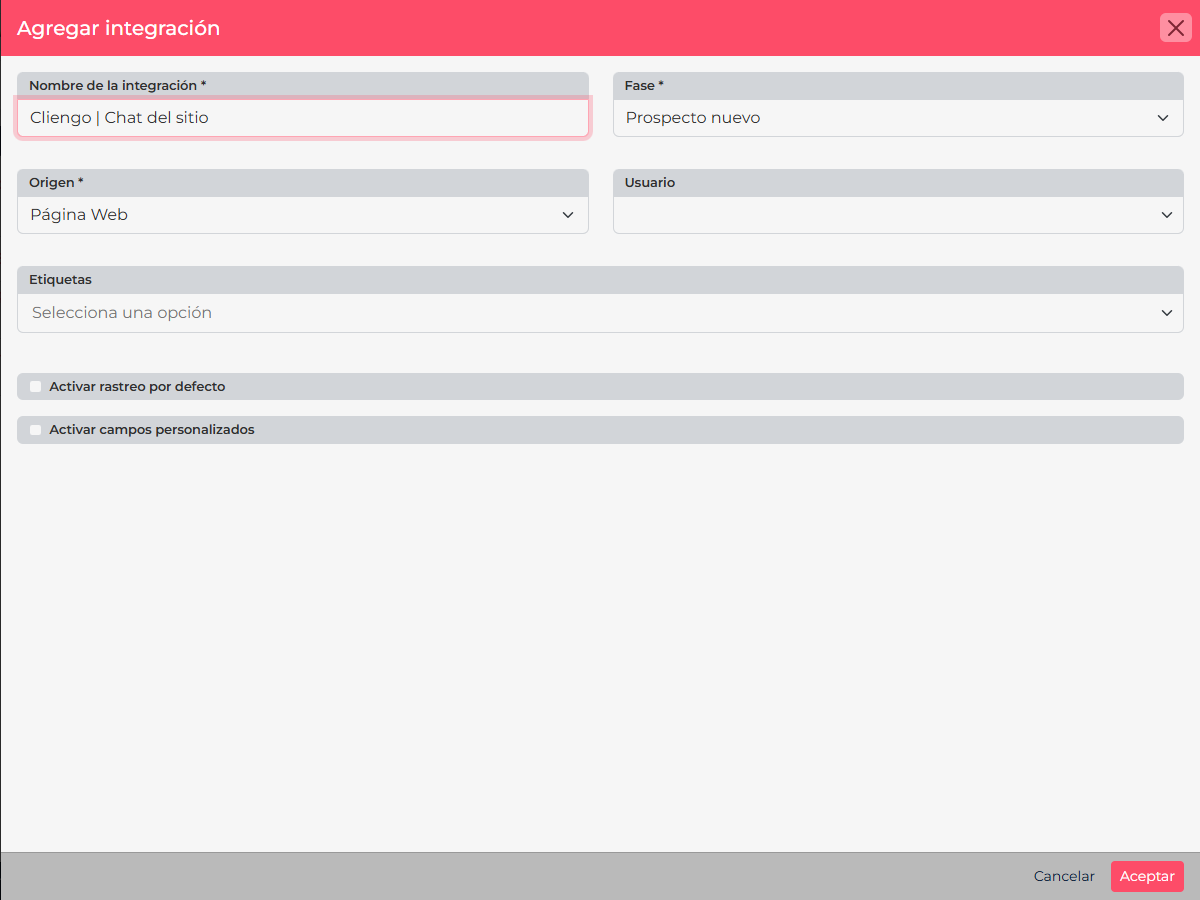
The phase and origin are defaults for prospects received through this connection. For example, you can assign the “New” phase and the “Website chat” origin to distinguish them from contacts coming from calls or campaigns.
2. Set up the automation in Cliengo
Cliengo’s integration catalog includes different connection types. For this flow, open Custom automations and configure the Webhook action to send fields to the CRM endpoint. Automation and webhook availability may vary while Cliengo continues to evolve these features. If they are missing from your account, check Cliengo’s official automation guide.
- Open Automations > Custom and select New automation.
- If available, choose the Sync with external CRM template. It starts with a Contact created event and adds a Webhook action. You can also build the flow manually using a contact event and the Webhook action.
- Open the Webhook action, paste the URL generated by CRM, and select POST.
- Configure the request body with the data you want to send. For each row, enter the field name Upnify expects and map it to the matching Cliengo variable.
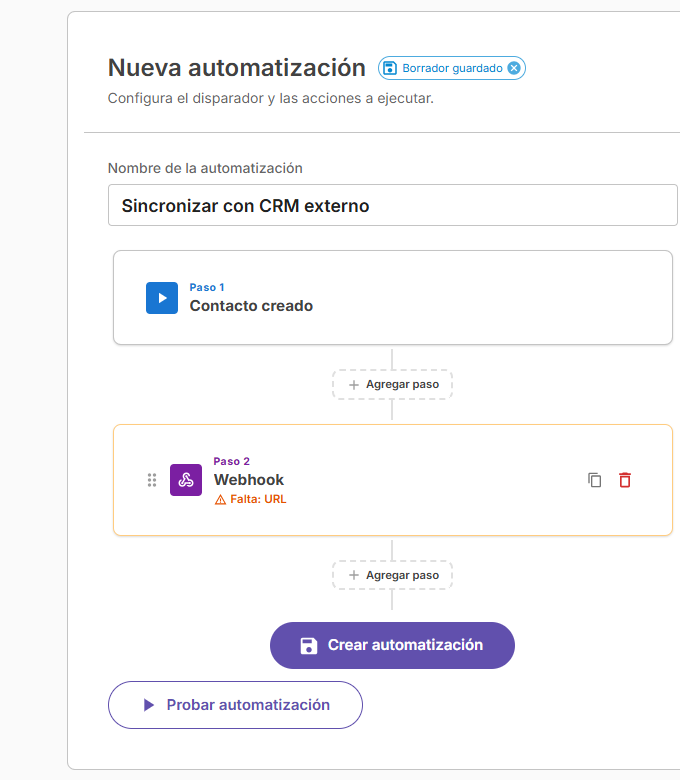
Cliengo’s official guide describes an alternative when contact details are collected during a conversation: start with New conversation, add a short wait, retrieve the conversation, and then run the Webhook. This gives the visitor time to provide their details. See Cliengo’s custom Webhook automation guide.
3. Map the fields CRM will receive
Upnify recognizes the field names below. Map each one to the Cliengo variable containing that value. If your chatbot does not collect a value, omit that row.
| Field Upnify receives | Cliengo value | Purpose |
|---|---|---|
name | Name | Prospect name |
lastName | Last name | Last name, if collected |
email | Contact method | |
phone | Phone | Follow-up phone |
message | Message or available summary | Context for the inquiry |
source | Fixed value, e.g. “Cliengo” | Identify the source in CRM |
landingUrl, referalUrl | Landing or referring URL, if available | Understand which page brought the visitor |
Daniela Torres asks a clinic’s chatbot about an initial appointment. Cliengo sends her name, email, phone, and message; Upnify creates a prospect in the “New prospect” phase with the “Website” origin. The team can review the context on the prospect record and schedule a follow-up.
To preserve marketing attribution, you can also map utmSource, utmMedium, utmCampaign, utmContent, and utmTerm to the available UTM data. Use the exact key names shown here; CRM interprets these keys.
name, email, and phone directly. Do not send a generic nested { event, data } body without transforming it; CRM will not read those values as prospect fields.4. Save and test the delivery
- Save the automation in Cliengo and use Test automation with a test contact containing fictional details.
- In CRM, open the prospects list and find the delivered contact. Check the name, email, phone, phase, and origin.
- If the record does not appear, confirm the URL belongs to the Cliengo integration, the method is POST, and the body keys match the names above exactly.
A test that reaches CRM creates a real prospect in that account. Use a test record, check for duplicates, then remove or archive the test according to your team’s process. Activate the automation after the test is reviewed.
If something goes wrong
- The Webhook action is missing: check whether custom automations are enabled for your Cliengo account and contact Cliengo if the feature is unavailable.
- The Webhook runs but CRM receives no prospect: verify that you used the Cliengo integration URL and copied it completely.
- The prospect arrives without details: review the variable mapping and send flat keys such as
nameandemail. - The prospect has the wrong phase or origin: edit the integration defaults in CRM; those values are selected in Upnify.
Cliengo documents integrations and automations in its Help Center. For Upnify’s receiving contract, see the Upnify API documentation.