
Facebook Lead Ads lets people submit their details on Facebook or Instagram without first visiting another website. When connected to Upnify CRM, each request can arrive with a sales phase and source, and optionally an owner or tag. This helps your team follow up while the person is still interested and avoids downloading files or entering contacts by hand.
You need an Upnify account with a compatible plan, a Facebook Page with at least one active lead form, and a Meta account with access to that Page and its leads. The person authorizing the connection must be able to grant those permissions. If your organization uses customized lead access, a Meta business administrator may also need to grant CRM access.
1. Prepare the phase, source and fields
Decide how you want to identify these leads in CRM before connecting the form. For example, a team promoting a consultation could set the initial phase to New, the source to Facebook Lead Ads, and add a tag such as Consultation campaign. The phase shows where follow-up starts; the source and tag make it easier to filter contacts and review campaign performance.
If the form asks for information that is not already on the lead record, create those custom fields in CRM first. During setup, you can match each form question to a CRM field. You can also mark a question to be ignored if you do not need to store its answer.
2. Create the integration in Upnify CRM
- In CRM, open Settings > Integrations > API and select Add integration.
- Choose Facebook Lead Ads. The integration catalog displays the available connections.
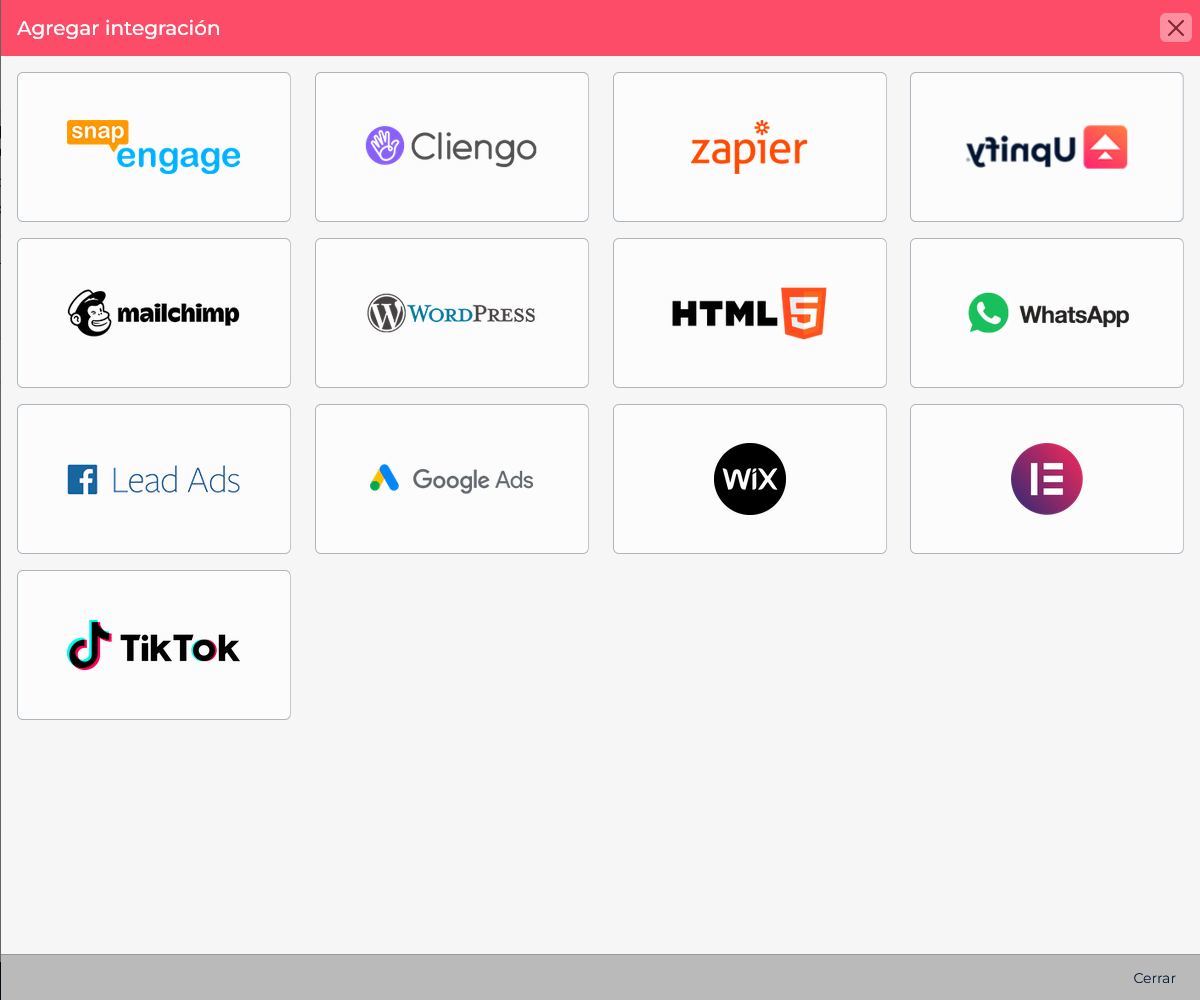
Open the catalog from Settings and choose Facebook Lead Ads. - Enter a name you will recognize, such as Facebook Lead Ads — Consultation requests. Choose the phase and source for incoming leads. You can also choose an owner and a tag.
- If you enable custom fields, the mapping can include the fields you prepared. Review the setup and select Accept to continue to the connection assistant.
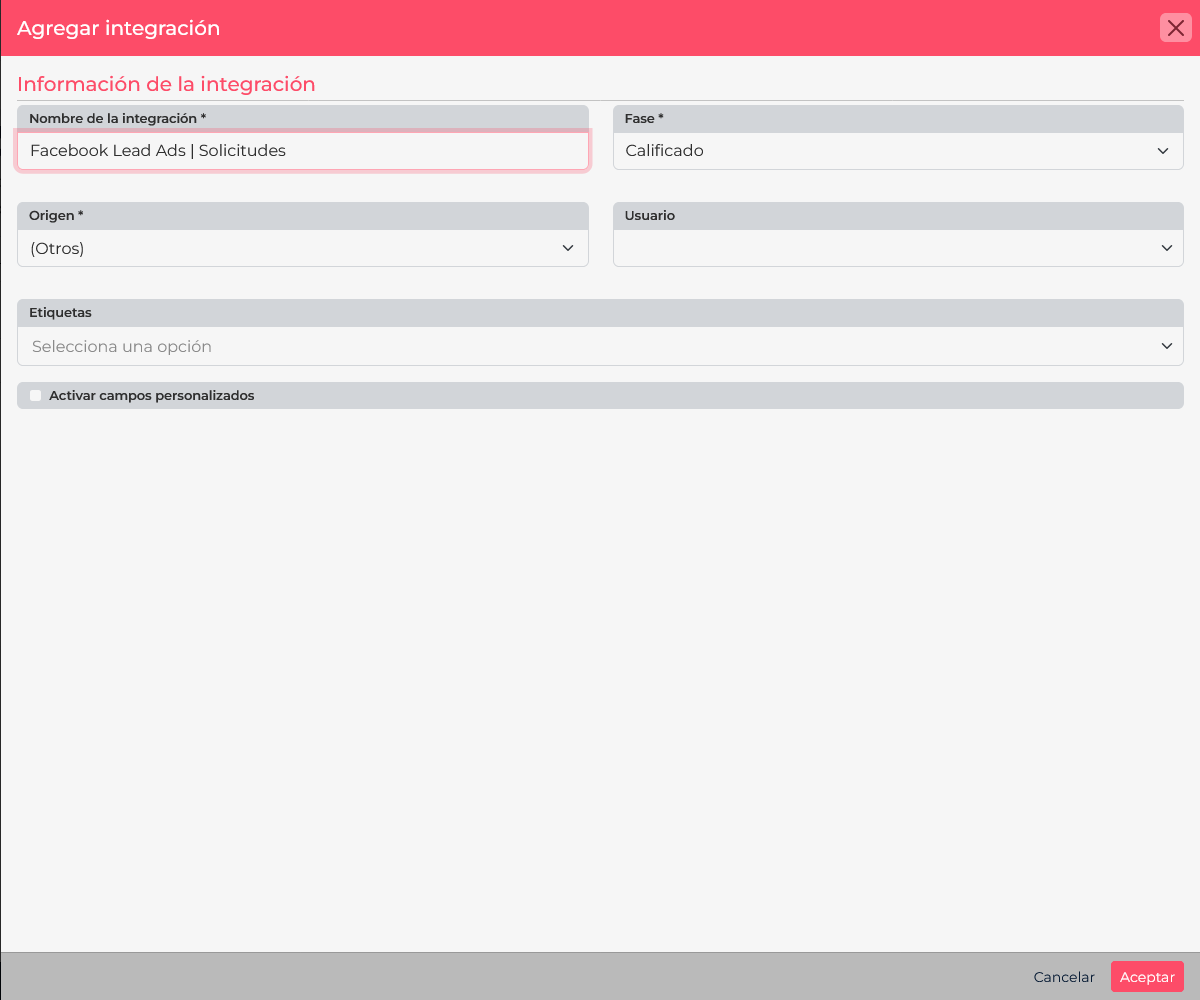
Choose how incoming leads will be classified and assigned.
3. Authorize Meta and select a Page and form
- In the assistant, select Connect with Facebook and sign in with the Meta account that manages the correct Page.
- Review and grant the permissions Upnify requests to access Pages, forms and leads. If Meta asks you to select Pages, include the Page where the form is published.
- In CRM, select the Page and then the active form you want to receive leads from. If a Page or form is missing, check the Meta account’s access and make sure the form is active. When lead access is customized, a business portfolio administrator may need to assign CRM in the lead access settings.
Authorization connects Upnify to the Meta resources you selected. Access to the ad account alone may not be enough: the authorizing account also needs access to the Page and its lead information.
4. Map form questions to CRM fields
CRM displays the form questions and a destination field for each one. For example, map Full name to Name, Email address to Email, and Phone to Phone. If you added your own question—such as “Which service are you interested in?”—map it to the corresponding custom field. Choose Ignore for a question you do not want to store.
Review every mapping before saving. If a question is matched to the wrong field, its answer may appear in an unexpected place or be unavailable for follow-up. Save when each question is mapped or marked to be ignored. Upnify then subscribes the Page to new lead notifications so it can receive future submissions.
If CRM offers tracking options, you can set UTM values to identify the source and medium, or enable available ad details. These options may depend on the Meta permissions you granted; lead delivery still works without optional tracking.
5. Send a test lead and confirm it arrived
From the integration, select Create contacts to open Meta’s official Lead Ads Testing Tool. Select the connected Page and form, then create a test lead. Find it in CRM and verify that its name, email, phone and answers appear in the expected fields. Also check the phase, source, owner and tag you configured.
A test checks that lead delivery and field mapping are working. Before turning on ads, confirm that the published form is the one you connected and that your team knows who will follow up with new requests.
- The Page is missing: authorize the Meta account that has access to it, and check lead access for the people or CRM integration.
- The form is missing: confirm that it belongs to the selected Page and is active.
- Some lead details are missing: review each question-to-field mapping; create custom fields first for your own questions.
- The test does not arrive: check the integration history, confirm the correct Page and form are connected, and create another test in Meta’s official tool.