

CRM can link a Gmail or Google Workspace account through Google authorization. The provider confirms your identity and requested permissions without asking you to type your Google password into CRM’s SMTP fields.
Use it when: your organization uses Gmail or Google Workspace and you want to connect a mailbox through the provider’s authorization flow. For a corporate account, the Google administrator may restrict which apps can request access.
Before you start
- Confirm which mode you need: Outgoing, Incoming, or Incoming/Outgoing.
- Make sure you can access the account and verify that Google shows the correct email address.
- For Google Workspace, ask your administrator whether the CRM app is allowed for your organization.
Connect Gmail
- In CRM, open Personal settings > Email accounts and select New.
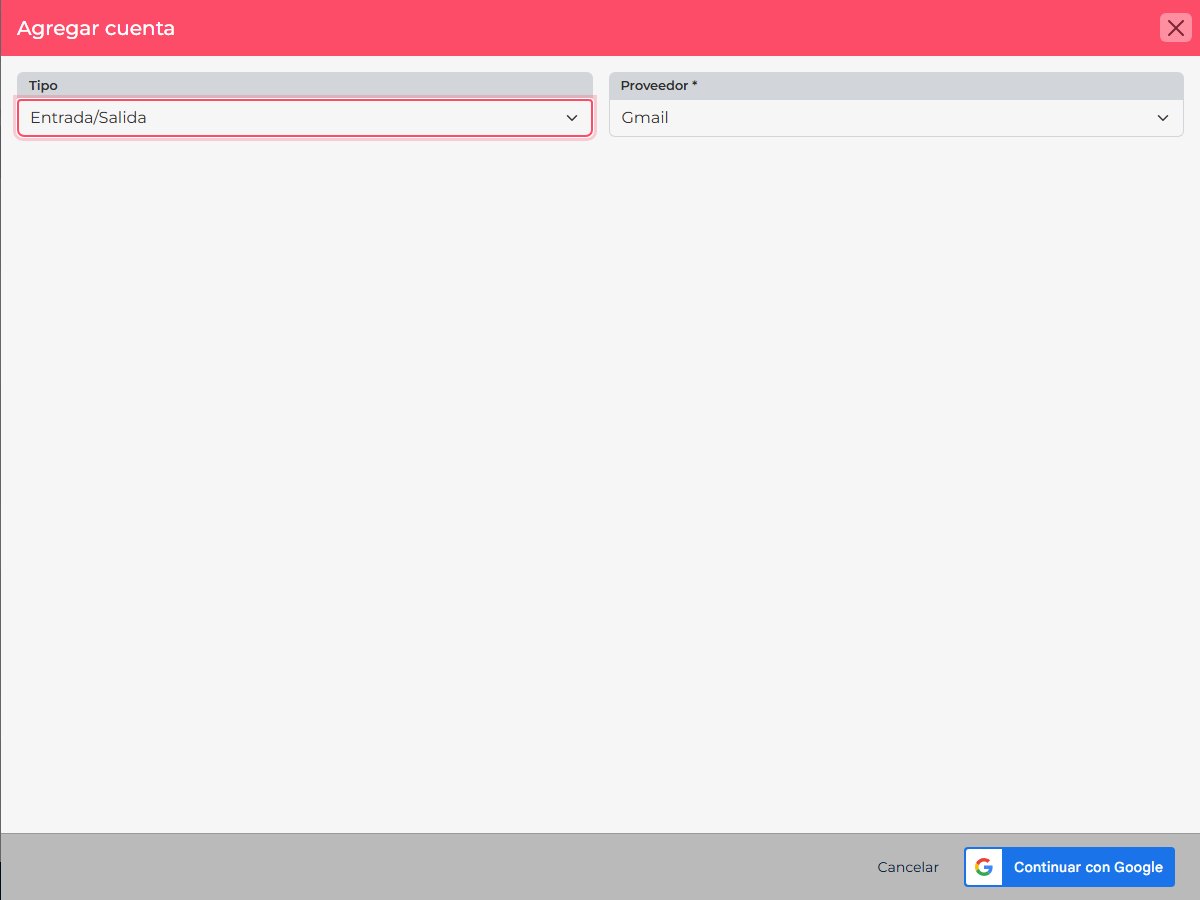
- Choose the email type you need and select Gmail.
- Review the connection summary and select Continue with Google.
- On Google’s official page, sign in if prompted, confirm the correct account, and review the requested permissions.
- Select Allow to finish authorization. Return to CRM and confirm the account appears as connected.
If Google blocks access
An organization can restrict third-party apps or require their permissions to be reviewed. If you see an access-blocked message, do not work around it by typing your password into a manual form. Share the app name and message with your Google Workspace administrator. Google explains third-party app access in its administrator help center.
Security: approve permissions only in Google’s official window after checking the email address. Do not share passwords or verification codes.
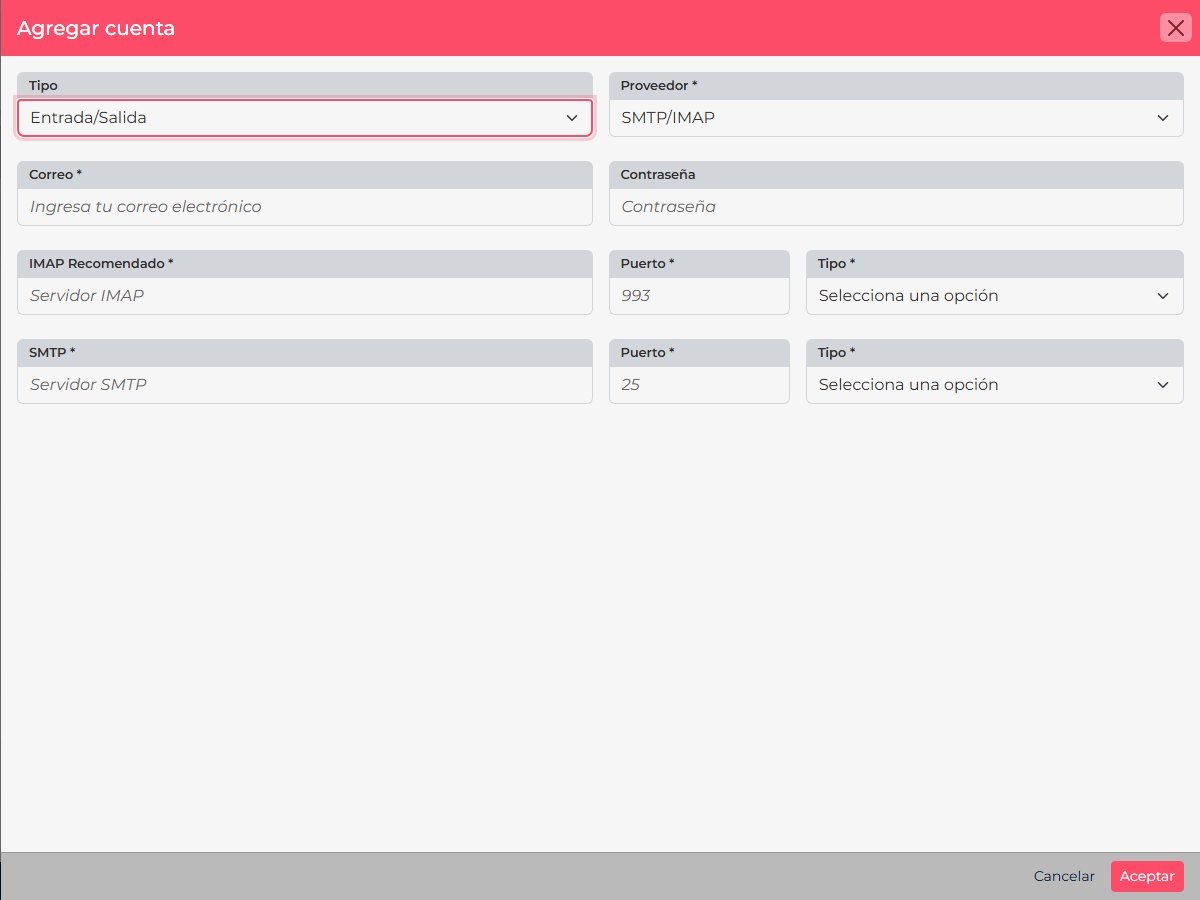
This authorization differs from configuring a mail server manually. See how to choose an email mode if you are still deciding between incoming, outgoing, or both.