
Google Ads lead forms let people send a request without first visiting your website. When connected to Upnify CRM, their details can become a lead your team can follow up with. The connection uses a webhook URL and field mapping: the URL delivers form data to the integration, while the mapping tells CRM where to save each answer.
You need access to a Google Ads account with a lead form and permission to edit it. Your Upnify account must have a compatible plan. Decide which phase and source should identify incoming leads. The Google form must request at least one contact detail CRM can save, such as an email address or phone number.
1. Plan the lead record and form questions
Choose a name that makes the source easy to recognize, such as Google Ads — Demo request. Select an initial phase and source—for example, New and Google Lead Ads. Review the form questions too: clear labels and asking only for information your team will use make mapping and follow-up easier.
2. Create the integration and map fields in Upnify
- In CRM, open Settings > Integrations > API, select Add integration, and choose Google Ads, the connection for Google lead forms.
- Enter an integration name and choose the required phase and source. You can also set an owner, tags, custom fields and default tracking values if needed.
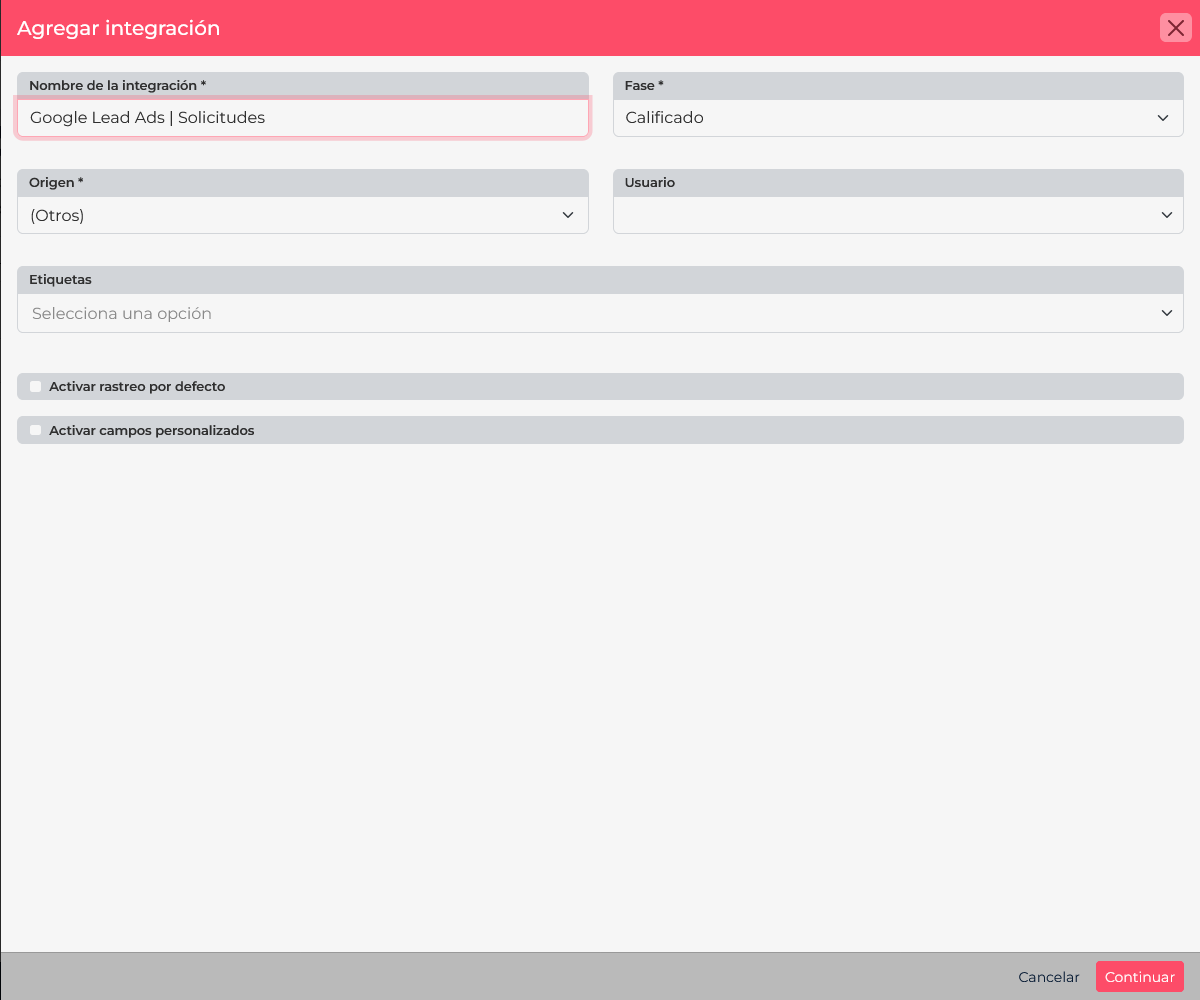
Set how leads from Google will be classified in CRM. - Select Continue. CRM creates the integration and opens the next step, where it displays the receiving URL and field-mapping section. Copy the complete URL and keep it available; it identifies this integration and routes Google submissions to the correct company.
- In the mapping table, select a CRM field, enter Google’s exact
column_idin External parameters, and select Add. Repeat for each answer you want to save. For example, mapFULL_NAMEto Name,EMAILto Email, andPHONE_NUMBERto Phone. - Use the field identifier, not the question’s display text. Google sends answers inside
user_column_data; each answer includes acolumn_idand astring_value. For custom questions, check the identifier Google assigns in its webhook schema. If you do not want to save a question in CRM, leave it unmapped. - Save or accept the mapping when finished. The integration should appear in the integrations list with its URL before you configure Google Ads.
Google Ads asks for a URL and a key. Upnify displays a receiving URL, but no separate key. Google’s official guide says that if a CRM does not provide its own key, you can enter a sample value such as
GoogleAds. This does not replace the URL: paste the complete Upnify URL in its field, and use the sample value only in the key field.3. Configure the form in Google Ads
- In Google Ads, open Campaigns > Assets and filter for Lead form. To create a form, start from a compatible campaign, then complete its details, questions and privacy policy.
- Open an existing form to edit it, or create a new one. Expand Export Google leads, then Other data integration options.
- Under Webhook integration, paste the complete Upnify URL and enter
GoogleAdsas the key if Google requests one and Upnify has not provided a separate key. The historical Google Ads screenshot shows these fields and the test button; connection values are hidden.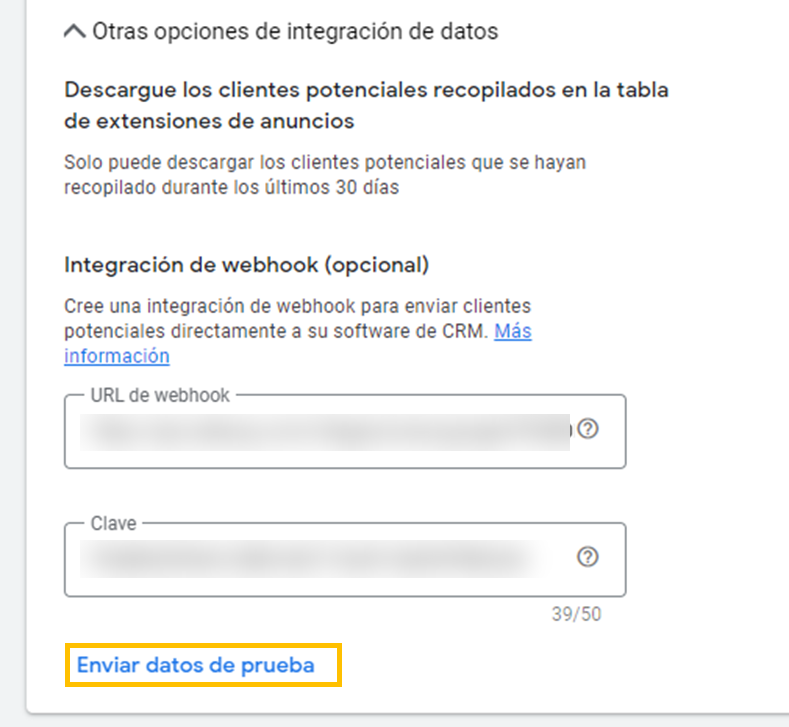
Enter the Upnify URL and requested key, then send a test. - Select Send test data. Confirm Google reports a successful response, then look for the test lead in CRM or the integration history. A test can create a lead, so use a test form and identify the record before activating a campaign, keeping the team from mistaking it for a real request.
- After the test succeeds, save the form. If you edited a form already connected to a campaign, check that the campaign still uses the updated asset.
4. Check the result in CRM
Open the test lead and verify that email, phone and other answers appear in the right fields. Check its phase, source, owner and tag as well. If the lead appears in the integration history but its details are misplaced, correct the CRM mapping. If Google cannot send the test, verify the URL, key and that the form was saved after testing.
- The Google test fails: confirm you pasted the full URL without spaces or missing characters, and entered a key in the required field. Google marks the test successful when it receives a valid HTTP response.
- The lead arrives with empty fields: compare the form’s
column_idvalues with CRM’s external parameters. Do not enter the question’s display label or add the oldDATA.prefix. - The test arrives but real leads do not: check that the campaign is active and uses the connected form, and that leads are not being downloaded manually or sent to another integration.