
Once GoTo Connect is linked, you can start a call from a contact’s phone number in CRM and continue tracking the interaction on the same record. Setup has two parts: one initial authorization for the company and a personal line connection for each person who will make calls.
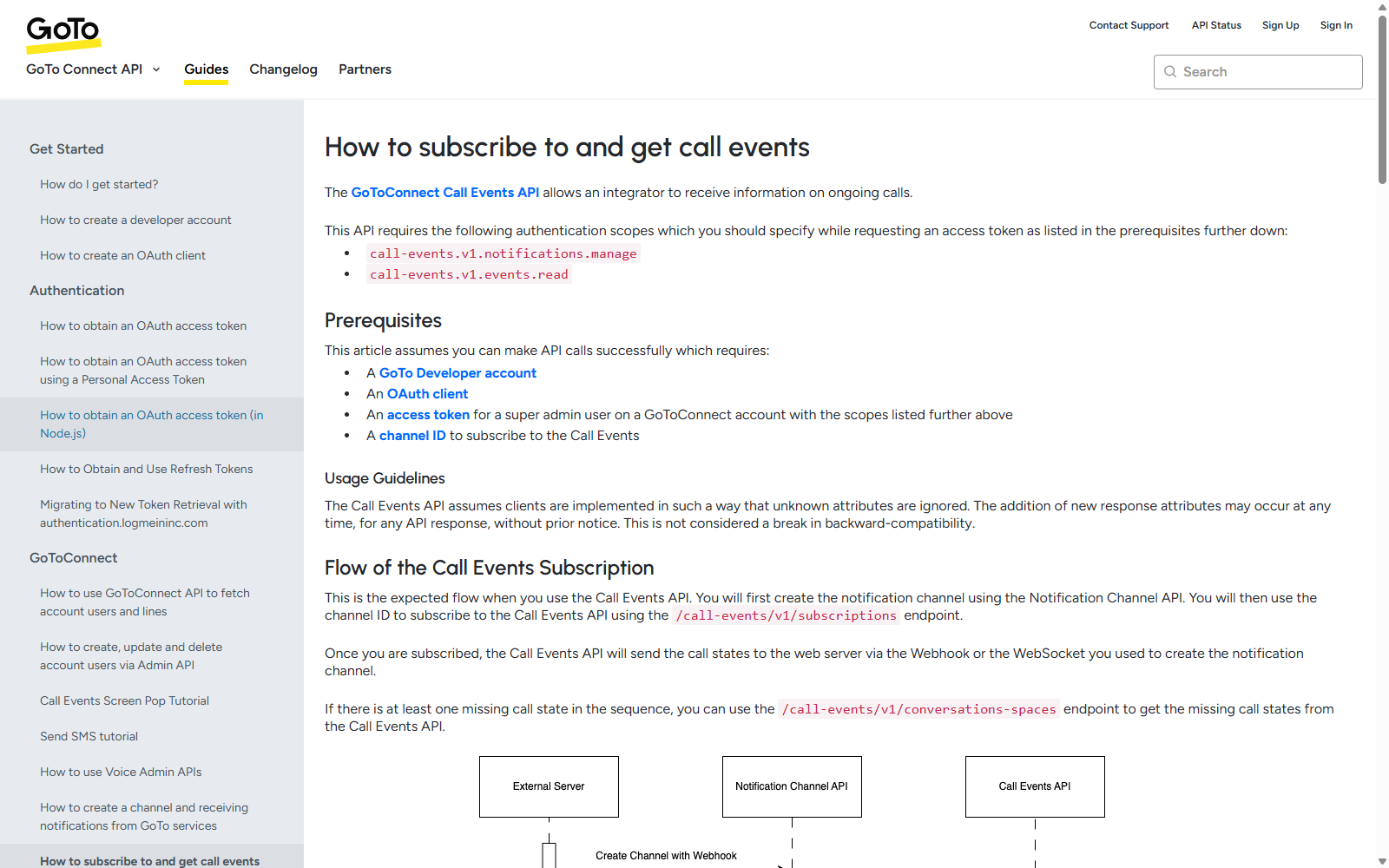
The company’s Upnify Super Administrator must start the setup and authorize it in the GoTo window with the GoTo Connect Super Admin account. This company-level setup is completed once: it establishes the shared authorization CRM uses to receive recording events. Other users then connect their own GoTo line with their regular account; they do not need Super Admin permissions or need to repeat this authorization. If the first authorization is completed with an account that lacks the required role, the connection may appear to work and later stop receiving recording events.
Before you start
- Confirm GoTo Connect is active for your company and that each person who will call has a line or device assigned in GoTo.
- Have access to the Upnify company Super Administrator and the GoTo Connect Super Admin account for the first authorization.
- Allow pop-up windows for Upnify in your browser; GoTo opens a separate window to request authorization.
1. Authorize GoTo Connect for the first time
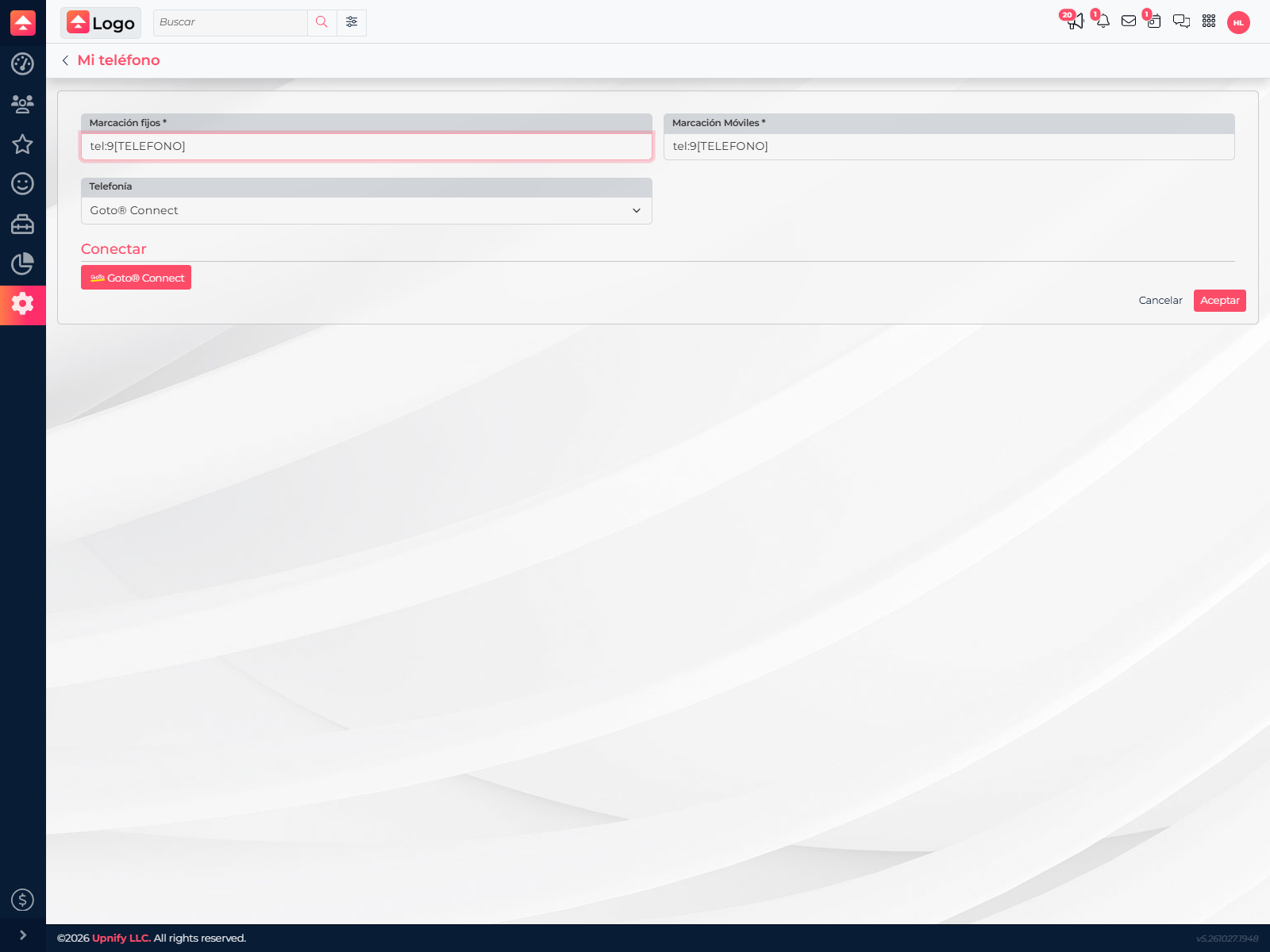
- In CRM, open the user menu and select My phone.
- Under Telephony, choose Goto® Connect. The connect button will appear.
- Select Goto® Connect. The GoTo authorization page opens.
- Sign in to GoTo using the organization’s Super Admin account. If you can access multiple organizations, make sure you are authorizing the one that will use the integration.
- Review and approve the requested access. Wait for the window to close or confirm completion, then return to CRM.
- Check that CRM shows the connection as complete. This initial authorization sets up the company channel used to receive call and recording events.
2. Connect each user’s line
After the company’s initial authorization, each person connects their own GoTo user and line:
- Open My phone from the CRM user menu and choose Goto® Connect.
- Select the connect or reconnect button and sign in with your regular GoTo Connect account.
- If CRM displays available lines or devices, select the extension you will use and save the settings.
- Make sure the connection is complete before placing a call.
Each GoTo user needs an assigned line. Do not share the Super Admin account with the team: it is used for the company’s initial authorization, while agents use their own connection for everyday calls.
3. Call from a contact
- Open a prospect or customer record and select the phone number you want to call.
- From the call options, choose GoTo Connect. CRM sends the call to GoTo using the line configured for your user.
- Continue the conversation using the GoTo device or app associated with your line.
- When the call ends, record the outcome and next step in CRM so your team can find the follow-up on the contact record.
For example, if a sales representative confirms that a company wants a product demo, they can call from the number on the contact record and then log the result as a follow-up and create the next activity.
If something does not work
| What happens | What to check |
|---|---|
| The GoTo page does not open | Allow pop-ups for Upnify and try connecting again. |
| No lines are available | Confirm that the GoTo user signed in to the correct organization and has a line or device assigned. |
| Calls work, but recording events do not arrive | Ask the Upnify Super Administrator to review the initial authorization using a GoTo Super Admin account as well. Do not give every agent elevated permissions to fix this. |
| The call does not start | Check that GoTo is connected, the selected line is still available, and the contact’s phone number is complete. |