
Connect TikTok Ads Instant Forms to CRM so new inquiries reach your sales pipeline and your team can follow up in one place. This connection is for TikTok lead-generation forms; it does not set up the website Pixel or automatically import forms from an external website.
Before you begin
You need CRM access to manage integrations and access to the TikTok Ads account that manages the advertiser and its forms. Make sure the Instant Form is available for the campaign and includes the privacy information TikTok requires. A draft form or an advertiser your user cannot access will not be available to select.
1. Open API integrations in CRM
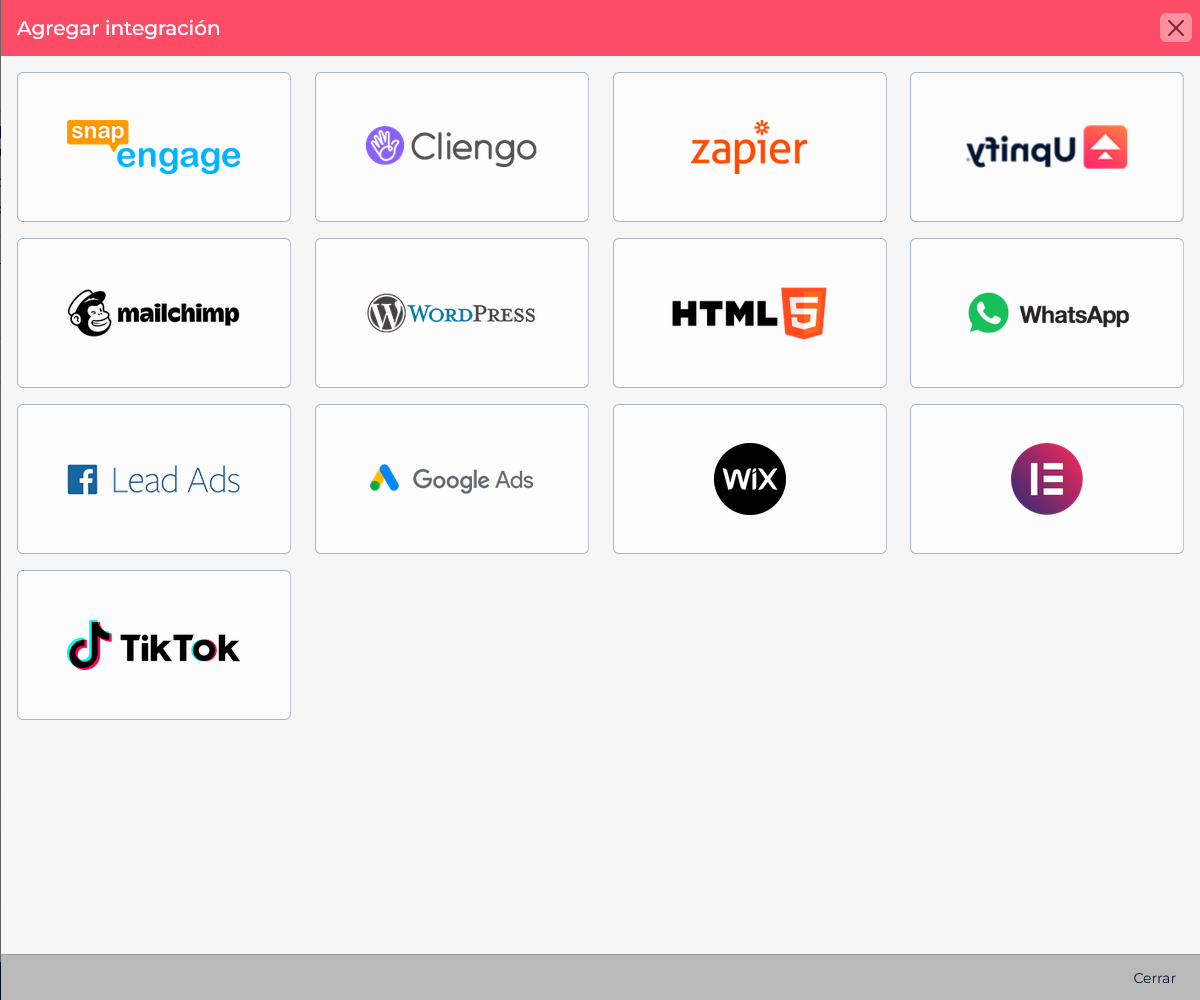
In CRM, open System > Integrations > API and select Add integration. Find TikTok and choose it. The integration form lets you identify the source that will send leads to CRM.
2. Set the default values for incoming leads
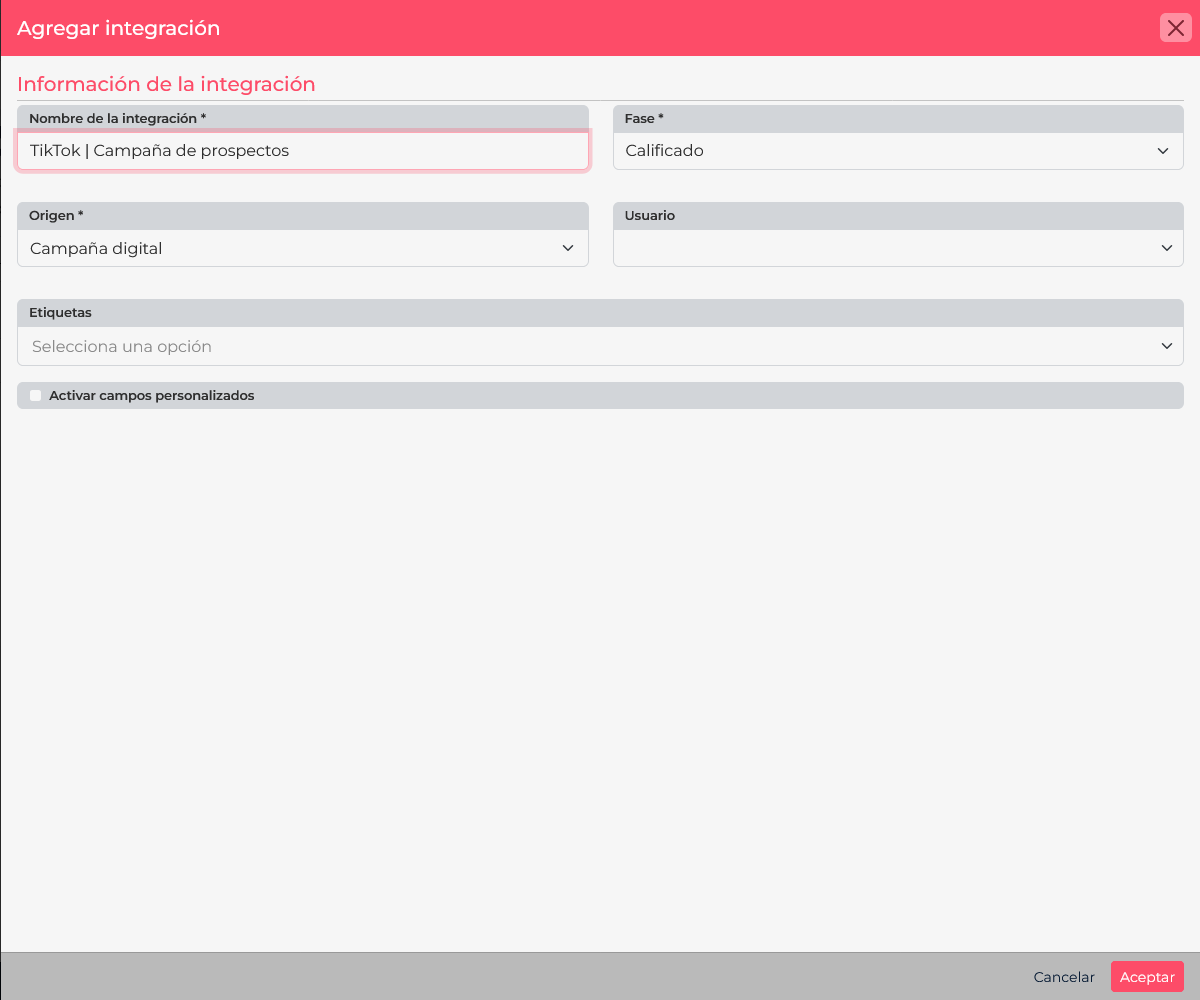
Enter an integration name and choose the initial phase and origin for leads received through it. For example, name it “TikTok | Lead campaign,” choose your qualification stage, and set the origin to “Digital campaign.” This helps the team identify where a request came from and start follow-up at the agreed stage.
If needed, also assign an owner and a tag. You can enable custom fields to store additional form answers. Make sure the selected phase, origin, owner, and tag already exist in CRM before saving.
3. Authorize TikTok and choose the advertiser
Save the configuration and continue connecting TikTok. A TikTok authorization window opens. Sign in with an account that can access the advertiser and accept the requested permissions to read leads. When you return to CRM, choose the TikTok advertiser or library that contains the campaign.
If you manage multiple advertisers, select the one that owns the form you want to connect. One authorization can provide access to several accounts, so verify the account name before continuing.
4. Select the form and map its fields
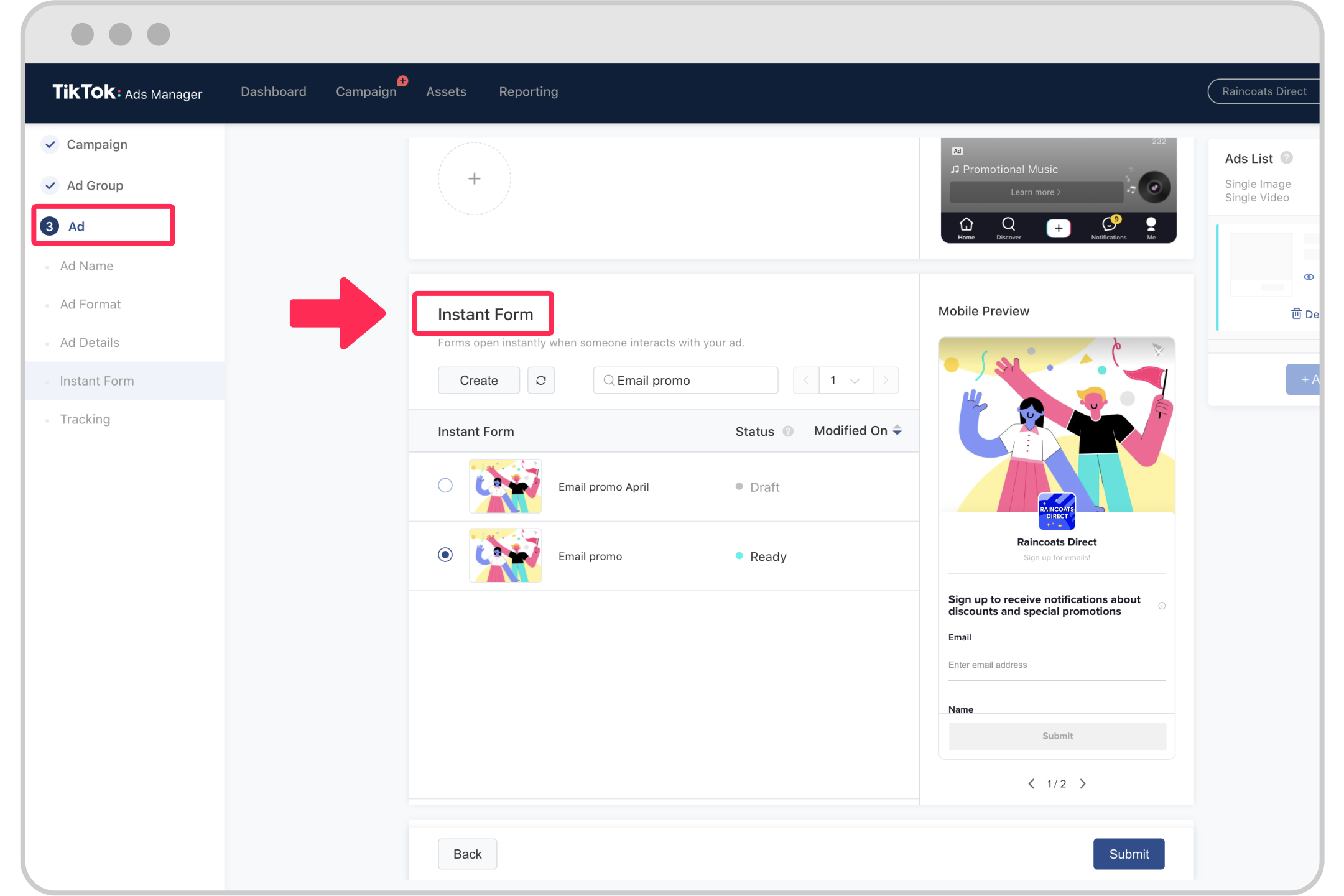
After selecting the advertiser, choose the Instant Form that will provide leads. CRM displays the available questions or fields and lets you map each one to a lead field.
- Map name, email, phone, and other useful data to the matching CRM fields.
- For a question you do not need to keep, select Ignore. That answer will not be copied to the record.
- If you need a particular answer, create or enable the matching CRM custom field before mapping it.
- Review the mappings and confirm the configuration to finish the connection.
5. Check delivery and follow up
When setup is complete, the integration subscribes to notifications for new form submissions. To verify it, submit a valid test response through the testing flow available in your TikTok account, or coordinate a controlled submission with the campaign owner. Then find the lead in CRM and check its data, phase, origin, and owner.
The connection is intended to receive new notifications after it is enabled. Do not assume that connecting it imports earlier leads. If you need historical leads, review and export them from TikTok or handle a separate import.
If something is missing or does not arrive
- The advertiser is missing: confirm that you authorized the right account and that your user can access the advertiser or library.
- The form is missing: confirm that it belongs to the selected advertiser and is available to the campaign.
- The lead is incomplete: review every question-to-CRM-field mapping; answers marked Ignore are not saved.
- An earlier submission is missing: check when the connection was enabled. It should not be treated as a retroactive import.
- The wrong phase or origin is assigned: review the default values in the integration before receiving new records.
Learn more
See TikTok’s official guide to creating Instant Forms and its overview of CRM integration options for TikTok Lead Generation.