
Connecting Upnify with Zapier lets you send CRM information to other apps or create prospects in Upnify from a form, spreadsheet, or another service. This article walks you through the connection and a simple test workflow: when a new prospect is created in Upnify, Zapier adds their details to a test spreadsheet.
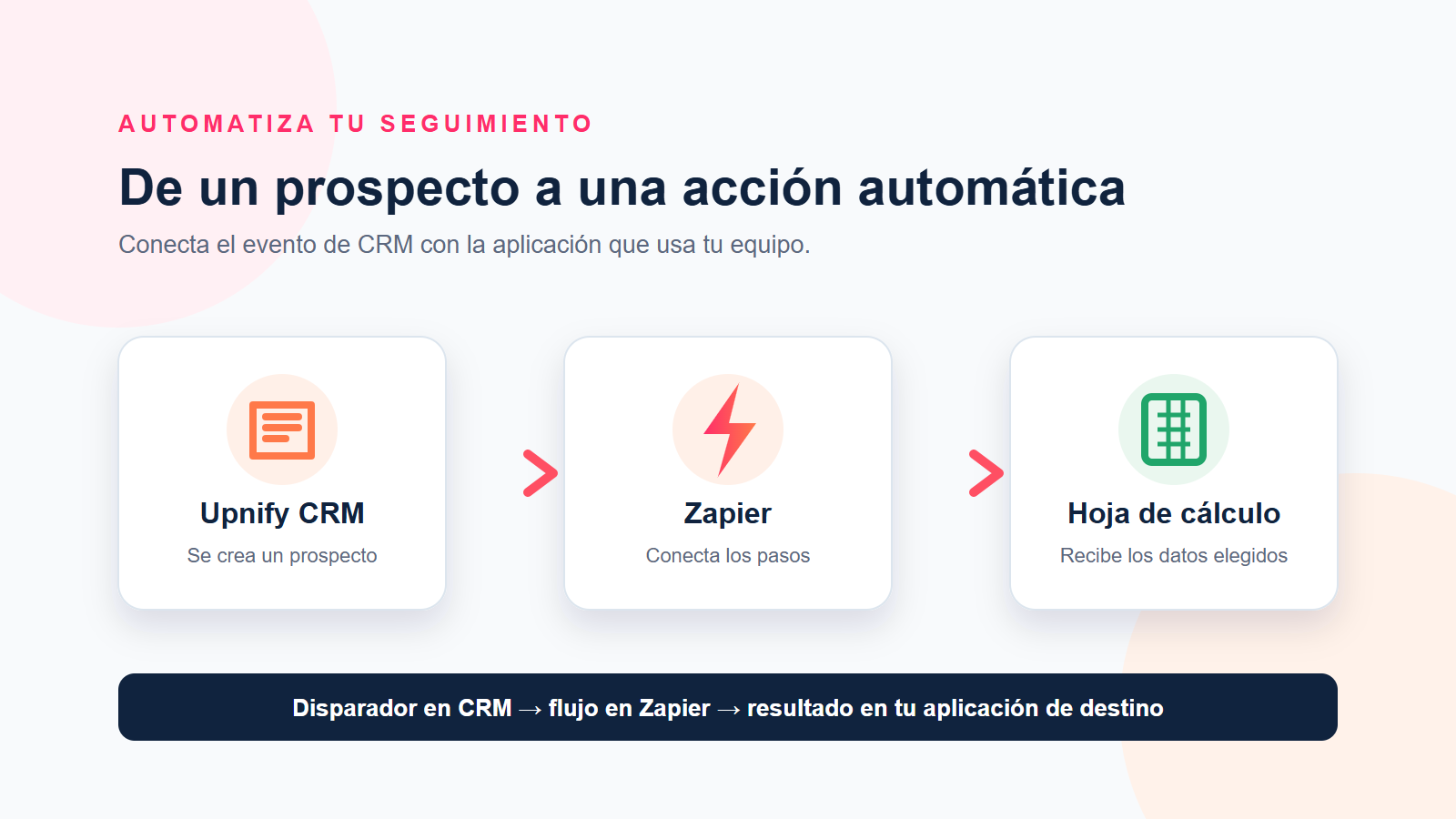
You need access to CRM Settings and Integrations, a Zapier account, and a connected destination app such as Google Sheets. The token generated by CRM authorizes the connection. Treat it like a password; do not share it in screenshots, email, or documents.
1. Create the Zapier connection in Upnify
- In CRM, open Settings and go to Integrations > API.
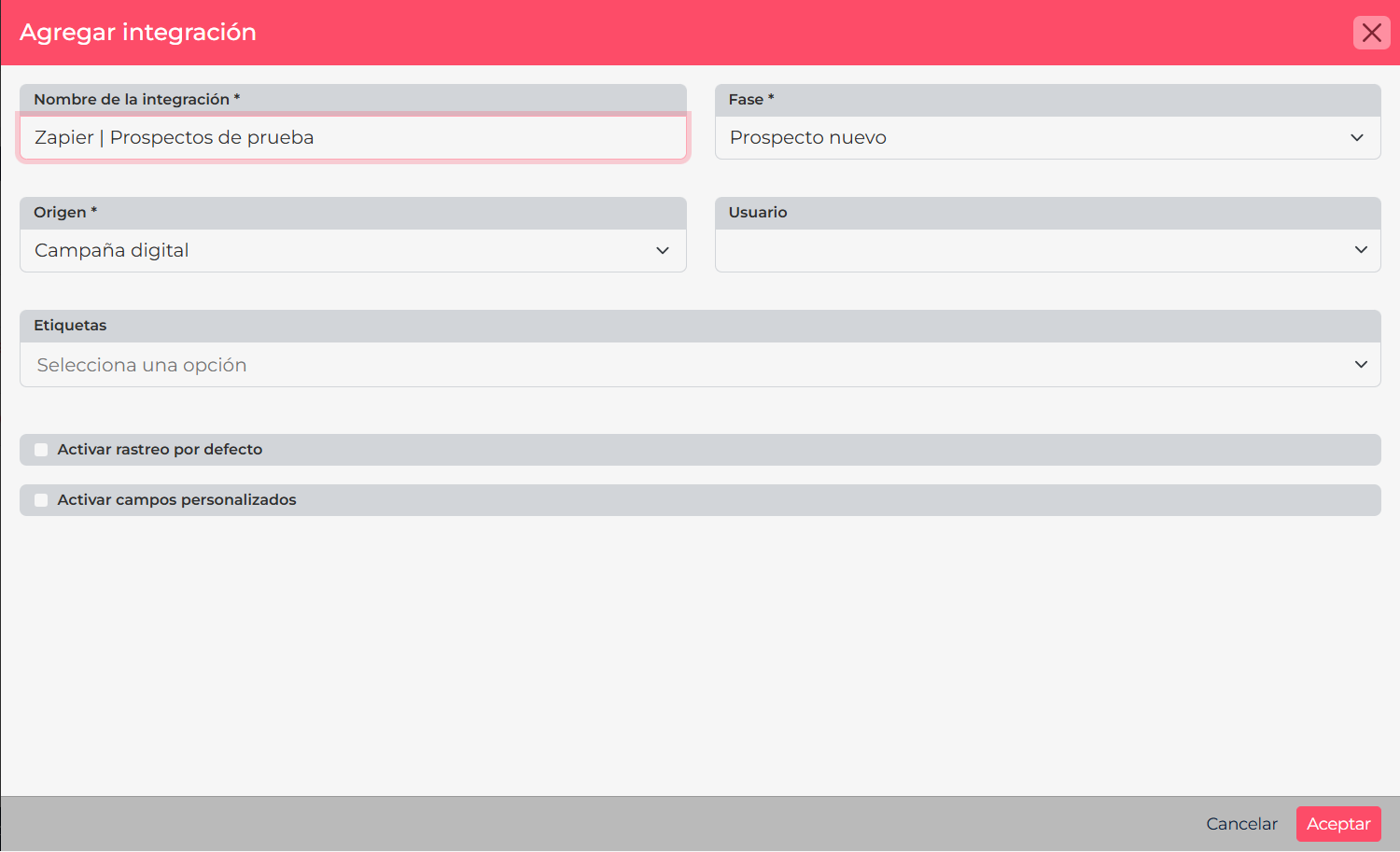
- Select Add integration and choose Zapier.
- Enter a name that identifies its purpose, such as Zapier | New prospects.
- Choose the phase and origin to assign to prospects created in Upnify by Zapier. You can also set an owner and labels if they fit your process.
- Select Accept. CRM will generate an integration token. Copy it and store it securely; you will need it to authorize Upnify in Zapier.
What do these defaults mean? The phase, origin, owner, and labels are defaults for records created in Upnify through a Zapier create action. If your workflow only reads existing Upnify prospects and sends them to another app, these values do not change existing records.
2. Authorize Upnify in Zapier
- In Zapier, select Create and create a Zap.
- In the first step, search for and select Upnify. Choose the event that should start the workflow, such as New Prospect.
- Under Account, connect a new Upnify account. When Zapier asks for the credential, paste the token generated in CRM and save the connection. If you already have an authorized connection, you can select it.
- Before continuing, make sure you selected the right account. Zapier lets you connect and manage more than one account for the same app.
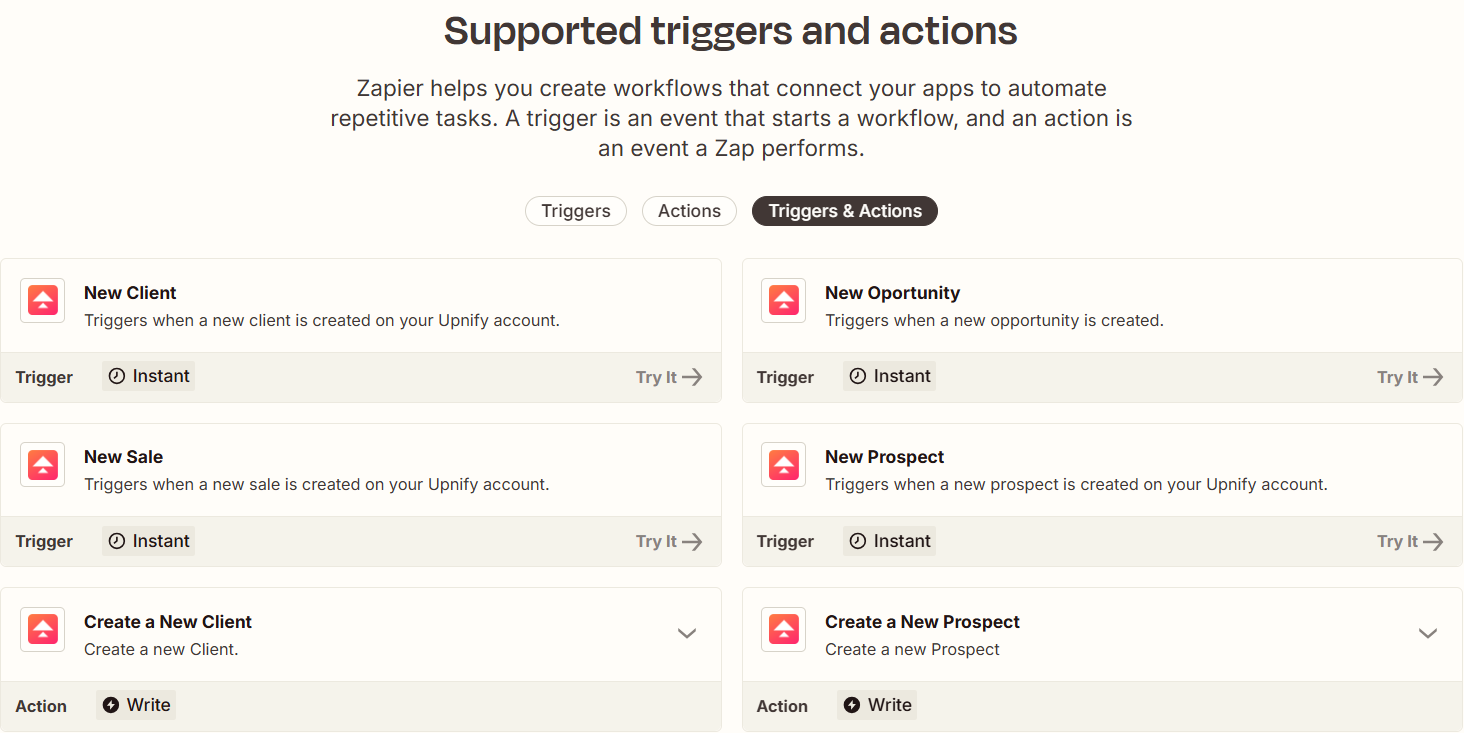
Zapier can also create prospects in Upnify with the Create a New Prospect action. The phase, origin, owner, labels, and custom-field options you define in CRM help keep those incoming records organized.
Zapier's official guide explains how to connect an app account from the editor. The Upnify app directory lists supported events and actions, including the New Prospect trigger.
3. Test the Upnify trigger
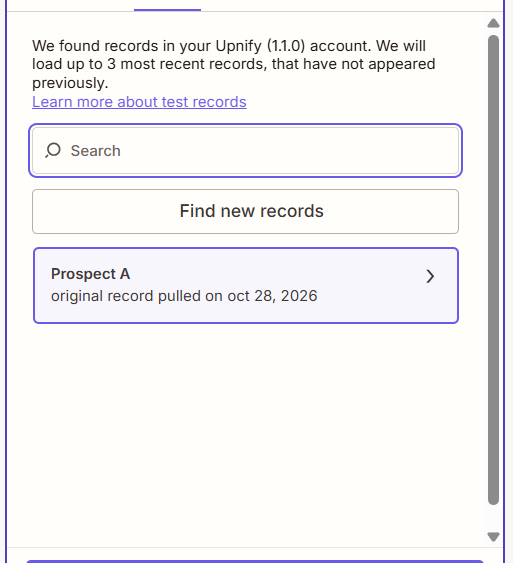
- Open the Test tab in the Upnify step and select Test trigger.
- Zapier will look for a sample record to confirm the connection and show which fields can be used in the next step.
- Review the record and select it to continue.
If no samples appear, create a test prospect in CRM with fictional details and run the trigger test again. A record created before Zapier was connected may not appear as a new event. See Zapier's official guide to setting up and testing a trigger.
4. Add an action and review the result
- Add a second step and choose the destination app. For this example, select Google Sheets and the action that creates a row.
- Choose a test spreadsheet and map each column to a prospect field, such as name, email, phone, origin, or creation date.
- Select Test step and check the new row in the spreadsheet. Adjust the field mapping if any value landed in the wrong column.
Read Zapier's official guide to testing Zap steps. Zapier notes that testing an action performs the operation in the destination app.
5. Get the Zap ready to run
Before turning it on, confirm that the trigger detects the right event, the columns receive the expected data, and the action will not create duplicates. While the Zap is a draft, you can adjust its setup and repeat the tests. Turn it on only when you are ready to process real events. From that point on, Zapier monitors new events; do not treat this as an automatic import of all historical records.
If something does not work
- Zapier rejects the connection: copy the token from the correct integration again and create or update the Upnify connection in Zapier. Do not paste the token into an action field or data field.
- The test finds no records: confirm that you selected the right event and try again with a new CRM record.
- The sample is missing fields: create a test record containing those details and look for new test records again.
- The spreadsheet received values in the wrong columns: review the mapping and run another test in a clean test spreadsheet.
- The Zap started creating unwanted records: turn it off in Zapier while you correct the trigger, filters, or action.
An authorized connection lets Zapier exchange data with Upnify according to the steps you configure. Keep the token private and review the destination before turning the workflow on.