

In CRM, a quote is prepared inside an opportunity; it is not an independent record linked later. This keeps the proposed product, expected amount, and sales progress together. Before starting, make sure the product has its prices and taxes set up.
Use this mode to select registered products and keep their price lists and product details in context. If the item is not in the catalog and must be entered manually, see How to use the free quote tool.
1. Open the opportunity
- Find the opportunity for the deal. If it does not exist yet, create one for the contact first.
- Open the opportunity and select Quote; the quote is prepared for that transaction.
2. Filter and select a product
Use Product line, Brand, and Model to narrow the catalog when available. Select the Price list for the customer and currency. Search by name or code and select the product; CRM fills in the price associated with that list.
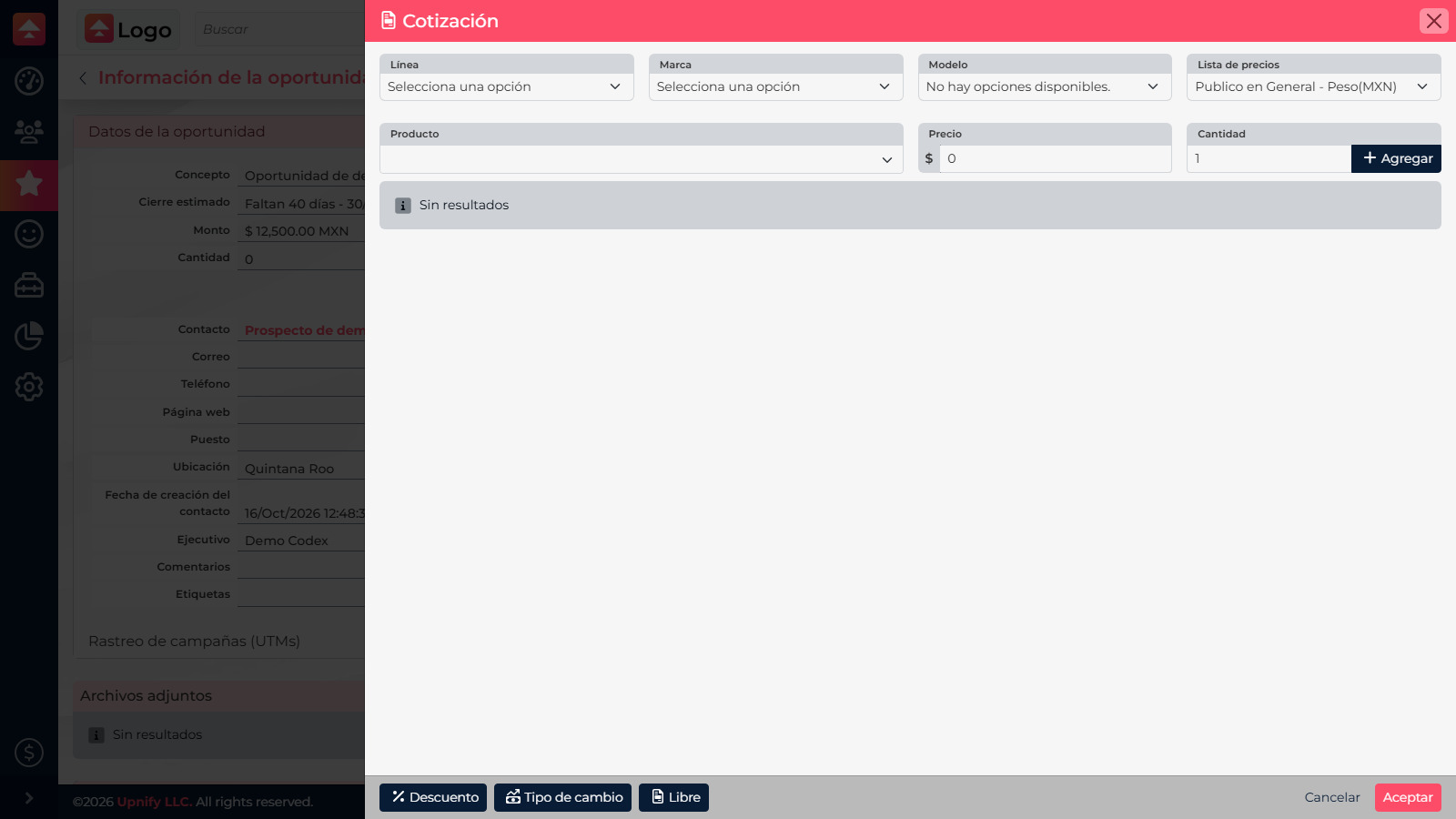
3. Set quantity and add the item
Review the displayed price, enter the quantity, and select Add. Repeat for every catalog item. If the price is unexpected, check the selected list and the product price before continuing.
4. Review the summary
The table shows line items, subtotal, discounts, taxes, and total. In the example, an MXN 2,500 product with 16% collected VAT shows MXN 400 in tax and a MXN 2,900 total. Also review quantity and, if your company tracks inventory, the availability shown for the product.
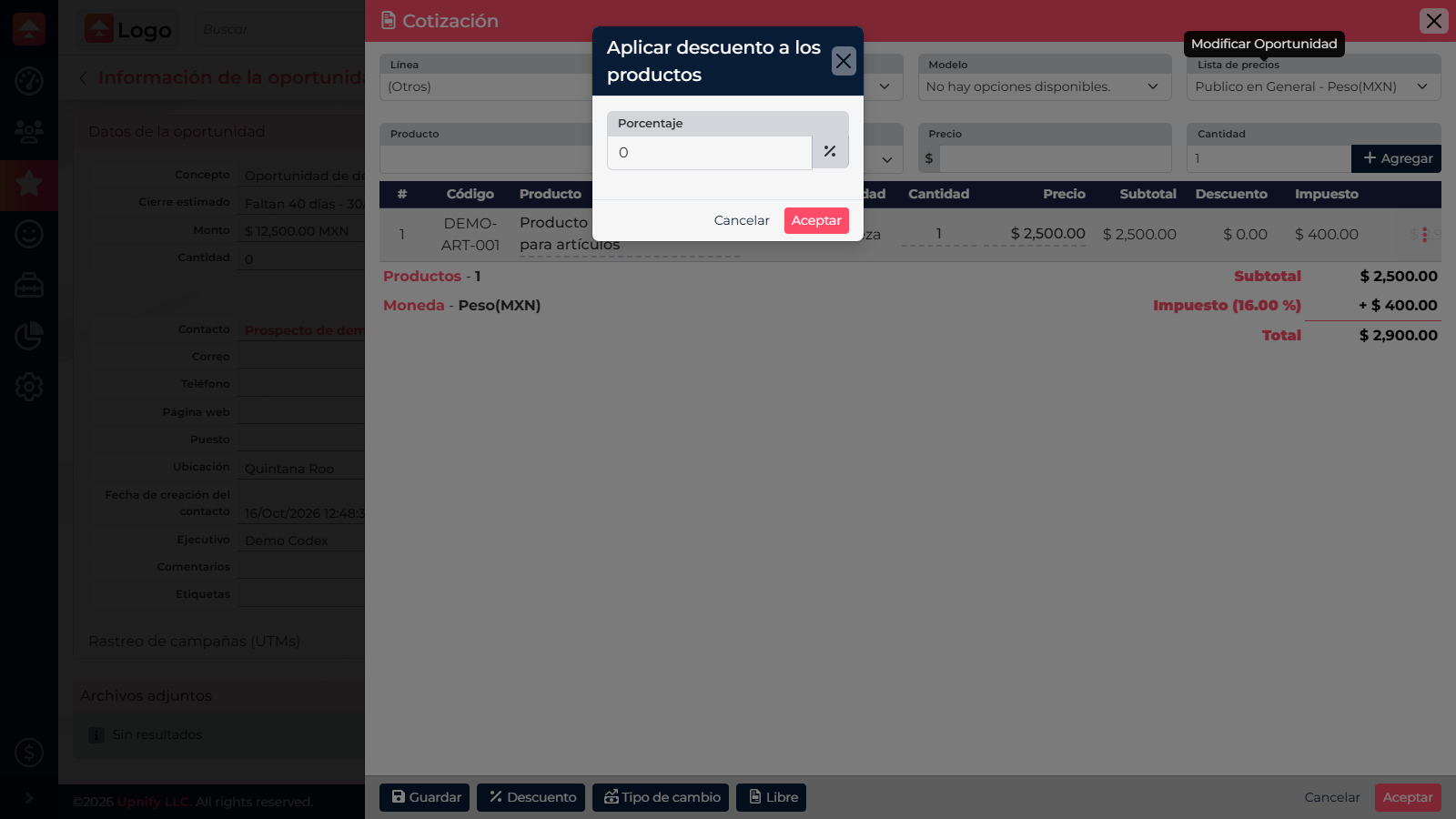
5. Apply and save
If needed, apply an approved discount and confirm currency, taxes, and quantities. Select Accept in the quote tool to return to the opportunity and save the changes there. The quote remains in the context of that opportunity; it is not a separate transaction.
Confirm the product, list, quantity, discount, and taxes match the agreement. If you change a price, check the minimum price and applicable permissions.