
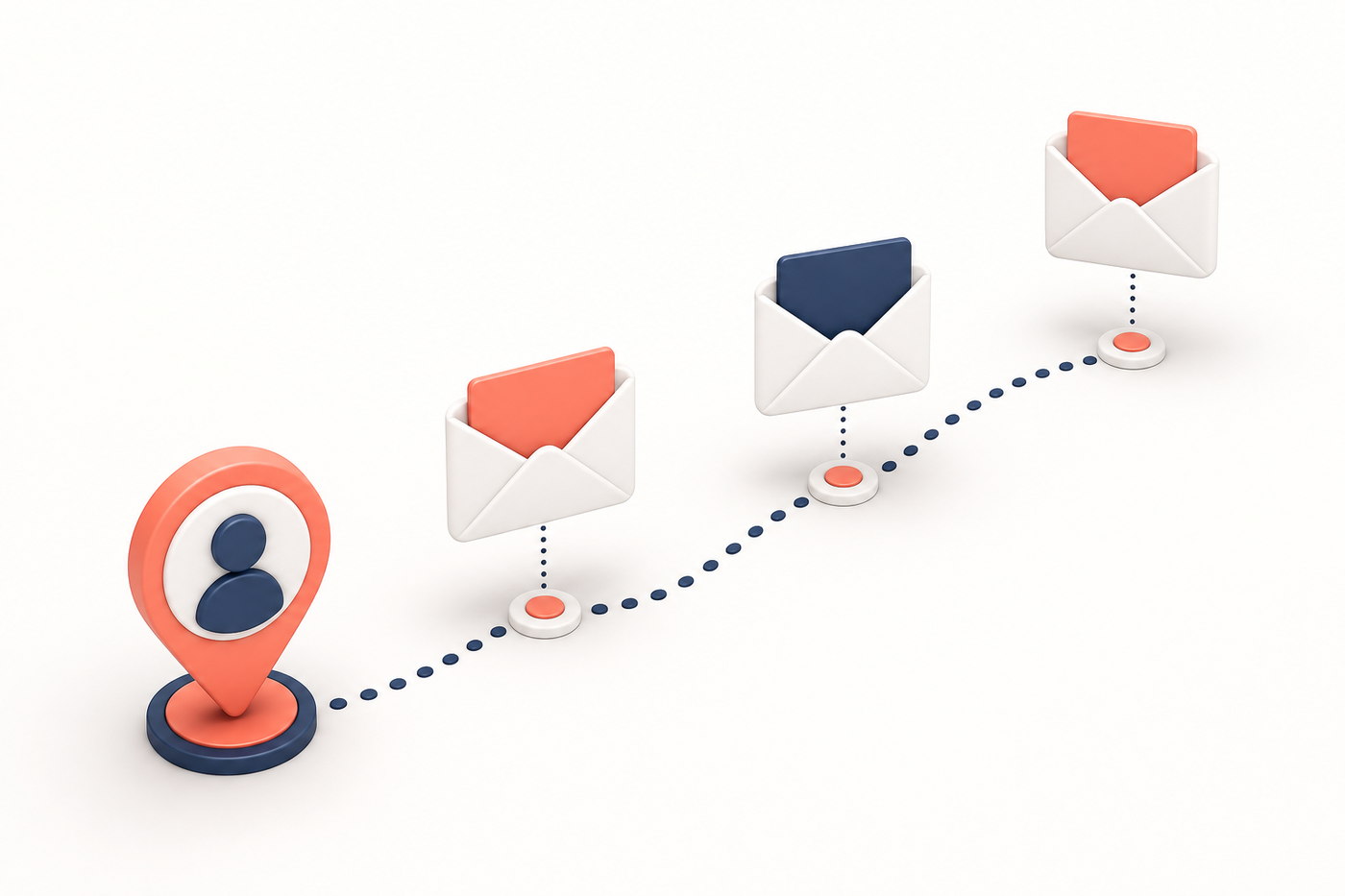
An automatic sequence arranges several messages to go out at different times after a contact receives a tag. It helps you follow up without writing each message from scratch. For example, you can send a welcome message the same day and a useful guide a few days later to people who registered for a product demo.
Before you create it
Decide what should bring someone into the sequence and what outcome you want. Create the segmentation tag first. Do not confuse it with personalization tags inserted into message text.
Create the sequence
- Go to Tools > Campaigns and select New campaign > Auto Responder.
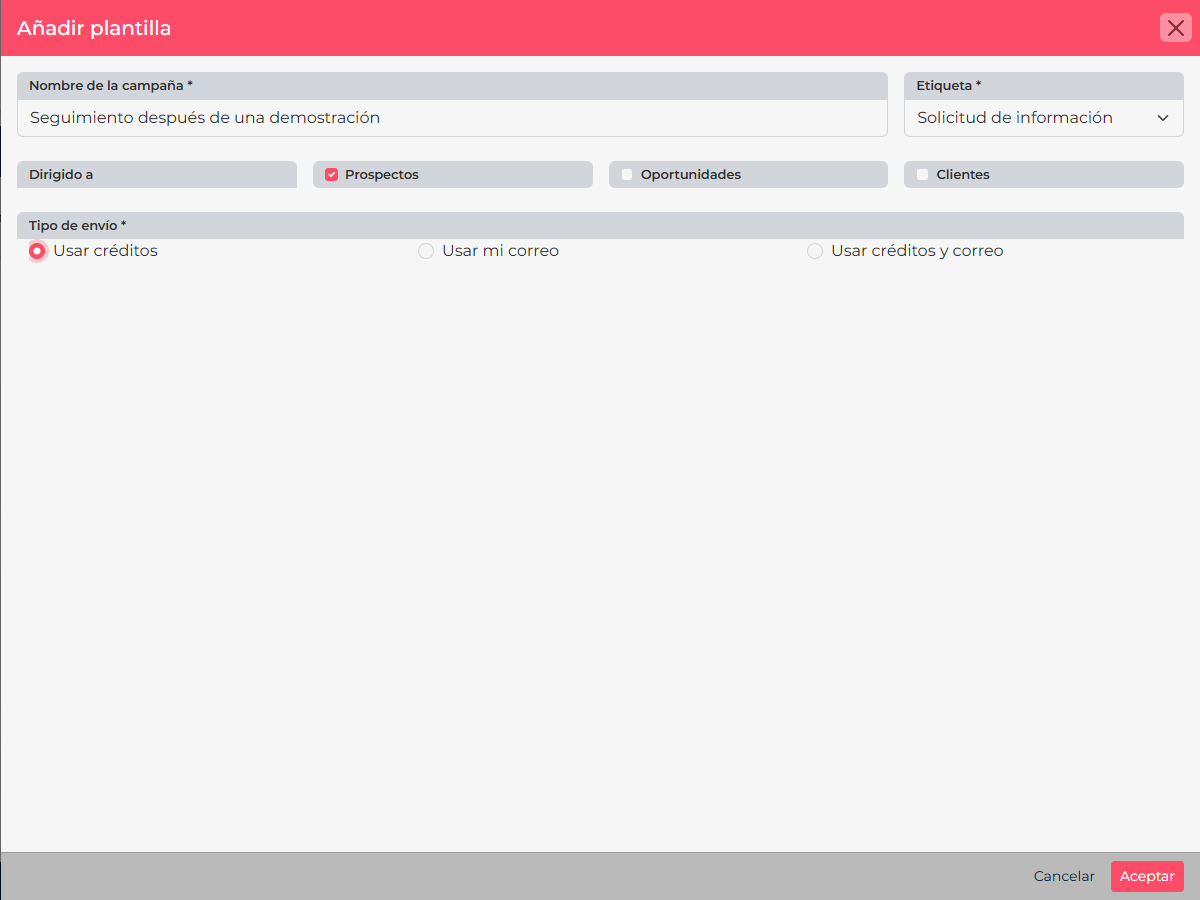
- Enter a name that describes the journey, such as Follow-up after a demo. Choose the tag that starts the sequence and select whether it applies to prospects, opportunities, or customers. The record type determines who can enter the journey.
- Under Type of mail, choose the option available for your account: use credits, use your email, or combine both. Choose according to the channel and the company's enabled email setup.
- Save the sequence. In the campaign list, open the number in the Pieces column to prepare each message.
Add and arrange messages
- Select New and choose an available channel: Email, SMS, or WhatsApp. WhatsApp appears when the account has that channel enabled.
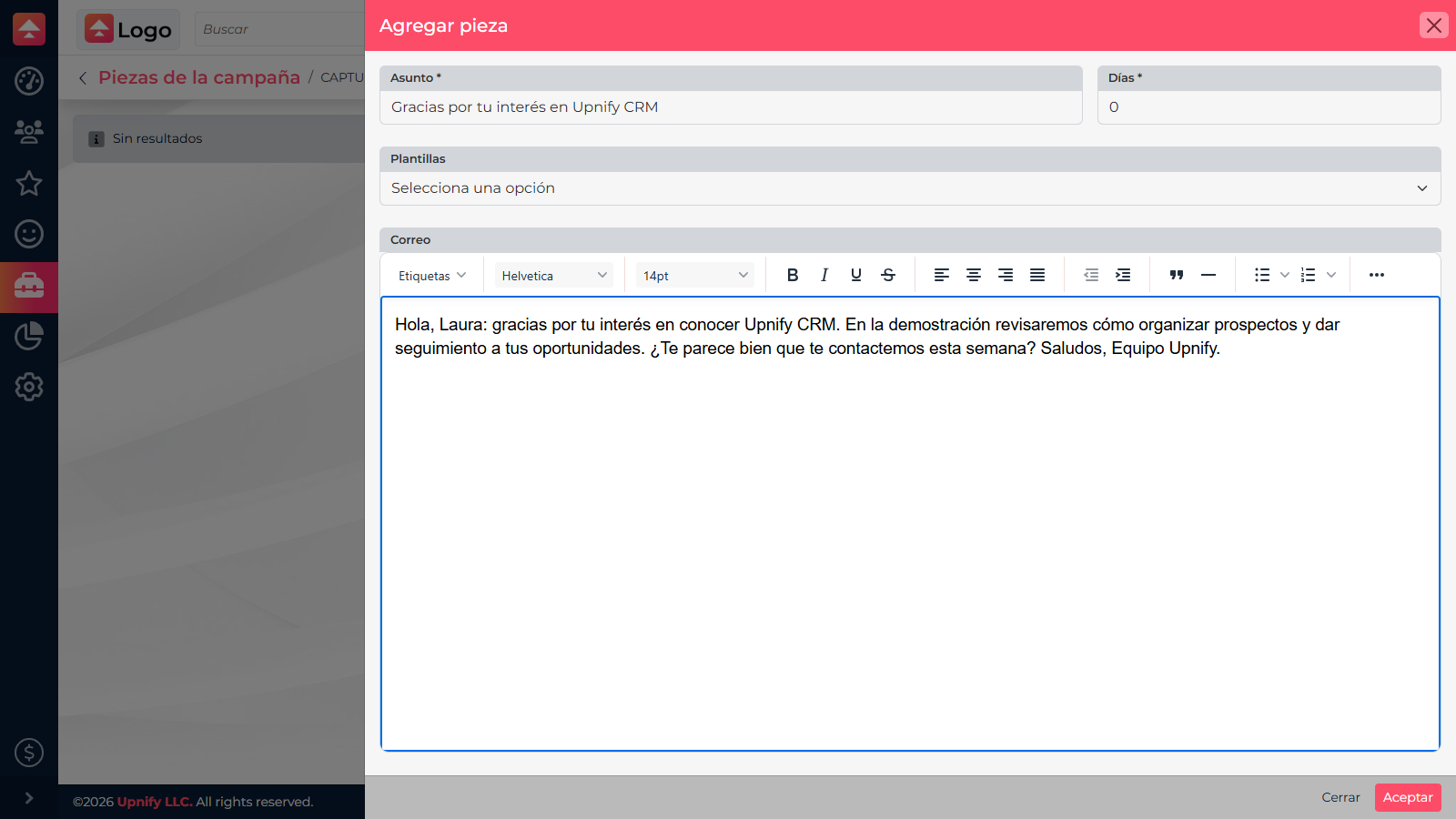
- Complete the channel fields. For email, set the subject and content, and choose a template or attach files if useful. For SMS, write a concise message. For WhatsApp, select an available channel and template.
- Under Days, enter how many days should pass before this piece is sent. For example, set a welcome message for day 0 and a usage tip for day 3.
- Save the piece and repeat. Review the days column and the list order; use the row actions to move a piece up or down if you need to change the sequence.
- When the messages are ready, activate the sequence from its action menu. Then apply the selected tag to the contacts who should enter, manually or through an automatic assignment rule you already configured.
Example journey
| Timing | Message | Purpose |
|---|---|---|
| Day 0 | Welcome and next step | Confirms registration and guides the contact. |
| Day 3 | Resource or answer to a common question | Adds value without repeating the welcome. |
| Day 7 | Invitation to talk | Makes it easy for the contact to resume the conversation. |
Before activation, confirm that the tag and record type match your audience, each piece has complete content, and the timing follows the intended pace. Every message should give the contact a useful reason to receive it.