
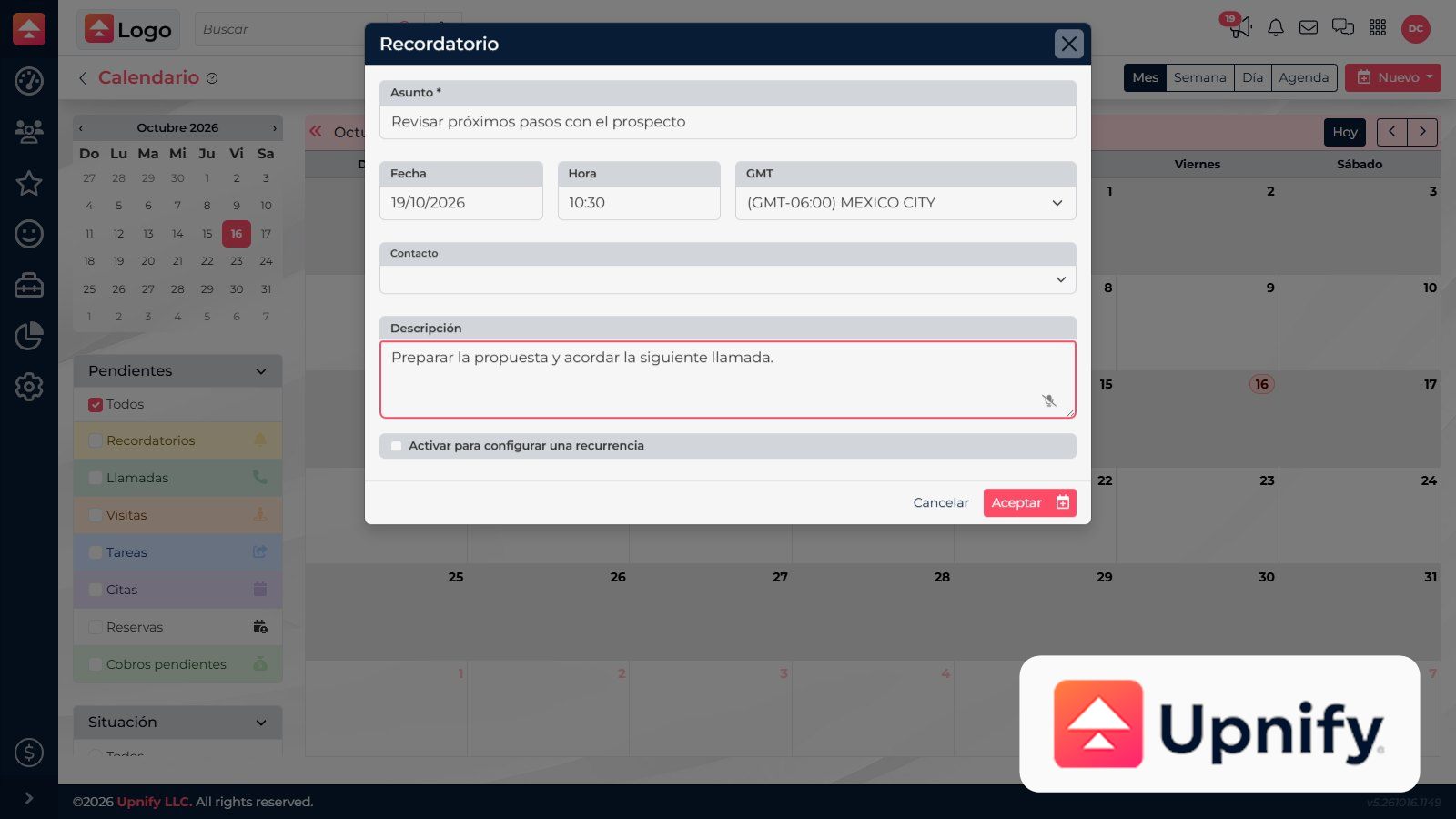
An activity records future work with a date and, when relevant, an owner. Create one from the calendar, the prospects list, or a contact record. When you start from a contact, CRM links the activity to that record so you can find it there later.
What needs to happen next: remember something, call, meet, visit a location, or complete a task?
Which activity type should you choose?
| Type | Choose it when… | Example |
|---|---|---|
| Reminder | You need to remember a specific action that does not require a meeting. | Check on Friday whether the contact received the quote. |
| Call | The next step is a phone conversation with the contact. | Call Thursday to answer questions about the proposal. |
| Appointment | You agreed on a meeting date and time. | Give a product demo Tuesday at 11:00. |
| Visit | The activity requires going to a location or receiving the contact. | Visit the office to show the product to the team. |
| Task | Someone needs to complete work and it helps to name the owner. | Prepare a revised proposal before Thursday. |
A call schedules a future conversation; call follow-up records what happened afterward. A task clarifies the work and owner. An appointment reserves a meeting time; a visit adds location context.
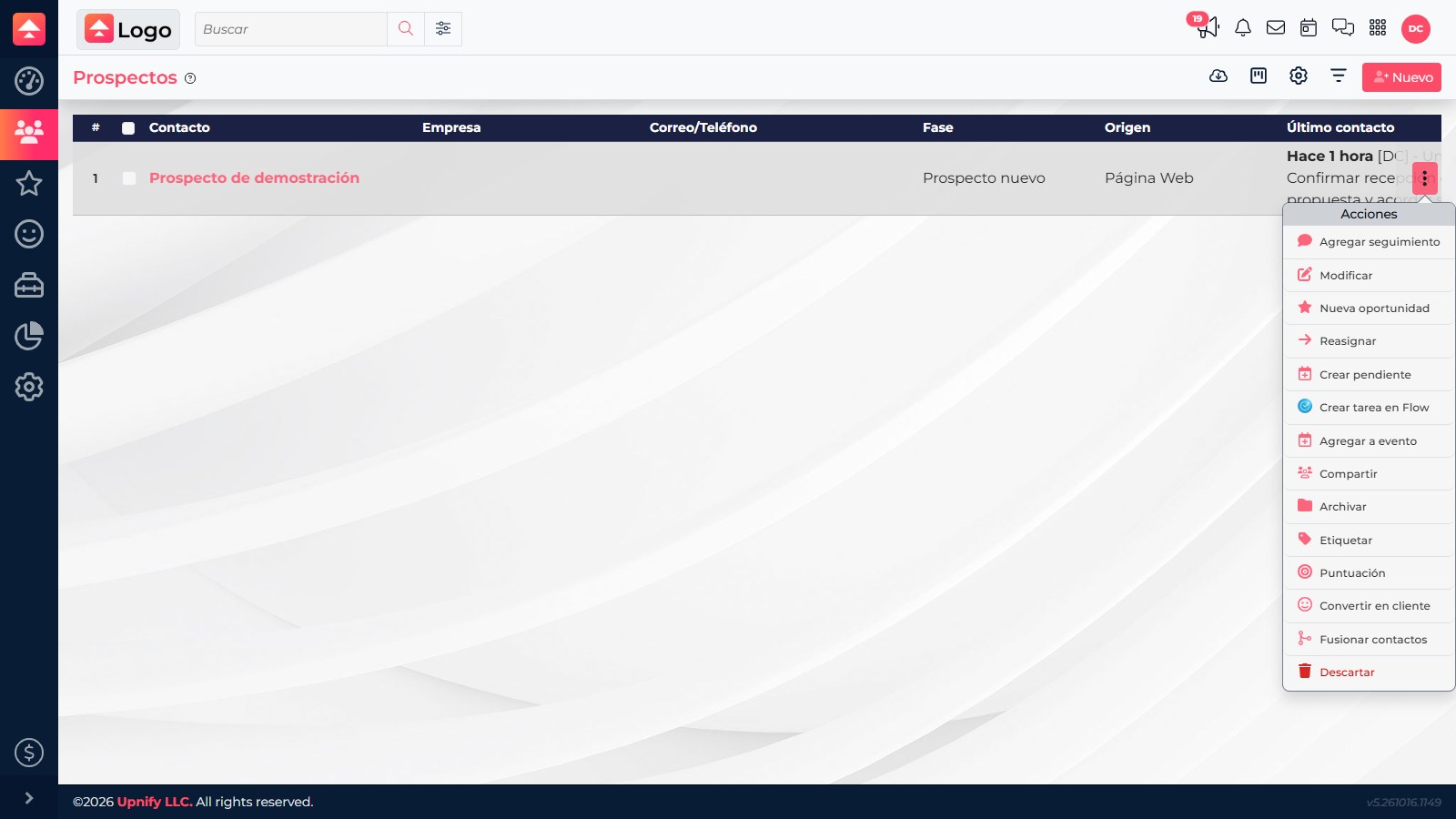
Create one from the prospects list
- Find the prospect and open its actions menu (three dots).
- Select Create activity.
- Choose a type and complete the form. CRM links it to the selected contact.
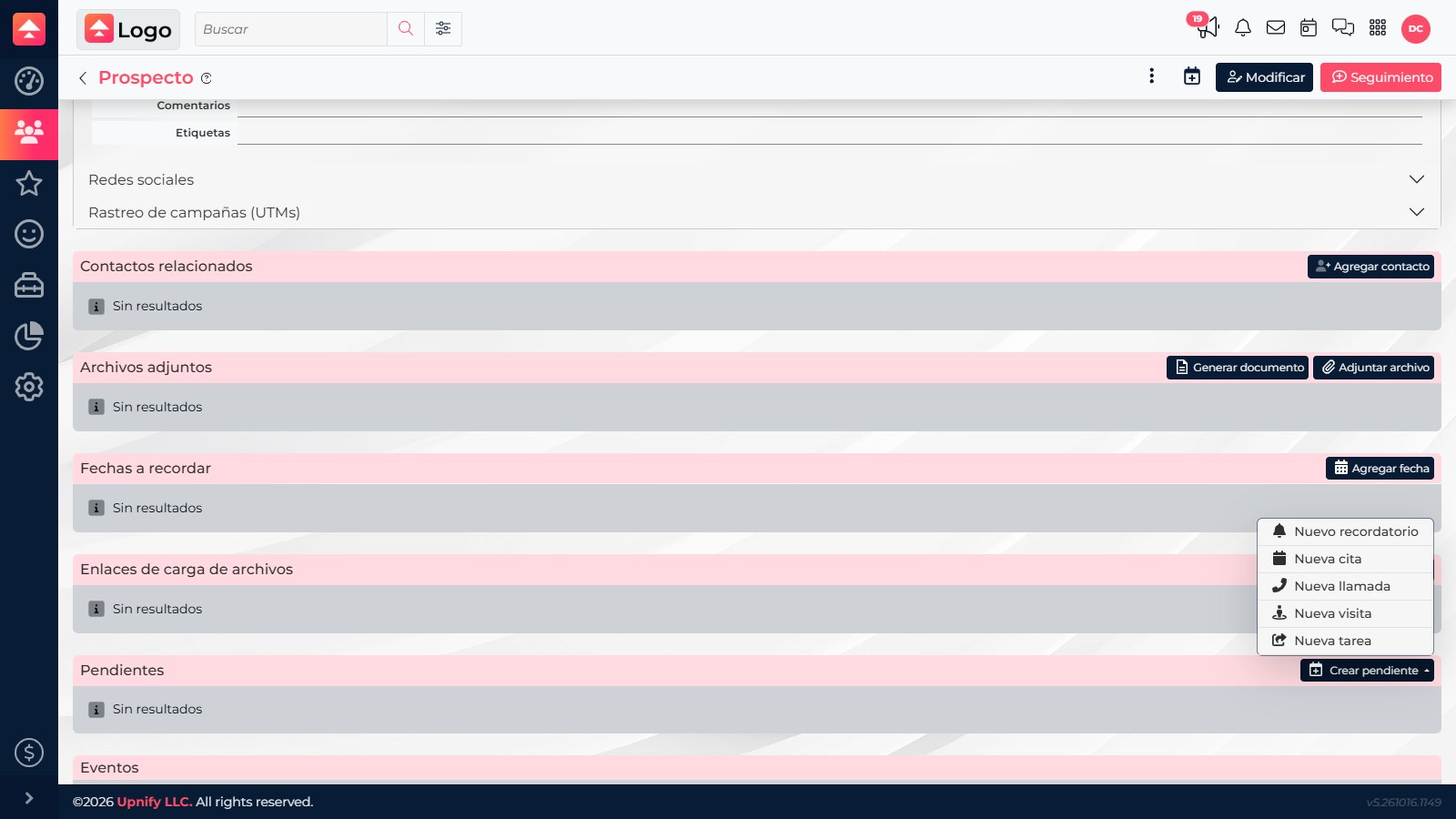
Create one from a contact record
- Open the contact record and scroll to Activities.
- Select Create activity and choose one of the five types.
- Complete the subject, date, and time. CRM already links the activity to that contact.
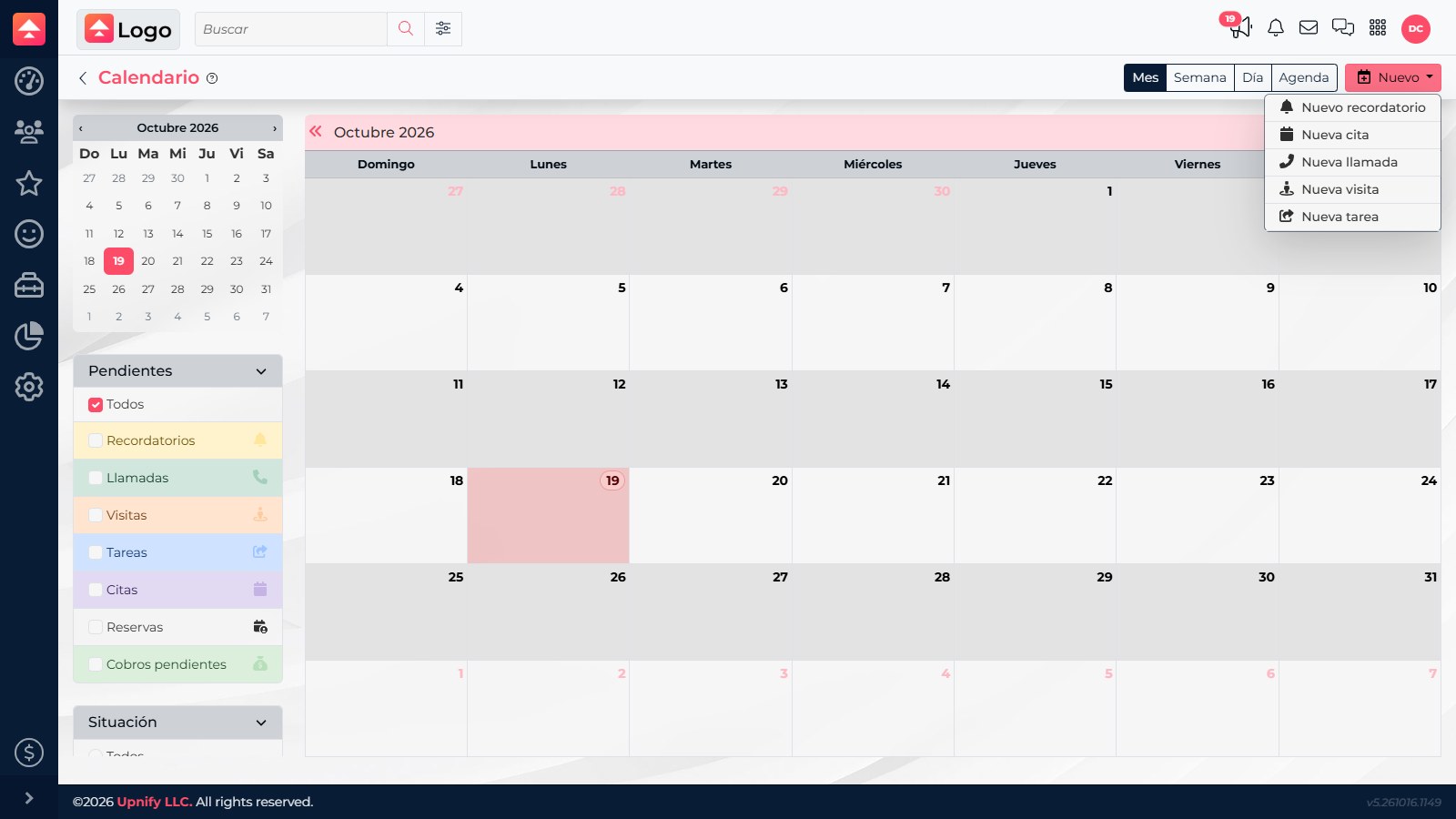
You can also open Calendar ? New. In that case, link the contact in the form when appropriate. Write an action-focused subject and add a short description with the context needed to prepare.
Find, edit, or complete an activity
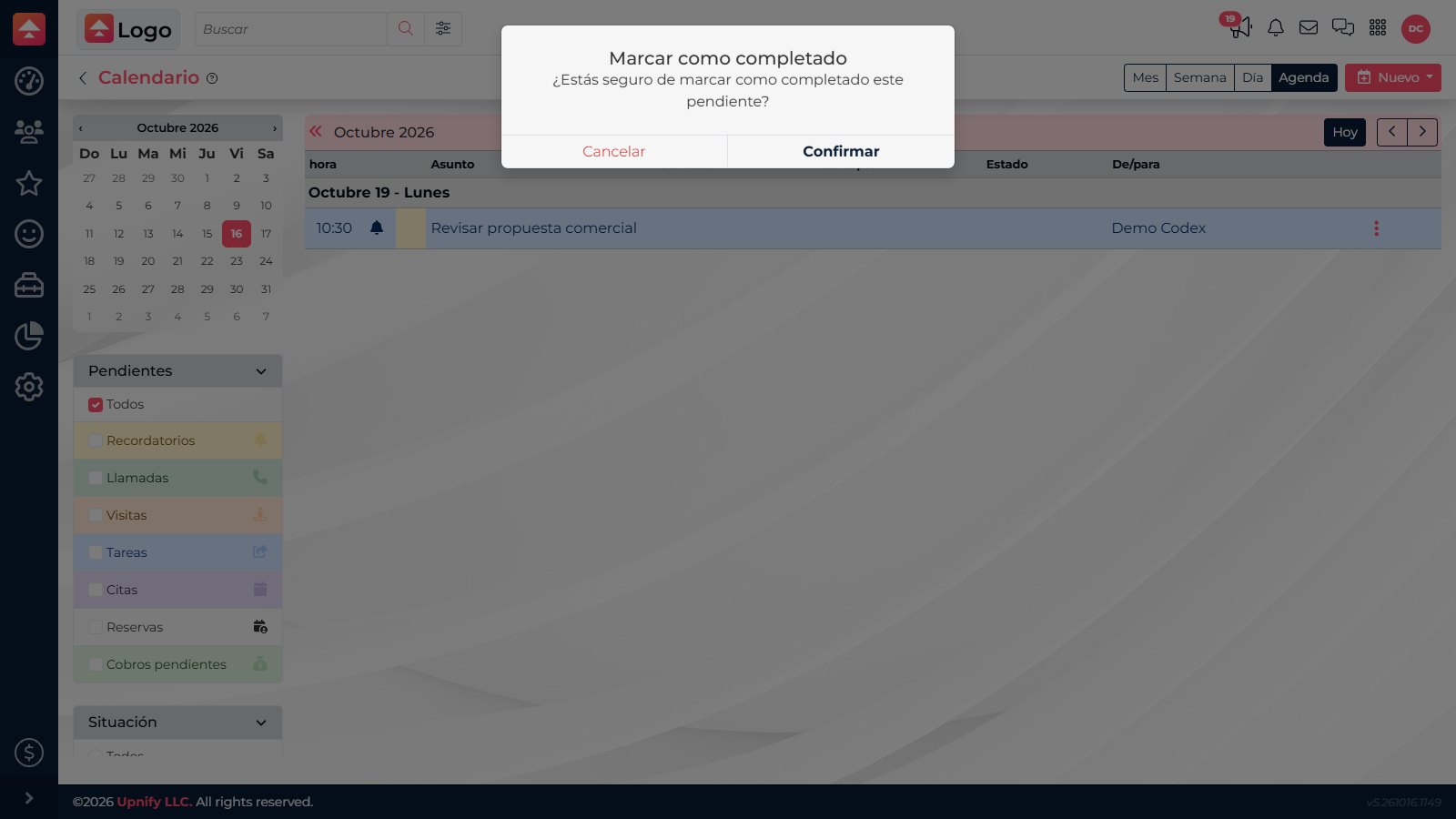
The contact record’s Activities section lists related items with their date and subject. Open an activity menu to edit it, mark it complete, or delete it. You can also find it on the calendar and filter by type or status.
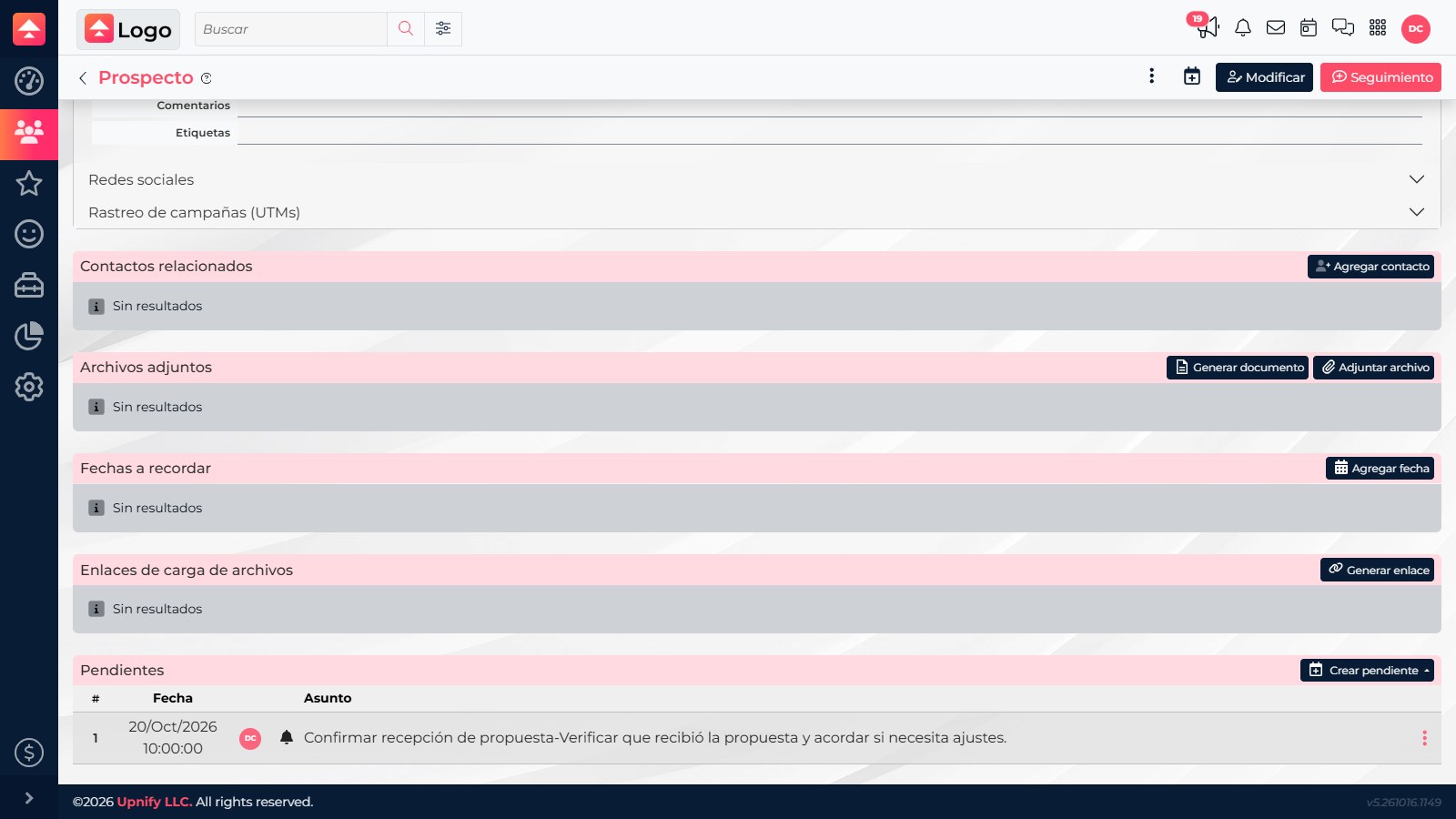
Edit an activity if the date, owner, or plan changes. Mark it complete after doing the work. If it is still open even though it is overdue, reschedule or update it instead of closing it.
Reservations are a separate feature. Creation depends on access being enabled for the company and your user.