

In CRM, you create an invoice from an existing sale. A Prefactura (pro forma invoice) lets you review the details before issuance. When you select Facturar (Invoice) and the validations pass, CRM creates the CFDI linked to that sale.
Confirm the sale and tax recipient are correct, and that the issuer, branch, and series/number are configured. Use test data only in a sandbox account.
Choose PUE or PPD
| Method | When to use it | Follow-up |
|---|---|---|
| PUE | Payment is made in one installment, according to the transaction terms. | Review the payment form and issue the CFDI. |
| PPD | Payment will be deferred or made in installments. | The sale keeps collections pending until you record received payments; then you can create the applicable REP. |
Choose the method that matches the transaction and its tax treatment. If you are unsure, confirm with your invoicing specialist.
Review and issue the CFDI from a sale
- In CRM, open Sales transactions and select the sale to invoice. If you came from an opportunity, open its associated sale.
- Select Facturar (Invoice). Check the recipient and its tax record; complete the CFDI use and any fields requested by your account.
- Select an available issuer, branch, and series/number. Verify the currency, exchange rate, items, amounts, and taxes. Choose the applicable PUE or PPD method and payment form.
- Select Prefactura (Pro forma invoice) to review the document before issuing it. If a validation appears, correct the indicated details and review again.
- When the details are correct, select Facturar (Invoice). Wait for the system response and confirm the invoice appears as Facturada (Invoiced) on the sale.
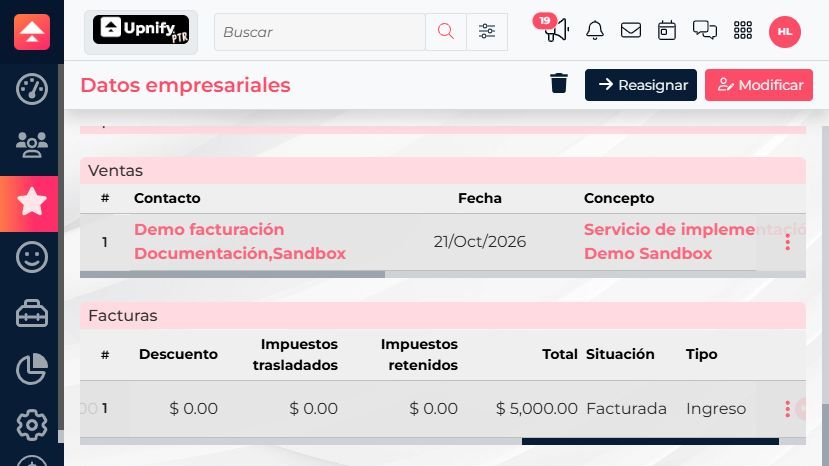
Follow up on PPD payments
A PPD invoice does not mean payment has already been received. Until you record a collection, the amount remains under Cobros pendientes (Pending collections). When you receive a payment, record its actual date and amount on the sale; do not mark a collection as completed before receiving the funds.
- Open the sale and review Cobros pendientes to see the amount still due.
- When payment arrives, record the collection with its date, amount, and reference. For a partial payment, enter only the amount received; the remaining balance will stay pending.
- After saving the collection, review Cobros realizados (Completed collections) and use the Complemento de pago (REP) (Payment complement) action available for that collection. Complete the payment details and verify the result on the sale.
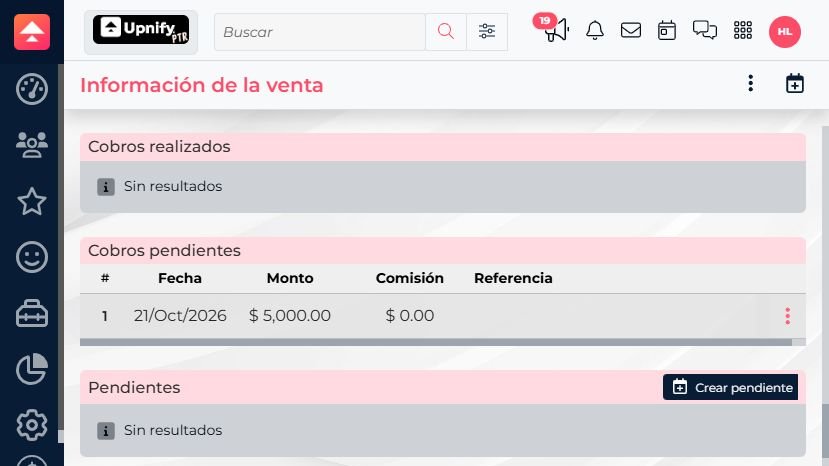
Check that invoicing is enabled, the sale has valid tax details, and the collection is recorded as completed. If the system displays a validation, correct the indicated information before issuing the document.
The screenshots show the Spanish interface. Option names may appear translated when CRM is set to another language.