

Templates help you reuse frequent messages and keep customer communication consistent. In Upnify CRM, you can create email, SMS, and WhatsApp templates. Each type has its own fields and character limits.
Choose the channel for the message. CRM's internal WhatsApp templates are different from official Meta-approved templates; the final section explains where to manage those separately.
1. Open Templates and choose a type
In CRM, go to Tools > Templates. Select New, then choose the type of message you want to prepare. Your choice determines the available fields, editor, and character limit.
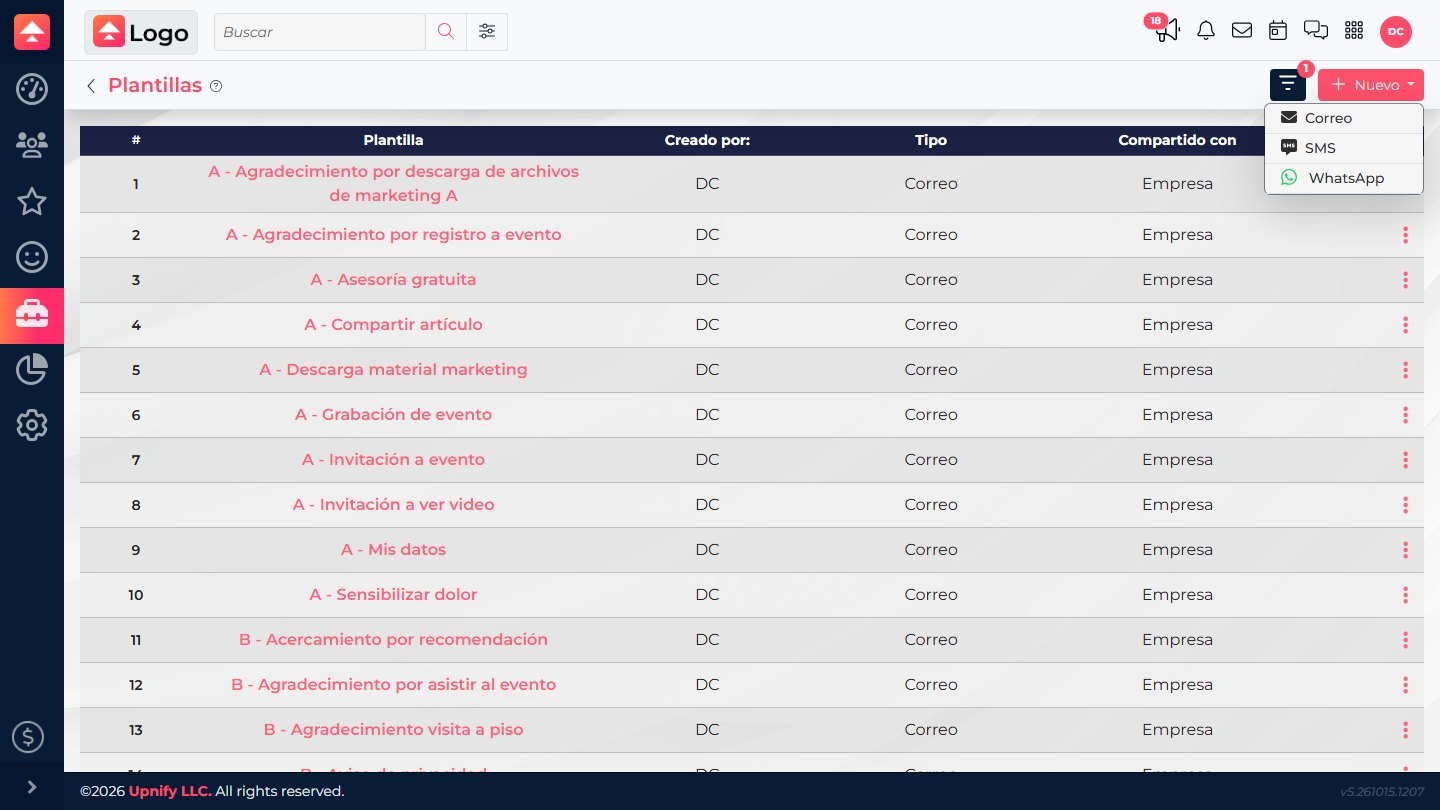
The screenshots show the interface in Spanish. Control names may be translated based on your CRM language.
2. Create an email template
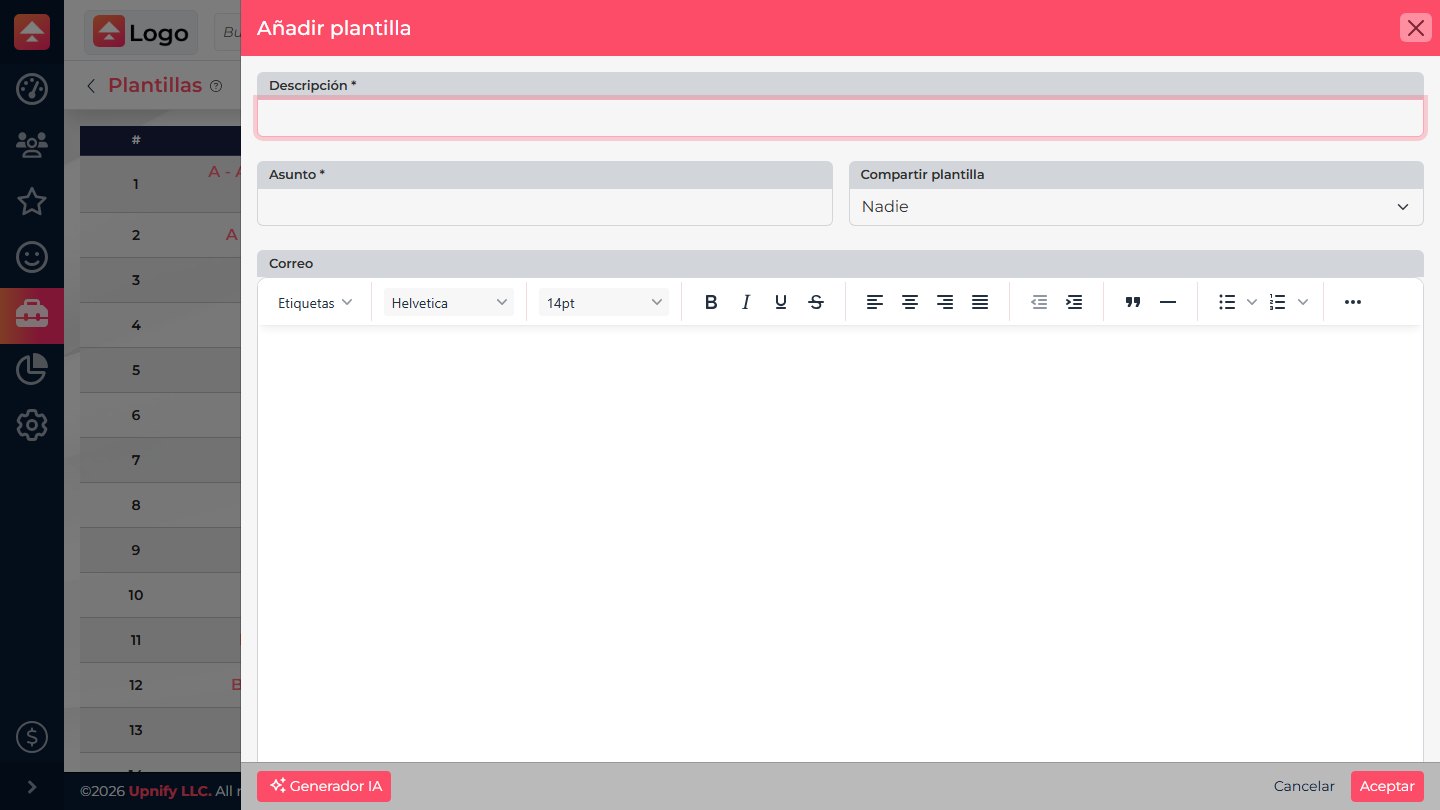
1. Enter a name that helps users identify the message in Description.
2. Complete the required Subject.
3. Write the email in the editor. You can format the text and add attachments if needed.
4. To personalize the content, place the cursor where the data should appear and select Labels. Choose an available field for the contact, executive, or company.
When you use the template, CRM replaces each label with the available data. Review the subject and message so they still read naturally for different recipients.
3. Create an SMS template
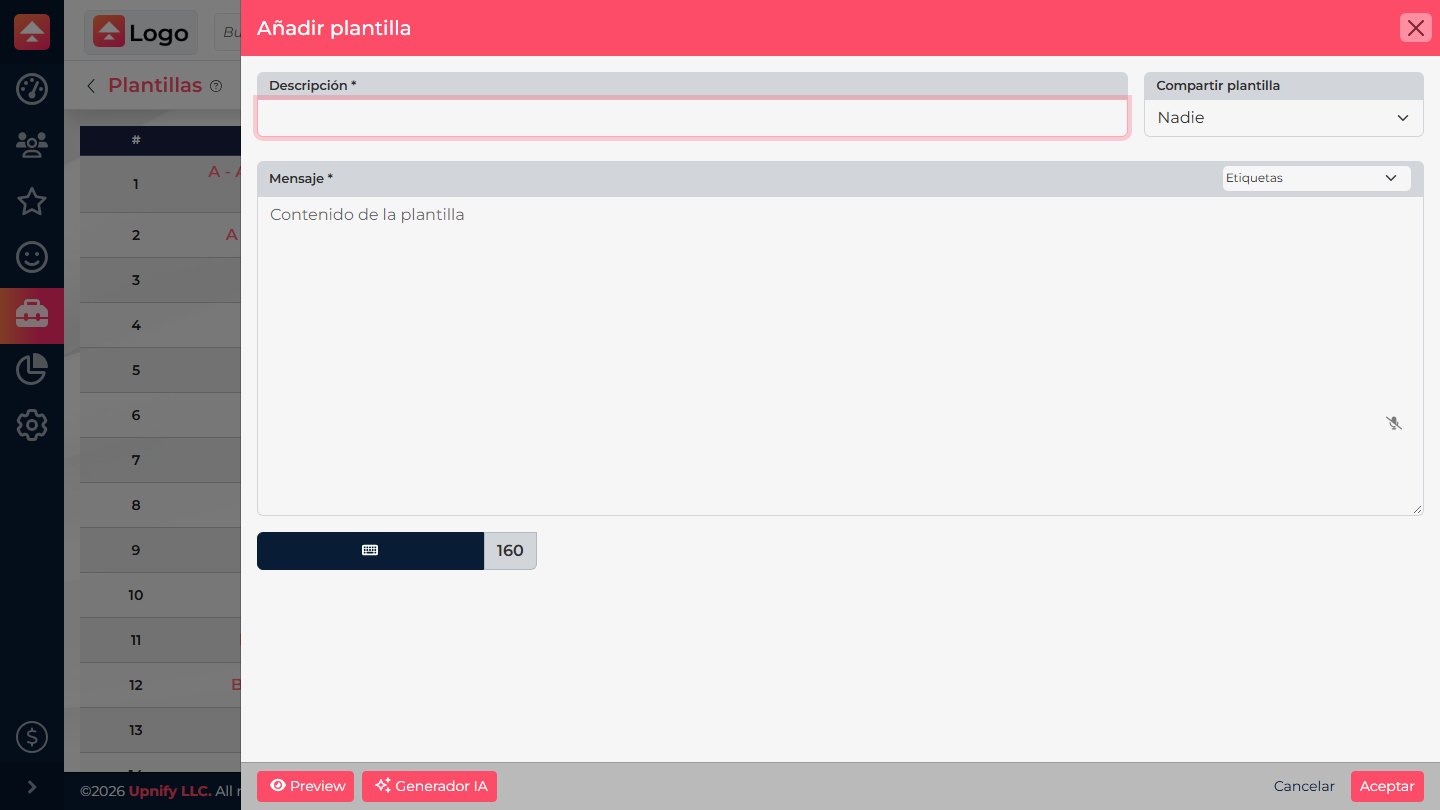
Under New > SMS, enter a description and write the message. The field allows up to 160 characters and includes a counter to help you keep it within the limit.
- Use Labels to insert available personalized data.
- Check the final message length because a label may be replaced with a longer value.
- If you want, select Preview to review the message before saving.
4. Create a WhatsApp template for CRM
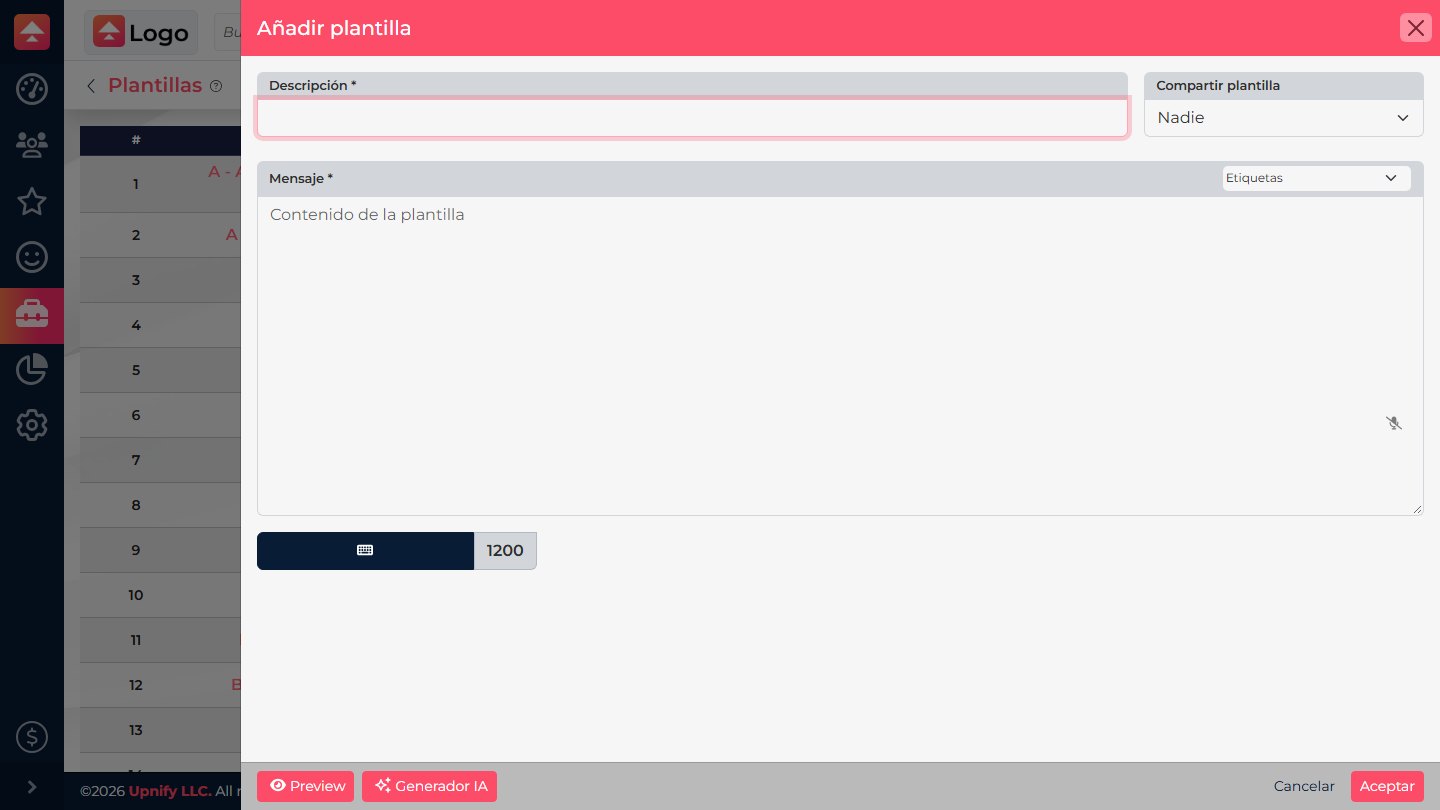
Under New > WhatsApp, enter a description and write the message. This form allows up to 1,200 characters. You can insert available labels and, when applicable, variables from the selectors beside the message field.
Labels add CRM data; variables add values enabled for this message type. Use the options available in the form and review the result before saving.
5. Choose who can use the template
Under Share template, choose the sharing scope before selecting Accept to save:
| Option | Who can use it |
|---|---|
| Nobody | Only you can use it. |
| Team | It is shared with your team. |
| Company | It is shared across your company. |
| Company (All apps) | It is shared across all company apps. |
When you are done, select Accept. The template appears in the list, where you can edit it later or choose it in CRM areas that support that channel.
They are managed separately under Settings > WhatsApp Business, within the connected channel. There you can review Meta templates and their category or status. Creating an internal template under Tools > Templates does not register it with Meta or submit it for approval.
Before sharing a template with the entire team, review the message, labels, and sharing scope so others do not reuse incomplete content.