
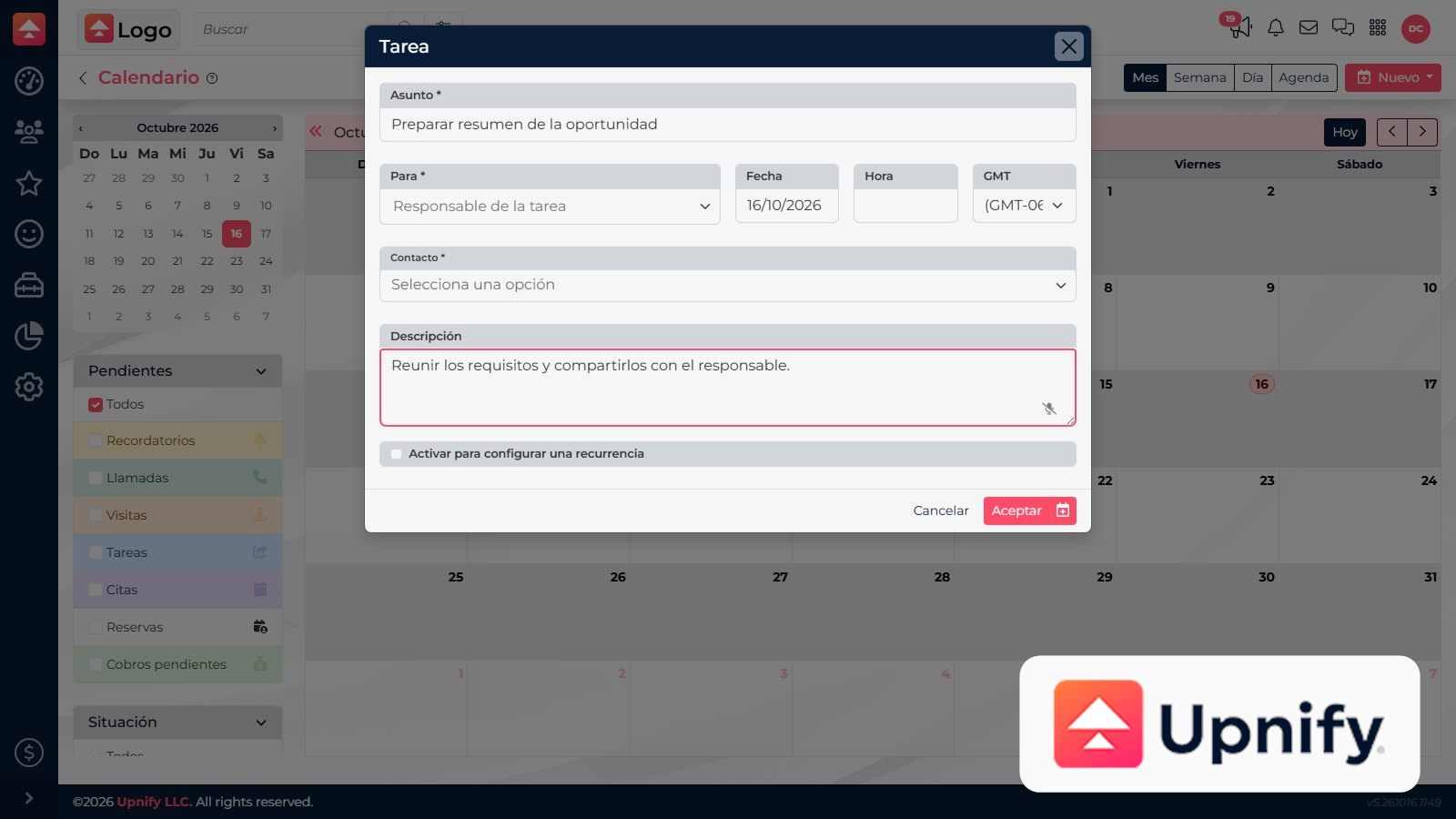
Delegating a task makes clear who should do the work. Assignment organizes ownership and dates, but does not replace the description or automatically grant access to the related contact.
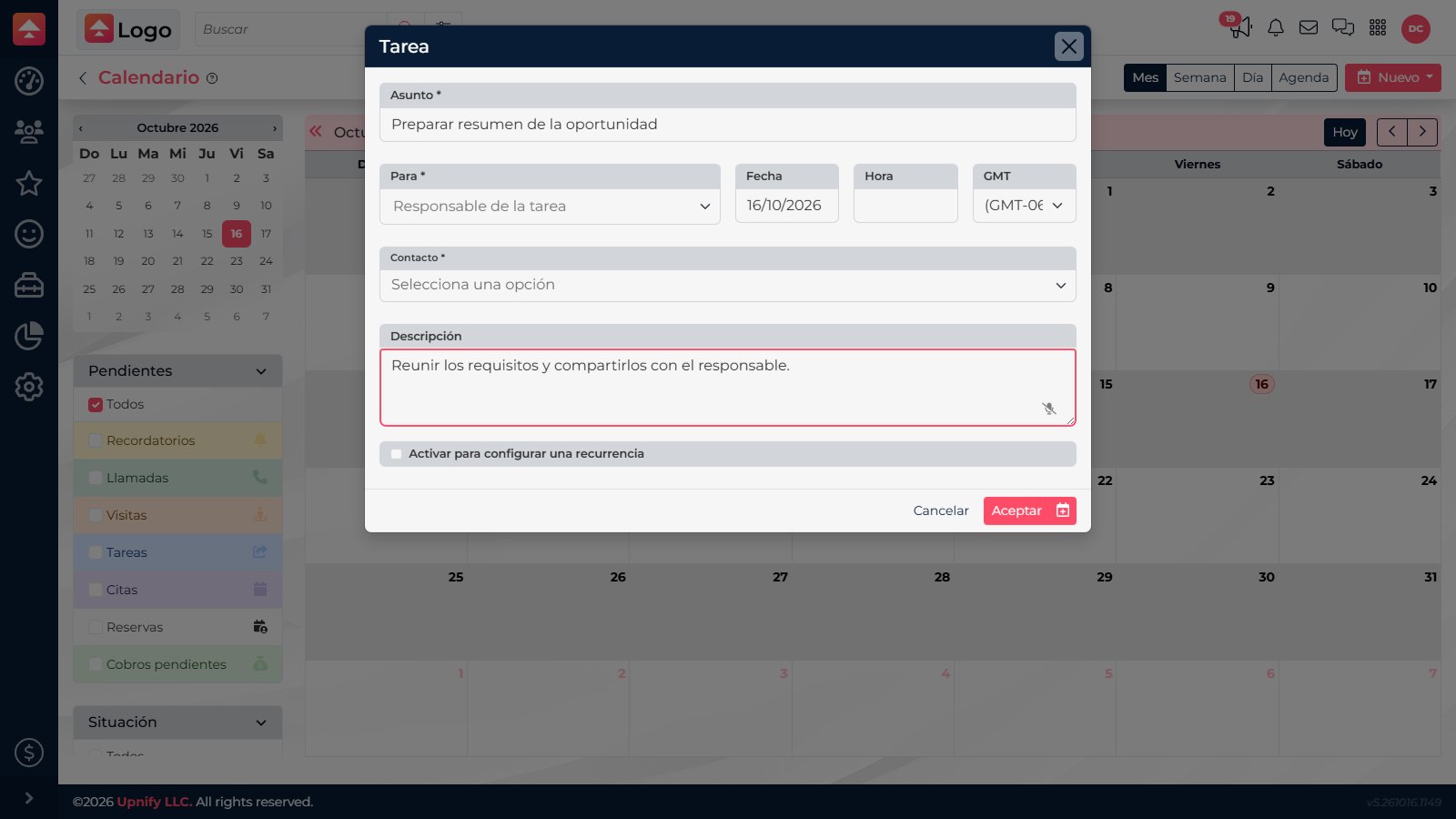
Assign a task
- In Calendar, select New ? New task.
- Write an outcome-focused subject: “Prepare renewal proposal.”
- Under To, choose an available owner. Depending on permissions, the field may allow one or multiple people.
- Link the contact and set a due date, description, and expected outcome.
- Save and verify the assignment in the details or agenda.
Delegate with clarity
Specify what must be ready, by when, and what context the person needs. If several people are involved, identify who coordinates delivery.
Specify what must be ready, by when, and what context the person needs. If several people are involved, identify who coordinates delivery.
Check the owner and status
Open the task from Calendar or Agenda. Review the assigned person, date, and status. If you can access other calendars, select or filter that person’s calendar; visible activities depend on company permissions.
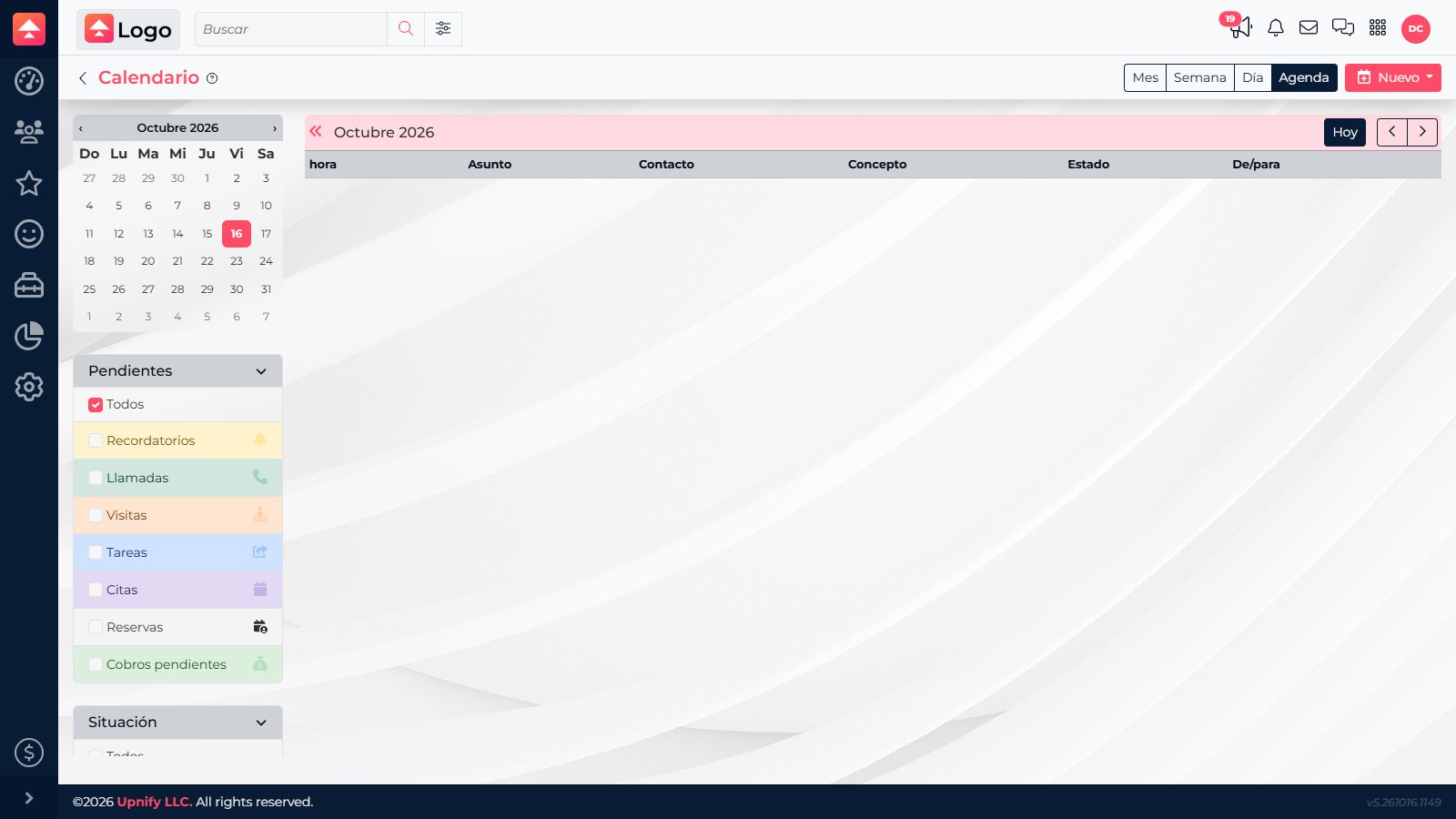
Reassign with context
Edit the task and update the To field. Before saving, document progress and open agreements in the description or related record. Confirm the new owner can access the contact; task assignment does not expand data permissions on its own.
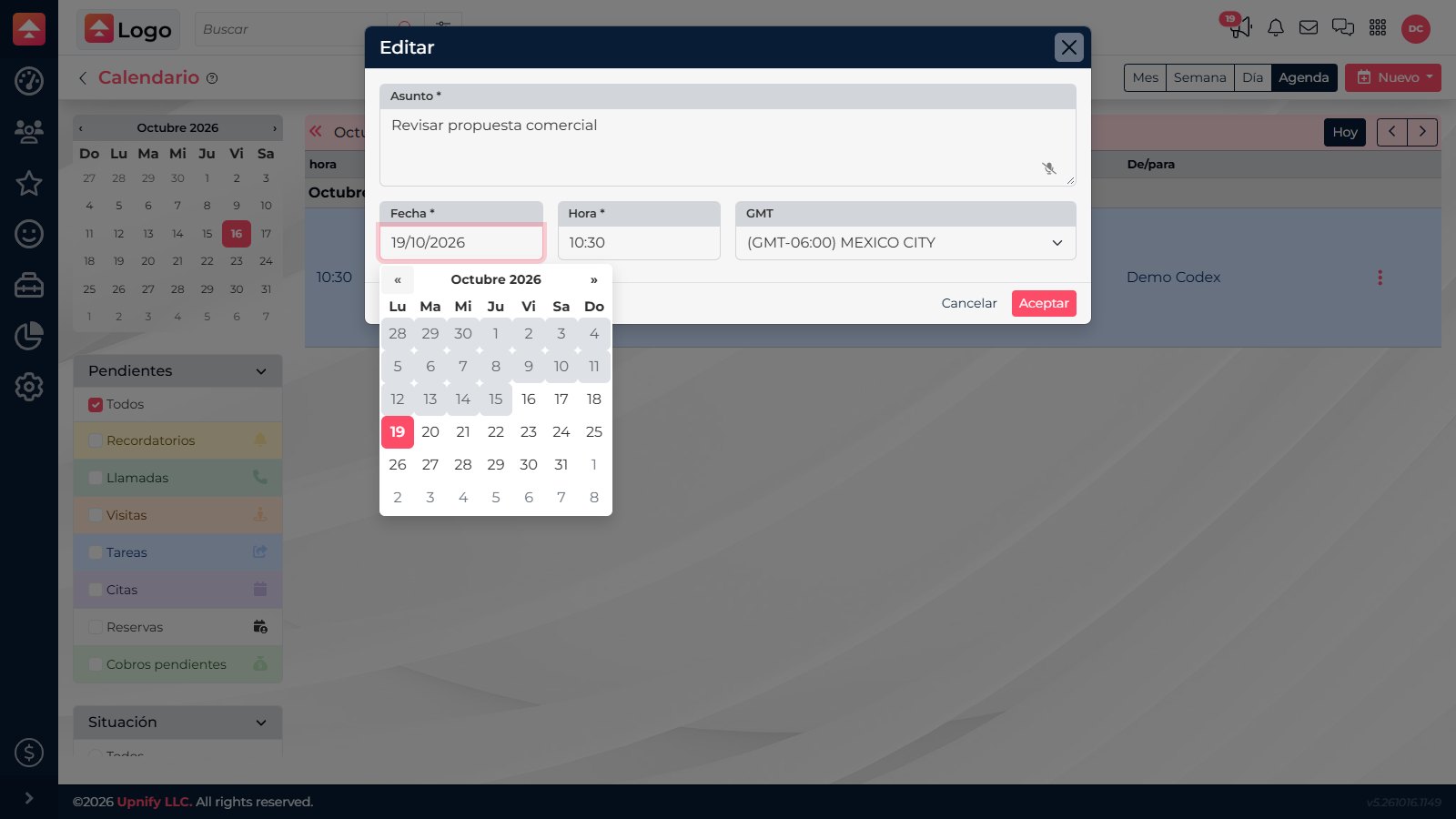
If the person is missing
- Confirm they have an active user account in the company.
- Check whether your permission level lets you assign activities to them.
- Review their permission to view the related record.
- If multiple owners are allowed, identify who coordinates the work.