

A prospect record brings contact details and sales context together so anyone on the team can continue the relationship with clarity. Keeping it current helps prevent calls to an incorrect number, messages sent to an old email address, or follow-ups that repeat questions the person has already answered.
Before editing, find the right record. In Prospects, search by name, company, or email. If it does not appear, review active filters and the record status. An archived prospect does not appear the same way as an active one.
Update the prospect information
- Open Prospects and use search or filters to find the person.
- Select the name to open the record. Make sure the company or details shown match the person you want to edit.
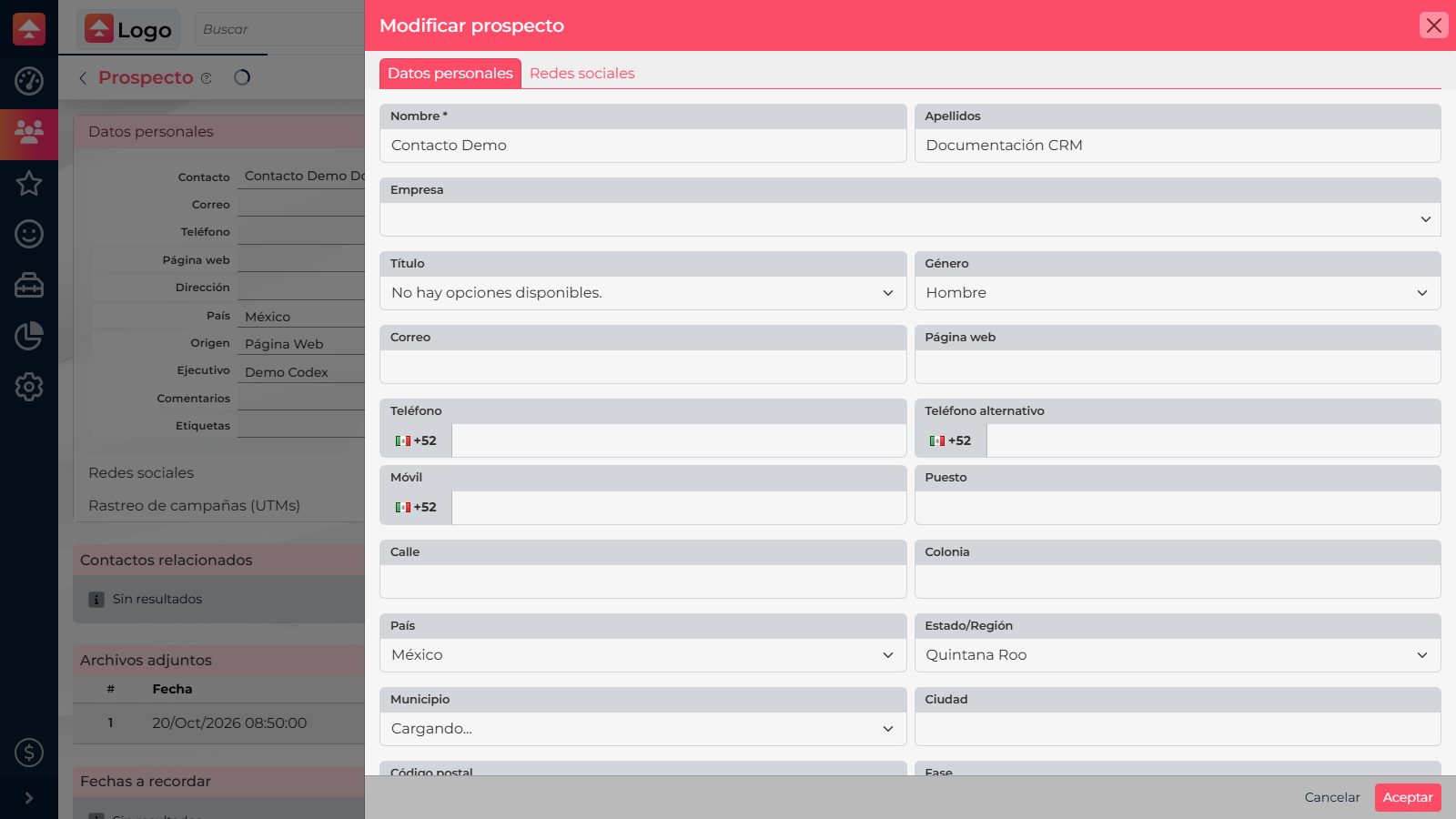
- Select Edit. Update only the details that changed: email, phone, company, job title, location, phase, origin, comments, or tags, as needed and available to you.
- Review the fields before saving, then select Accept. When the record reopens, confirm that the updated details appear correctly.
What you can review on the record
| Section | What it shows | When to review it |
|---|---|---|
| Personal information | Contact details, company, phase, origin, owner, and comments. | Before reaching out or assigning the next step. |
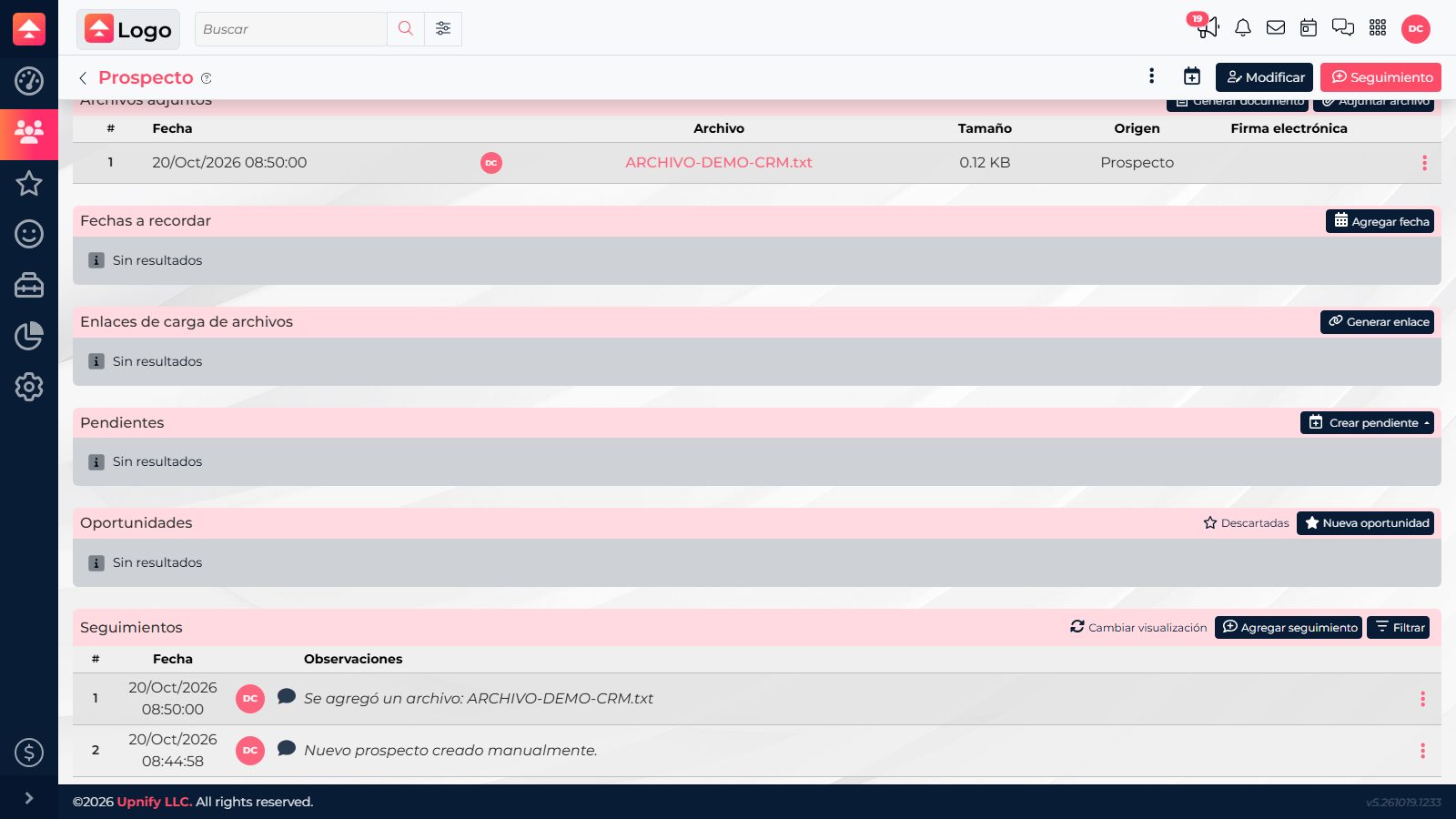
| Follow-ups | Recorded notes and interactions with their date, owner, and observations. | To resume a conversation and understand what was discussed or done. |
| Tasks and events | Activities scheduled for or related to the person. | To confirm commitments and upcoming dates. |
| Opportunities and attached files | Related deals and documents associated with the record. | To understand the sales process and find its documents. |
Use the history to continue the conversation
In Follow-ups, read the latest observations first and check who performed each action. You may find call notes, meetings, added files, and other recorded activity there. The record also has separate sections for tasks, events, and opportunities; review each section for its own details instead of assuming everything will appear as a note.
For example, if a person asked to be contacted after receiving a proposal, review the latest follow-up, open the related opportunity to check the deal, and look under Tasks to see whether a dated activity is already scheduled. This lets you continue from the agreed next step.

If you change business details, check whether a related opportunity, task, or activity also needs an update.