

Saving a customer\u2019s tax details helps you prepare quotes and sales documents with the right recipient name and information. It also saves you from asking for the same details every time a company buys again.
This section stores tax details for the customer or company receiving the document. It is separate from your company\u2019s issuer information.
Add a legal entity from the customer profile
- In CRM, open Customers and select the customer\u2019s profile.
- Find the Legal entities section (Razones sociales in Spanish) and select Add legal entity (Añadir razón social).
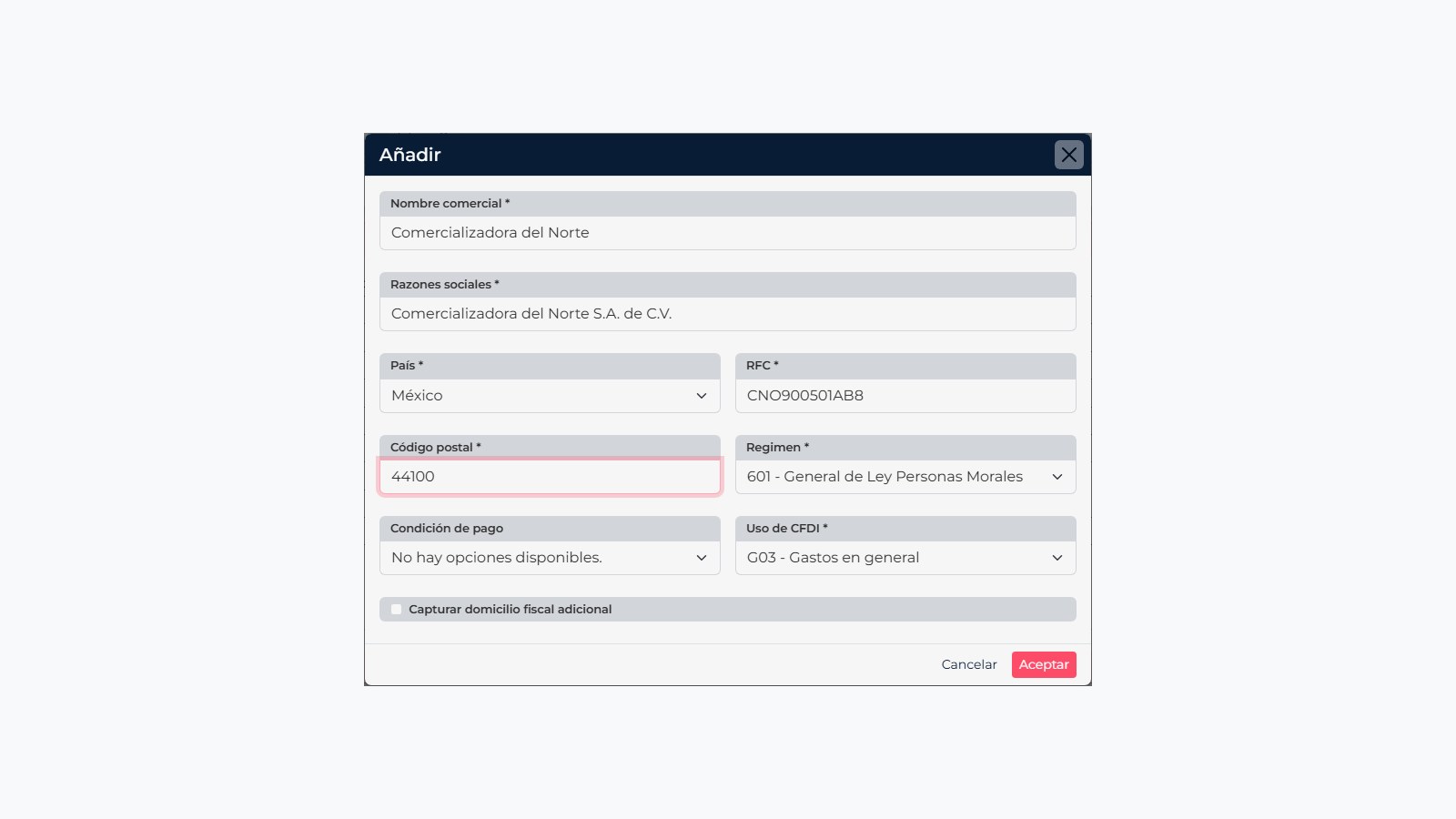
- Enter a Trade name that helps your team recognize the record in CRM. In Legal name, enter the customer\u2019s official legal name exactly as it appears on their tax documents.
- Select the Country and fill in the details requested by the form. For Mexico, check the RFC tax ID, postal code, tax regime, and CFDI use. Fields marked with an asterisk are required.
- If your account needs it, add payment terms or select Enter an additional tax address. Leave these options blank if they do not apply.
- Compare the information with the tax document supplied by the customer, then select Accept.
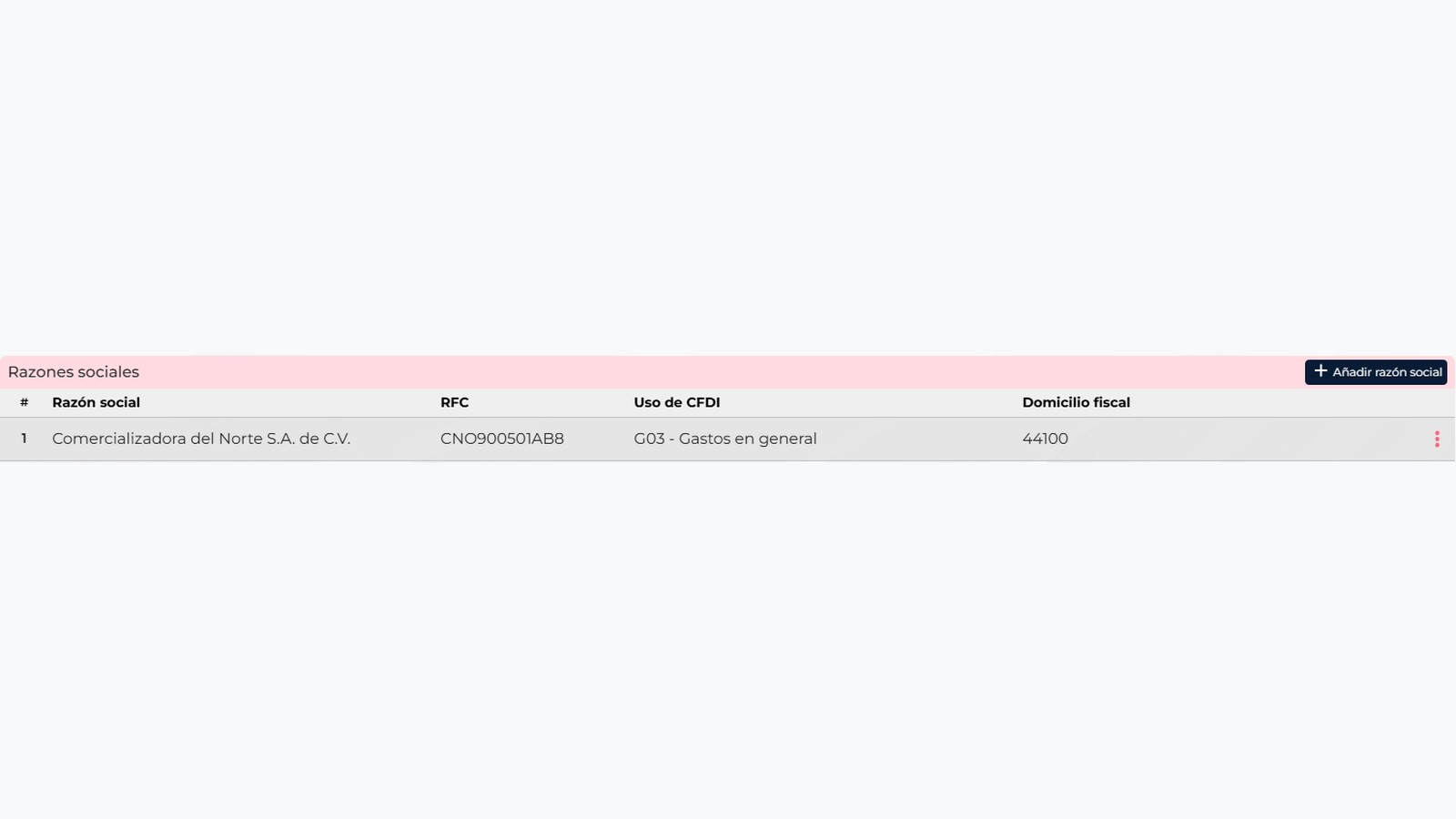
Make sure the information was saved
Back on the profile, review the Legal entities table. It shows the legal name, RFC, CFDI use, and tax address. If a customer has more than one tax entity\u2014for example, a parent company and separate group companies\u2014save each one separately and choose the entity that belongs to the current transaction.
Example to identify each field
This sample illustrates how a record might look. Do not copy it for a real customer: always enter the tax details confirmed in that customer\u2019s documents.
| Field | Sample |
|---|---|
| Trade name | Comercializadora del Norte |
| Legal name | Comercializadora del Norte S.A. de C.V. |
| Country | Mexico |
| RFC tax ID | CNO900501AB8 |
| Postal code | 44100 |
| Tax regime | 601 \u2014 General de Ley Personas Morales (general tax regime for legal entities) |
| CFDI use | G03 \u2014 General expenses |
For invoices in Mexico, the SAT lists details such as RFC, legal name, tax regime, and postal code among the required information. Read the SAT guide and confirm current information with the customer.
Adding a legal entity in CRM does not issue an invoice. When you prepare a document, confirm that you selected the right recipient and follow the billing process enabled for your account.