
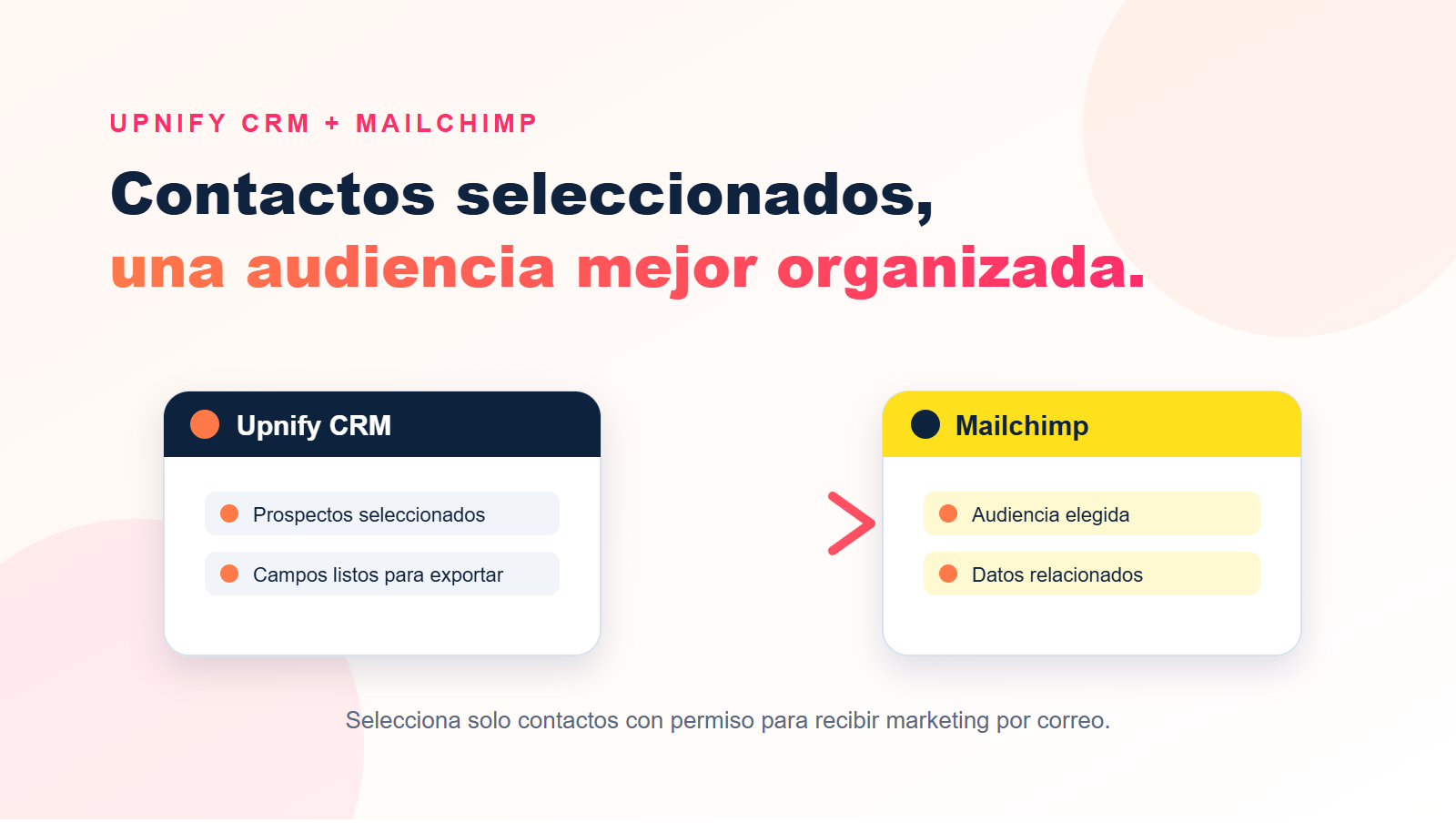
If you already manage prospects or customers in Upnify CRM, you can send selected contacts to a Mailchimp audience without entering their information again. This is useful when preparing a campaign for people interested in a service, event, or a particular sales stage.
Upnify sends these contacts to Mailchimp with the status Subscribed. Select only people who have agreed to receive your marketing messages. Having their email address in CRM or having a business relationship with them does not, by itself, mean they gave this consent. Review Mailchimp\u2019s permission requirements before preparing your audience.
What you need
- Permission to view contacts and access Settings ? Integrations ? API in CRM.
- A Mailchimp account with an audience already created.
- Selected CRM contacts with valid email addresses and permission to receive marketing.
1. Connect Mailchimp to CRM
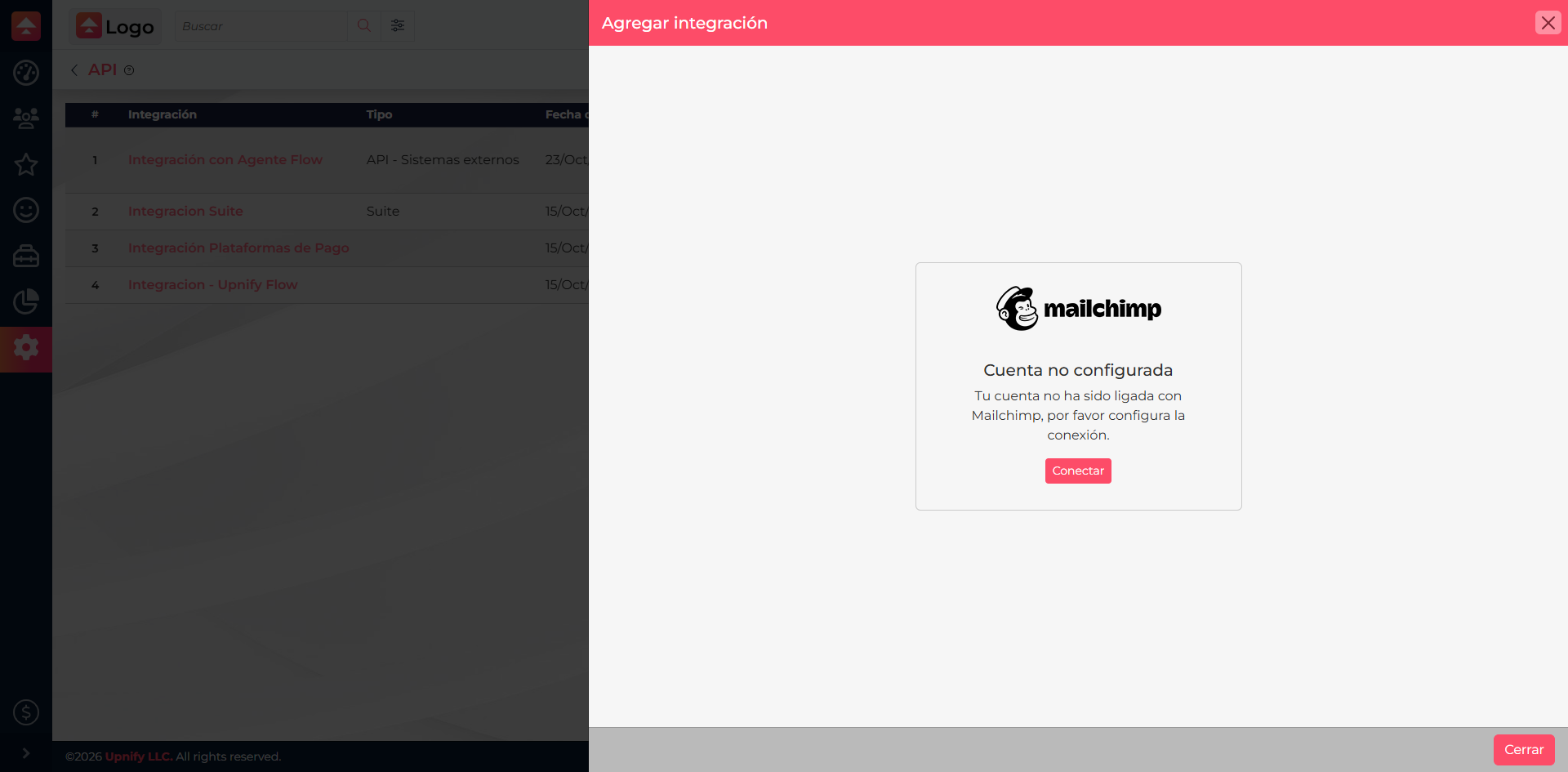
You only need to connect Mailchimp once for your Upnify account. In CRM, open Settings ? Integrations ? API, select the Mailchimp card, and click Connect. The Mailchimp authorization page opens. Sign in if prompted, make sure you are using the correct test or business account, and authorize access. When you return to CRM, the card should show that the account is connected.
2. Select the contacts to export
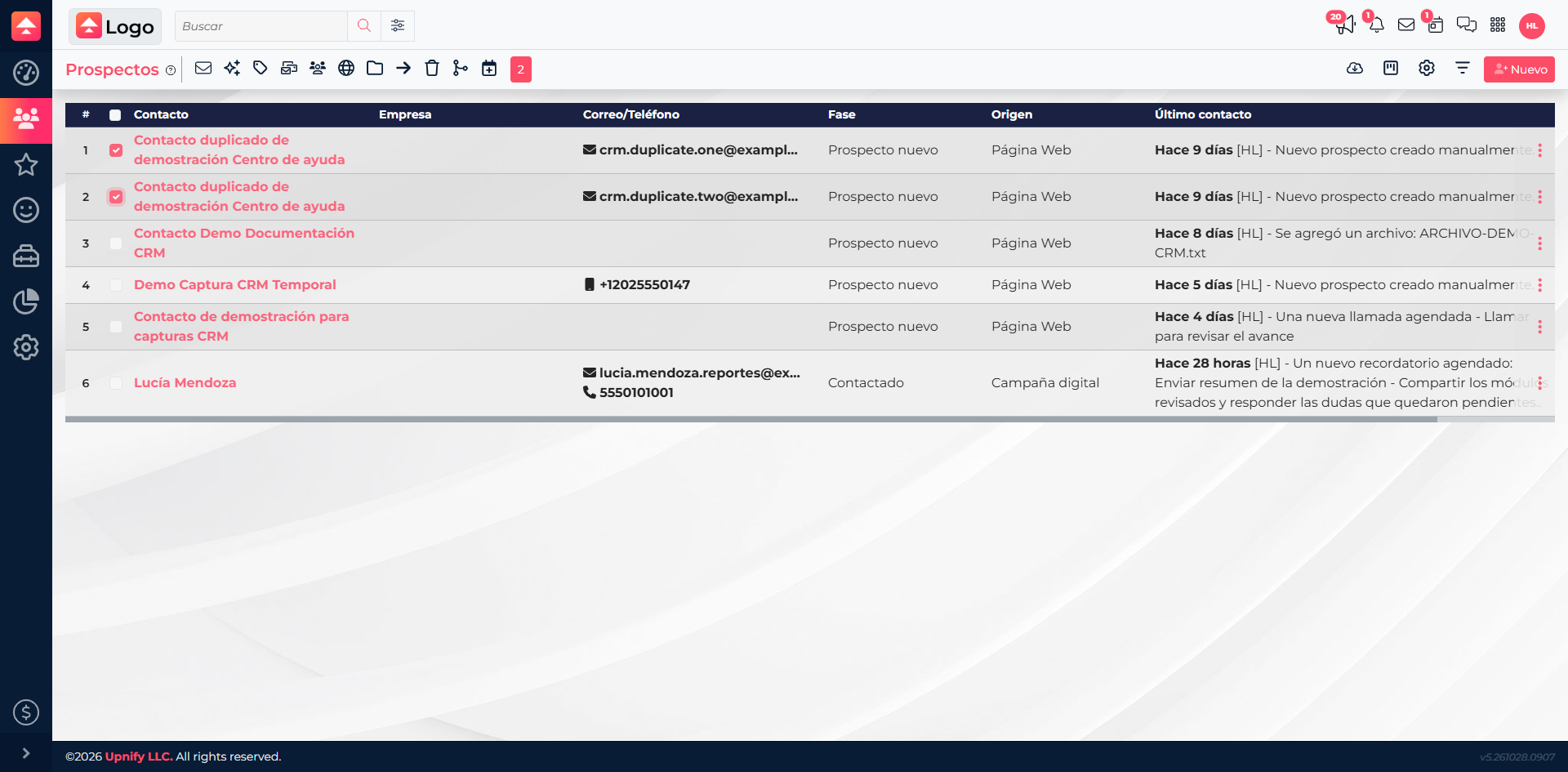
Open the Prospects or Customers list and first apply filters that help you build a useful selection, such as stage, source, owner, or tag. Check the box for each record you want to include. You can select multiple contacts; check the selection counter before exporting.
For example, if you are preparing an invitation to a product demo, filter prospects who asked about that product and select only people who agreed to receive email updates. This keeps the Mailchimp audience focused on the contacts who are relevant and have consented.
3. Choose Mailchimp from the export menu
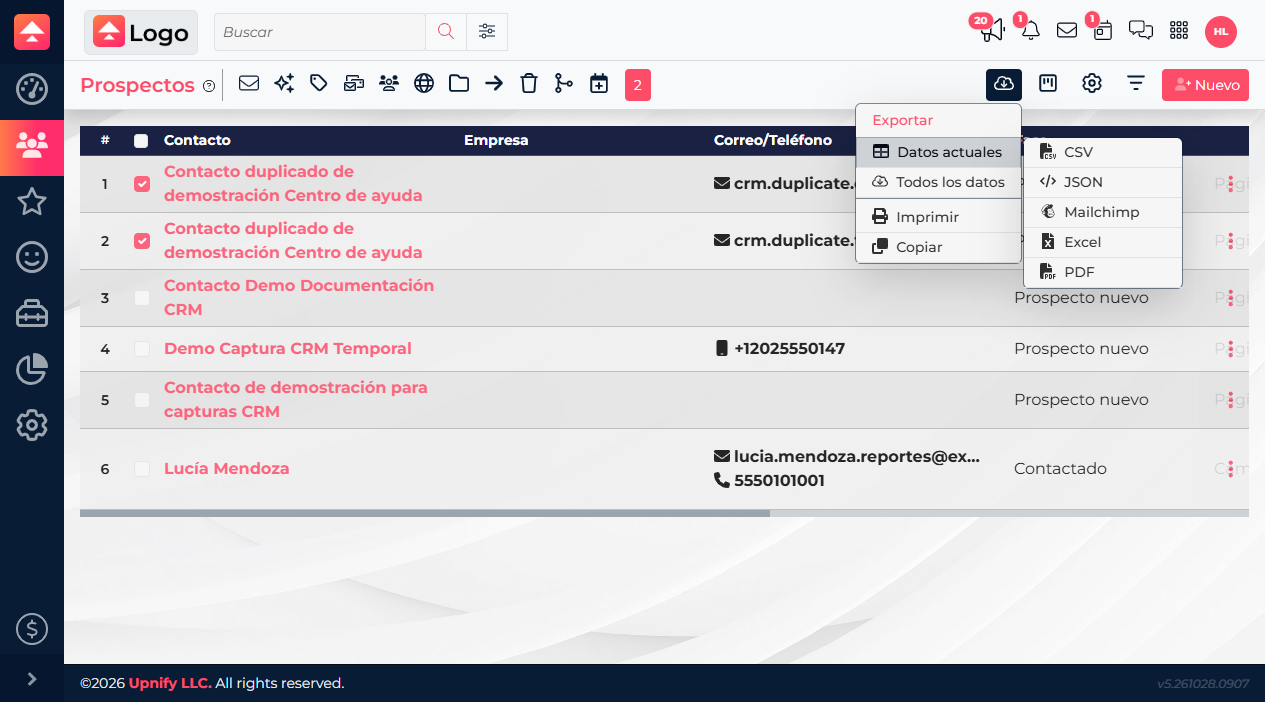
With the records selected, open Export (the download icon), choose Current data, and then choose Mailchimp. \u201CCurrent data\u201D uses the selection you just made; exporting all data can include records outside that selection.
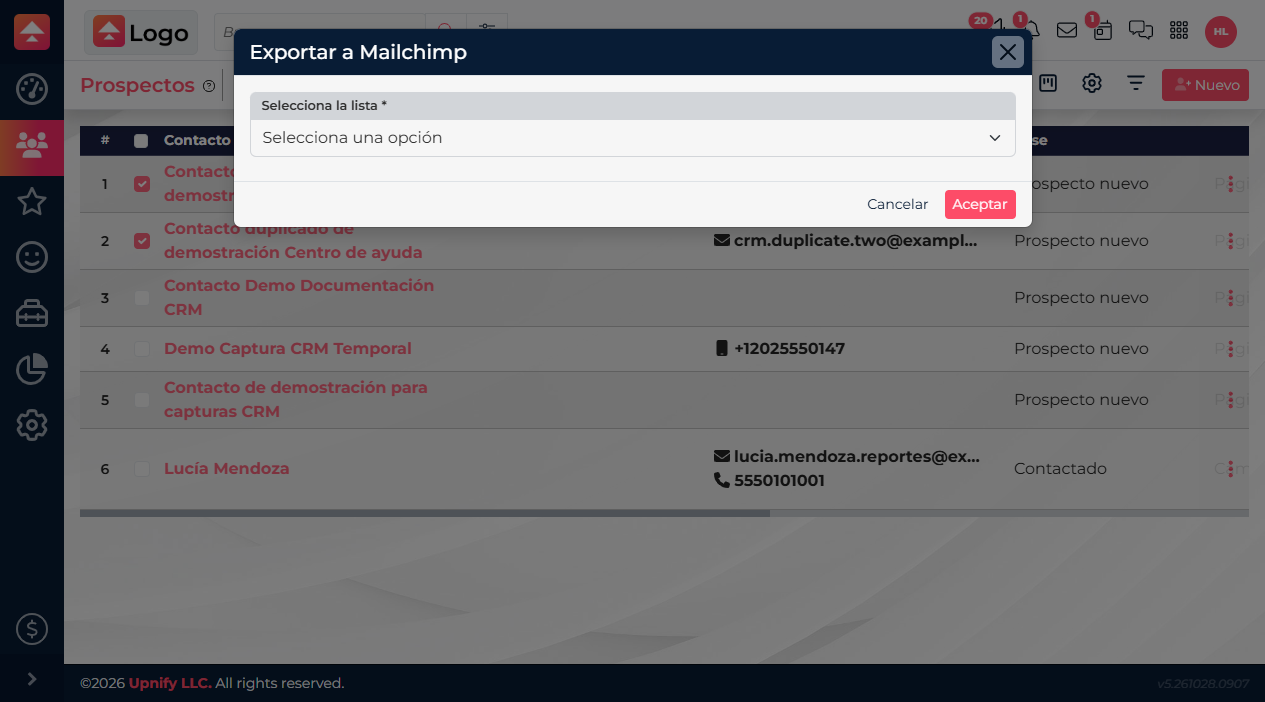
4. Select the audience and map the fields
In the form, select the Mailchimp audience that should receive the contacts. Then map each field requested by that audience\u2014such as first name, last name, or company\u2014to the matching CRM value. The fields depend on how your audience is configured; complete every field marked as required.
Pay special attention to the email field and any data you plan to use for campaign personalization or segmentation. If a field does not match, do not assign an unrelated value just to continue. Update your audience setup or choose the correct CRM field. When you confirm the form, CRM sends the contacts to the audience and displays a summary.
5. Review the result
When the process finishes, CRM reports how many contacts were added, updated, or had errors. If the summary shows errors, review the field message and correct the CRM value or audience setup before trying again. Exporting contacts does not send a campaign; it only adds or updates contacts in Mailchimp.
CRM can update a contact already in the audience instead of creating another record with the same email address. Before confirming, make sure you selected the right contacts and audience.
If something goes wrong
- CRM says Mailchimp is not configured: connect it from Settings ? Integrations ? API, then reopen the export menu.
- The expected audience is missing: make sure you authorized the right Mailchimp account and that it has an audience available.
- A contact is missing from the export: confirm it is selected and has an email address. CRM skips contacts without email and avoids repeating the same address within a single export.
- Field mapping errors appear: check that the audience has the fields you need and map each one to the appropriate CRM value.
Learn more
See Mailchimp\u2019s official guide to importing contacts and updating existing contacts and its contact data format guidelines. Upnify\u2019s integration uses an authorized connection and audience field mapping; Mailchimp\u2019s manual file-import steps are different.