

When the same person is entered more than once, their history can be split across records. Your team may contact them twice or work with conflicting details. Duplicate review helps find possible matches; merging brings the information and follow-up together under one contact.
For example, someone may register through a campaign and later be entered manually. Before merging, confirm that both records belong to the same person and decide which record should remain as the primary contact.

Turn on and review matches
- In CRM, open Tools > Data inconsistency.
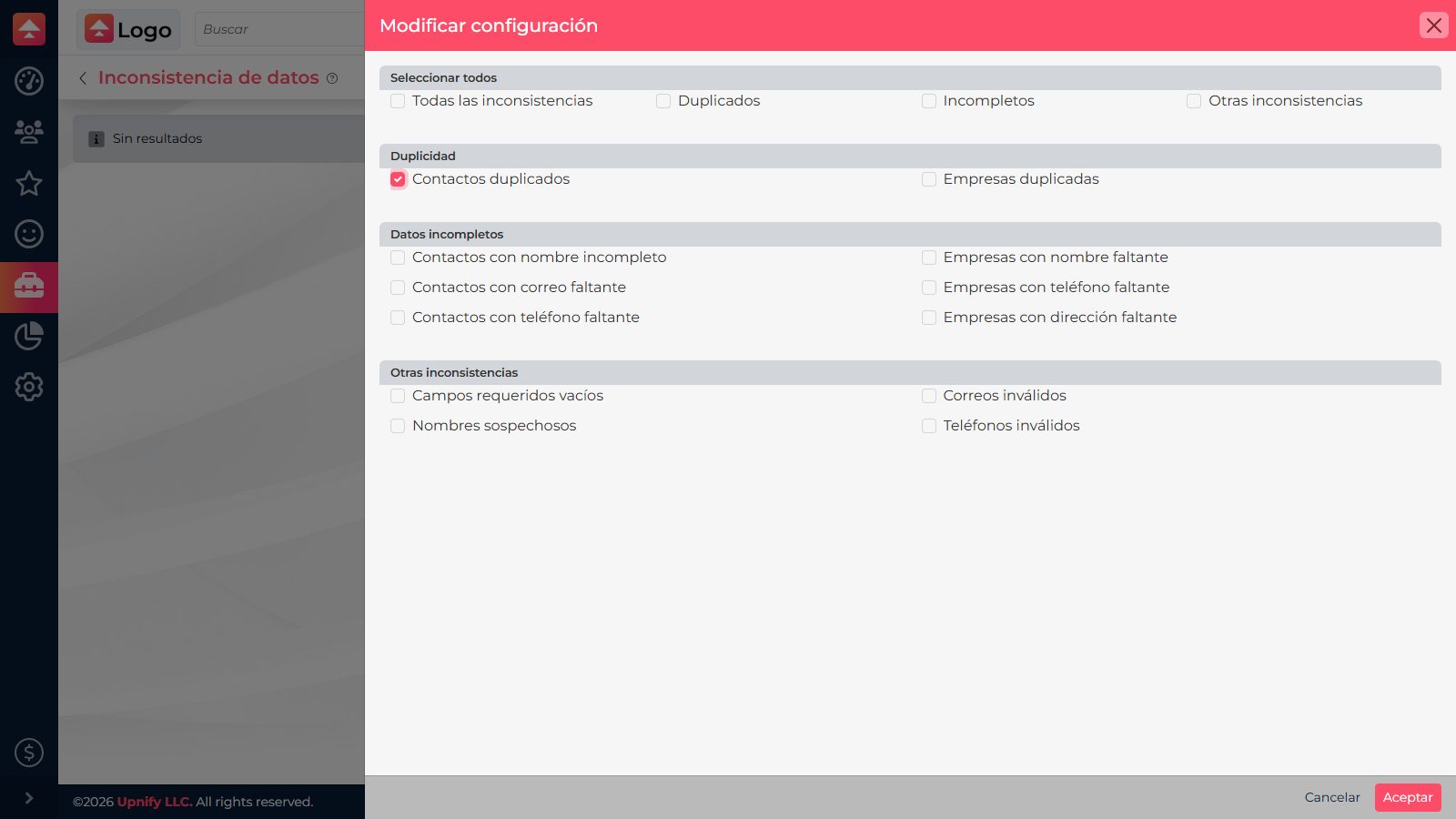
- In the configuration, enable Duplicated contacts and save.
- Open the duplicated contacts results. If you just enabled the option or want to refresh the results, select Update and wait for CRM to review the records again.
- Open each group and compare name, company, email, phone numbers, owner, and situation. The system groups possible matches using details such as name, email, phone, or street and exterior number. A match is a reason to review the records, not proof that they belong to the same person.
Merge the records you have confirmed
After confirming that two or more records belong to the same person, start the merge from Prospects or Customers. The merge action is not in the contact record. You can start in either of these ways:
- Selecting multiple records: in the list, check the boxes for the duplicate contacts and choose Merge contacts from the selection actions. This is useful when you have already found all the records to combine.
- From a row menu: open the action menu for one contact and choose Merge contacts. The panel starts with that record; select Add to search for and include the other confirmed contacts.
You can also start a merge from a card's action menu in Kanban view. This option requires administrator access or permission to combine records in Maintenance. If it is not available, ask an administrator to review your permissions.
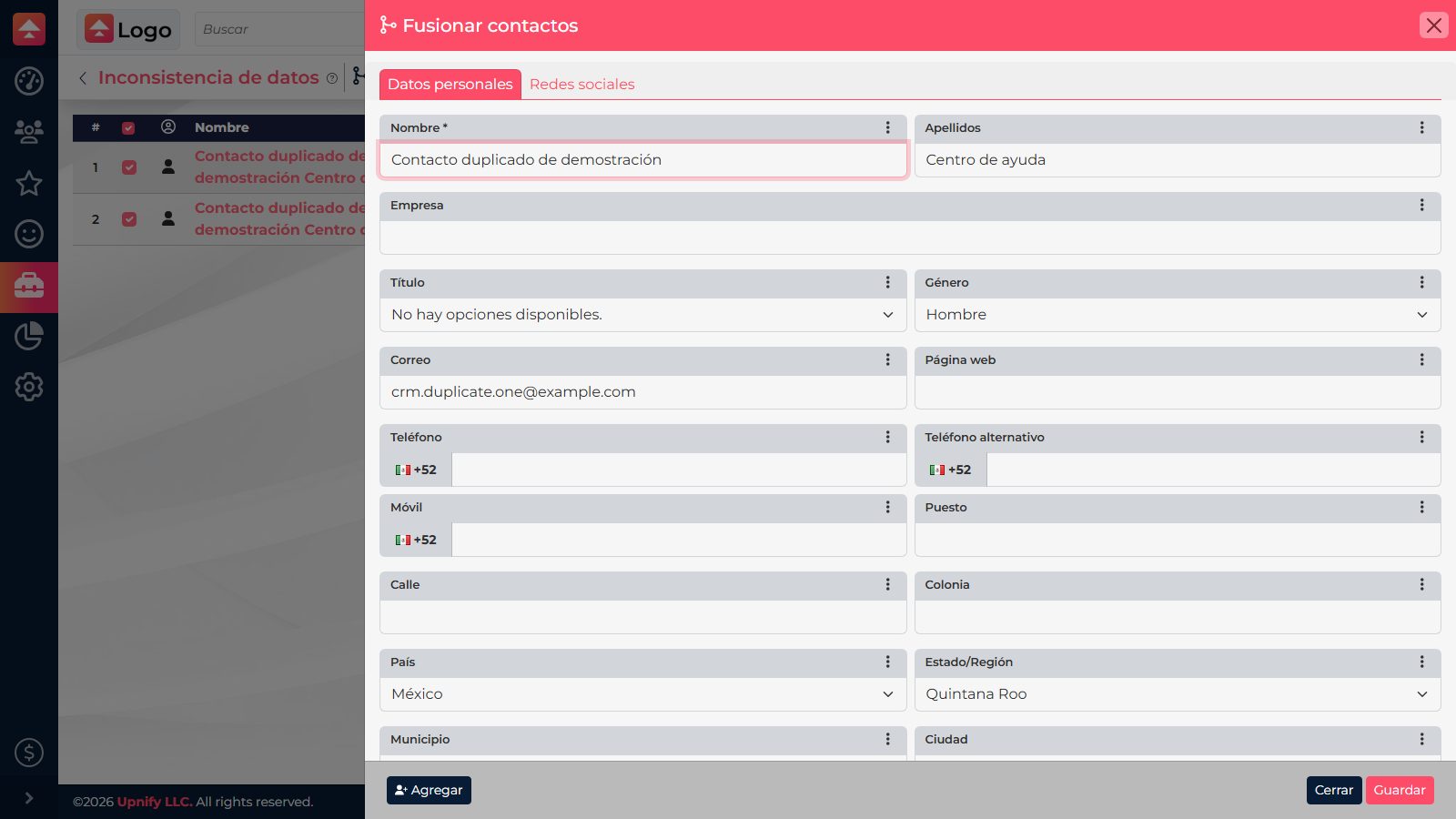
- In the merge panel, make sure it includes only contacts belonging to the same person.
- Review the values for each field and choose which one to keep. Check email, phone numbers, company, and owner carefully.
- Confirm the merge only after reviewing the information. If you are unsure whether the records belong to the same person, close the panel and compare their details again.
CRM then consolidates information and related items, such as history and follow-up, under the primary contact. Secondary records are removed as separate contact profiles, so a merge cannot be undone. Open the primary contact afterward to check that the key details and expected history are there.
The screenshots show the interface in Spanish.