
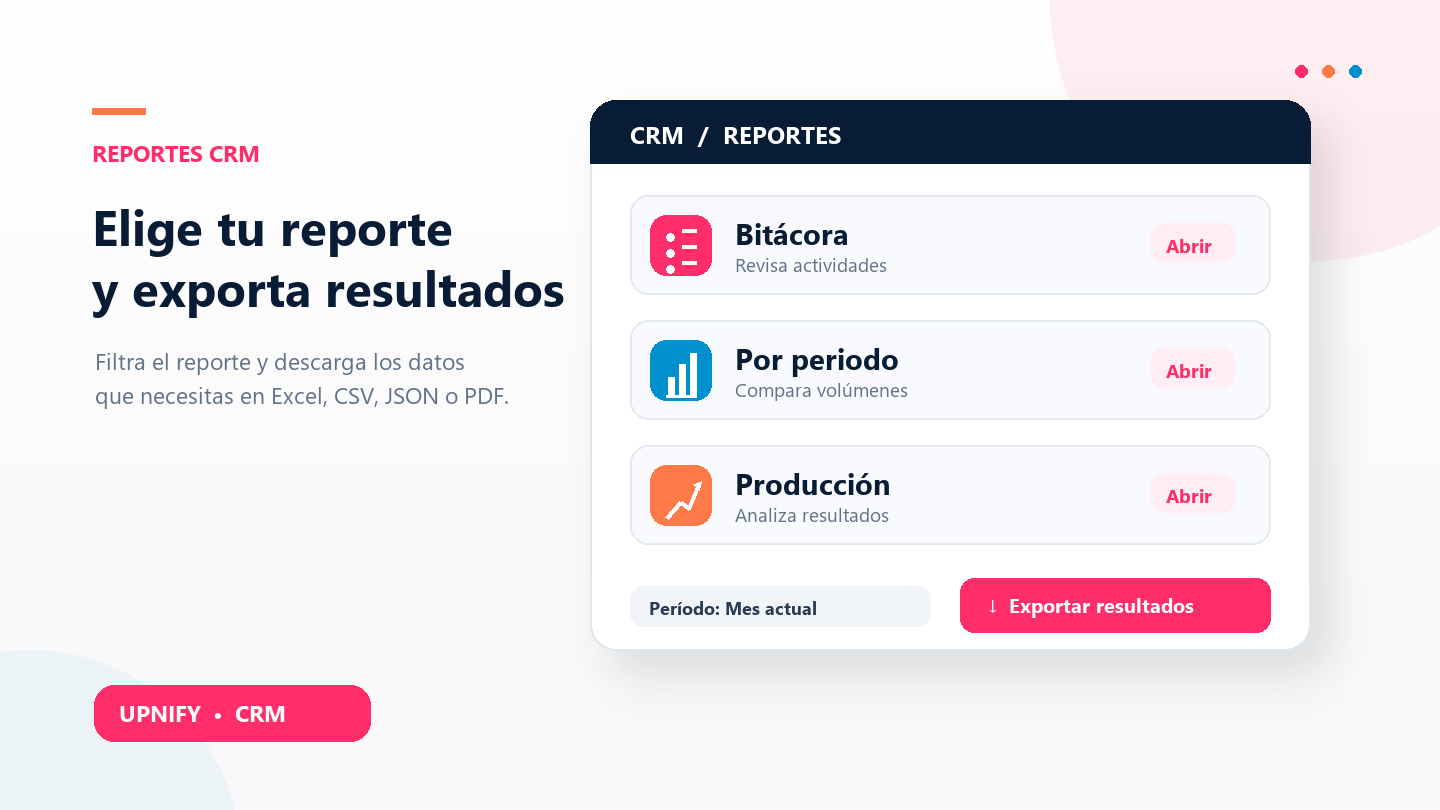
CRM reports turn work records into information you can review and share. They help answer practical questions: which activities the team completed, how activity volume changed between periods, or what commercial results were generated. Start with the question you need to answer so you can choose the right view and export only the data you need.
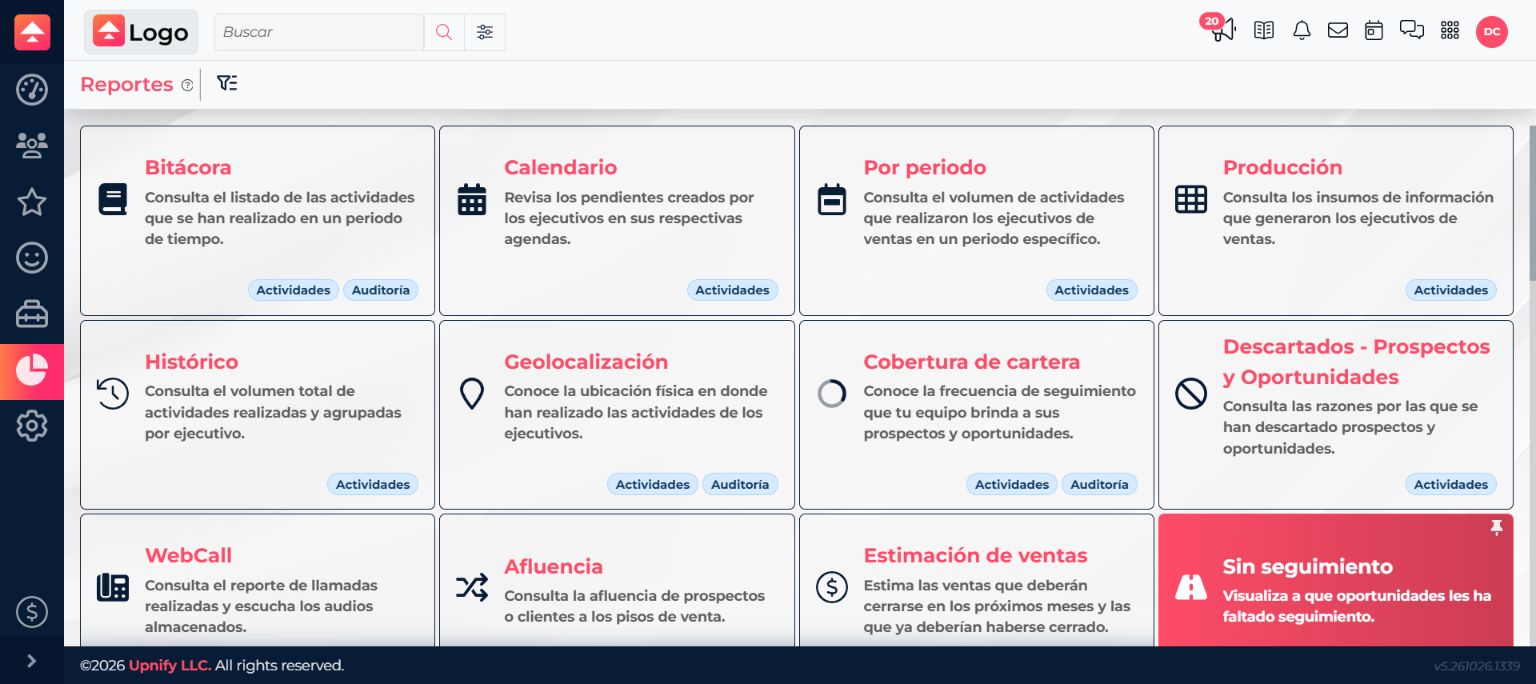
Start with your question: use the Activity log for an individual activity, By period to compare calls, appointments, and other activity counts, and History to compare one activity type over time. Production brings commercial results together.
Choose the right report
| You need to know… | Report | What it shows |
|---|---|---|
| What happened with a contact and when | Activity log | Individual activities, date, contact, owner, and comment. |
| How many activities the team completed in a period | By period | Totals by activity type, executive, or group. |
| How an activity changed over time | History | Totals by executive or group and interval. |
| What commercial results were generated | Production | Prospects, opportunities, sales, and follow-ups for the period. |
| Which appointments are scheduled | Calendar | Appointments on the team’s calendars. |
Apply filters and review results
- In CRM, select Reports from the side menu and open a report.
- Review its filters. Depending on the view, you can narrow by period, group, executive, user level, activity, or entity, such as prospects or customers.
- Choose values. Select a group to review a team or an executive to focus on one person. Leave criteria set to All when you do not want to narrow them.
- Select Apply. The chart and table refresh using your selections. Apply again after changing a filter.
- Review the totals and select a linked value when you want to open the records behind it.
Controls vary because each report answers a different question. The Activity log can filter by activity type and show individual records. By period adds grouping and filters for comparing counts. Not every report has the same filters.
Export results
- Apply filters first and confirm that the table covers the scope you need.
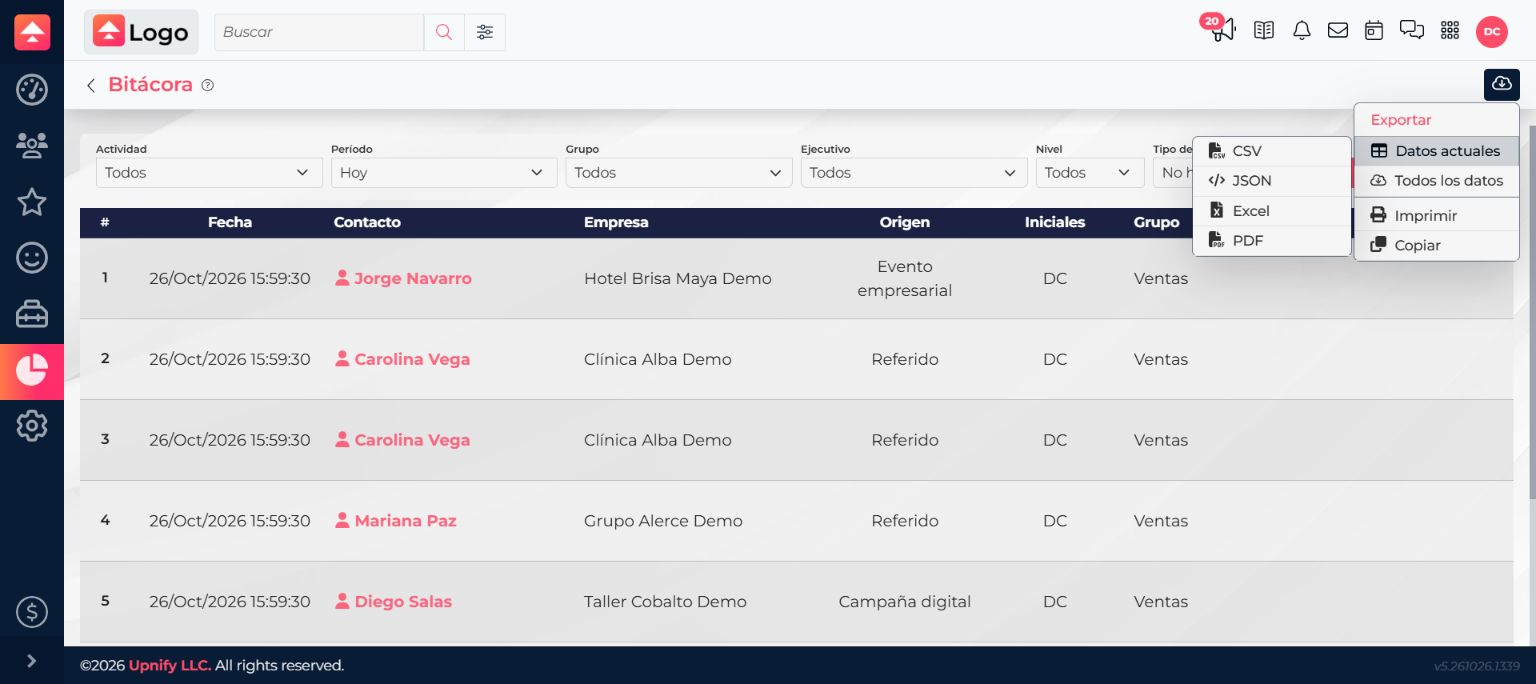
- Select the Export download icon at the top of the report.
- Choose Current data for the open view or All data for the complete dataset the report offers.
- Select CSV, JSON, Excel, or PDF. You can also print or copy the information from this menu.
Example: to find out how many calls and appointments the team recorded this month, open By period, choose the month and group, apply the filters, and export the table to Excel. To review a particular call, open the Activity log and locate that record.
If the export icon is missing, ask your administrator to check whether export permission is enabled for your user.